
Key Management
See every AI API key issued on the platform: who holds it, what it was requested for, when it was last used and whether it still works, and delete keys that should no longer be used. Sidebar: AI Services → Key Management. Path: /ai-api-keys.
Who can use it
Administrators only. Other roles do not see the page in the sidebar.
Before you start
- Keys can only be issued by approving a request on AI API review. You cannot create a key on this page.
- Administrators cannot read a user's full key here or anywhere else; only the key name and its first characters (the prefix) are shown.
Step by step
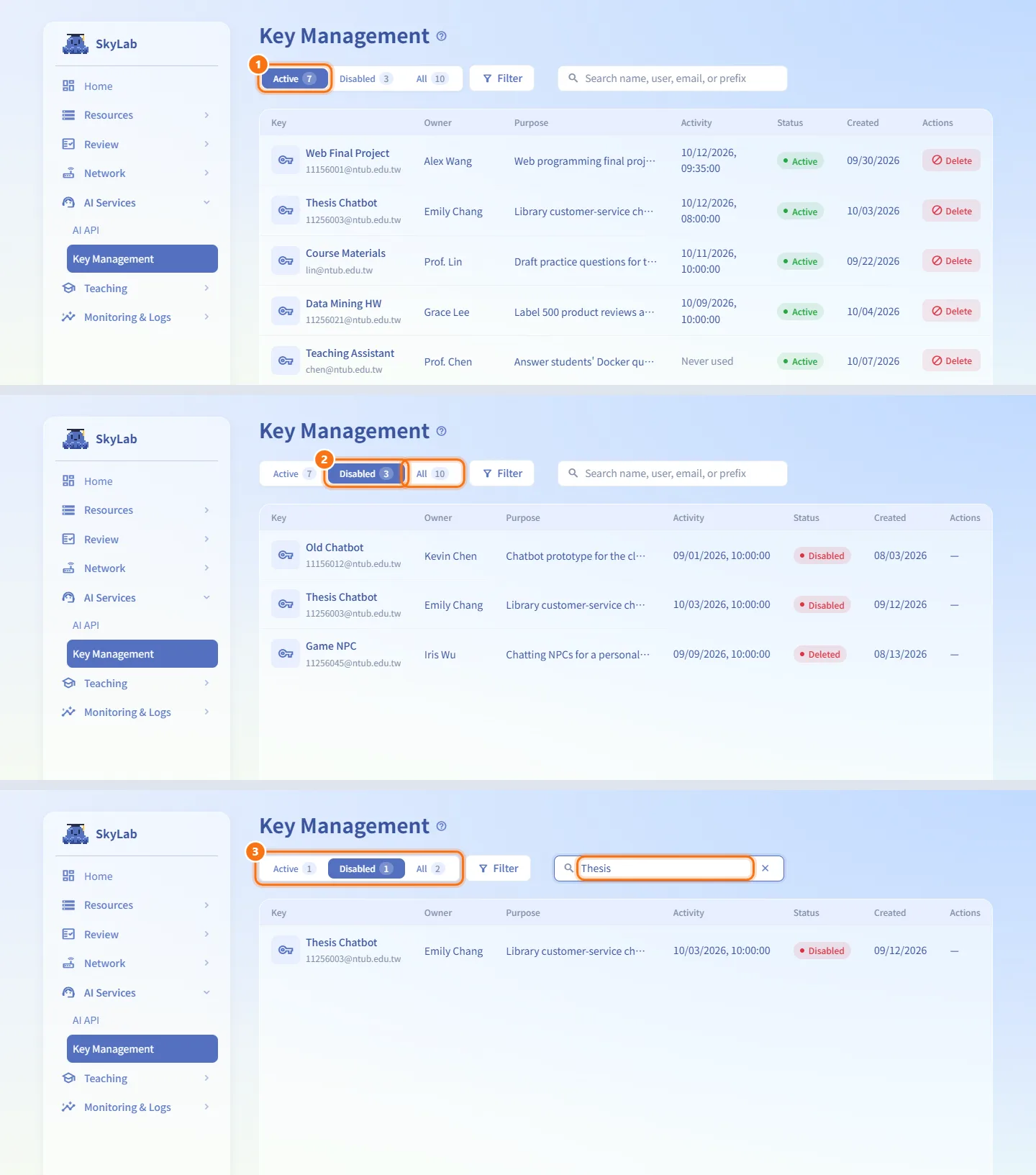
Switch between active and disabled keys
- The Active tab is selected when you open the page.
- Choose Disabled to see keys that expired, were revoked or were deleted, or All to ignore the status.
- The number on each tab follows the current search and filters.
Filter by role and creation time
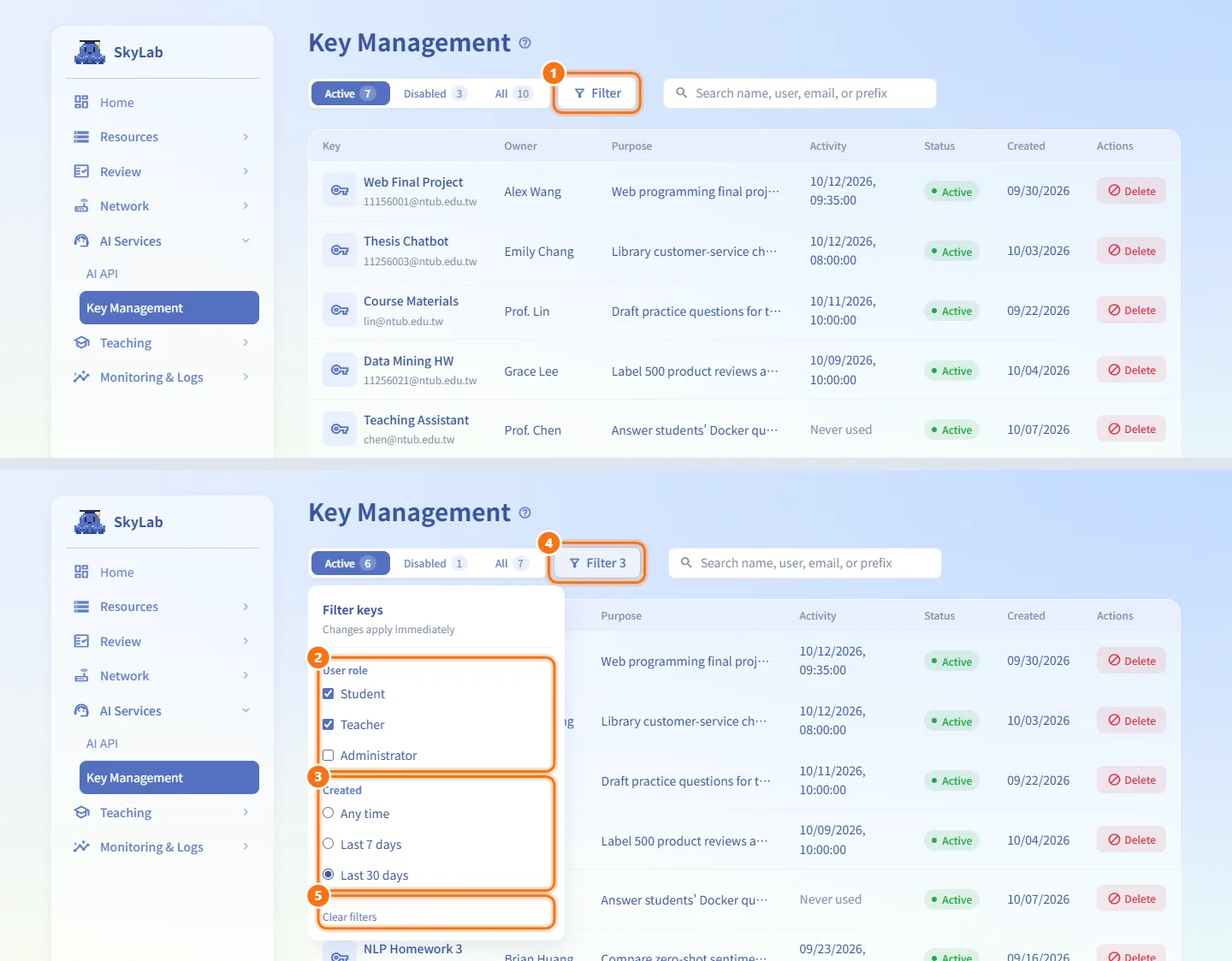
- Click Filter.
- Under User role, tick Student, Teacher and/or Administrator.
- Under Created, choose Any time, Last 7 days or Last 30 days.
- Changes apply immediately. The button shows how many conditions are in effect, for example Filter 2.
- Click Clear filters to remove them. Click outside the panel or press Esc to close it.
Find a specific key
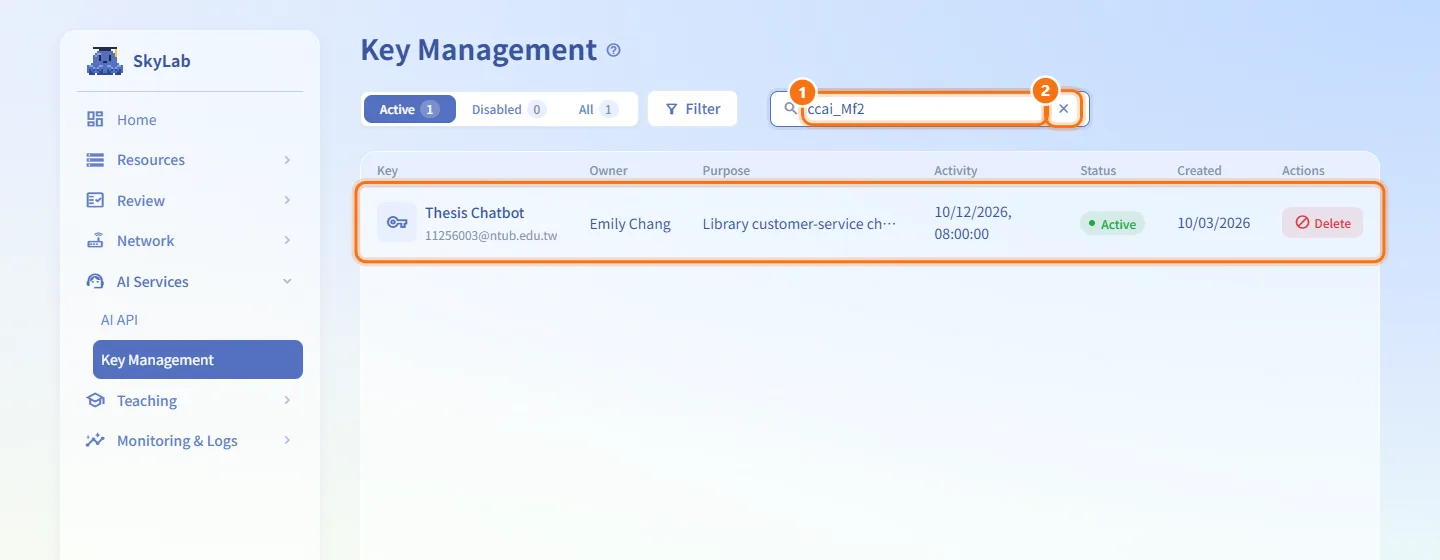
- Type in the search box: a key name, user name, email or key prefix.
- The list updates as you type. Click the × in the box to clear the search.
If someone reports that a key leaked, search for the prefix they give you to find exactly which key it is.
Check how a key is used
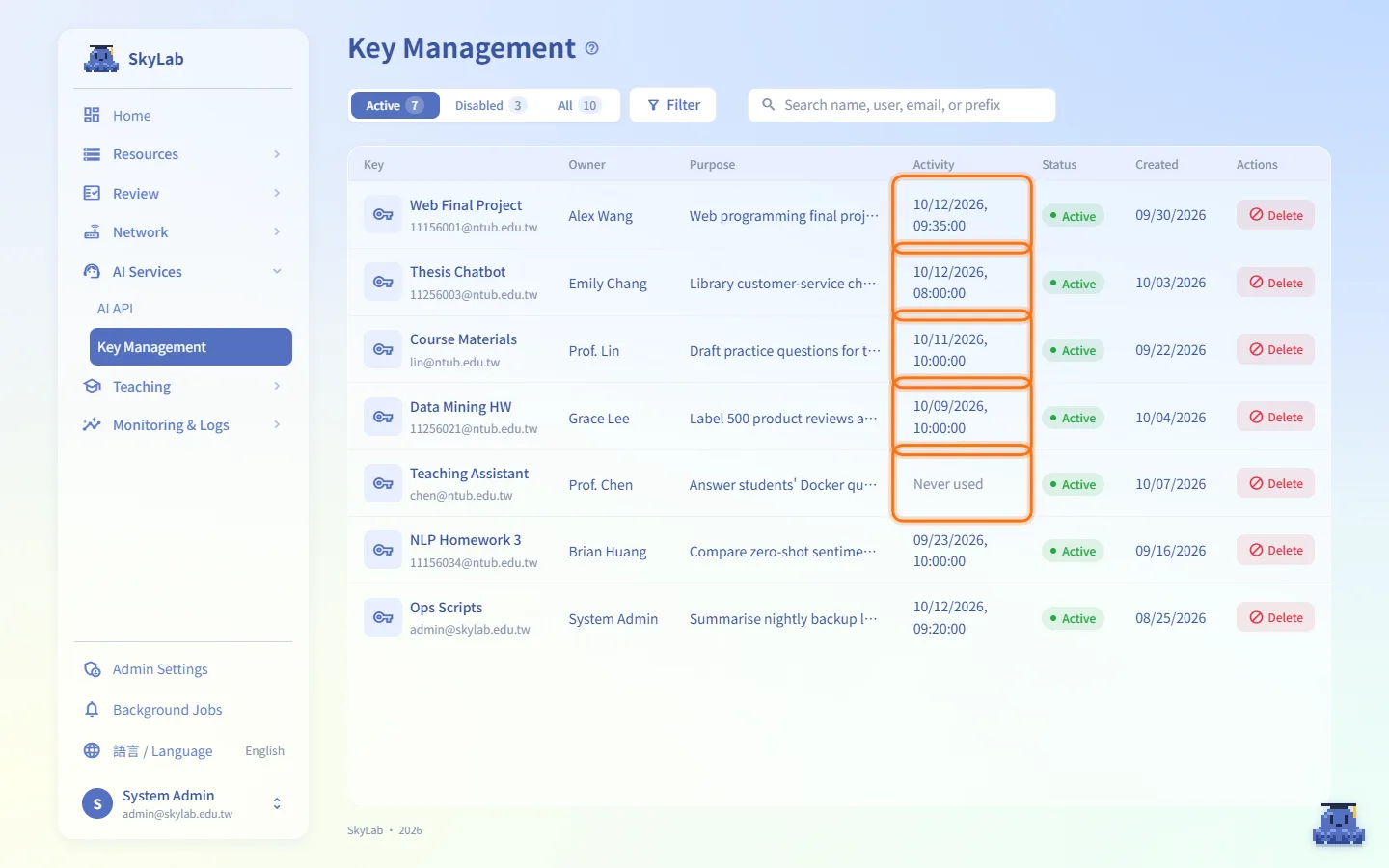
Read the Activity column. It shows the time of the key's most recent call, or Never used. Keys that have been unused for a long time are good candidates for deletion. For call-by-call details, use AI Usage Monitoring.
Delete a key
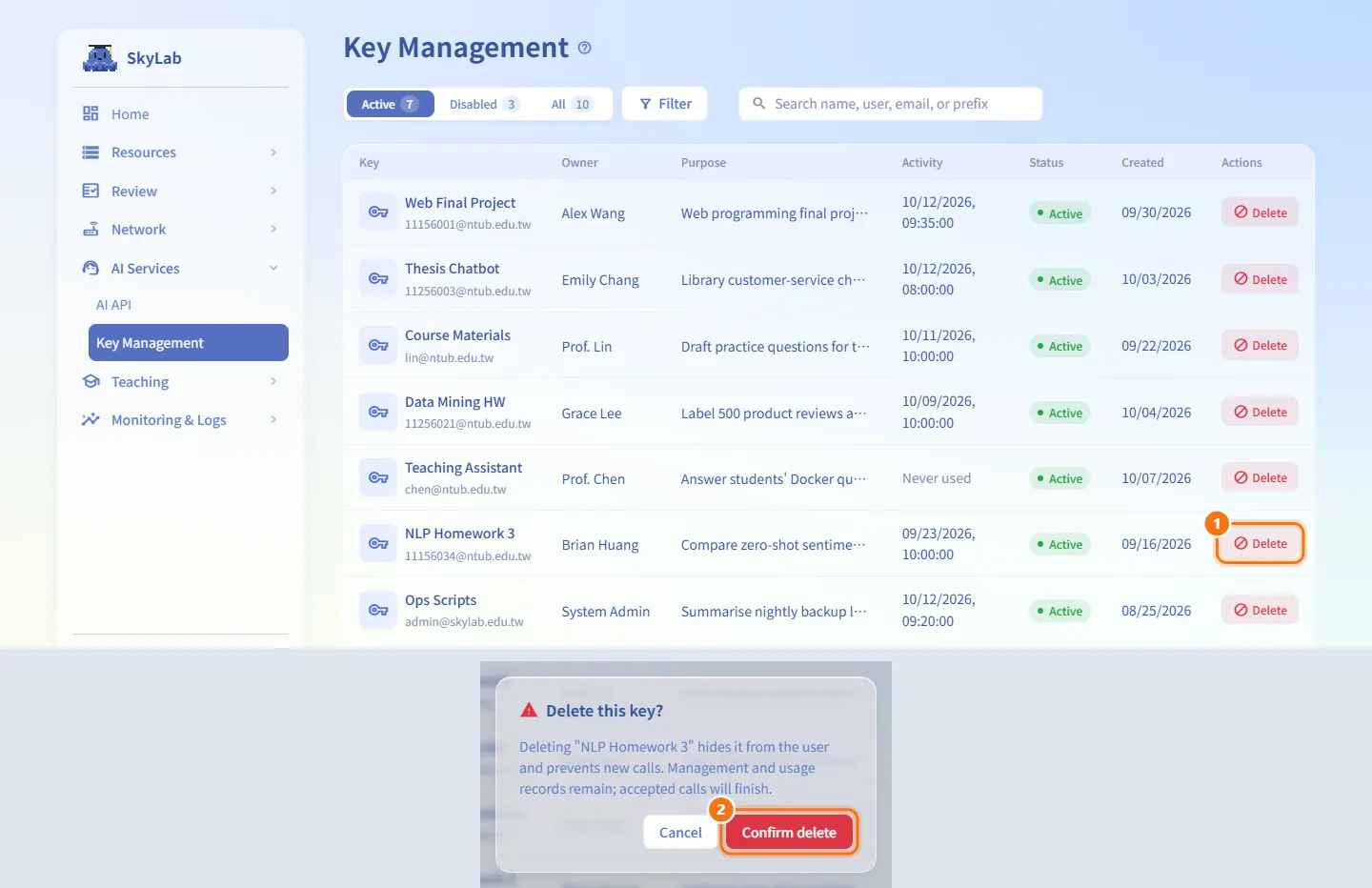
- Find the key in the Active tab and click Delete in its Actions column.
- Read the confirmation and click Confirm delete.
New calls with the key fail immediately and the key disappears from the user's AI API page. Calls already in progress finish, and the management and usage records are kept. This cannot be undone; if the user still needs access, they submit a new request.
Page through a long list
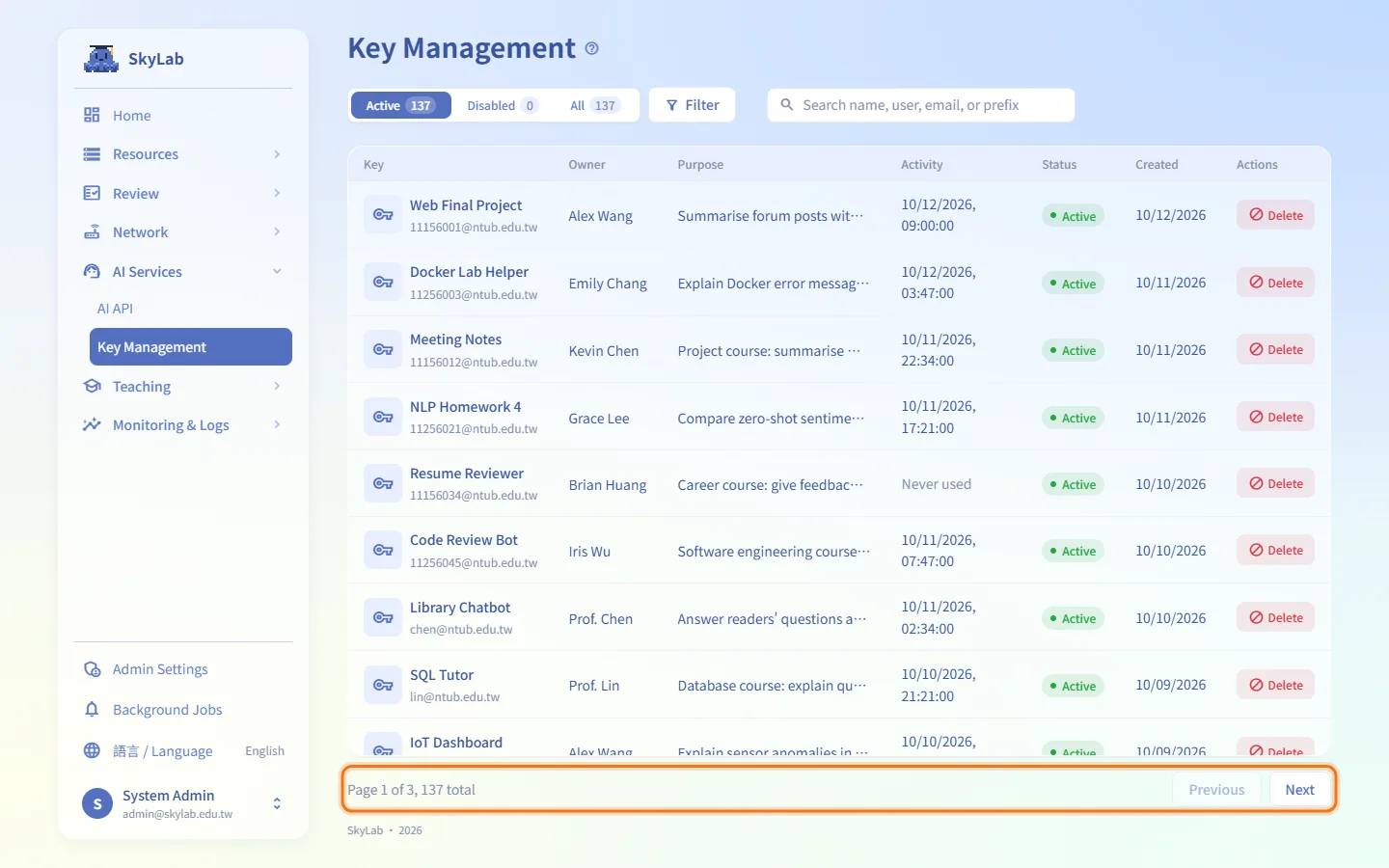
The list shows 50 keys per page, newest first. When there are more, use Previous and Next at the bottom; the text next to them shows the current page and the total.
Fields and options
| Column | Meaning | Notes |
|---|---|---|
| Key | Key name and the holder's email | |
| Owner | Full name of the holder | |
| Purpose | The purpose written in the original request | |
| Activity | Time of the most recent call | Never used if the key was never called |
| Status | Active, Disabled or Deleted | Disabled covers expired and revoked keys |
| Created | Date the key was issued | |
| Actions | Delete | Only on active keys; other rows show "—" |
Limits and behaviour to know
- Delete only appears on active keys.
- A key that a user regenerated shows up as a disabled key next to its active replacement.
- The list refreshes automatically while the page is open.
- Deleting a key is recorded in the audit log as an action taken on behalf of the user.
- The models behind the AI API and the upstream LiteLLM gateway are not configured on this page; see the LiteLLM guide.
Related
- AI API review — approve requests to issue keys
- AI API — what users see and do with their keys
- AI Usage Monitoring — calls, tokens and errors per key, model and user
- LiteLLM — the gateway that serves the models