
AI Check
AI Check helps a teacher check assignments on every student's class machines: you describe what to check, the AI assistant turns that into check items, the platform builds check scripts from the approved checklist, runs them on the student machines over SSH, and you review the results and reply to each student. Sidebar: Teaching → Class Management, open a class, then the AI Check tab. Path: /class-management/<classId>/ai (the selected week is kept in the address as ?week=<weekId>).
Who can use it
- Teachers can use AI Check in the classes they own.
- Administrators can open it in any class.
- Students do not open this page. They see each week's check on that week's page of their course, and the reply you leave them.
Before you start
- The class must be active: it passed review and every student's machines are built. Before that, the tab shows a locked notice.
- The class needs weeks. They come from the schedule; topics and publishing are set in the class's Weekly Content tab (see Class workspace).
- To run checks, the week must be published in Weekly Content, and the student machines must be powered on.
- Checks run over SSH on the student machines. If a machine cannot be reached, or lacks Python or the
timeoututility, the result shows an execution error instead of a grade.
Step by step
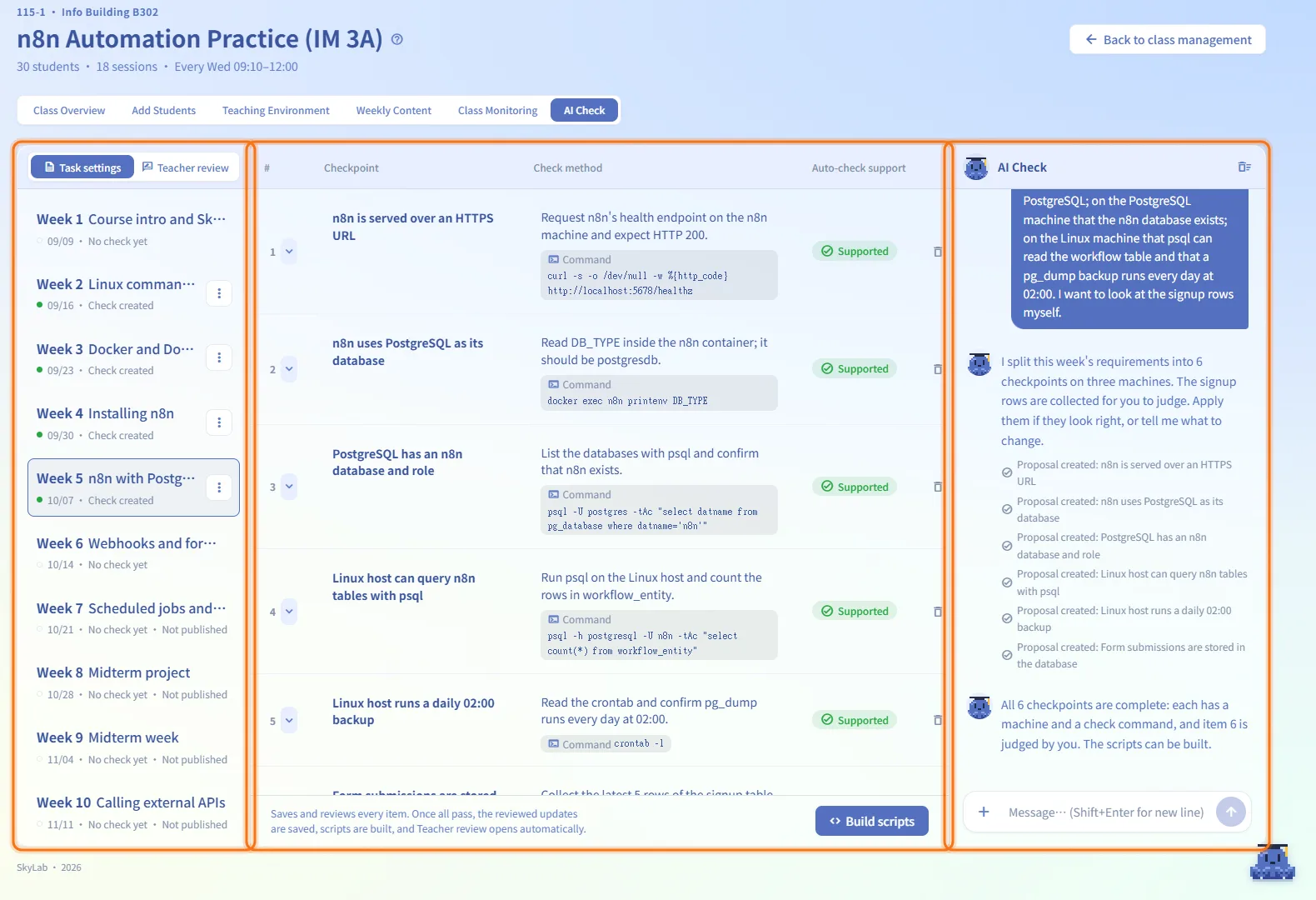
Find your way around the page
- Left column: the tabs Task settings and Teacher review, and the list of weeks. Each week shows its number, topic, date, Check created or No check yet, and Not published if the week is still a draft.
- Middle: the checklist of the selected week (in Task settings) or the review of its results (in Teacher review).
- Right (Task settings only): the AI Check assistant.
You can drag the borders between the columns to resize them; the widths are remembered in your browser.
Create this week's check
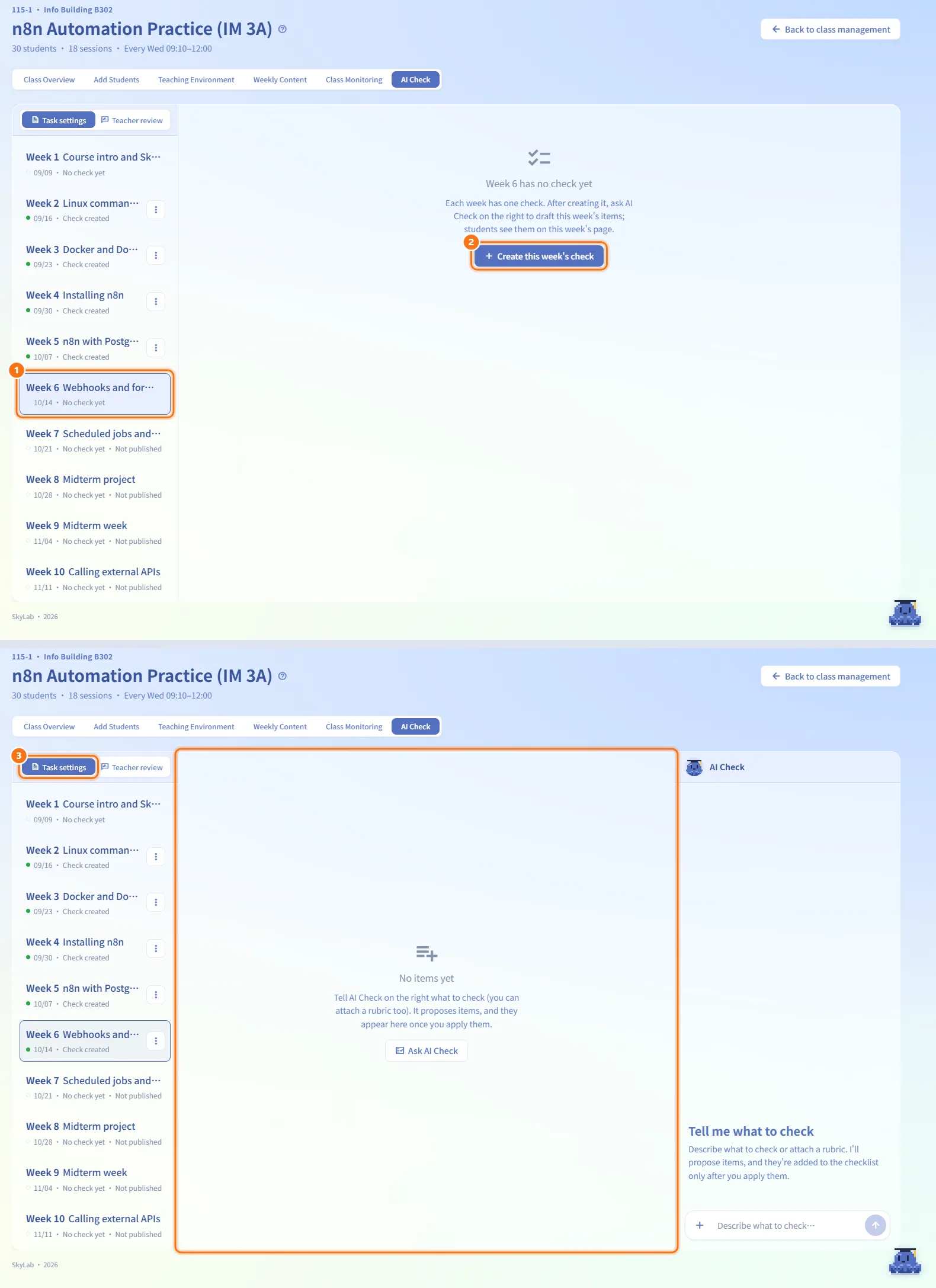
- Click a week in the left column.
- If it has no check yet, click Create this week's check. Each week has exactly one check.
- The Task settings tab opens with an empty checklist.
Ask the assistant for check items
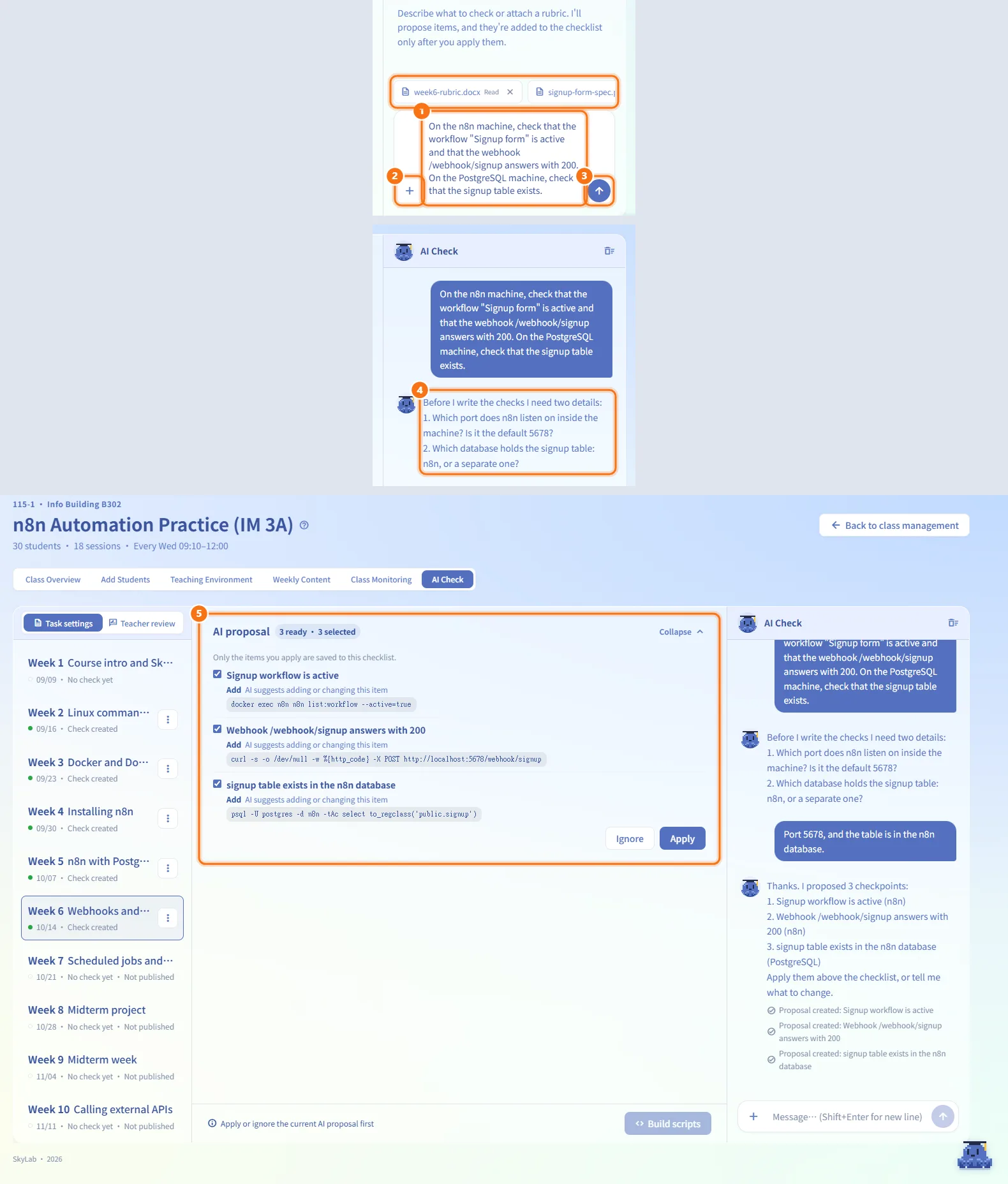
- In the AI Check panel on the right, describe what to check. Say which machine, what to check (a service is running, a file contains something, a program prints something, another machine is reachable, and so on), and where the file is when the check reads or runs a file.
- To start from a rubric document, click + next to the input box or drag a file onto the panel. Accepted types:
.md,.txt,.doc,.docx,.pdf; up to 5 attachments at a time. Each attachment shows Processing and then Read; click × on it to remove it before sending. - Press Enter (or the send button) to send. Shift+Enter adds a new line.
- The assistant replies in the chat. When information that only you know is missing (the machine, a file location, a service name, the pass condition), it asks instead of guessing. Answer in the chat.
- When the request is complete, a proposal appears above the checklist.
Apply or ignore a proposal
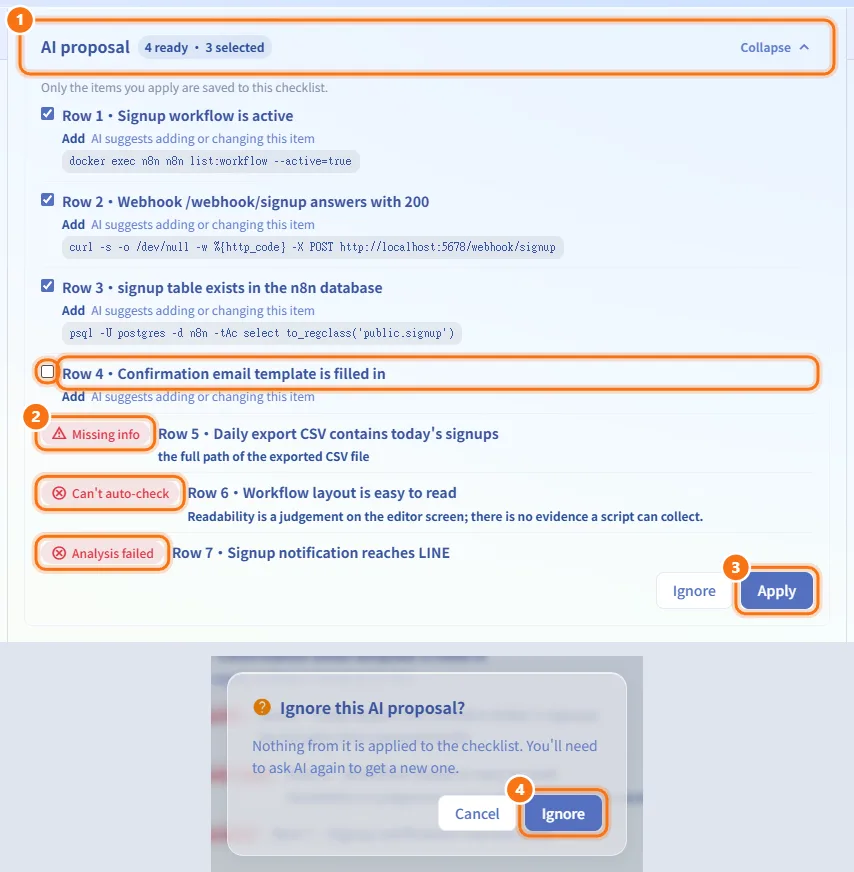
- The AI proposal box shows how many items are ready and how many are selected. Each row says the item will be added or changed, and may show a preview of the command.
- When you attached a rubric, items that could not be turned into checks are listed without a check box, marked Missing info, Can't auto-check or Analysis failed with the reason.
- Untick the items you don't want, then click Apply. Only applied items are saved to the checklist.
- Or click Ignore and confirm. Nothing from the proposal is applied; you need to ask the AI again to get a new one.
You must apply or ignore the current proposal before you can build scripts.
Read and adjust the checklist
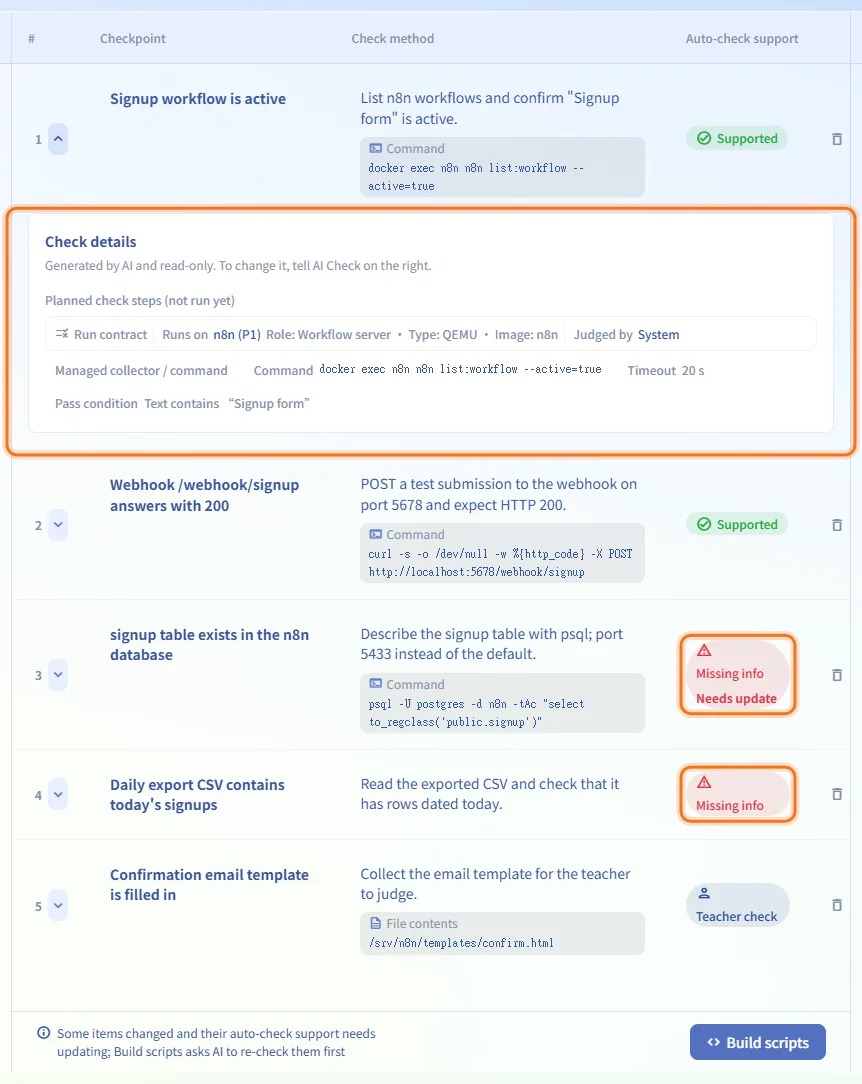
Each row of the checklist has:
| Column | Meaning |
|---|---|
| # | Item number, with an arrow to expand Check details |
| Checkpoint | The item's title. You can edit it in place. |
| Check method | How the item is checked, plus the targets it uses (for example a path or a command) |
| Auto-check support | Supported, Missing info, Teacher check or Teacher review / can't run |
| (delete) | Removes the item after confirmation; the change is saved right away and cannot be undone |
Expand a row to see Check details. They are generated by the AI and read-only; to change them, tell the assistant on the right. The details show what is still missing, what happens If scripts can't collect evidence, the Planned check steps (not run yet), and the Run contract: Runs on (the machine) and Judged by (System or Teacher review), with each step's Pass condition.
An item whose badge shows Missing info with a Needs update tag has check settings that changed since the last review; Build scripts asks the AI to recheck it first. Renaming a checkpoint alone does not need a recheck.
Checklist changes are saved automatically. If a save fails, a Not saved banner appears with the reason and a Retry save button; your edits stay on screen. Until the save succeeds, messages are not sent to the assistant.
Build the check scripts
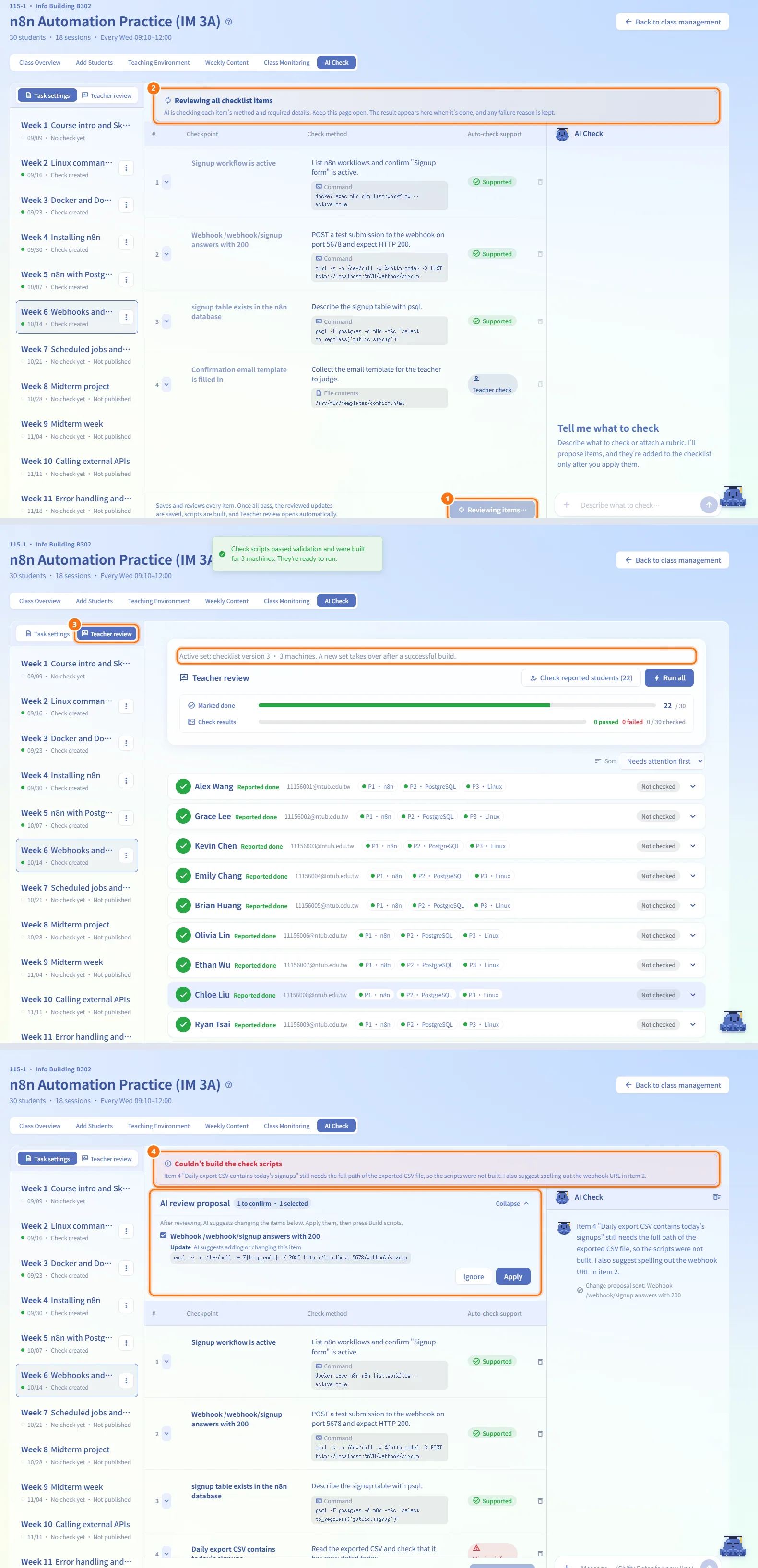
- Click Build scripts under the checklist. The button goes through Saving…, Reviewing items… and Building scripts….
- The AI reviews every item of the checklist, not only the ones you changed.
- If every item is ready, the reviewed corrections are saved automatically (clicking Build scripts counts as accepting this review round), the scripts are built for each machine, and the page switches to Teacher review.
- If something is still missing or cannot be collected safely, building stops. The notice and the chat explain what is missing; an AI review proposal may appear with suggested changes. Apply them, add the missing details in the chat, and click Build scripts again.
The button looks dimmed while a proposal is waiting or the checklist is empty; clicking it tells you what to do first.
Run the checks
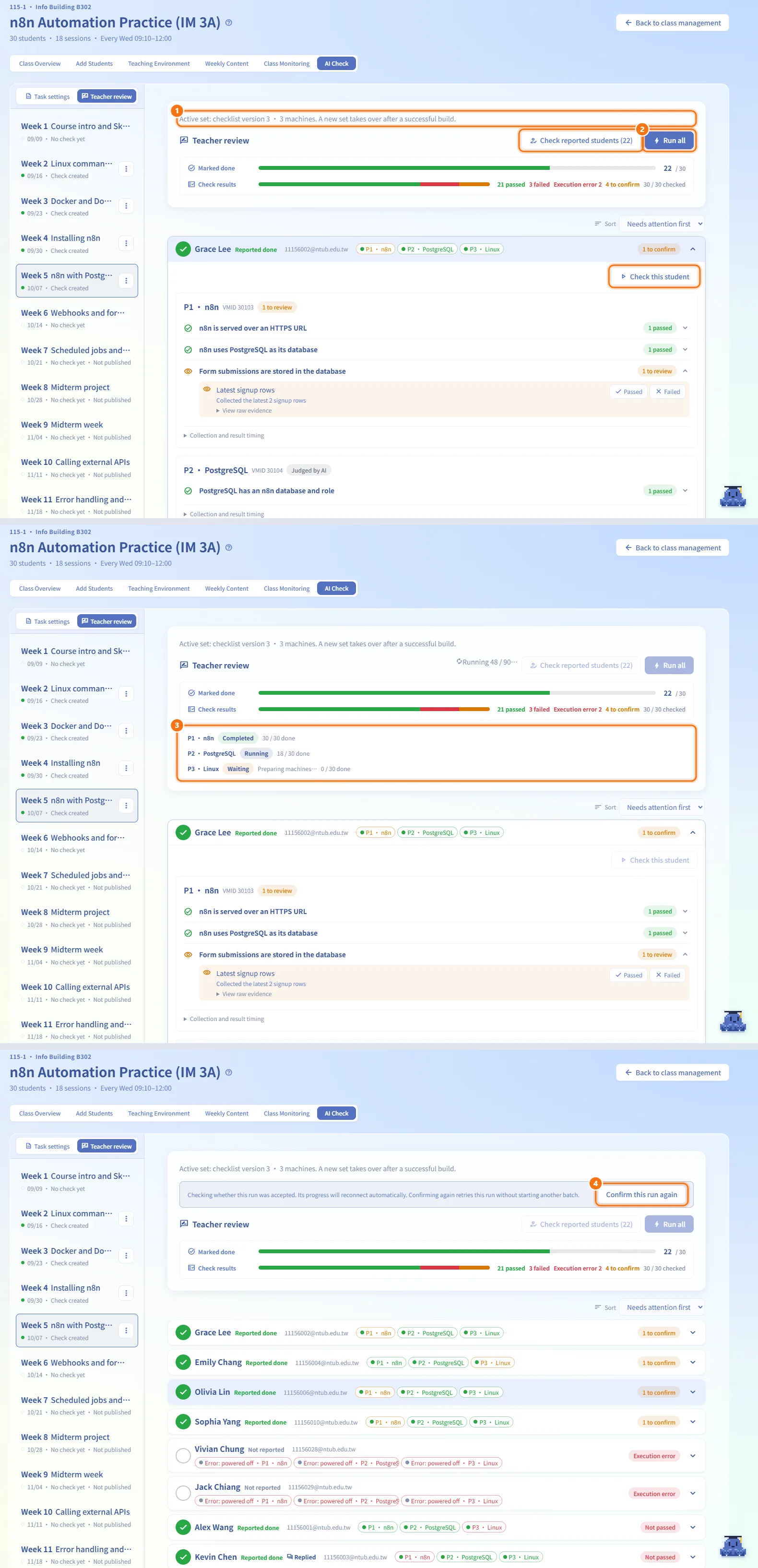
- Open the Teacher review tab. The notice at the top shows the active script set: the checklist version it was built from and how many machines it covers.
- Choose how much to run:
- Run all opens Run all checkpoints, which lists the machines the scripts run on. Click Run to run every script on each student's matching machine.
- Check reported students (N) runs only for students who marked the week as done; other students' results stay as they are.
- Expand a student and click Check this student to run only for that student.
- While the run is in progress, each machine shows its status (Waiting, Running, Completed, Failed, Cancelled), Preparing machines… at first, and how many steps are done.
- Only one run per week can be in progress. If the page could not confirm that a run was accepted, it shows a notice and reconnects to the run by itself; Confirm this run again retries the same run without starting another one.
Review the results
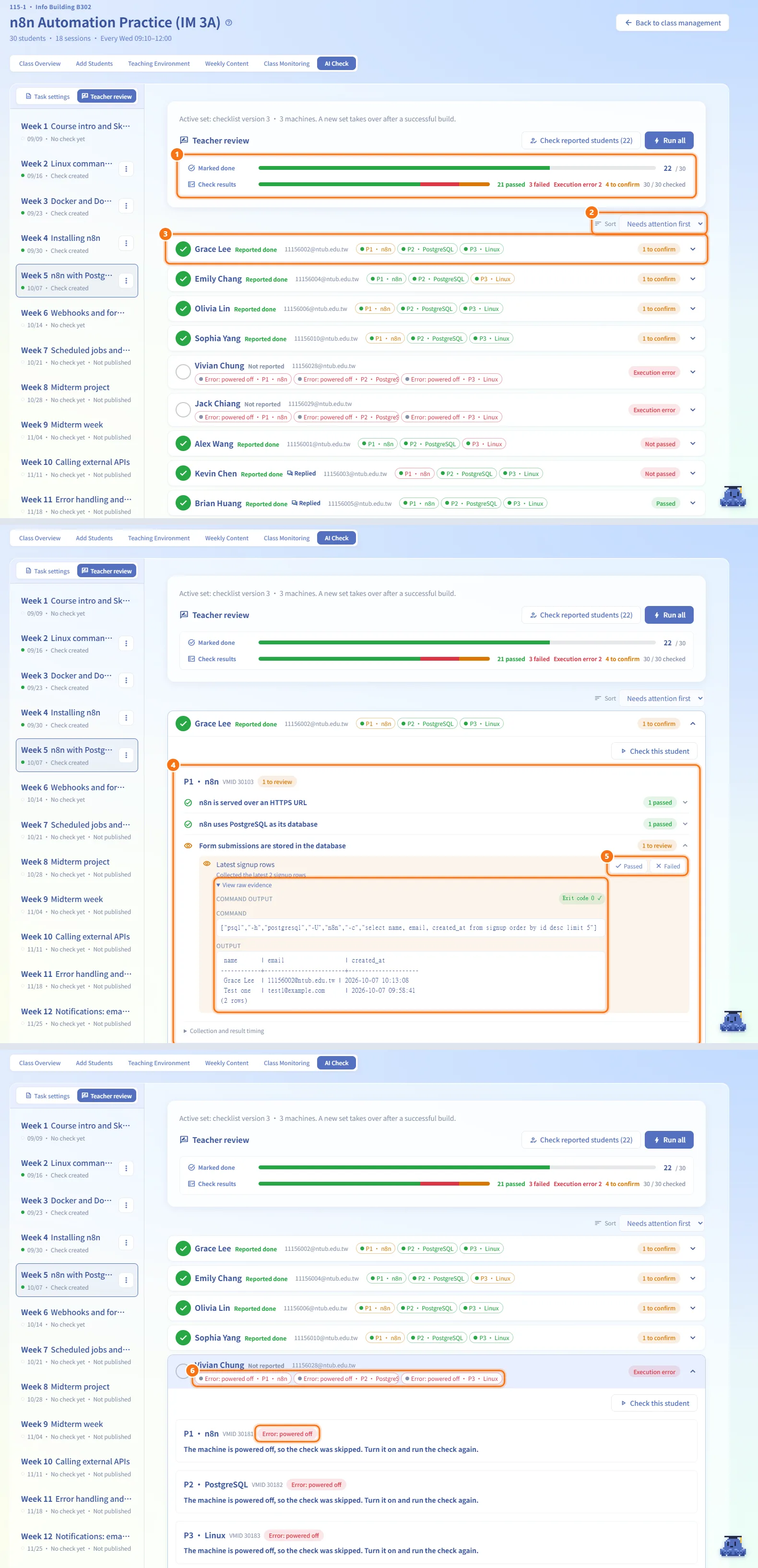
- The summary shows how many students Marked done and the Check results: passed, failed, execution errors and items still to confirm.
- Sort the list with Sort: Needs attention first or Student ID / account.
- Each student row shows whether the student reported the week done (Reported done, Reported N/M or Not reported), Replied if you already replied, one chip per machine with a power dot (Running, Powered off, Power state unknown), and an overall badge (Passed, Not passed, N to confirm, Not checked, Execution error).
- Click a student to expand. Each machine shows its checkpoints; checkpoints that all passed are collapsed.
- For a check marked Awaiting teacher review or Needs attention, click Passed or Failed. Click View raw evidence to see the collected output.
- If a machine was off, it shows Error: powered off; turn it on and run the check again. Other execution errors (SSH connection, host environment, timeout, result transfer) are shown separately from the student's grade, with a hint on what to check.
Reply to a student and save
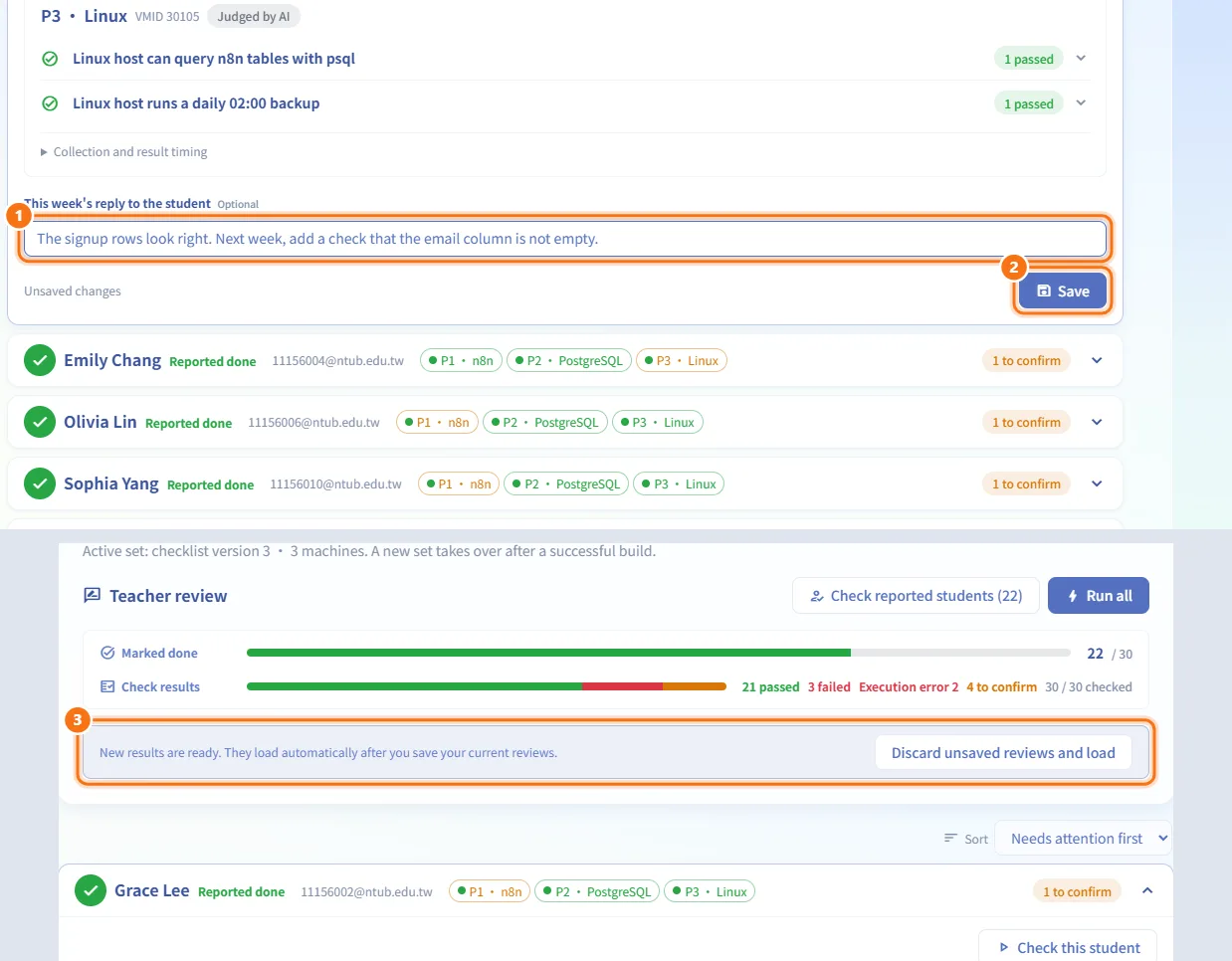
- Under the student's results, type This week's reply to the student (optional). The student sees it on this week's page.
- Click Save (or press Ctrl+Enter in the reply box). Your pass/fail decisions and the reply for that student are saved together.
- If new results arrive while you have unsaved decisions, a notice asks you to save first; Discard unsaved reviews and load drops the drafts and loads the new results.
Move, copy or delete a week's check
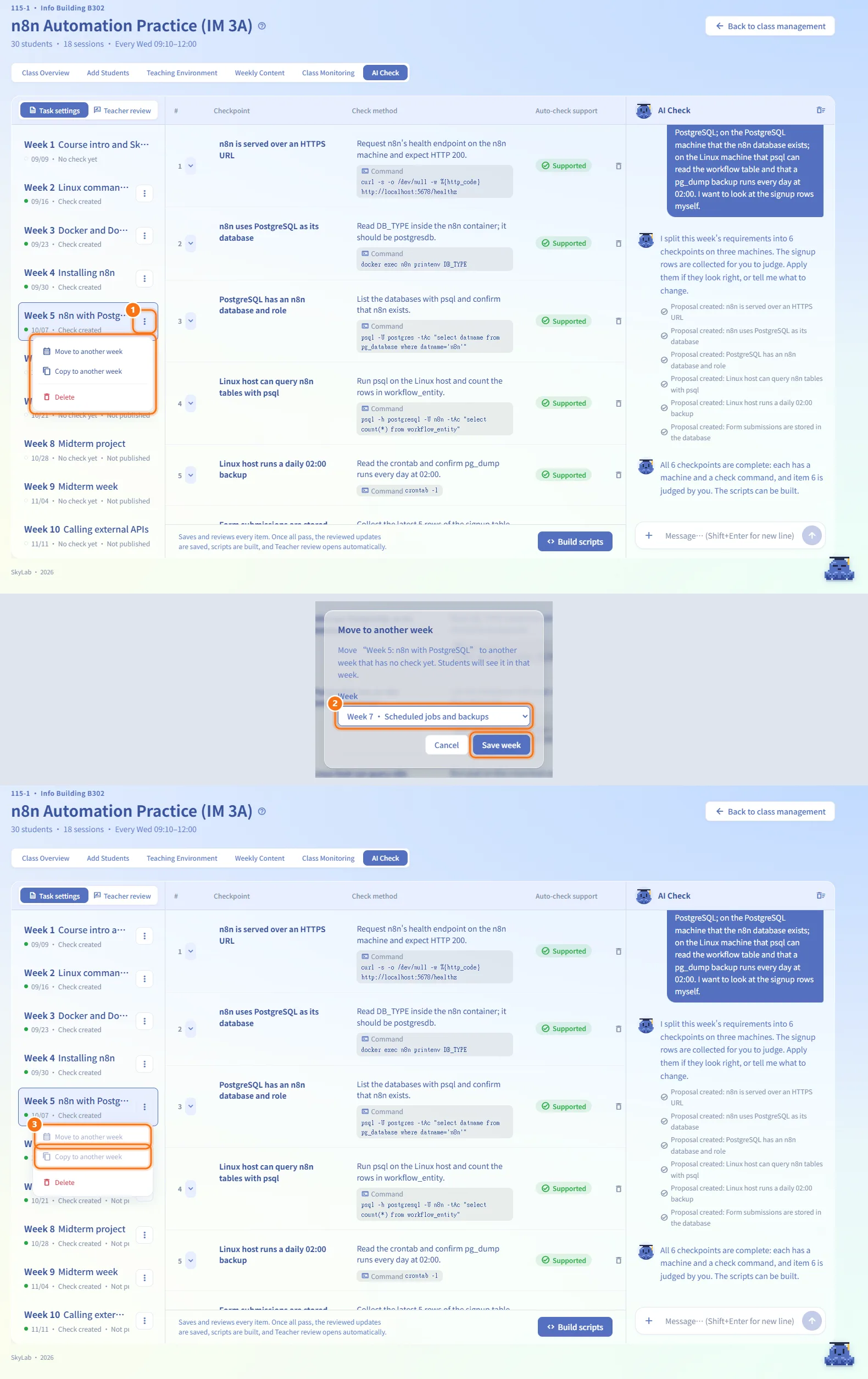
- In the week list, click ⋯ next to a week that has a check.
- Choose:
- Move to another week — pick an empty week and click Save week. Students then see the check in that week.
- Copy to another week — pick an empty week and click Duplicate. Only the checklist is copied; the conversation, scripts and run results are not.
- Delete — confirm. The check, its scripts and its results are deleted and cannot be restored.
- Moving and copying are disabled when every week already has a check.
Clear the conversation or view the source file
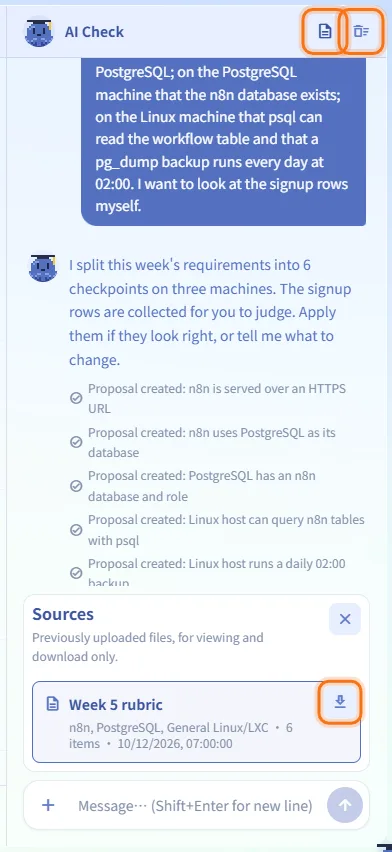
- Click Clear chat in the assistant header and confirm Clear the conversation? to remove the conversation, pending attachments and unapplied proposals. The checklist is not affected.
- When the checklist was created from an uploaded rubric file, a Sources button appears in the assistant header; it lets you download the original file.
Fields and options
| Field | Meaning | Notes |
|---|---|---|
| Message to the assistant | What to check, on which machine, where the file is | Enter sends; Shift+Enter is a new line |
| Attachment | Rubric document for the assistant to read | .md, .txt, .doc, .docx, .pdf; up to 5 at a time |
| Checkpoint | Title of a check item | Editable in the table |
| Passed / Failed | Your decision for a check that needs teacher review | Saved with Save |
| This week's reply to the student | Feedback the student sees on the week's page | Optional; up to 4000 characters |
| Sort | Order of the student list | Needs attention first or Student ID / account |
Limits and behaviour to know
These are the rules of the AI Check workflow (the full rules, in Chinese, are in the AI teacher check contract):
- Each step is separate. A proposal is not written to the checklist until you apply it; an applied checklist is not a script until you build; a built script has not run until you run it; collected evidence is not a pass until it is judged.
- What you need to give: the machine, what to check and, for checks that read or run a file, its location (a full path such as
/srv/homework/main.py, or a directory plus a file name). Checks of a service status or a program version do not need a path. You never have to fill in commands or technical parameters yourself. - The AI does not guess. If the machine, file location, service or pass condition is unknown, it asks.
- System judgement vs teacher review. An item is either judged by the system against a clear pass condition, or its evidence is collected for you to judge (Teacher check). The AI does not switch an item to teacher review on its own to get around a missing condition; it asks whether you want a rule or prefer to review the evidence yourself.
- Checks only look; they do not change the machine. Starting, restarting or enabling a service is not part of a check. Reading a file collects its text up to a size limit; it is not a download of binary files or whole directories.
- Scripts are built only when no item is Missing info or Teacher review / can't run. Items are rechecked as a whole every time you build.
- The active script set stays until a new build succeeds. If you change the checklist after building, the notice says the changes await a successful build and runs keep using the previous set. If any machine's script fails to build or fails validation, no part of the new set is kept.
- Runs require a published week and an active script set. Machines must be on; students whose machines are off are marked as not run.
- If you switch tabs, change week, or go back to class management with an unsaved proposal, message, attachment or review, you are asked before leaving.
Related
- Class workspace — the other tabs of the class, including Weekly Content
- Class Management — the list of your classes
- Courses — where students see the week's check and your reply
- AI teacher check contract (Chinese) — the detailed workflow and the rules the page enforces