
GPU Management
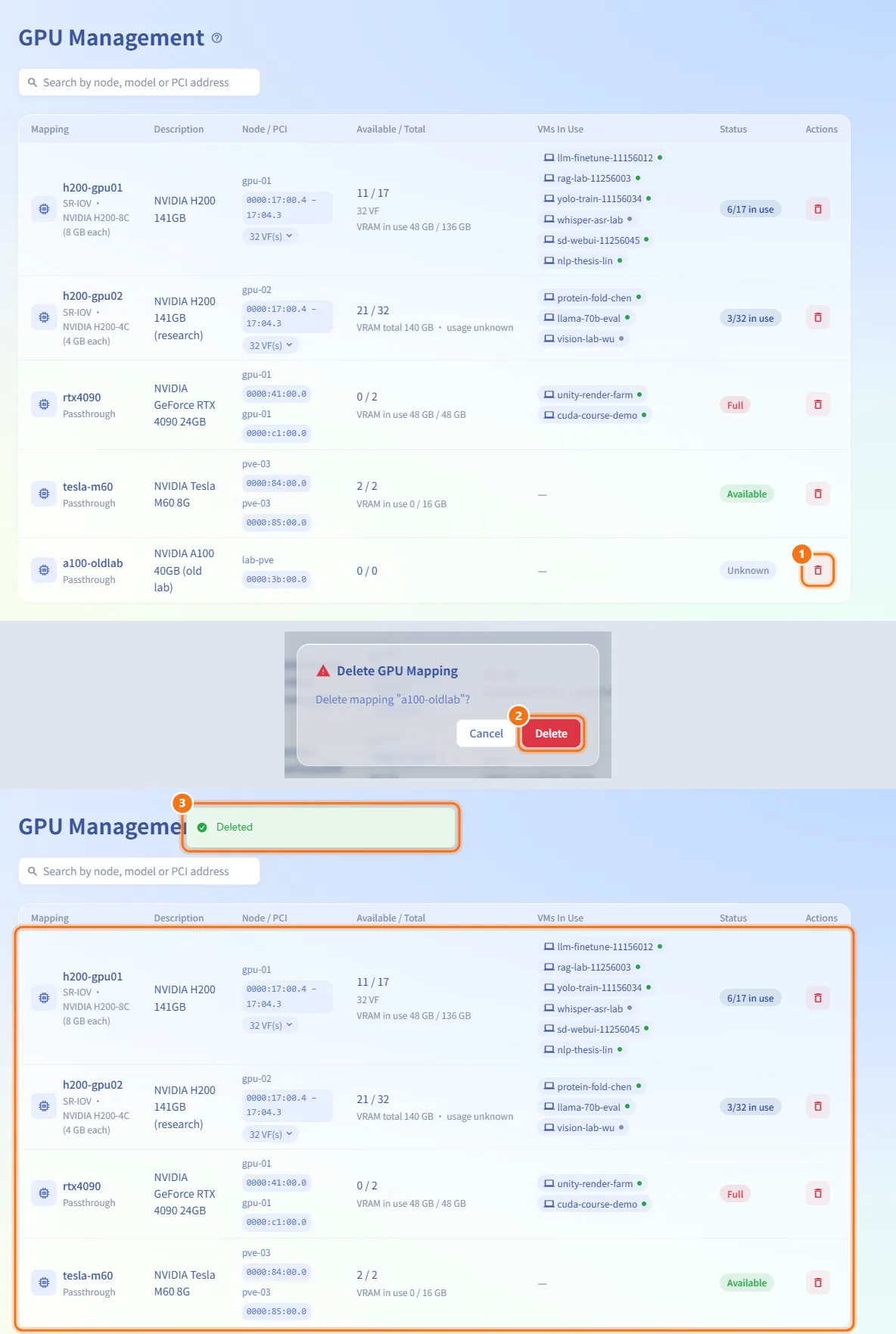
GPU Management lists the PCI resource mappings (GPU mappings) configured on each PVE connection, how much of each is still free, and which VMs are currently using it. The mapping names here are what users pick when they request a GPU. Sidebar: Admin Settings → GPU Management. Path: /gpu-mgmt.
Who can use it
Administrators only. The page lives in the administrator settings sidebar, and the mapping list and delete action are refused for anyone else.
Before you start
- GPU mappings are created in PVE itself, in the datacenter's resource mapping settings. This page cannot add new mappings; it only lists and removes them.
- At least one PVE connection must be reachable. Mappings from every reachable connection are listed together.
Step by step
Find a mapping
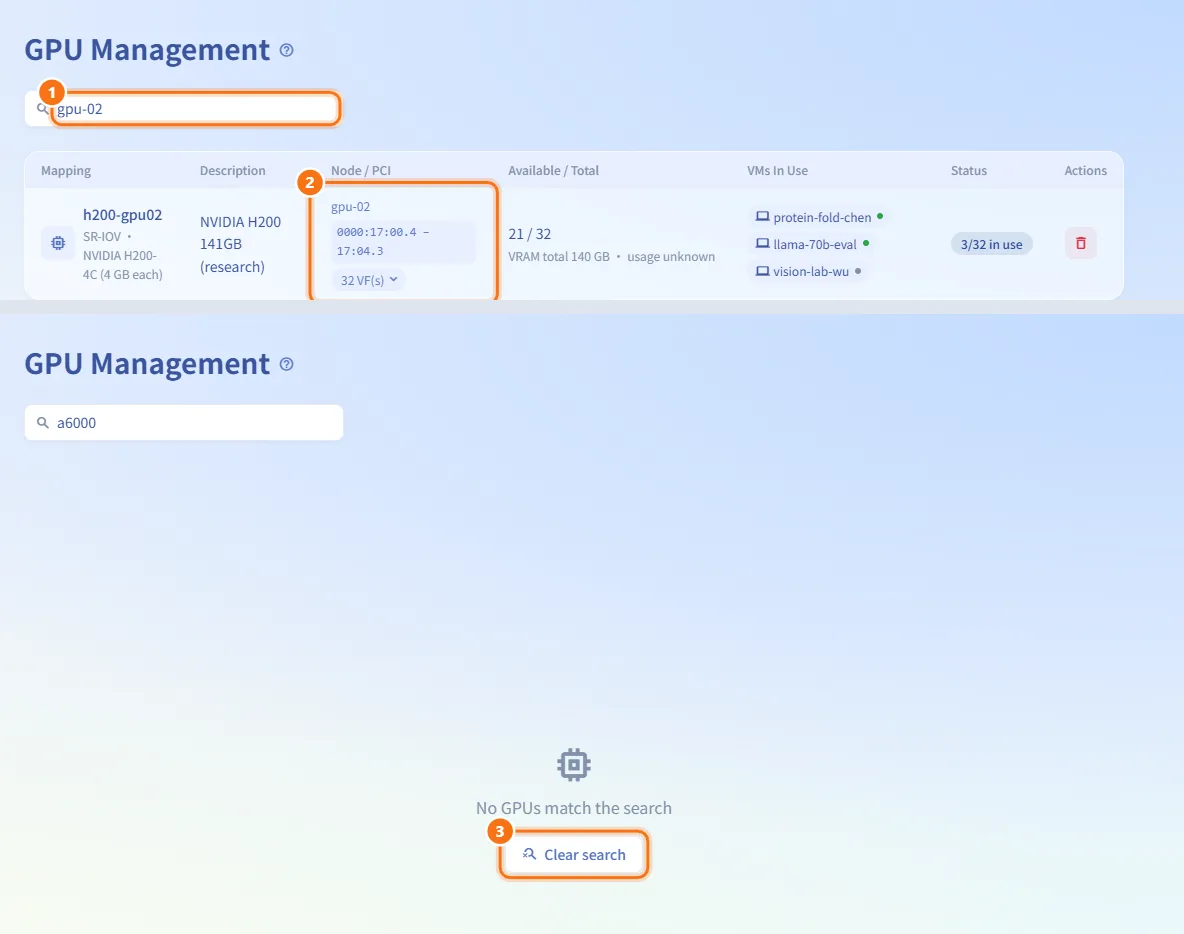
- Type in the search box (Search by node, model or PCI address). It matches the mapping name, the description, node names and PCI addresses.
- For example, type a node name to see only the GPUs on that host.
- If nothing matches, No GPUs match the search is shown with a button to clear the search.
Read a mapping row
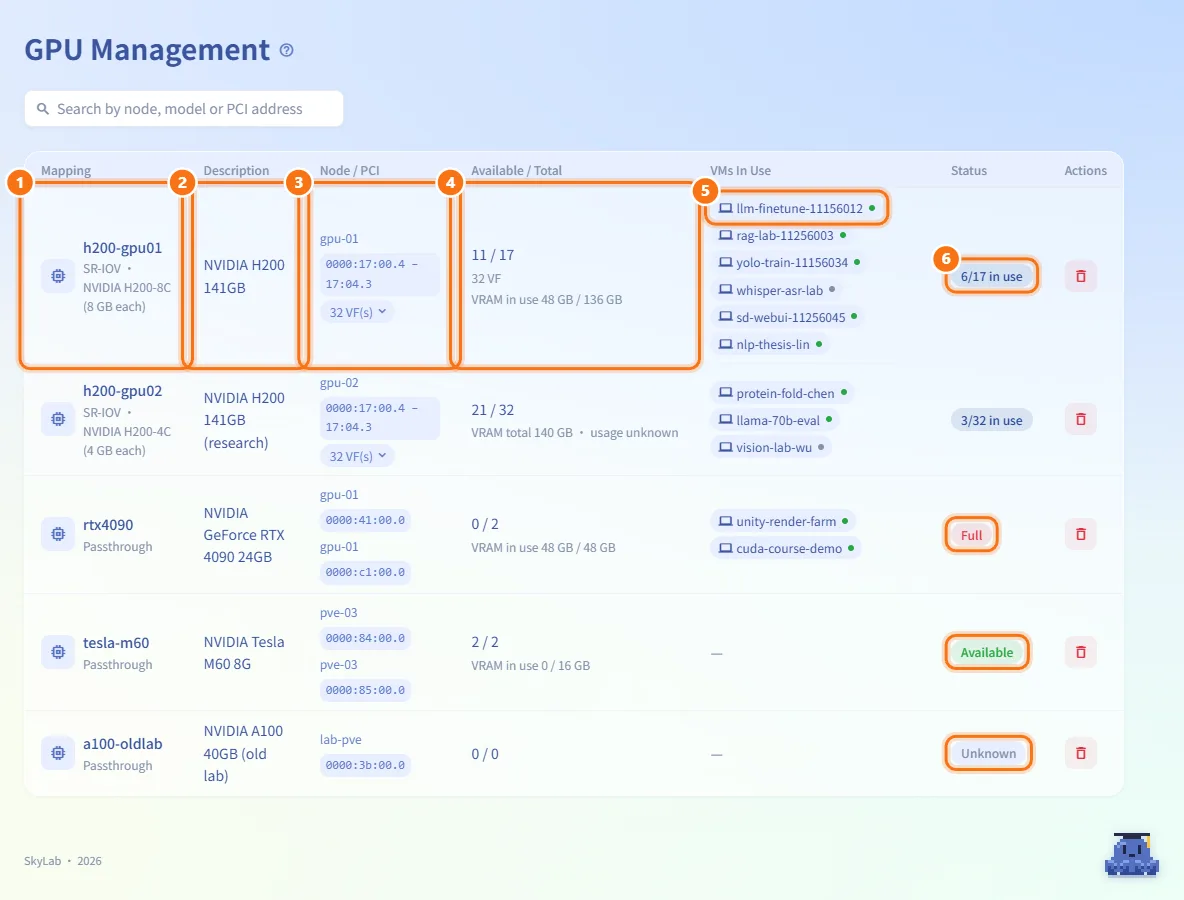
- Mapping: the mapping name users choose in the request form. The small text below says SR-IOV or Passthrough; for vGPU it also shows the mdev profile and the VRAM each instance gets, for example "(4 GB each)".
- Description: the description set in PVE.
- Node / PCI: each node with the PCI addresses in this mapping.
- Available / Total: how many instances can still be assigned, out of the total capacity.
- VMs In Use: one chip per VM attached to this mapping. A green dot means the VM is running; hover over a chip to see its VMID.
- Status: Available (none in use), x/y in use, Full, or Unknown when the total is 0.
Expand a long PCI list
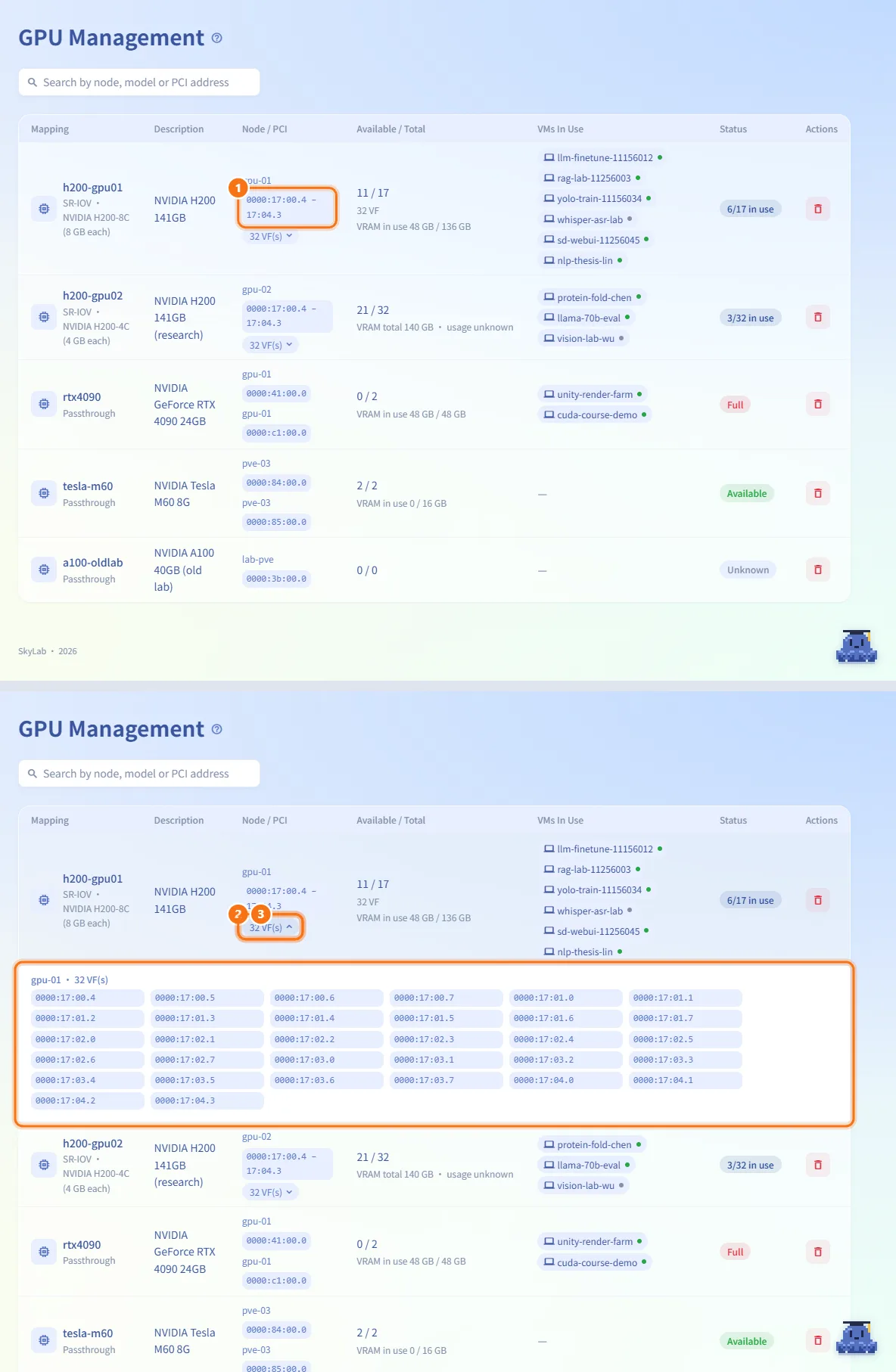
- When a mapping has more than three PCI addresses, consecutive addresses on the same node are compressed into ranges such as
0000:15:00.2 – 15:03.7. - Click the chip at the end (N VF(s) for SR-IOV, N device(s) for passthrough) to open a row below with every address, grouped by node.
- Click the chip again to fold it.
Read capacity and VRAM
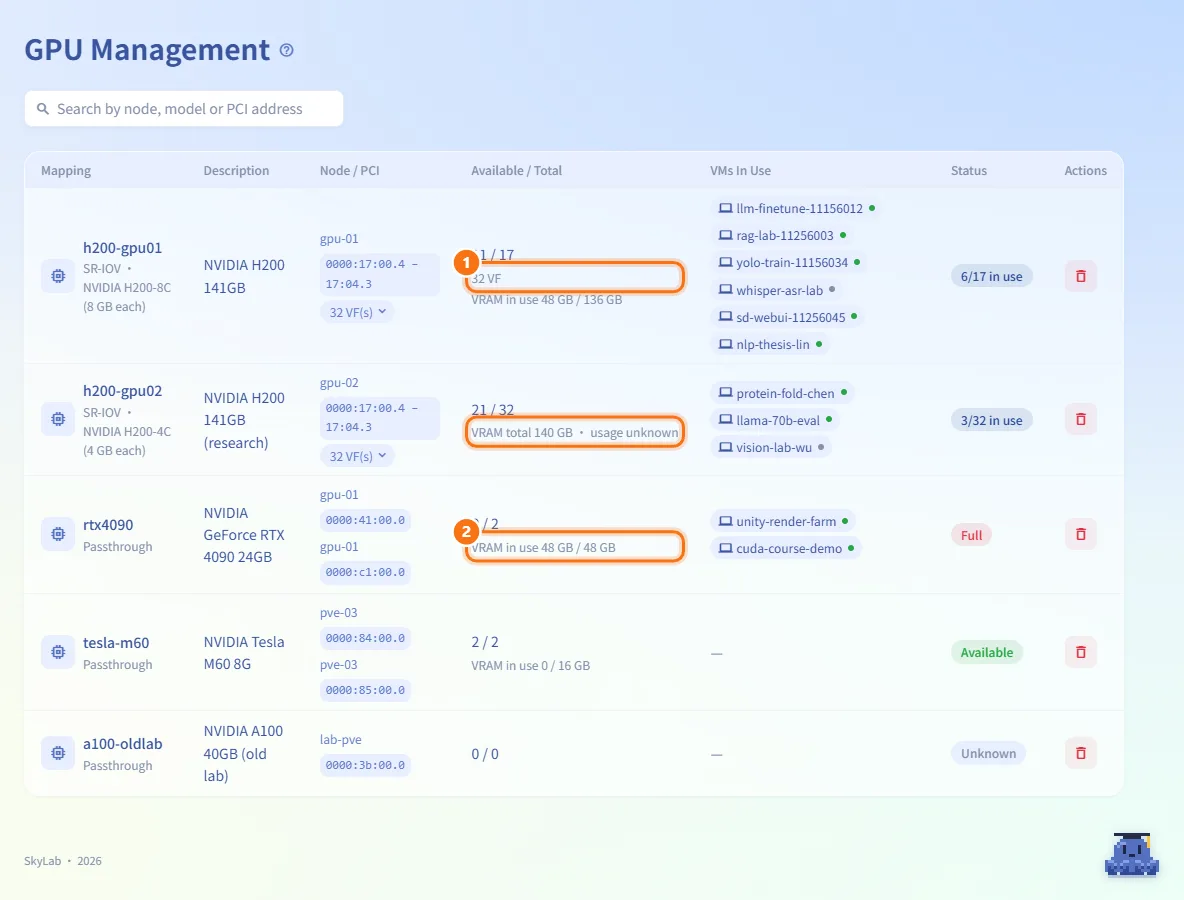
- For SR-IOV, the total is the number of instances that can actually be created, which may be lower than the number of VFs. When the two differ, the VF count is shown under Available / Total.
- When VRAM information is available, it is shown under the counts: VRAM in use used / total, or VRAM total … · usage unknown when the usage cannot be read.
Remove a mapping
- Click the trash button (Remove Mapping) in the Actions column.
- Confirm Delete GPU Mapping ("Delete mapping "name"?").
- The mapping is deleted on PVE and the list reloads.
Fields and options
| Field | Meaning | Notes |
|---|---|---|
| Mapping | Name of the PVE PCI resource mapping | Shown to users in the GPU choice of the request form |
| SR-IOV / Passthrough | How the GPU is shared | SR-IOV splits a card into VFs; passthrough gives a whole device to one VM |
| mdev profile | vGPU profile of the mapping | With per-instance VRAM when known |
| Available / Total | Free instances / total capacity | SR-IOV total may be lower than the VF count |
| VMs In Use | VMs whose configuration uses this mapping | Green dot = running |
| Status | Available, x/y in use, Full, Unknown | Unknown when the total is 0 |
Limits and behaviour to know
- Removing a mapping does not check whether any VM is using it. VMs still configured with that GPU will fail to start afterwards.
- If several PVE connections have a mapping with the same name, the deletion is refused rather than removing it on every cluster.
- The counts on this page reflect VMs that exist on PVE now. Approved requests whose machines have not been created yet are not counted here; they are deducted from the GPU choices users see in the request form for the overlapping time window, and request approval only places a GPU request on a node that still has a free slot for that mapping.
- The page refreshes automatically in the background.
Related
- Request Review — GPU requests are placed on nodes that still have a free slot
- My Requests — where users choose a GPU mapping
- PVE Management — the connections whose mappings are listed
- Templates — templates that require a GPU