
PVE Management
PVE Management connects SkyLab to your Proxmox VE hosts. The upper part lists the PVE connections, each one an entry point to a single host or a whole cluster with its own resource settings; the lower part lists the nodes synced from all connections, which the platform chooses from when it places a new machine. Sidebar: Admin Settings → PVE Management. Path: /pve-connections.
Who can use it
Administrators only.
Before you start
- A Proxmox VE account the platform can use for the API (for example
root@pam) and its password. - If you want the platform to verify the PVE certificate and it is signed by a private CA, the CA certificate in PEM format.
- The names of the pool and storages you want new machines to use on that cluster, and, if machines get static addresses, the gateway IP and subnet of the machine network.
- If you completed the first-time setup wizard, your first connection already exists here.
Step by step
Add a connection
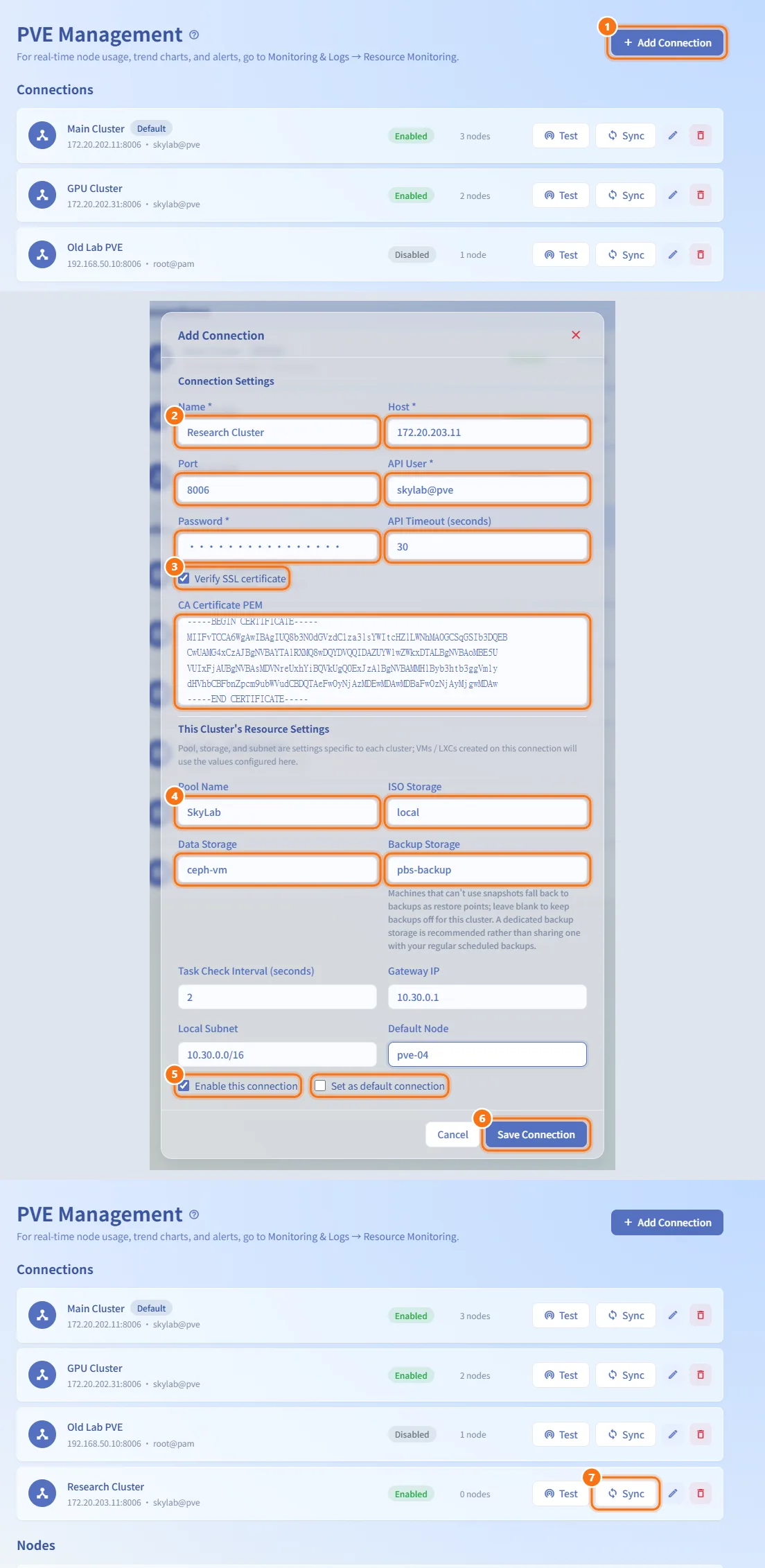
- Click Add Connection (in the page header, or in the empty state when there are no connections yet).
- Under Connection Settings, fill in Name, Host, Port (8006 by default), API User and Password. Adjust API Timeout (seconds) if needed.
- To verify the PVE certificate, tick Verify SSL certificate and paste the CA certificate into CA Certificate PEM.
- Under This Cluster's Resource Settings, set Pool Name, ISO Storage, Data Storage and, optionally, Backup Storage, Task Check Interval (seconds), Gateway IP, Local Subnet and Default Node.
- Keep Enable this connection ticked. Tick Set as default connection if this should become the default.
- Click Save Connection.
- Click Sync on the new row so its nodes and storages appear.
The first connection you add becomes the default connection automatically. Saving does not contact PVE and does not sync; use Test and Sync afterwards.
Test a connection
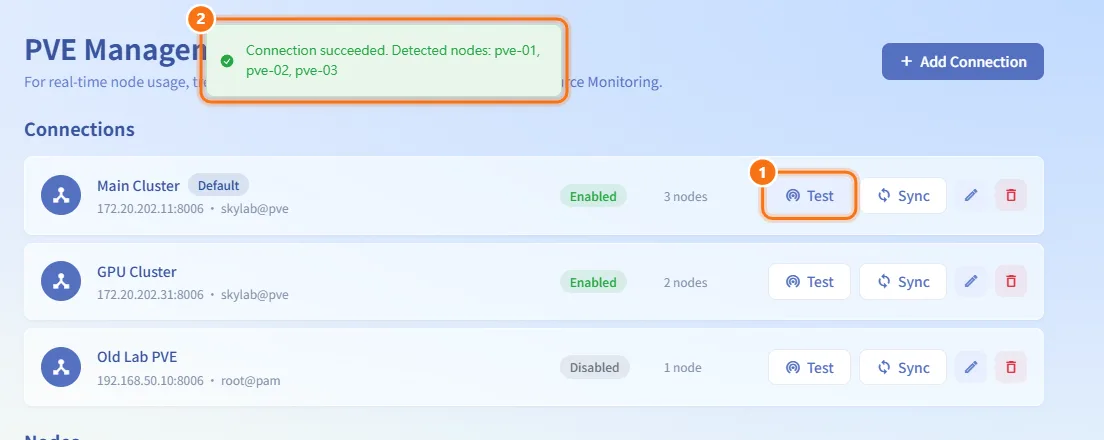
- Click Test on the connection's row.
- A notice reports whether the saved settings can reach PVE.
Test only uses the settings that are already saved and changes nothing. To check new values, save them first and then test.
Sync nodes and storages
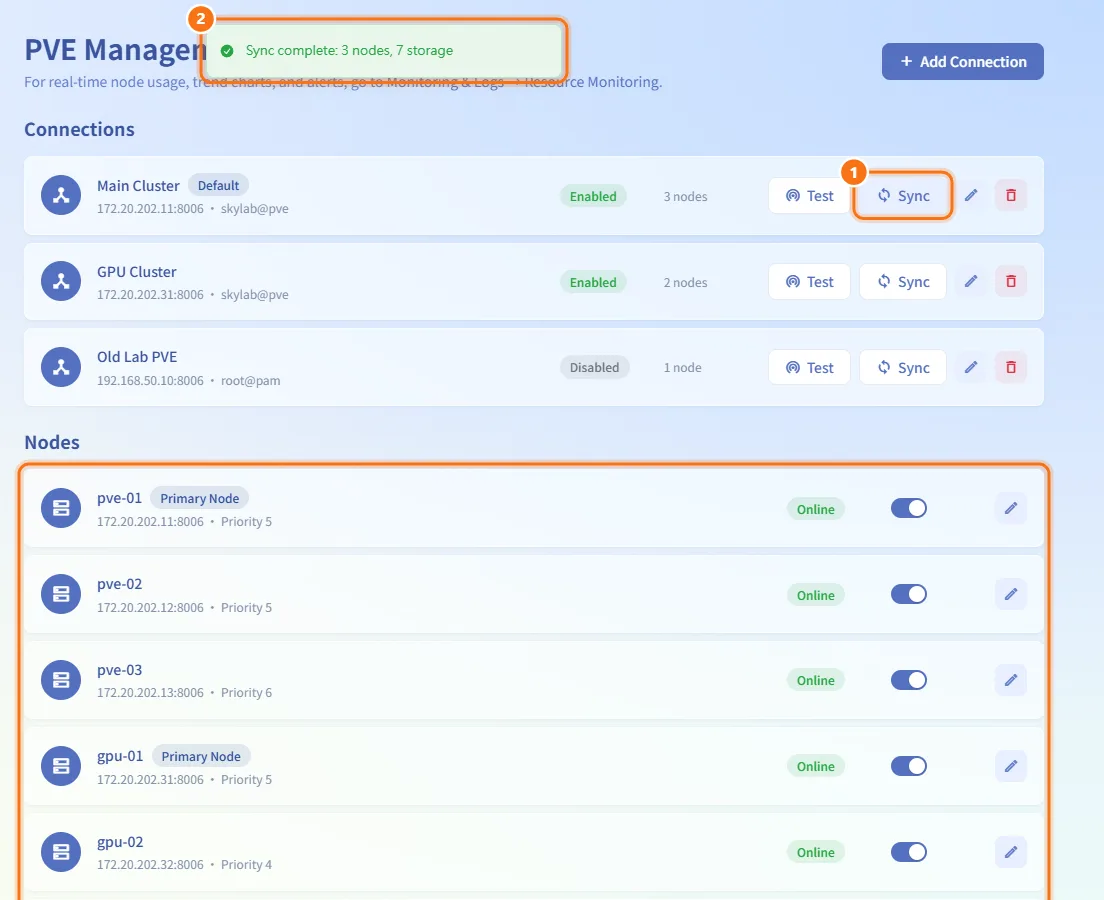
- Click Sync on the connection's row.
- When it finishes, a notice shows how many nodes and storages were found, and the Nodes list below is refreshed.
Sync again after you add or remove nodes in the PVE cluster.
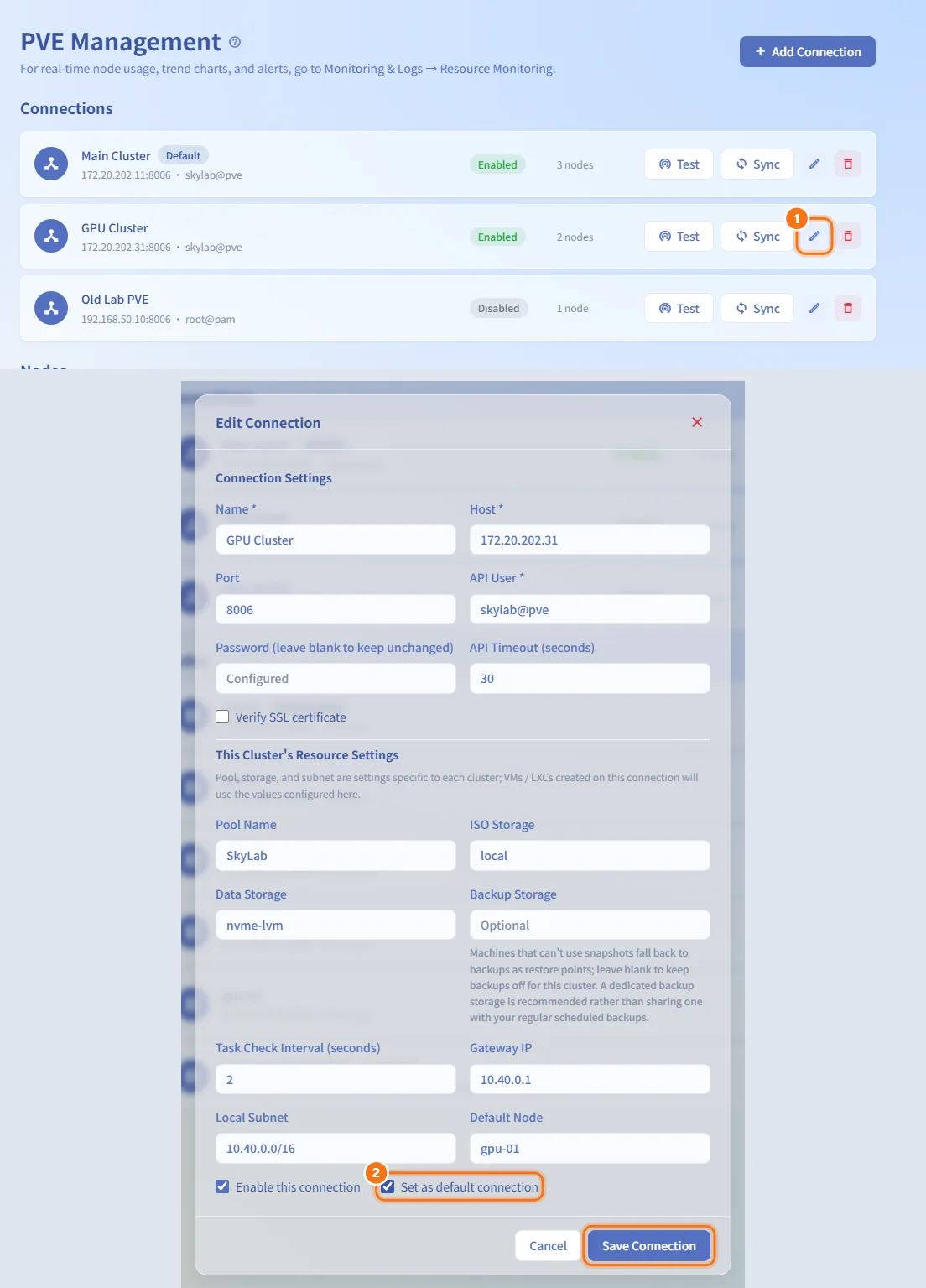
Edit a connection
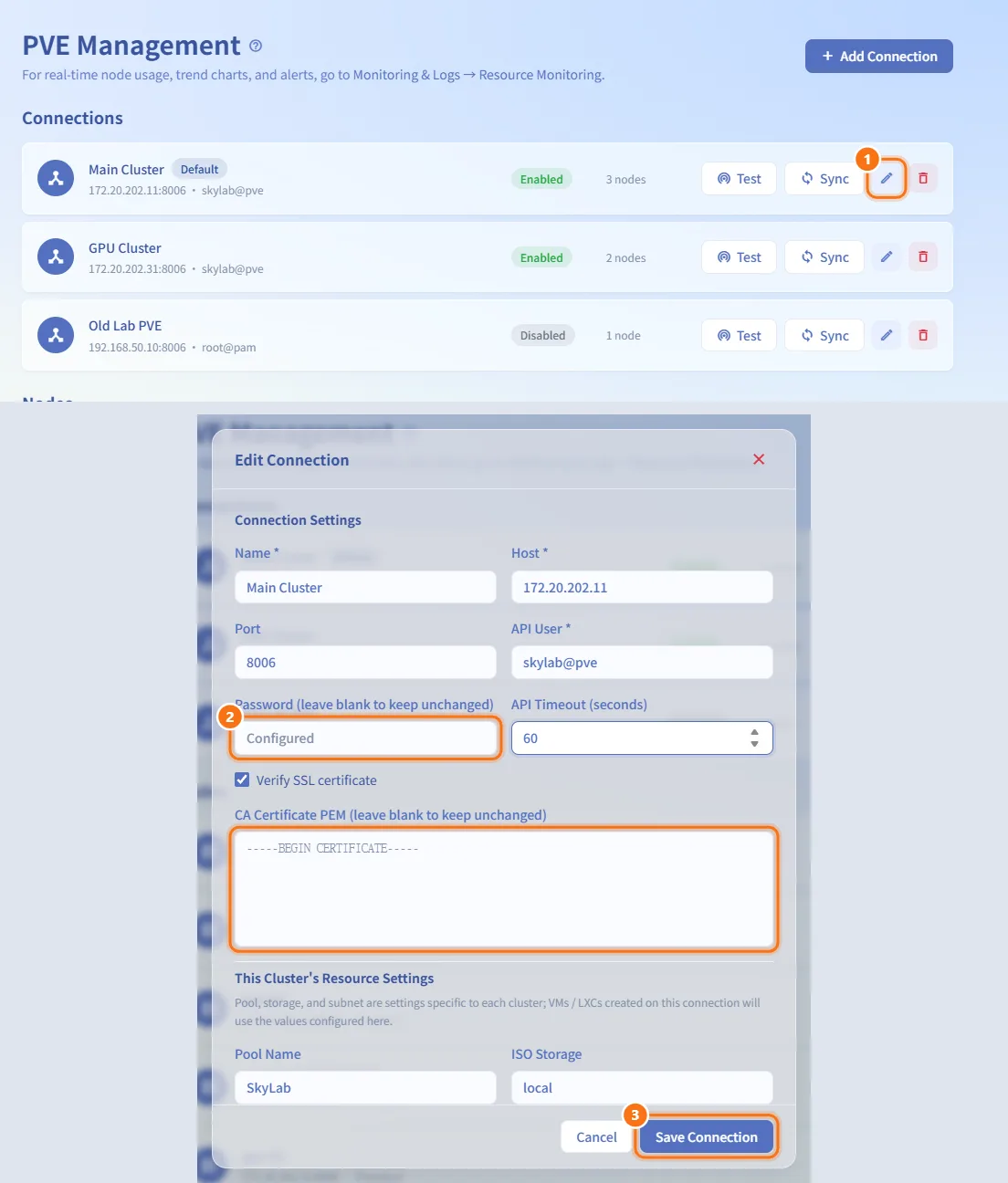
- Click the pencil icon (Edit) on the row.
- Change the fields you need. Leave Password blank to keep the current password, and leave CA Certificate PEM blank to keep the stored certificate.
- Click Save Connection.
Make a connection the default
- Click Edit on the row.
- Tick Set as default connection and click Save Connection.
Only one connection is the default; the previous default loses its Default tag.
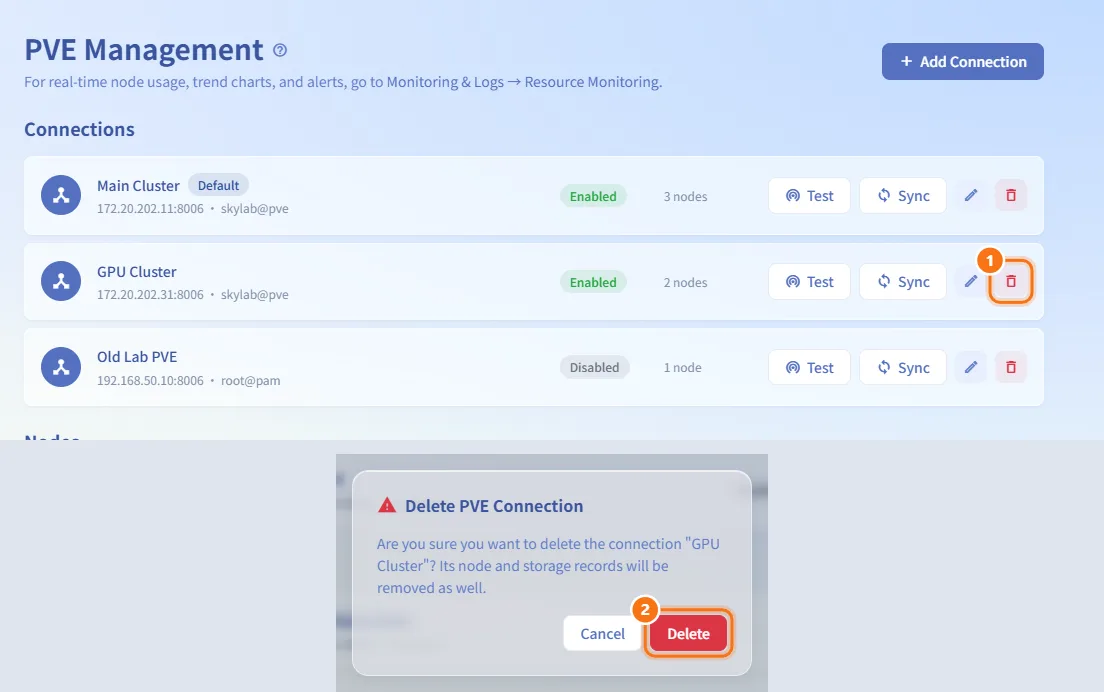
Delete a connection
- Click the trash icon (Delete) on the row.
- Confirm in the Delete PVE Connection dialog. The connection's node and storage records are removed as well.
The deletion is refused when the platform finds machines still on that connection; delete or move those machines first. It is also refused for the default connection while other connections exist; make another connection the default first.
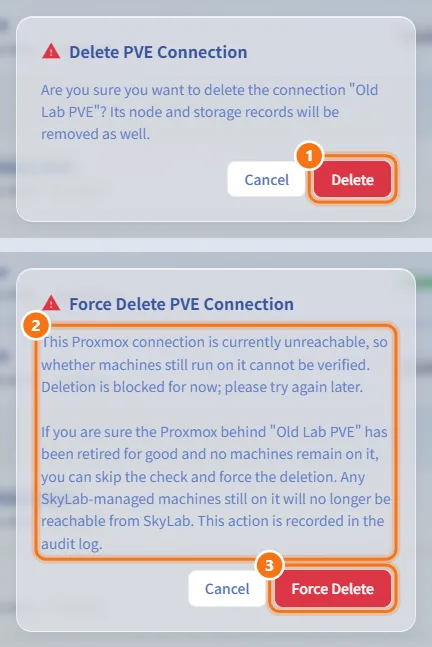
Force-delete a connection whose PVE is gone
- Click Delete on the row and confirm.
- If PVE cannot be reached, the platform cannot check for remaining machines and offers Force Delete PVE Connection with the reason.
- Click Force Delete only if you are sure that PVE has been retired for good.
Any SkyLab machines still on that PVE can no longer be managed from SkyLab afterwards. The forced deletion is recorded in the audit log.
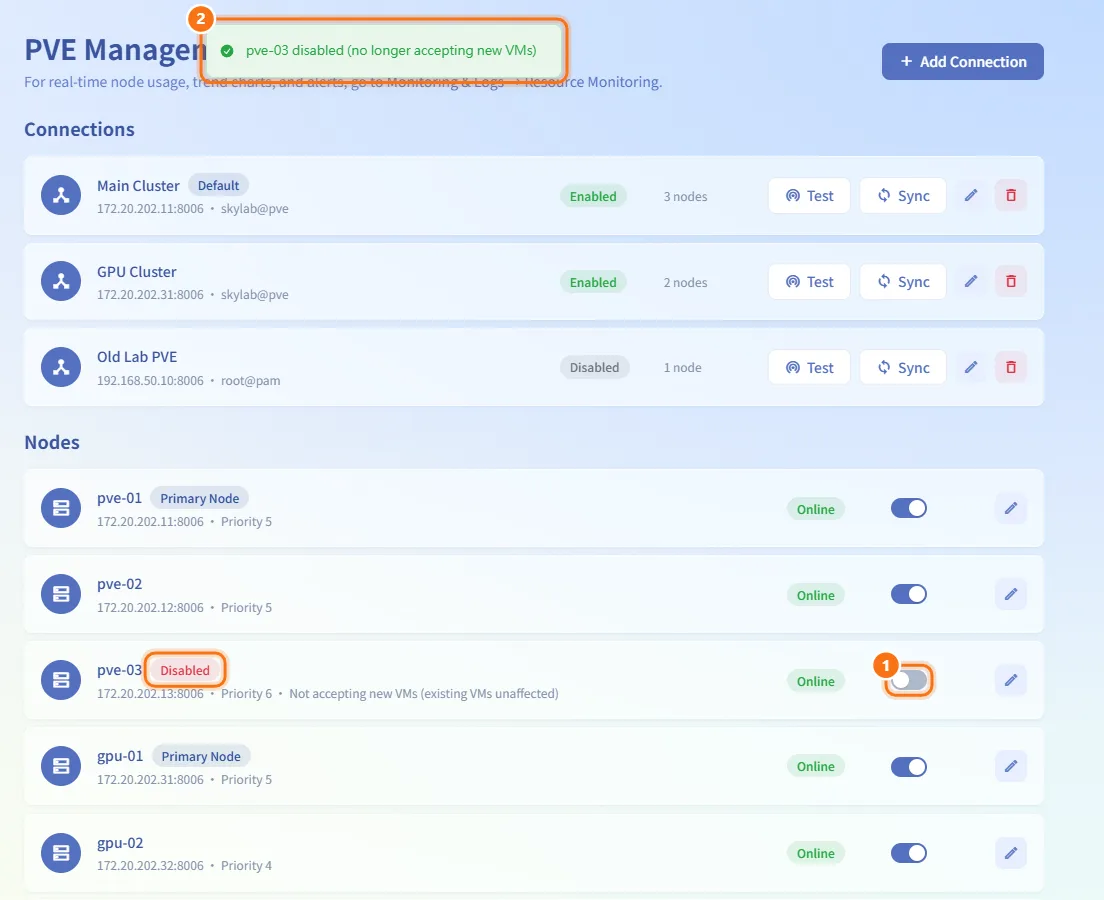
Enable or disable a node
- In the Nodes list, use the switch on the node's row.
- The change takes effect immediately.
A disabled node shows Disabled and "Not accepting new VMs (existing VMs unaffected)". Existing machines on it keep running.
Edit a node's address and priority
- Click the pencil icon (Edit) on the node's row.
- In Edit node
<name>, change Host, Port or Priority. - Click Save.
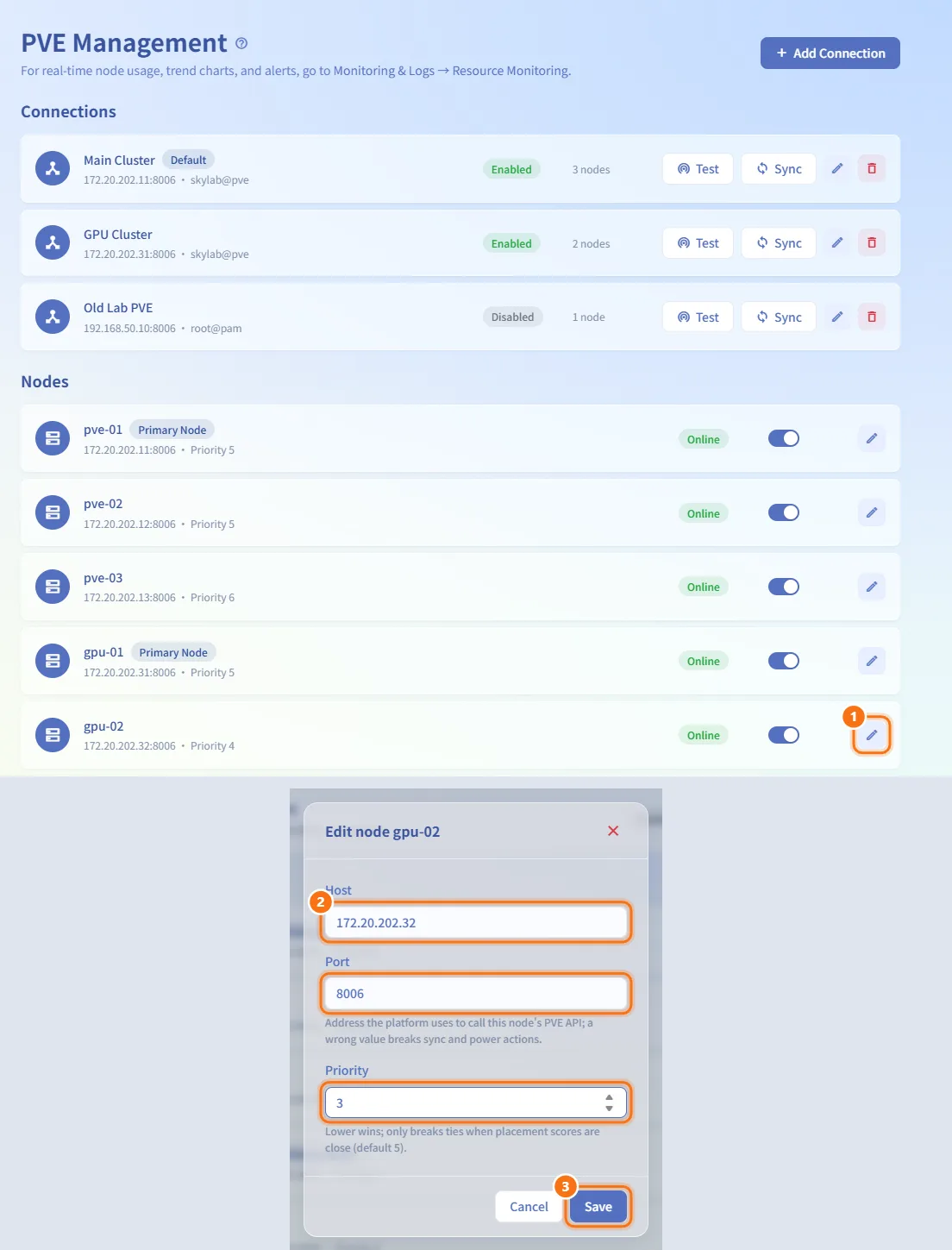
Fields and options
| Field | Meaning | Notes |
|---|---|---|
| Name | Label for the connection, e.g. "Server Room A" | Required, up to 255 characters |
| Host | Address of the PVE host or cluster entry | Required, up to 255 characters |
| Port | PVE API port | 1–65535, default 8006 |
| API User | PVE account used for the API | Required, e.g. root@pam |
| Password | Password of the API user | Required when adding; blank keeps it when editing |
| API Timeout (seconds) | How long to wait for a PVE API call | 1–300, default 30 |
| Verify SSL certificate | Verify the PVE certificate | Off by default |
| CA Certificate PEM | CA that signed the PVE certificate | Shown only when verification is ticked; must be a valid PEM certificate |
| Pool Name | PVE pool that machines from this connection go into | Default SkyLab |
| ISO Storage | Storage for ISO images | Default local |
| Data Storage | Storage for machine disks | Default local-lvm |
| Backup Storage | Storage for machine backups | Optional; blank means backups are not offered on this cluster. Machines that cannot use snapshots fall back to backups as restore points. A dedicated storage is recommended rather than one shared with your scheduled backups |
| Task Check Interval (seconds) | How often the platform checks a PVE task it is waiting for | 1–60, default 2 |
| Gateway IP | Gateway of the machine network on this cluster | Optional |
| Local Subnet | Machine network of this cluster, e.g. 192.168.100.0/24 | Optional |
| Default Node | Node used preferentially when none is specified | Optional |
| Enable this connection | Whether the connection is in use | Shown as Enabled or Disabled in the list |
| Set as default connection | Makes this the default connection | Only one default |
| Node Host / Port | Address the platform uses to call that node's PVE API | A wrong value breaks sync and power actions |
| Node Priority | Tie-breaker between nodes | Lower wins; only used when placement scores are close; default 5 |
Each connection row shows the name (with a Default tag for the default connection), host:port · API user, the Enabled or Disabled state and the number of synced nodes. Each node row shows the node name (with a Primary Node tag where applicable), host:port · Priority, and Online or Offline.
Limits and behaviour to know
- The pool, storage, gateway IP, subnet and default node apply only to machines created through that connection, so each cluster can use different values. Cross-cluster placement and scheduling parameters are on Resource Scheduling.
- Online and Offline show the result of the platform's most recent connection to the node (a sync, or opening an API connection to that cluster), not a live check.
- While a row is testing, syncing or deleting, its buttons are disabled.
- For live node usage, trends and alerts, open Resource Monitoring; the link is also in the page header.
- Storage speed tiers, priorities and enabling individual storages are managed on Storage.
Related
- Resource Scheduling — placement and overcommit settings shared by all connections
- Storage — per-storage settings after a sync
- IP Management — address allocation in the machine network
- Resource Monitoring — live node metrics
- Deployment guide — preparing the server and secrets that encrypt stored PVE passwords