
IP Management
IP Management holds the machine subnet that every VM and LXC gets its static IP from, and lists every address in that subnet that is in use and what it is used for. Sidebar: Admin Settings → IP Management. Path: /ip-management.
Who can use it
Administrators only. Teachers and students never see this page; their machines simply receive an address from the subnet configured here.
Before you start
- Know the lab network on the PVE side: the subnet in CIDR form, its gateway address, the Linux bridge the machines attach to (for example
vmbr1) and, if used, the VLAN ID. - Decide the address of the Gateway VM inside that subnet. If the SkyLab host itself also sits in the subnet, note its address too so it is never handed to a machine.
- Until a subnet is configured, nobody on the site can create a VM or LXC.
Step by step
Create the subnet configuration
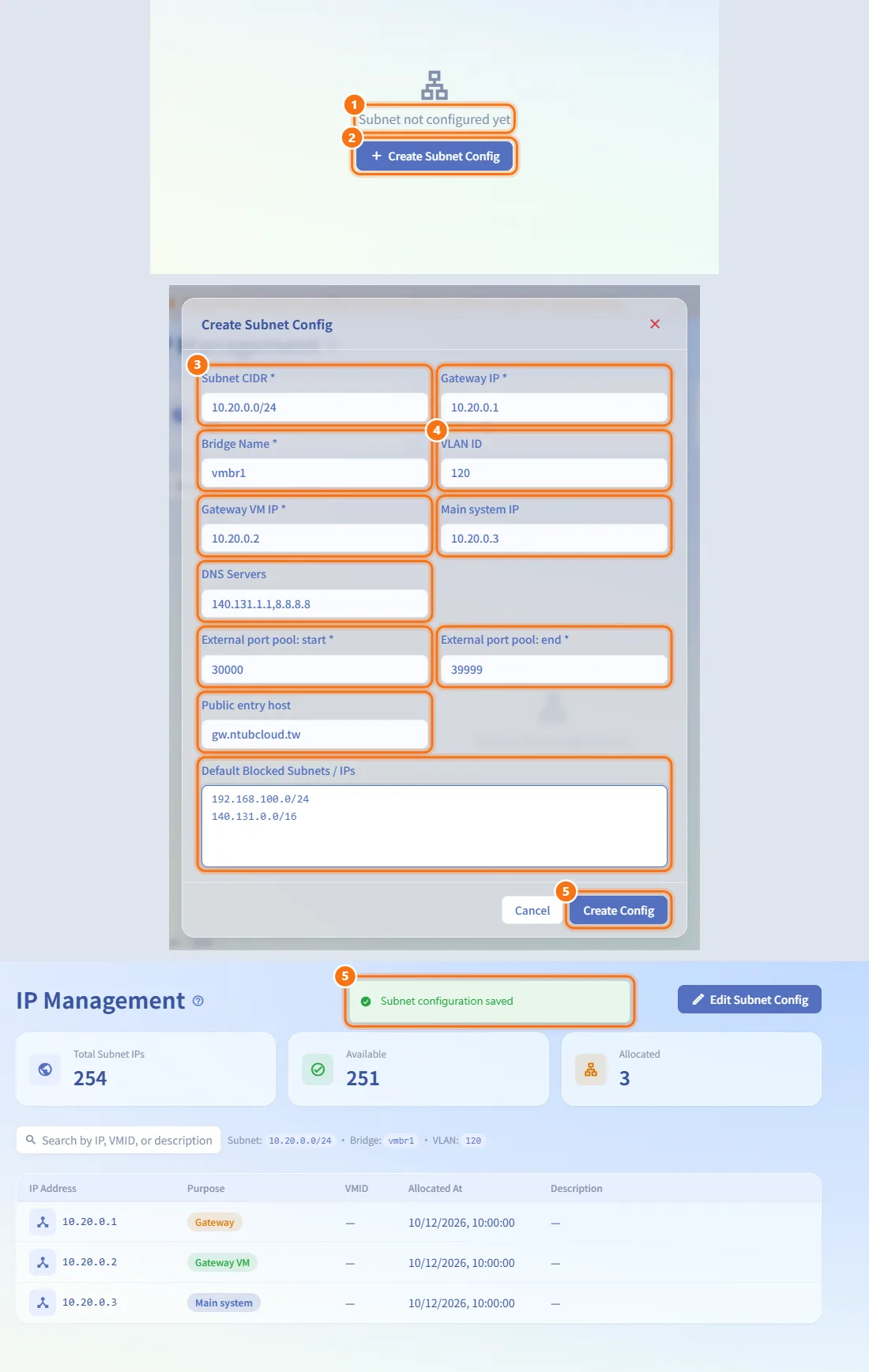
- Open the page. When nothing is configured yet, it shows "Subnet not configured yet".
- Click Create Subnet Config.
- Fill in Subnet CIDR, Gateway IP, Bridge Name and Gateway VM IP. These four are required.
- Optionally fill in VLAN ID, Main system IP, DNS Servers, the external port pool, Public entry host and Default Blocked Subnets / IPs (see the table below).
- Click Create Config. A "Subnet configuration saved" notice appears and the platform starts assigning addresses from the new subnet.
Change the subnet configuration
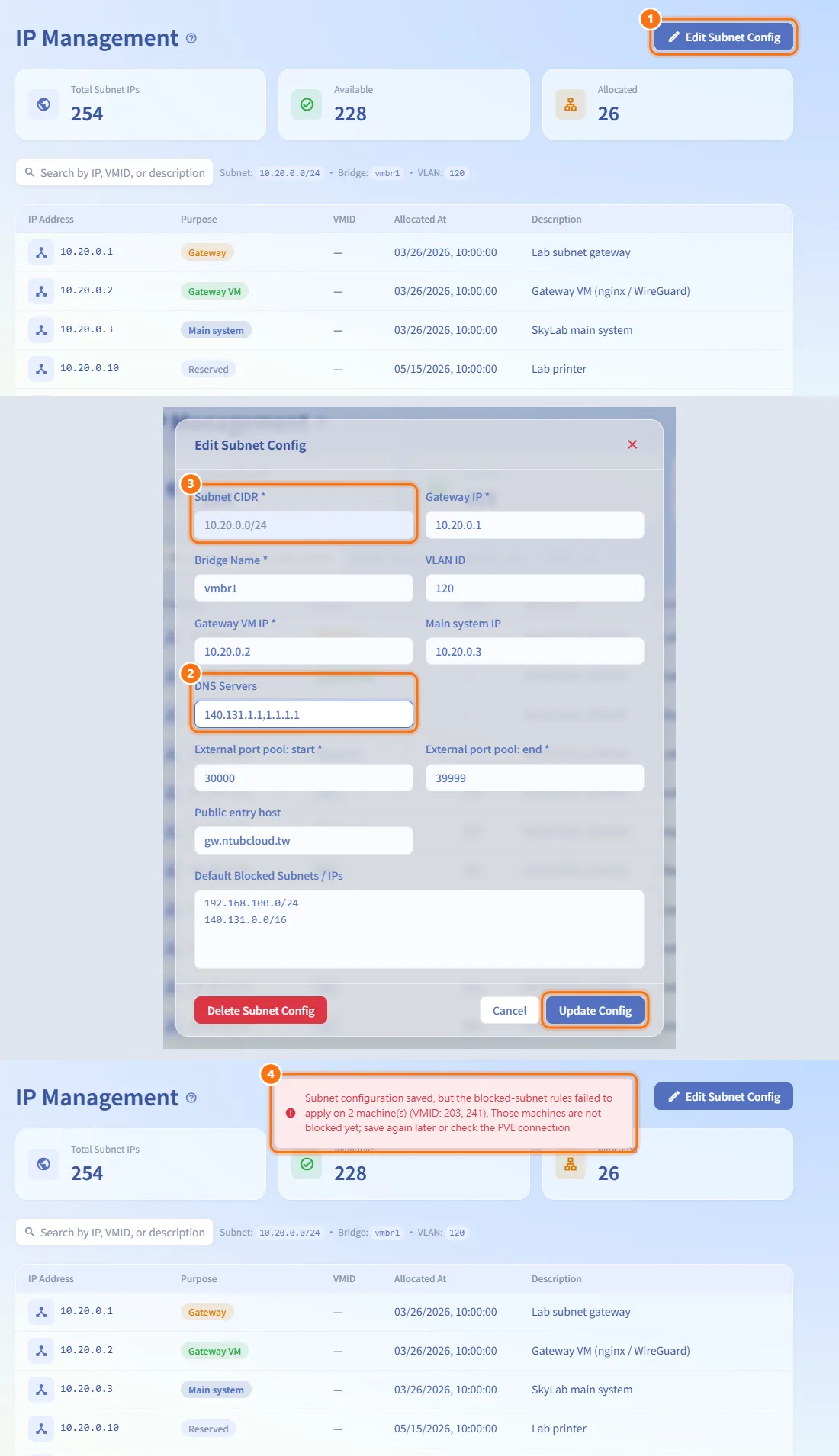
- Click Edit Subnet Config in the page header.
- Change the fields you need and click Update Config.
- If Subnet CIDR is greyed out, the subnet is in use (see "Limits and behaviour to know"); hover over it to see why.
- When you save, the blocked subnets are applied to every machine's firewall. If some machines could not be updated, an error notice lists how many failed and their VMIDs; those machines are not blocked yet. Save again later or check the PVE connection.
Delete the subnet configuration
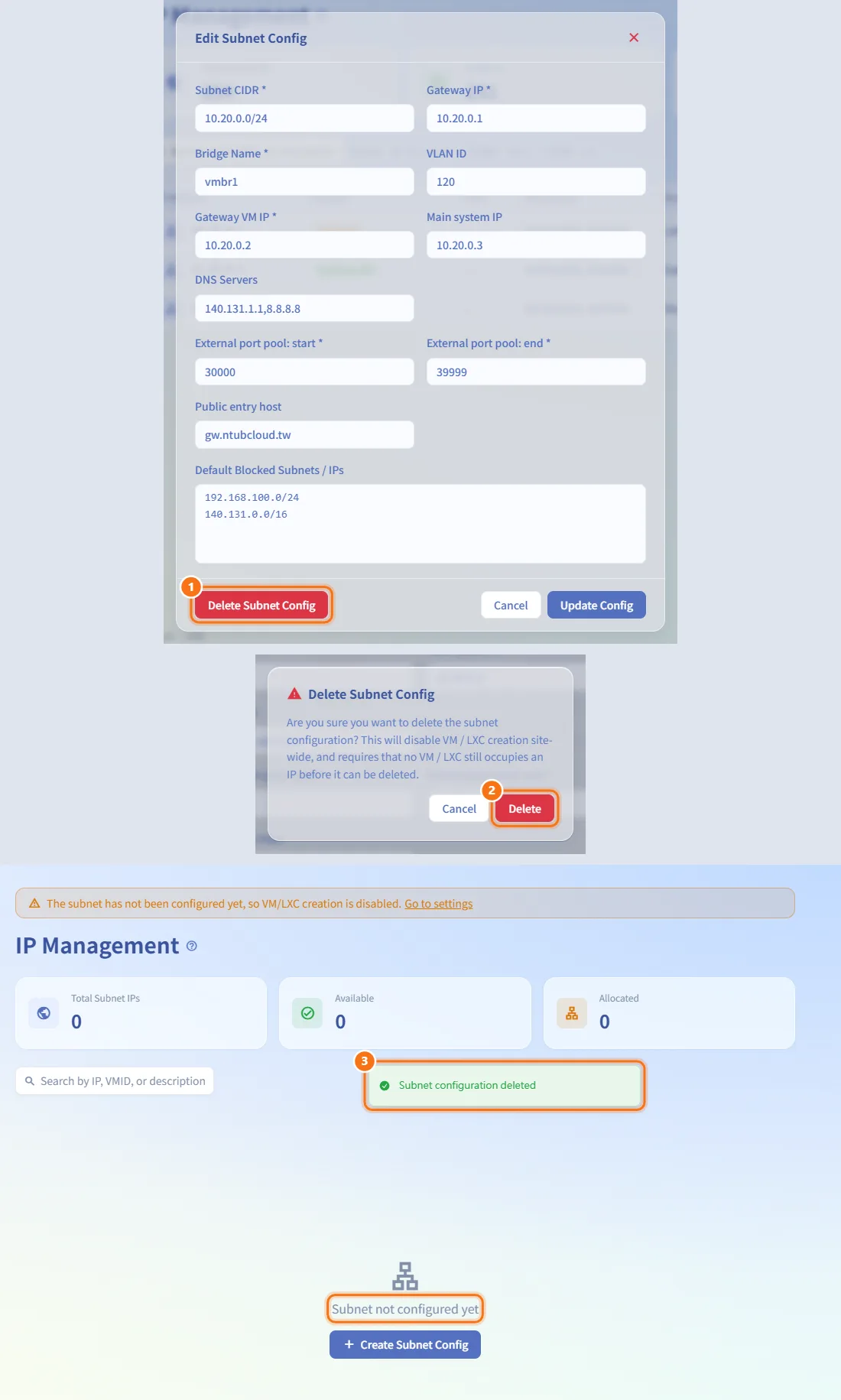
- Click Edit Subnet Config, then Delete Subnet Config.
- Confirm with Delete.
- Deletion only succeeds when no VM or LXC still holds an address and no class or quick practice reservation is left. Afterwards VM and LXC creation is disabled site-wide until a new subnet is created.
Look up who uses an address
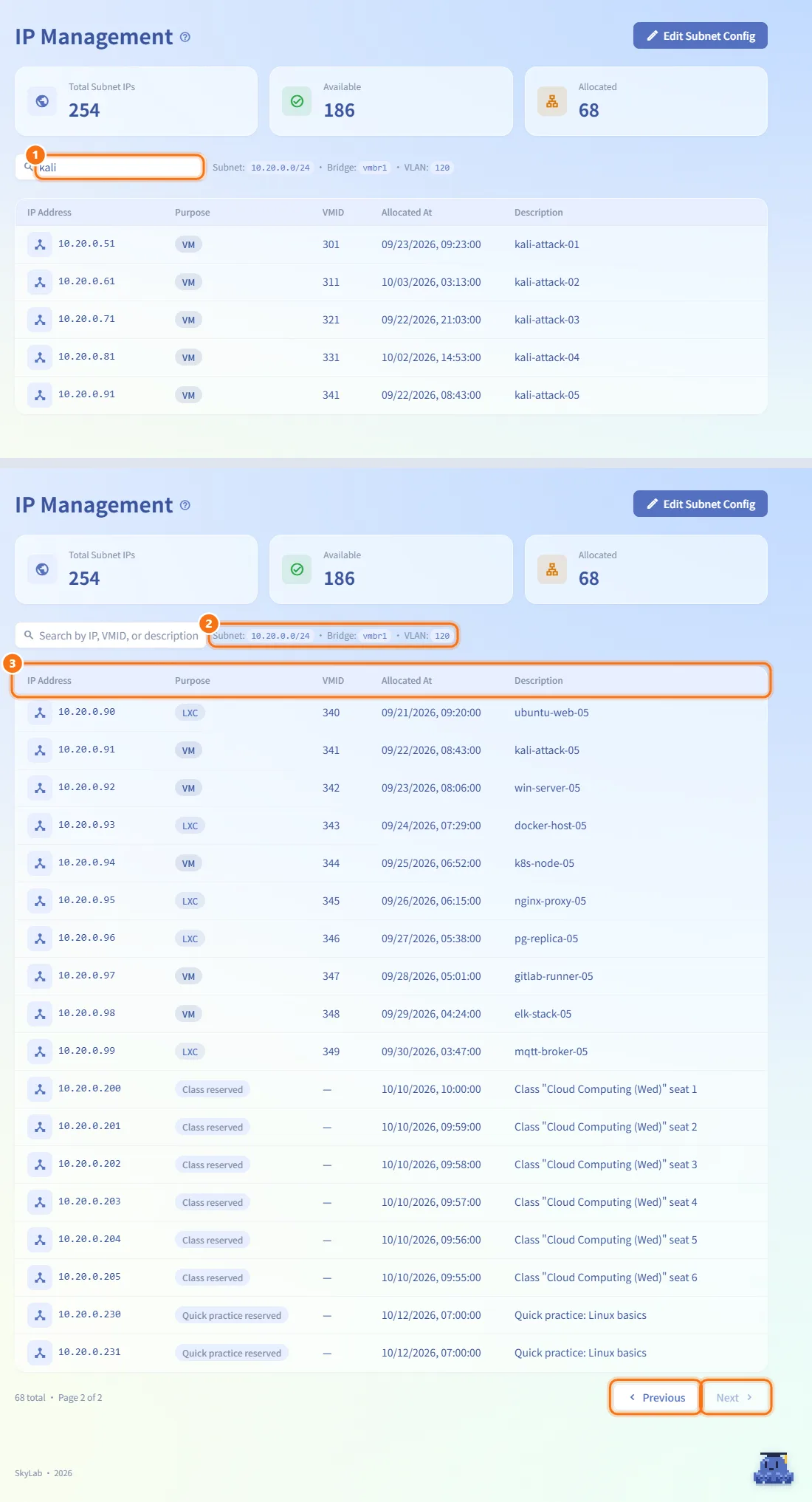
- Use the search box ("Search by IP, VMID, or description") to filter the table.
- Next to the search box you see the subnet that is in effect, its bridge and, if set, its VLAN.
- The table shows IP Address, Purpose, VMID, Allocated At and Description, 50 rows per page. Use Previous and Next to page through.
The table is read-only. Addresses are assigned when a machine is created and released automatically when it is deleted.
Fields and options
| Field | Meaning | Notes |
|---|---|---|
| Subnet CIDR | Range machines get their addresses from, for example 10.10.0.0/24 | Required. Prefix from /8 to /31; /32 is rejected |
| Gateway IP | Default gateway of the subnet | Required. Must be inside the subnet |
| Bridge Name | PVE bridge the machines' network cards attach to | Required. Default vmbr1 |
| VLAN ID | 802.1Q tag on the machines' network cards | Optional, 1–4094; blank means no VLAN. Only applies to machines created afterwards |
| Gateway VM IP | Address of the Gateway VM | Required. Must be inside the subnet and differ from the Gateway IP |
| Main system IP | Address of the SkyLab host inside the subnet | Optional. Reserved, never given to a machine; the platform also keeps a rule on every machine that allows SSH (port 22) from this address, and removes it when the field is cleared |
| DNS Servers | Name servers for the machines | Optional, separated by commas, for example 8.8.8.8,1.1.1.1 |
| External port pool: start / end | Range used to hand out external ports for teaching environment port forwarding, one per student | Required. Default 30000–39999; between 1024 and 65535, start not greater than end |
| Public entry host | Host name or IP students see in the "host:port" address of a forwarded port | Optional, up to 255 characters |
| Default Blocked Subnets / IPs | Networks every machine is not allowed to reach | Optional, one per line or separated by commas, for example 192.168.100.0/24 |
Purpose values in the table:
| Purpose | Meaning |
|---|---|
| VM / LXC | Address of a machine; the VMID column shows which one |
| Gateway VM | The Gateway VM IP from the configuration |
| Gateway | The Gateway IP from the configuration |
| Main system | The Main system IP from the configuration |
| Reserved | Address held back from assignment |
| Class reserved | Address set aside for a class whose machines are not built yet |
| Quick practice reserved | Address set aside for a quick practice session |
The three cards above the table show Total Subnet IPs, Available and Allocated. Allocated includes machines, the gateway addresses and every reservation; Available is what new machines can still get. When it reaches zero, no new machine can be created.
Limits and behaviour to know
- Subnet CIDR cannot be changed while any VM or LXC holds an address, or while a class or quick practice reservation exists. Delete those machines, or wait until the class machines are built or the class is sent back, first.
- Changing the subnet never renumbers existing machines, and a new VLAN ID is not written back to existing network cards.
- Gateway IP, Gateway VM IP and Main system IP must all be inside the subnet, must differ from each other, and must not already be assigned to a machine or reserved.
- A blocked subnet must not overlap the lab subnet; otherwise machines would block their own gateway, DNS and neighbours, so saving is refused.
- Blocked subnets become outbound drop rules on every machine, placed before the rule that allows general outbound traffic. They show as locked, platform-managed rules on the Firewall page.
Related
- Gateway VM — install and manage the Gateway VM whose address is set here
- Firewall — see the blocked-subnet rules on each machine
- Teaching Environments — port forwarding that uses the external port pool
- Deployment guide — network layout of a SkyLab installation