
Request Review
Request Review is where an administrator approves or rejects the two kinds of requests users submit: Creation Request (a new VM or LXC container for a usage window) and Spec Change (more CPU, memory or disk, or a later expiry date for an existing machine). Sidebar: Review → Request Review. Path: /request-review.
AI API key requests are handled separately in AI API review. Machine deletions are carried out automatically by background jobs and never appear here.
Who can use it
Administrators only. Listing all requests, loading the resource assessment and submitting a review are all refused for anyone else.
Before you start
- A creation request must have a usage window with a start time before it can be assessed or approved.
- The resource assessment needs the PVE connections to be reachable, because it checks the nodes and the machines currently running.
Step by step
Pick a list
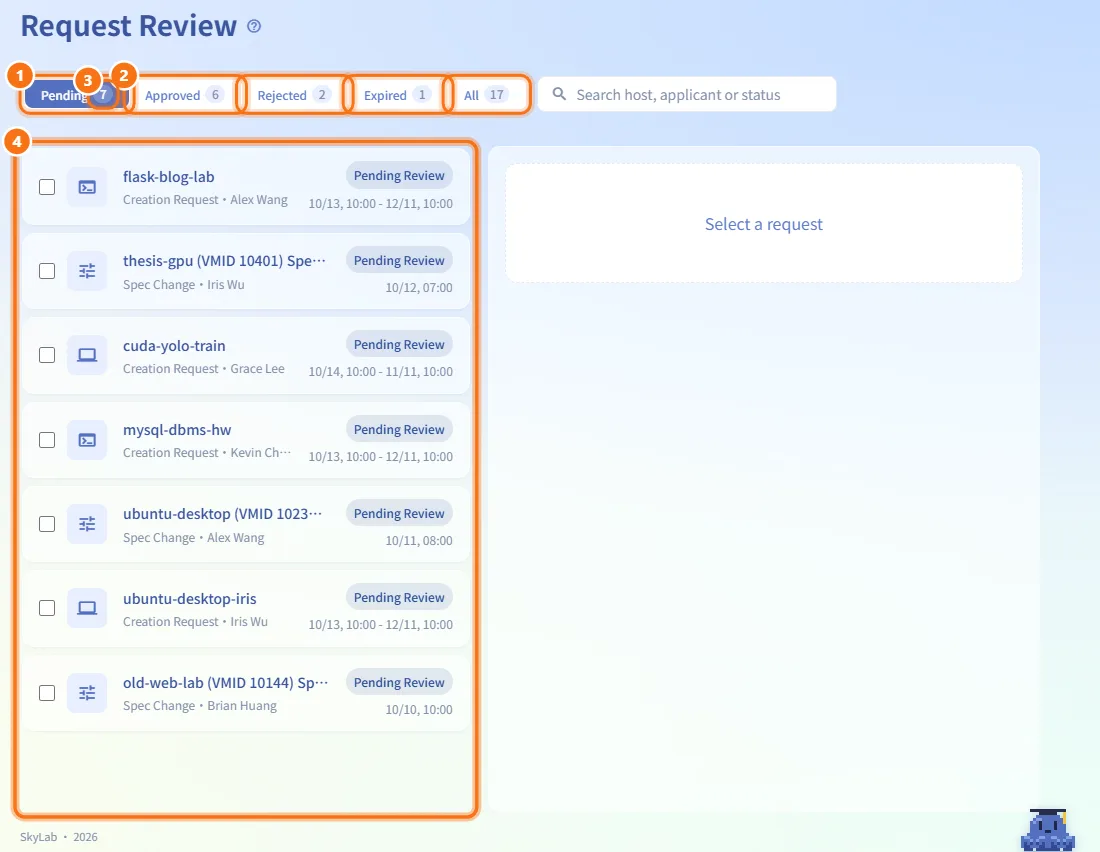
- The page opens on Pending, your work queue. Pending requests are listed in full (up to 1,000 creation requests and 1,000 spec changes).
- Switch to Approved, Rejected, Expired or All to look at past decisions. These tabs show up to the latest 100 creation requests and 100 spec changes.
- The number on each tab is the request count for that status. Spec changes never become Expired, so that tab only holds creation requests.
- The list refreshes automatically in the background.
Find a request
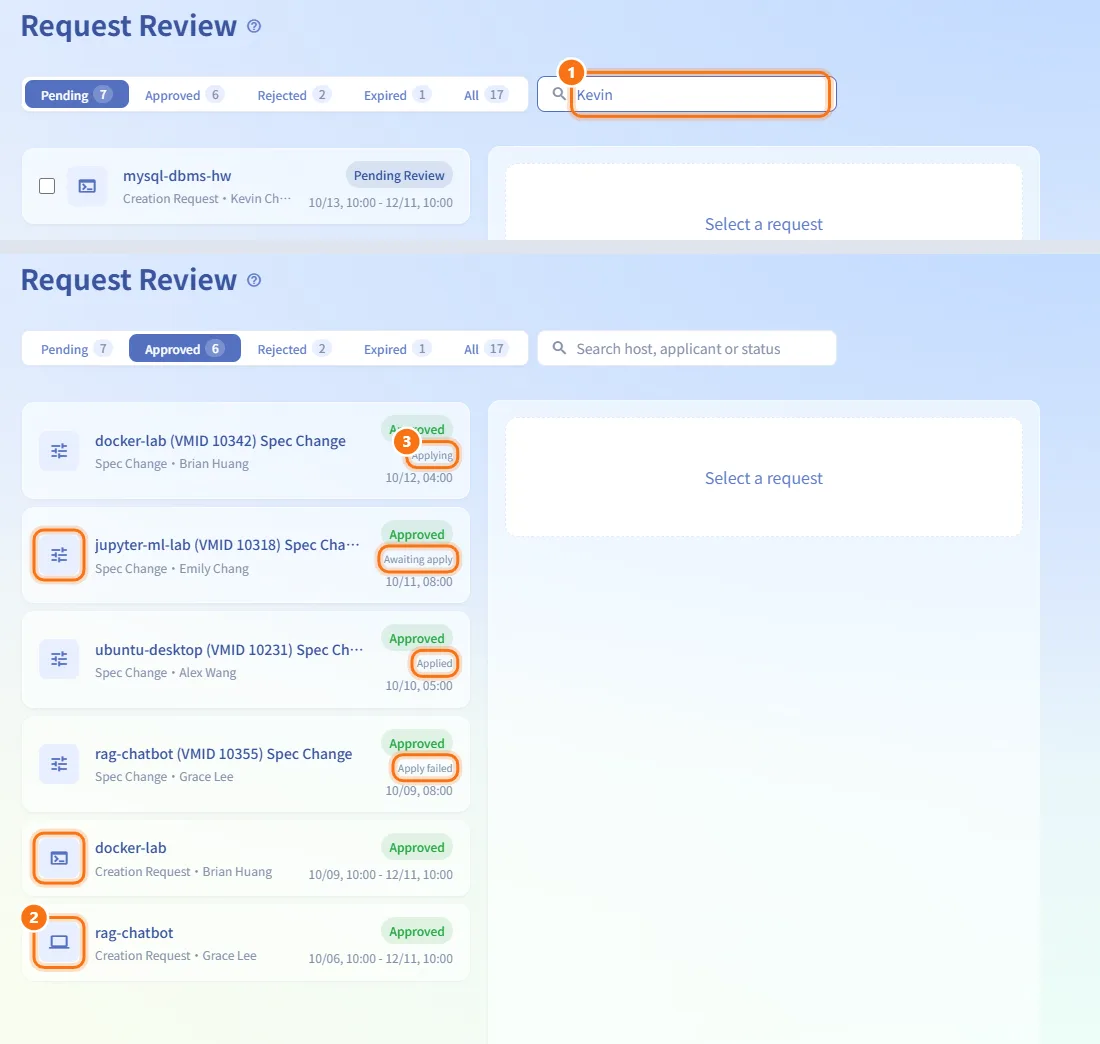
- Type in the search box (Search host, applicant or status). It matches the request type, host name, applicant name and email, status, specs, time and GPU.
- Requests are sorted newest first. The icon tells them apart: a computer for a VM, a terminal for an LXC container, and a slider for a spec change.
- Approved spec changes also show their apply progress in gray under the status badge: Awaiting apply, Applying, Applied or Apply failed.
Look at a request
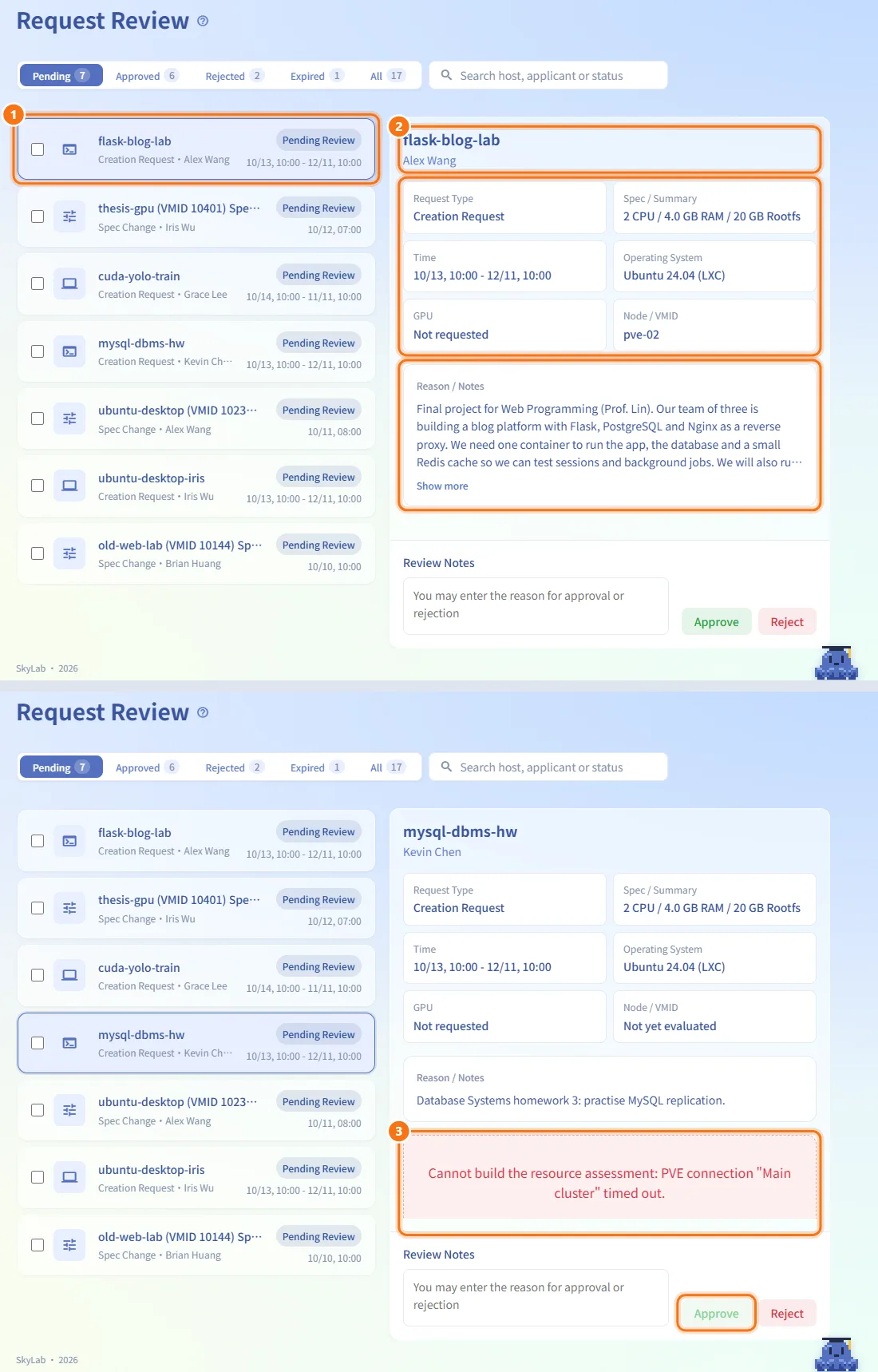
- Click a request in the list. The panel on the right shows:
- Request Type: Creation Request or Spec Change.
- Spec / Summary: for a creation request, CPU / RAM / disk (or rootfs for LXC); for a spec change, each change as "from → to", including a new expiry date.
- Time: the usage window of a creation request (start – end, or "From" a start time when there is no end), or the submission time of a spec change.
- Operating System (creation request) or Change Type (spec change).
- GPU: the GPU mapping requested, or Not requested.
- Node / VMID: for a pending creation request, the node the platform projects for it; for a spec change, the machine's VMID.
- Reason / Notes from the requester. Long text is folded; click Show more to expand it.
- The panel only shows the request you clicked. It never switches to another request on its own when the list refreshes; if the request leaves the list, the panel is cleared.
- For a pending creation request, the page loads the resource assessment (Loading resource assessment...). If it cannot be built, an error is shown in red and the request cannot be approved.
Approve a creation request
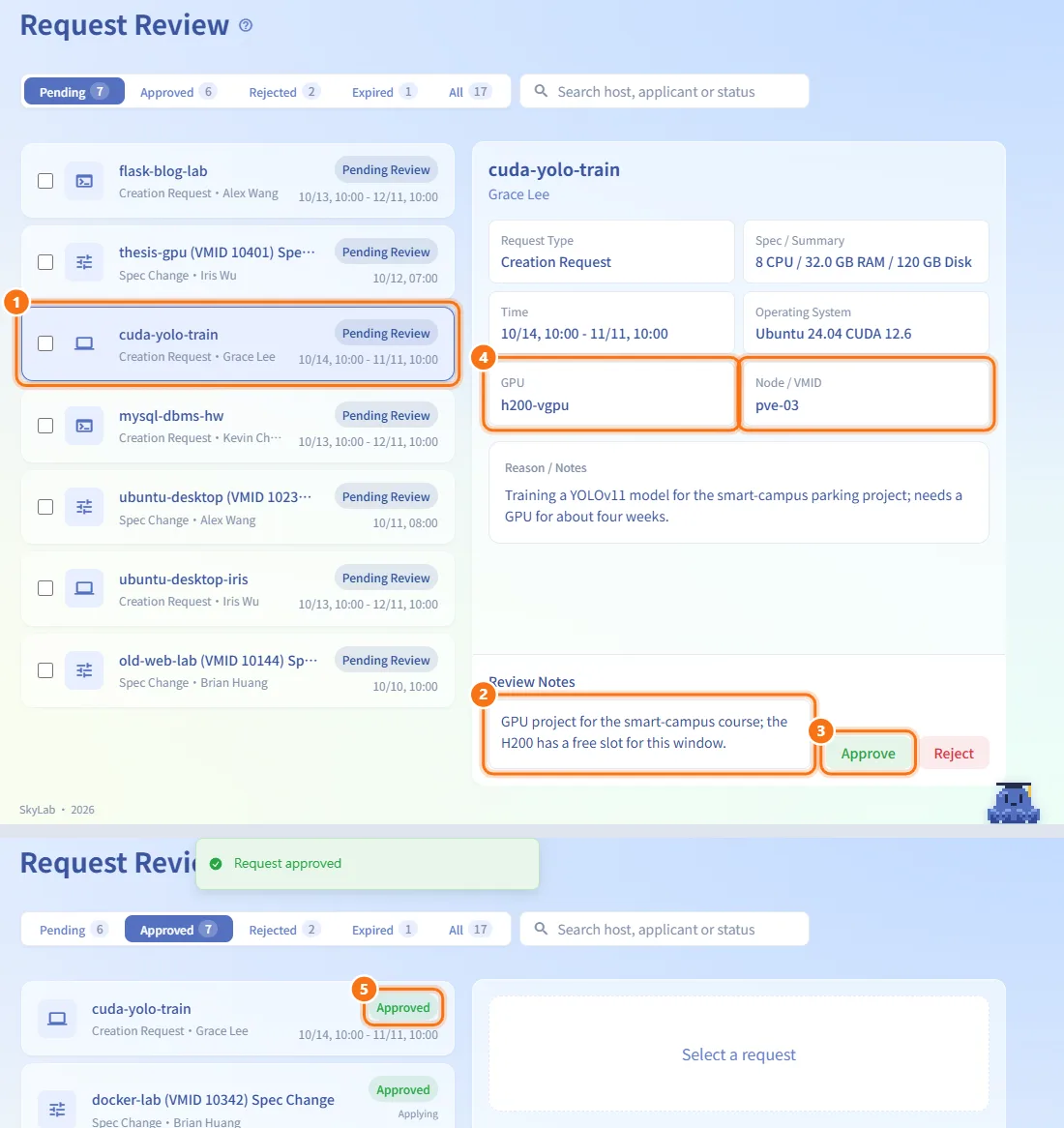
- Click the pending request and wait for the assessment to finish.
- Optionally write the reason in Review Notes.
- Click Approve. The button is only enabled once the assessment has finished and found enough capacity on a node for the whole usage window.
- On approval the platform reserves the projected node for that window, taking into account the other approved requests that overlap it. If the request asks for a GPU, only nodes that carry that GPU mapping and still have a free slot are considered.
- What happens next:
- If the window has already started, provisioning starts right away in the background.
- Otherwise the scheduler creates the machine when the window starts. The requester follows it on My Requests and the machine appears in My Resources.
Approve a spec change
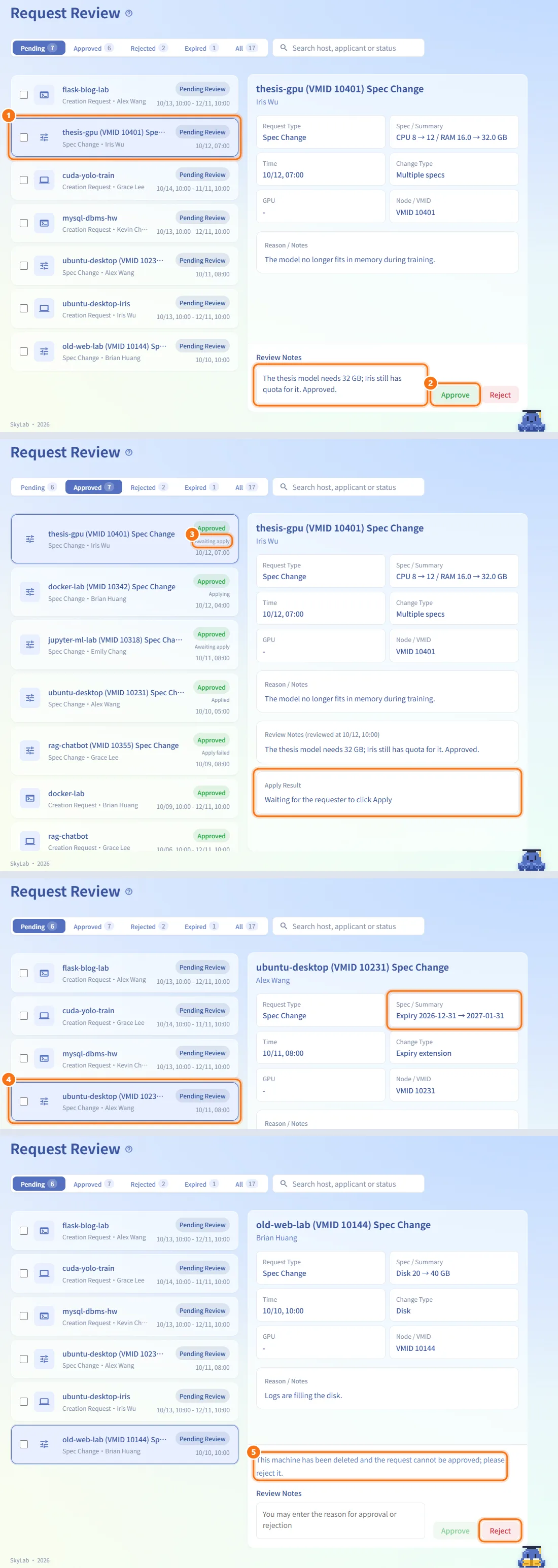
- Click the pending spec change. Optionally fill in Review Notes.
- Click Approve. The platform checks that the extra CPU, memory and disk still fit the requester's quota.
- A CPU, memory or disk change only takes effect after the requester clicks Apply New Specs on the machine's Specifications tab. Until then the request shows Awaiting apply. While it is applied the machine goes through shutdown → reconfigure → start.
- An expiry date change takes effect as soon as you approve it.
- If the machine has been deleted, the panel says This machine has been deleted and the request cannot be approved; please reject it. and only Reject works.
Reject one request
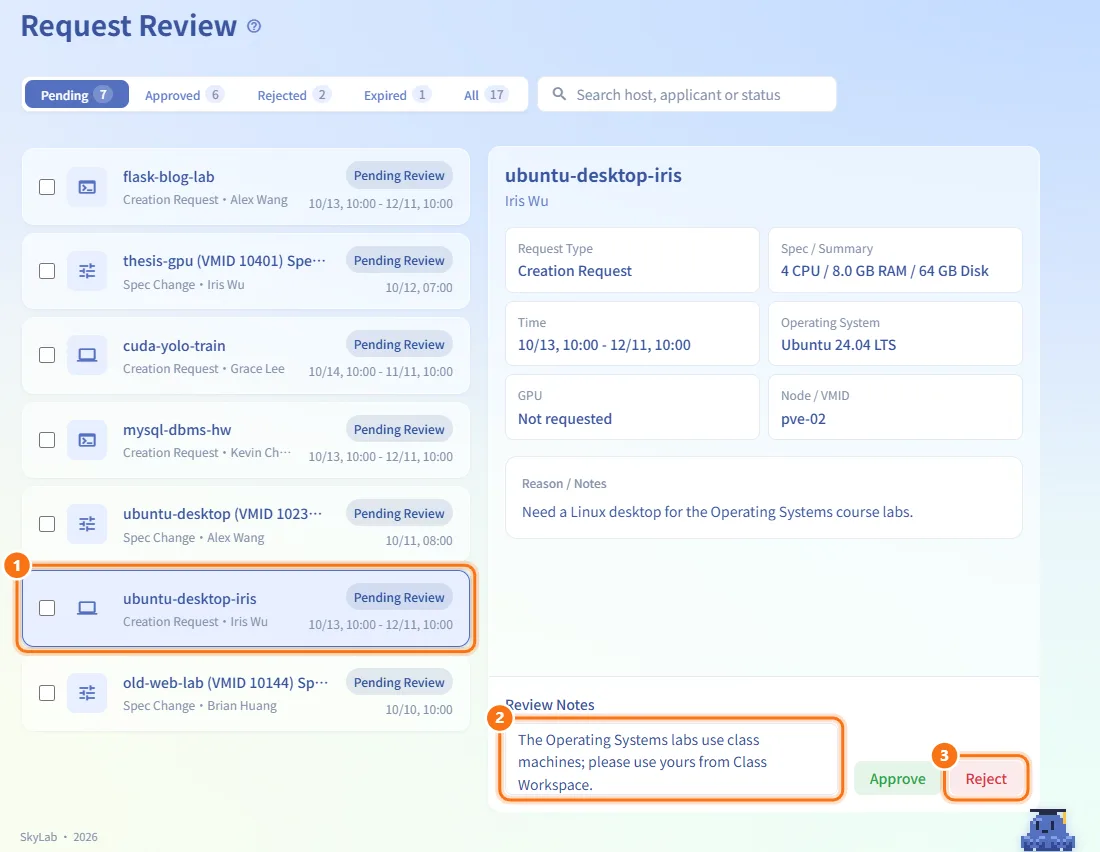
- Click the pending request.
- Write the reason in Review Notes (optional, but it is what the requester sees).
- Click Reject.
Reject several requests at once
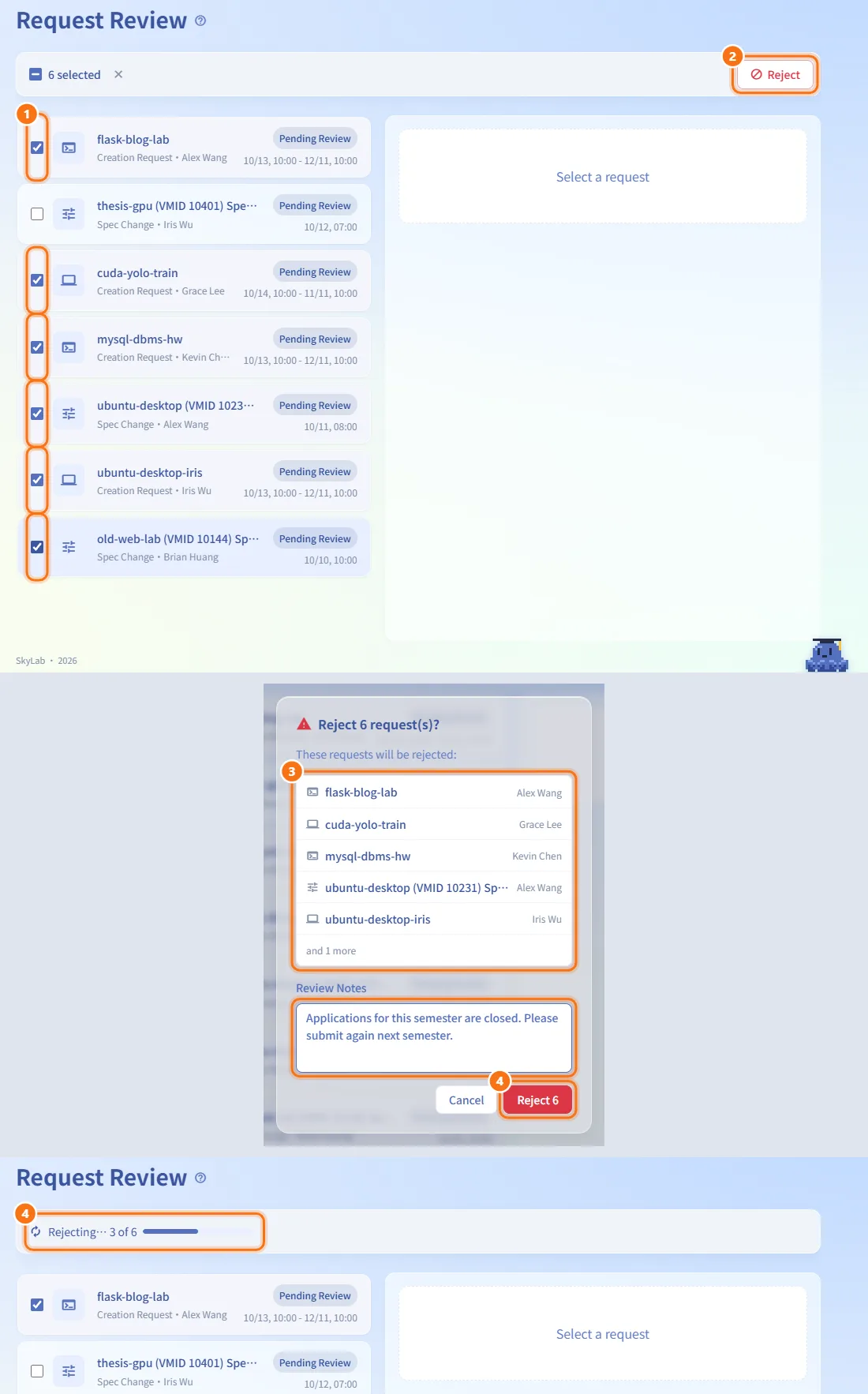
- Tick the checkbox next to each pending request. Only pending requests can be ticked. Hold Shift to tick a range, or use the select-all box in the batch bar.
- The toolbar becomes a batch bar that offers only Reject. Approvals must be done one at a time, because each needs its assessment checked.
- Click Reject. The dialog lists the requests to be rejected (up to five, then "and N more") and has one Review Notes field, saved on every request.
- Click Reject N. A progress line shows how far it has got. Requests that failed stay ticked so you can try again.
Check a past decision
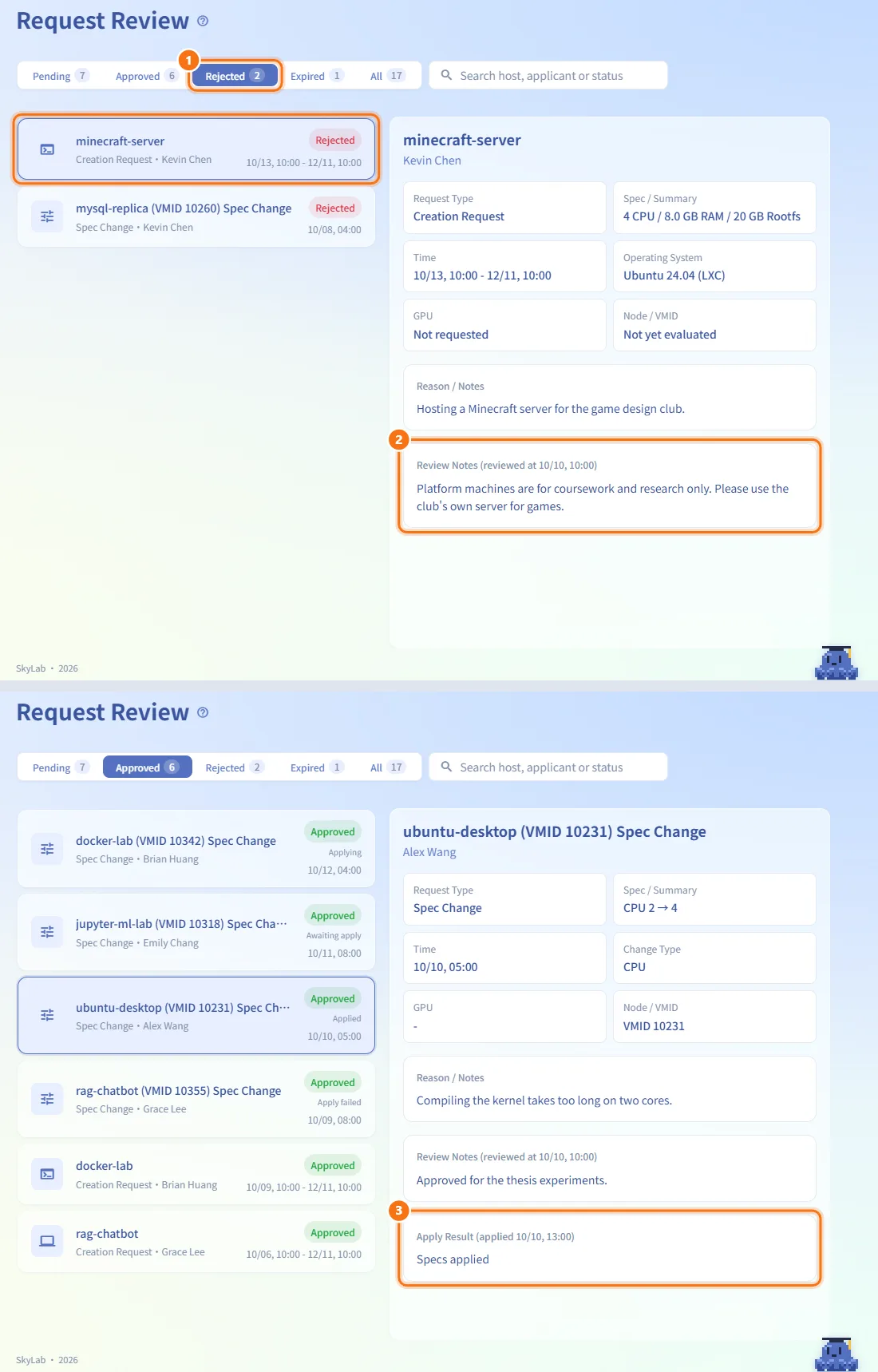
- Open the Approved, Rejected, Expired or All tab and click a request.
- Review Notes shows your note and when it was reviewed, or No notes entered.
- For an approved spec change, Apply Result shows Specs applied (with the time), Applying (shutdown → reconfigure → start), Waiting for the requester to click Apply, or the error if applying failed.
Fields and options
| Field | Meaning | Notes |
|---|---|---|
| Pending Review | Waiting for a decision | Only status that can be approved, rejected or ticked |
| Approved | Approved by an administrator | Spec changes also show apply progress |
| Rejected | Rejected by an administrator | |
| Cancelled | Withdrawn by the requester | Appears under All |
| Expired | The usage window ended before the request was decided, or before a machine was created | Creation requests only |
| Review Notes | Your note to the requester | Optional; cleared when you pick another request |
| Node / VMID | Projected node (creation) or VMID (spec change) | The projected node comes from the assessment |
Limits and behaviour to know
- Approve stays disabled for a creation request while the assessment is loading, when it failed, or when no node has room for the window.
- A creation request whose usage window has already ended cannot be approved.
- A request that someone else has already reviewed cannot be reviewed again; reload the list.
- Pending requests whose window ends without a decision are marked Expired automatically, and so are approved requests whose window ends before a machine is created.
- Spec change approval checks the requester's quota. When an administrator changes specs directly on a machine's detail page, no request is created and nothing appears here.
Related
- My Requests — where users submit creation requests and follow them
- Resource Detail — where users submit spec changes and apply them
- Class Review — approving whole-class provisioning
- GPU Management — the GPU mappings requests refer to
- Resource Scheduling — placement settings used by the assessment
- Resource Policies — quotas checked on spec changes