
Resource Management
Resource Management lists every VM and LXC container on the platform: personal, shared, class, course lab and quick practice machines, across all PVE connections. From here an administrator can power machines on and off, open a console, convert a machine to a template, delete machines one by one or in bulk, and open any machine's detail page. Sidebar: Resources → Resource Management. Path: /resource-mgmt.
Who can use it
Administrators only. The sidebar item is hidden for teachers and students, and the page and the list it loads are refused for anyone who is not an administrator.
Before you start
- At least one PVE connection must be configured (see PVE Management). Without one the list is empty.
- The list refreshes automatically in the background; you do not need to reload the page after acting on a machine.
Step by step
Find a machine
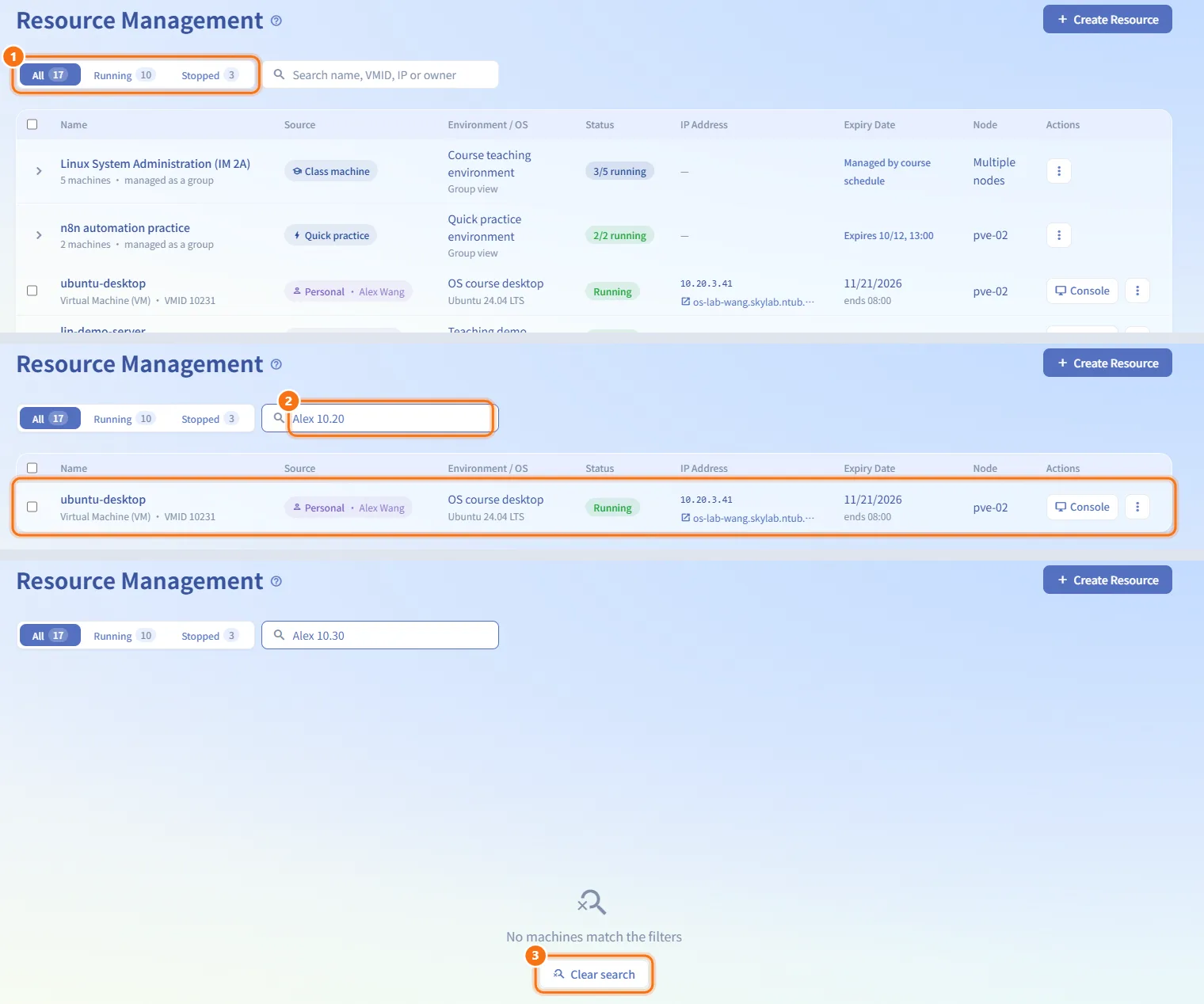
- Use the status switch above the table: All, Running or Stopped. The badge on each option counts all machines and ignores the search.
- Type in the search box (Search name, VMID, IP or owner). Separate several words with spaces: every word must match. For example, an owner's name followed by the start of an IP address narrows the list to that owner's machine on that subnet. The owner's email also matches.
- If nothing matches, the page shows No machines match the filters. Click the button under it to clear the search or the status filter.
Read the table
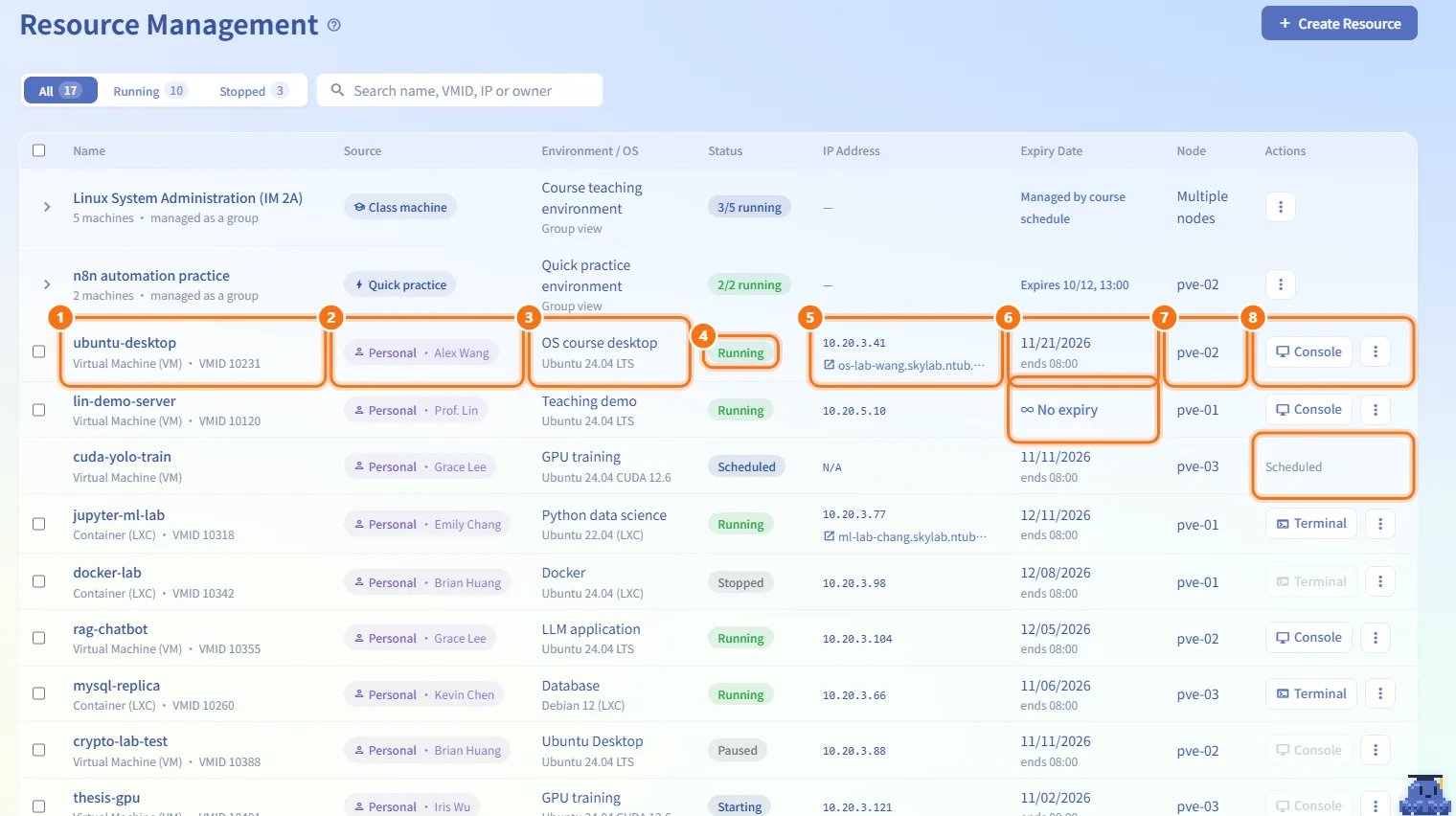
Each row shows:
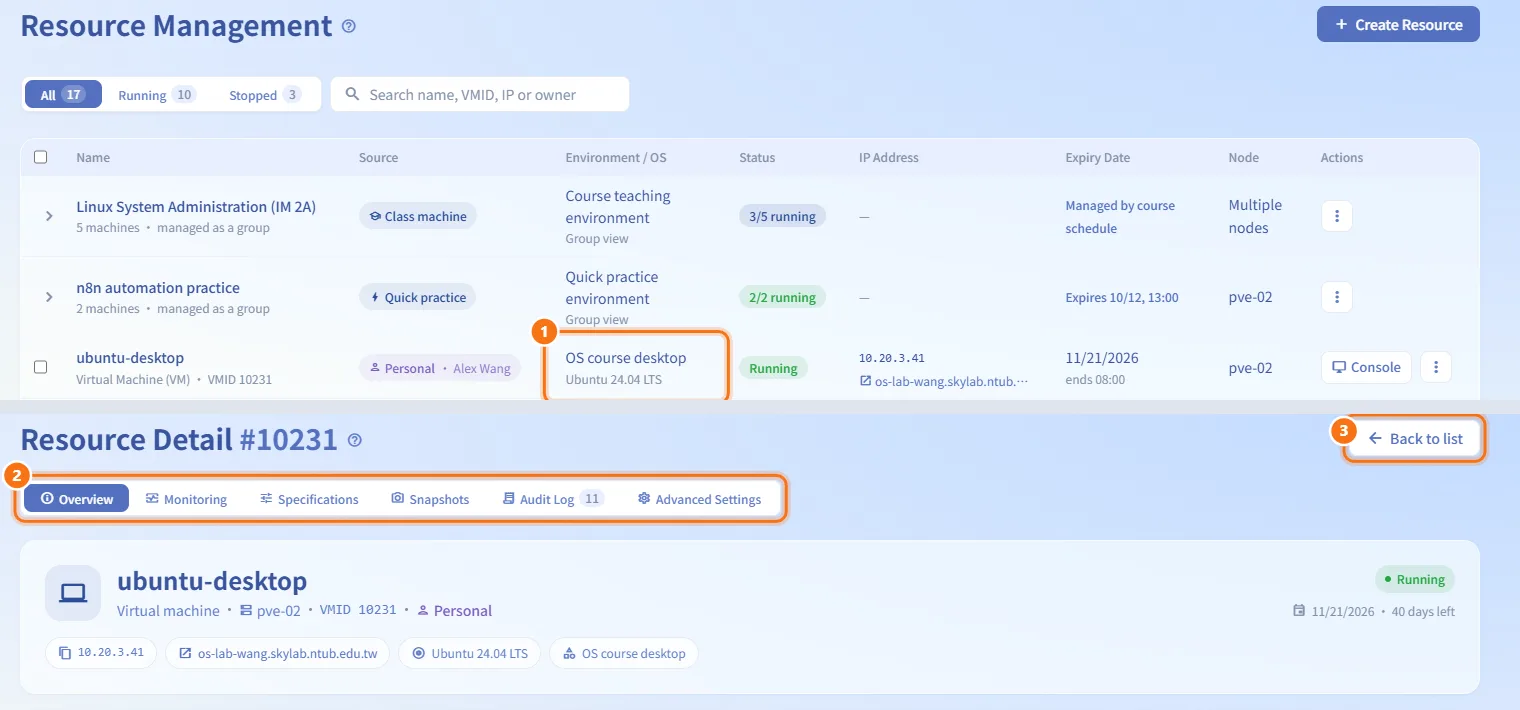
- Name, with the machine type (Virtual Machine (VM) or Container (LXC)) and its VMID underneath.
- Source: whether the machine is personal, shared, a class machine, a course lab machine or a quick practice machine, together with its owner.
- Environment / OS.
- Status (see the table below).
- IP Address. If the machine has services published by URL, the URLs are listed under the IP as links that open in a new tab.
- Expiry Date. The small text under the date is the actual cutoff converted to your local time. ∞ No expiry means no expiry date is set.
- Node: the PVE node the machine runs on.
- Actions: console and power menu, shown only while the machine is in a state that can be controlled; otherwise the column repeats the status.
Work with course and quick practice environments
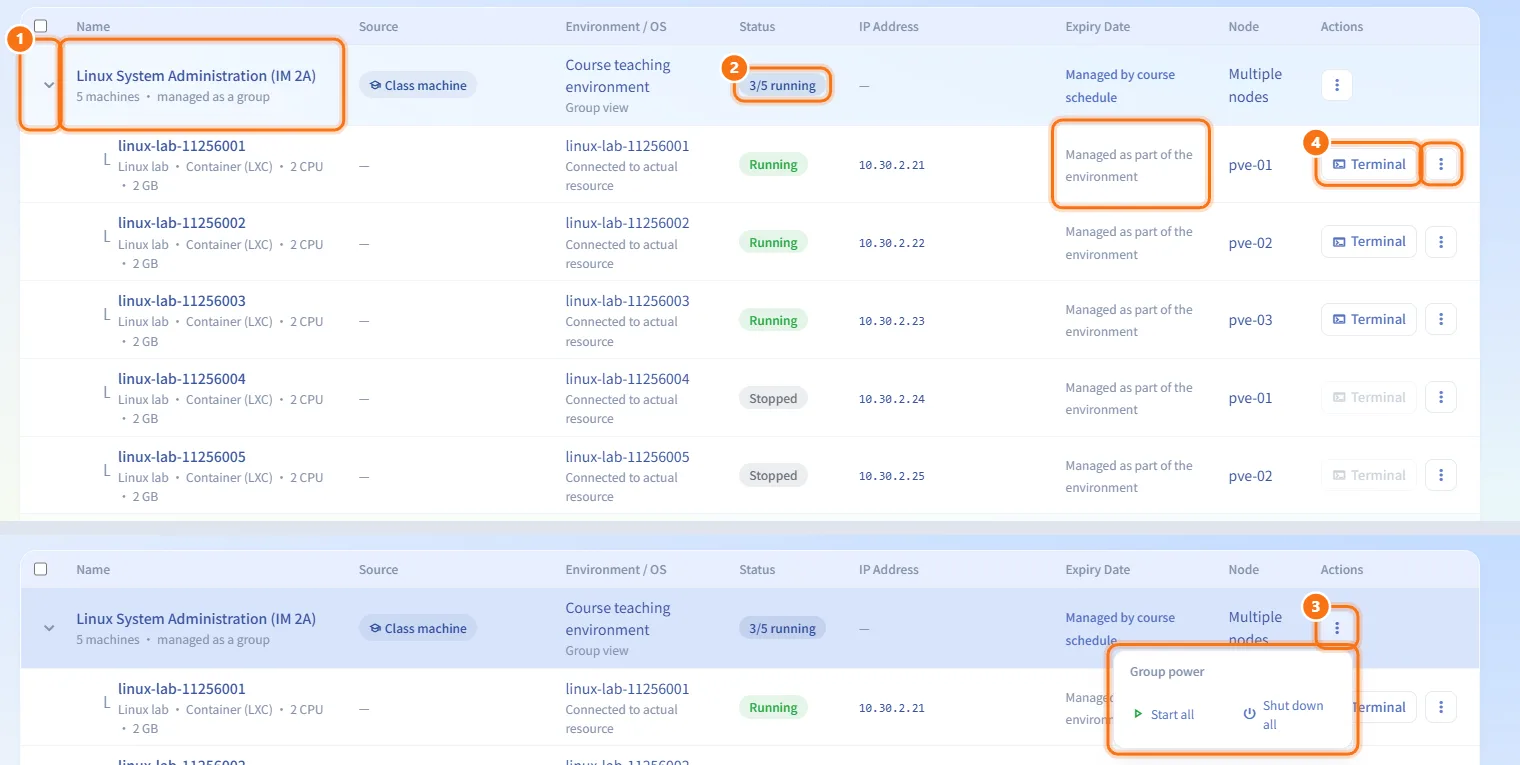
Machines that belong to a course teaching environment or a quick practice environment are grouped under one group row.
- Click the group row (or the arrow at its left) to expand or collapse it. The second line of the group shows how many machines it has, or how many match your search (for example "2 of 5 machines match").
- The Status column of the group shows how many machines are running, for example "3/5 running".
- To power the whole group, click ⋮ on the group row (Group power) and choose Start all or Shut down all. Start all is disabled when every machine is already running; Shut down all is disabled when none is running.
- Each machine inside the group has its own Console / Terminal button and ⋮ power menu. Machines in a group show Managed as part of the environment in the expiry column and cannot be deleted one by one.
Open a machine's console
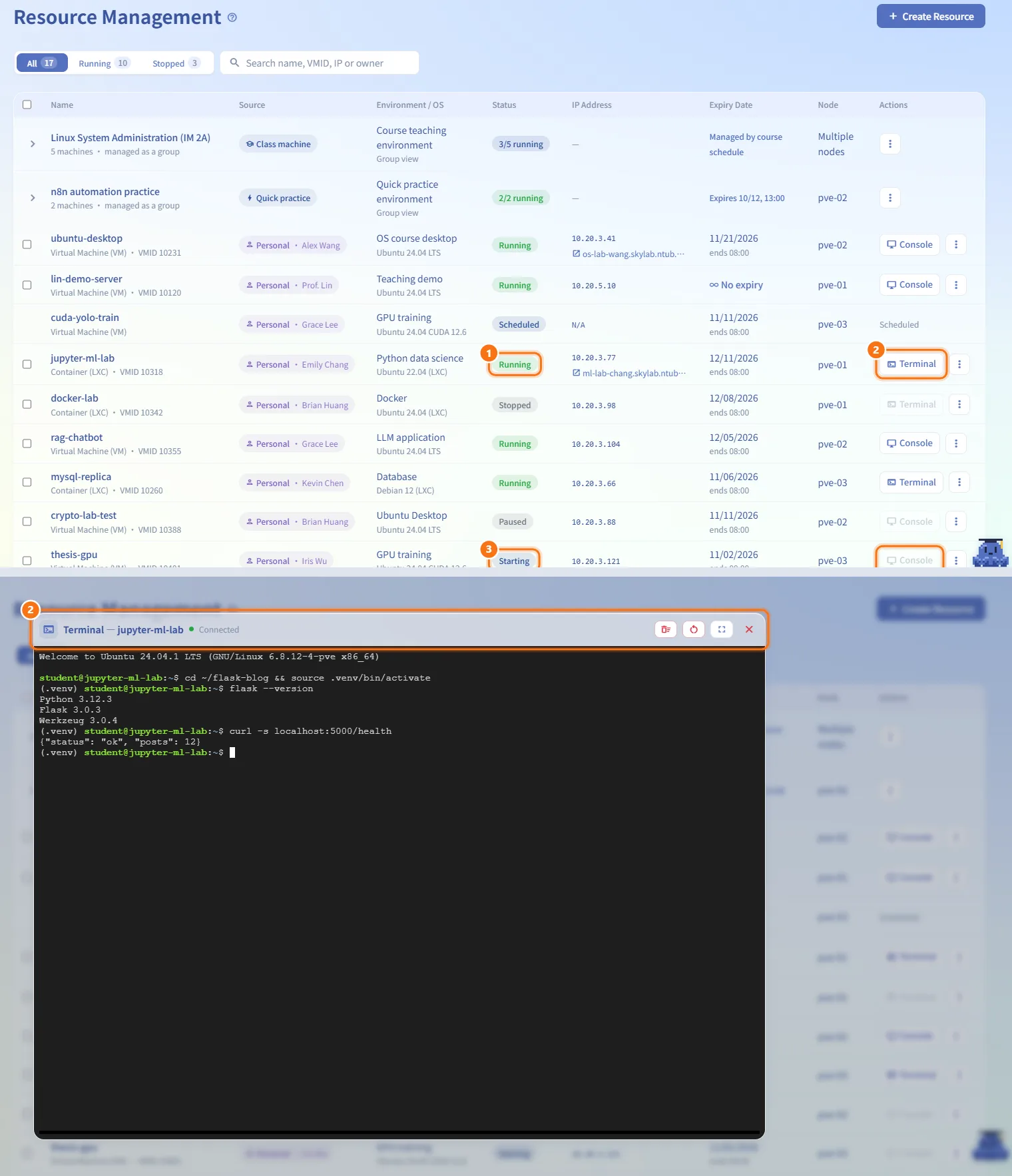
- Make sure the machine is Running.
- Click Console (VM) or Terminal (LXC) in the Actions column. The console opens in a dialog.
- While the machine is Starting, the button stays disabled until boot finishes.
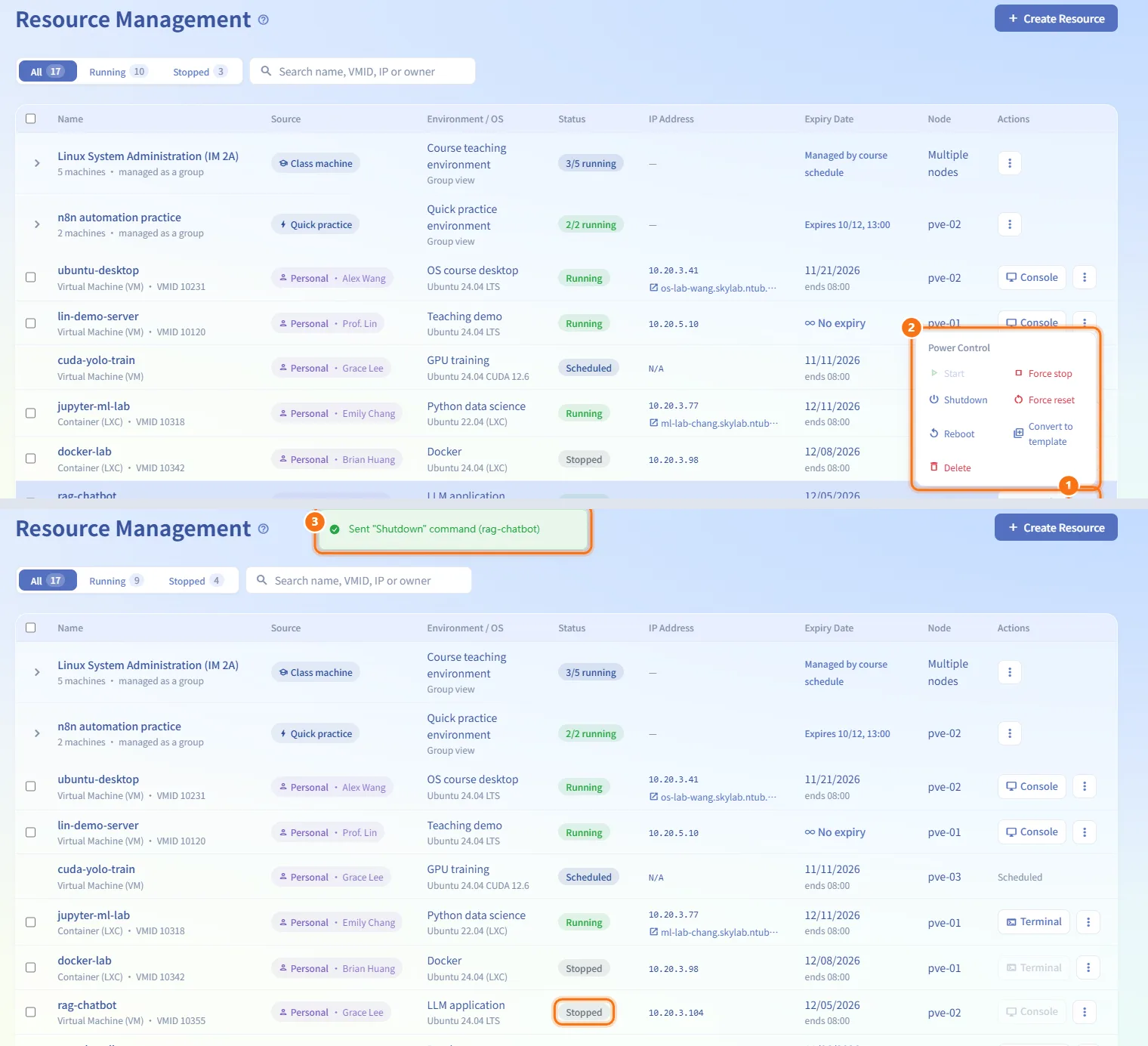
Power a single machine on or off
- Click ⋮ (Power Control) at the end of the row.
- Choose Start, Shutdown, Reboot, Force stop or Force reset. Only the actions that fit the current state are enabled:
- Start needs a stopped or paused machine.
- Shutdown, Reboot and Force reset need a running machine.
- Force stop works on a running machine and also on one that is still Starting (a way out when boot hangs).
- A message confirms that the command was sent, and the status updates in place.
Act on several machines at once
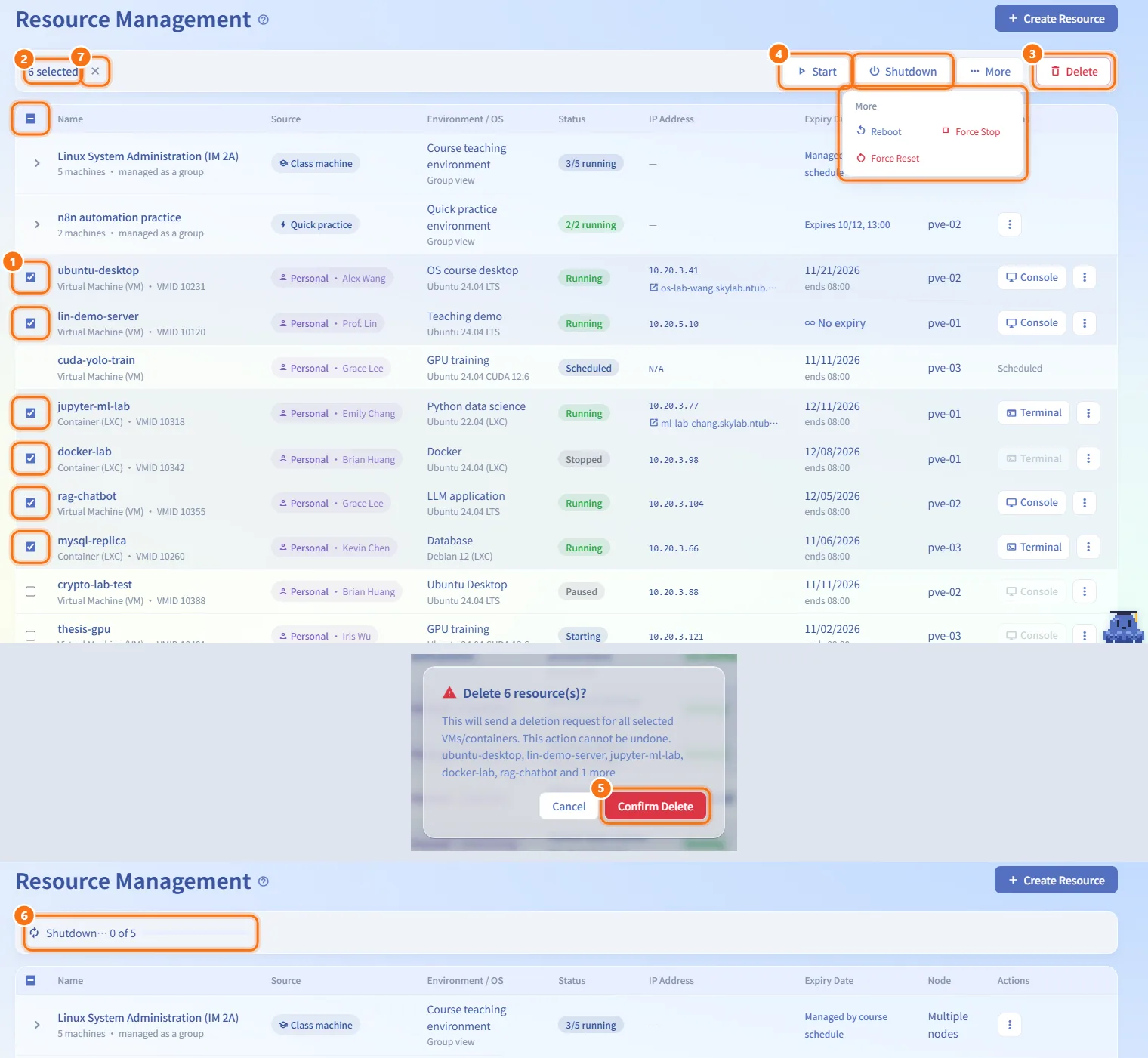
- Tick the checkbox at the start of each row, or tick the header checkbox to select every machine currently shown. Hold Shift while clicking to select a range. Once at least one machine is ticked, clicking a row ticks it instead of opening the detail page.
- The toolbar turns into a batch bar showing how many machines are selected.
- Click Start or Shutdown, or open More for Reboot, Force Stop and Force Reset. Delete sits on the far right.
- Each action is sent only to the machines it applies to (for example, Shutdown only to running ones). Hover over a button to see how many will be skipped; a button is disabled when none of the selected machines can do it.
- Force Stop, Force Reset and Delete ask for confirmation first. The delete dialog lists up to five machine names and "and N more".
- A progress line shows how far the batch has got. When it finishes, a message reports how many succeeded and how many were skipped. Machines that failed stay selected so you can retry.
- Click × next to the count (Clear selection), or press Esc, to leave the batch bar.
Delete a machine
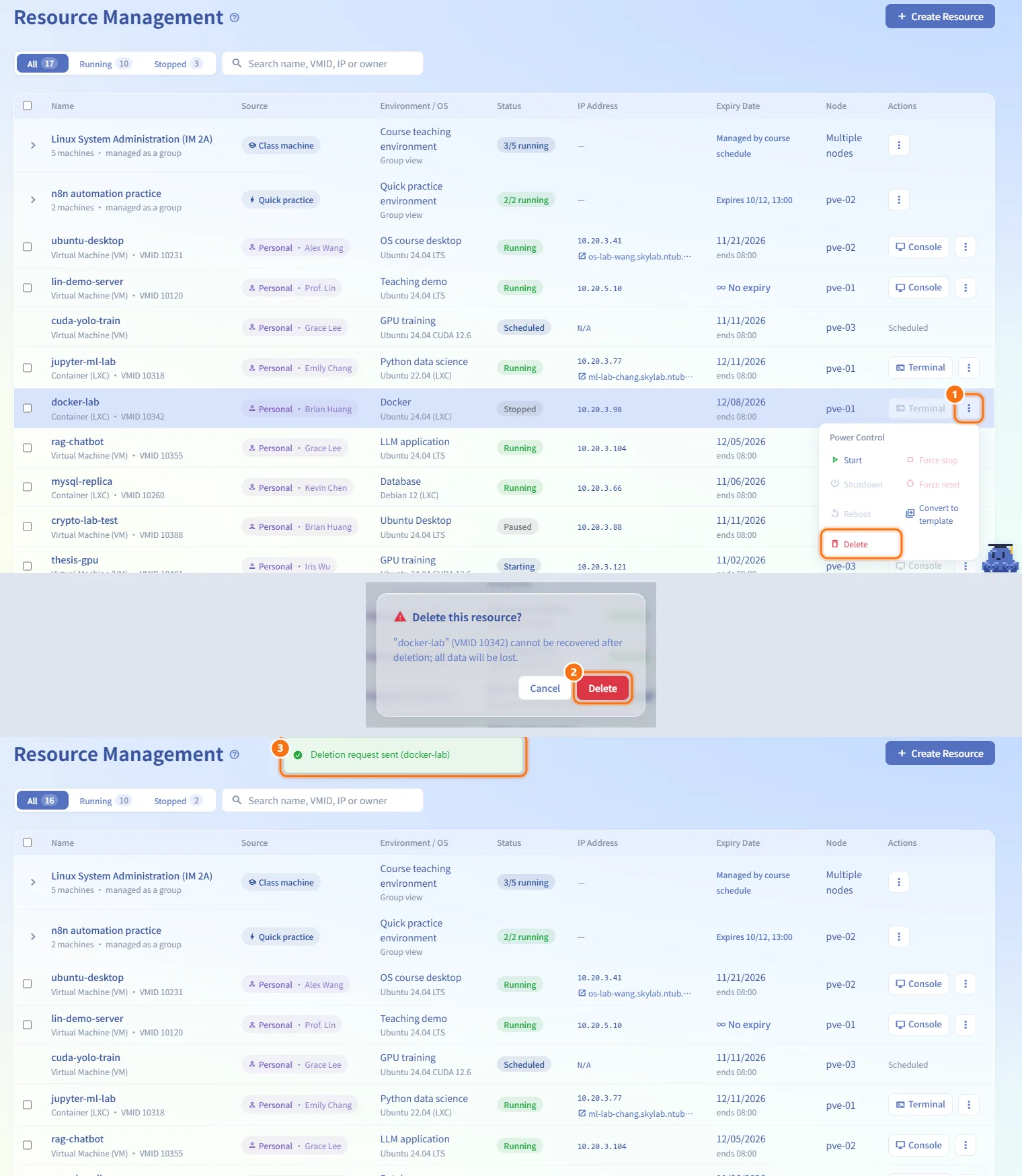
- Click ⋮ on the row and choose Delete.
- Confirm in Delete this resource?. The machine and all its data cannot be recovered.
- A deletion request is queued and the row disappears from the list. The deletion itself runs as a background job (see Background Jobs).
Convert a machine to a template
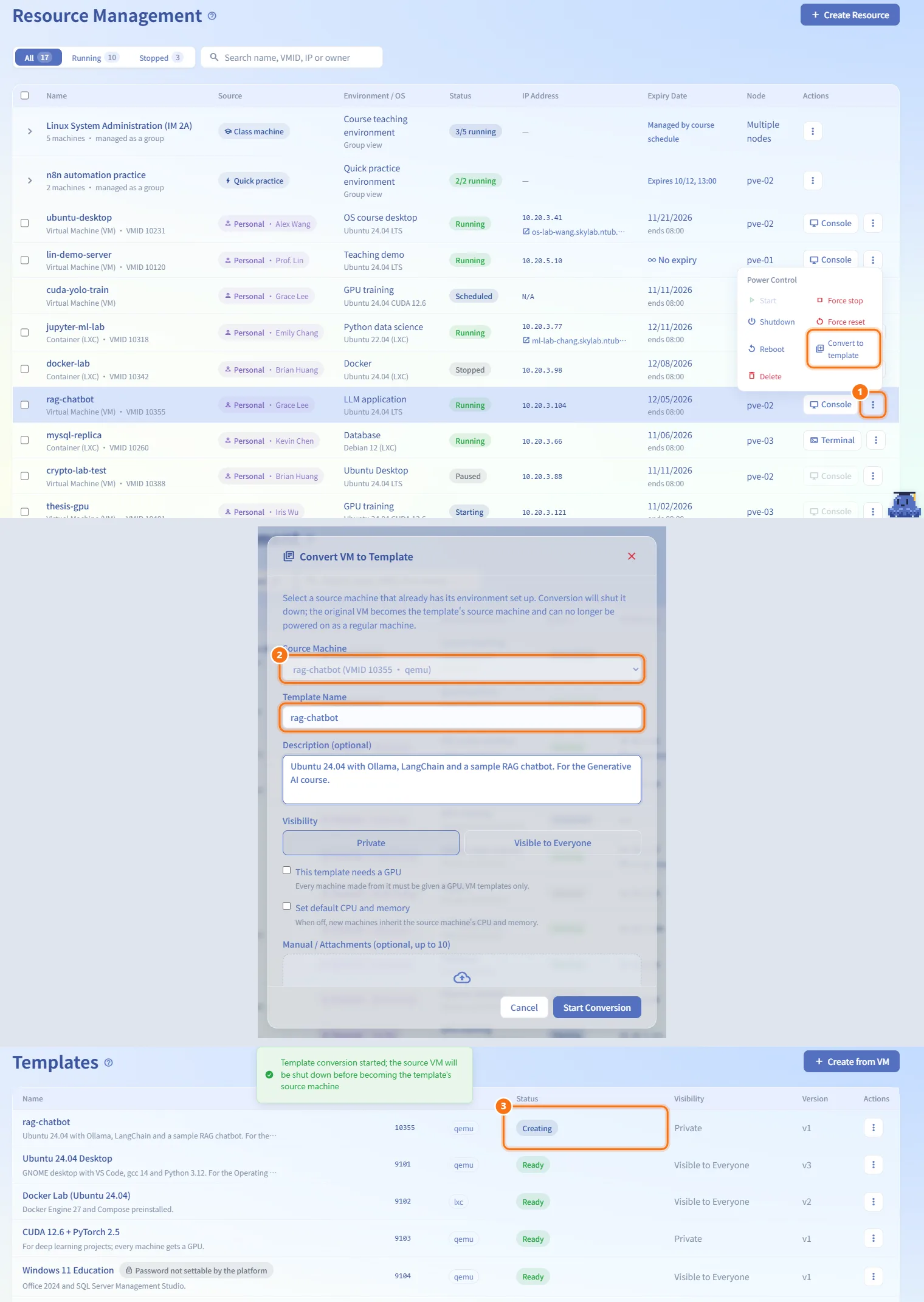
- Click ⋮ on the row and choose Convert to template. This option does not appear for class machines, for placeholder rows of requests still being provisioned, or inside environment groups.
- The template form opens with this machine preselected and locked as the source and its name prefilled. Fill in the rest of the form (see Templates).
- After you save, the machine leaves this list and you are taken to the Templates page.
Open a machine's detail page
- Click anywhere on a machine row other than its buttons and checkbox. Machines inside an environment group open the same way.
- The detail page opens at
/resource-mgmt/<vmid>with the same tabs the owner sees (Overview, Monitoring, Specifications, Snapshots or Backups depending on whether the machine supports snapshots, Audit Log, Advanced Settings). See Resource Detail for each tab. - Back to list returns to Resource Management.
What is different for an administrator on the detail page:
- You can act on machines you do not own.
- Specifications: the new CPU, memory and disk are applied directly with Apply Changes. There is no request to submit, no reason to write and no quota cap. A running VM needs a reboot before CPU and memory changes take effect, and the disk can only grow.
- Snapshots: you can delete evidence snapshots (marked Evidence) that the platform takes automatically when it detects suspected mining. Owners cannot delete them.
Create a machine
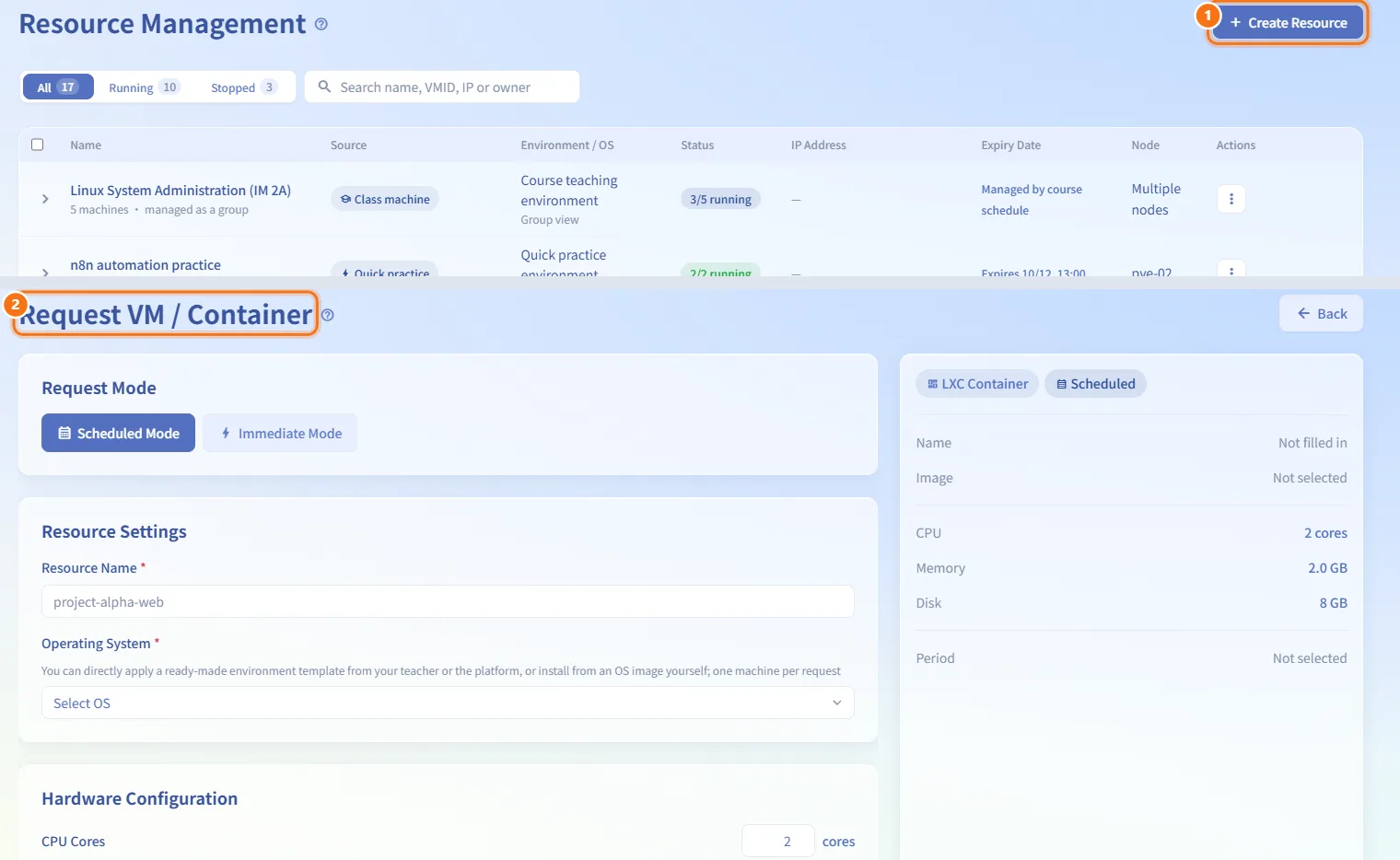
- Click Create Resource at the top right.
- You are taken to the request form on My Requests, where you fill in specs and a usage window the same way other users do. This page does not create machines by itself.
Fields and options
| Field | Meaning | Notes |
|---|---|---|
| Status: Scheduled / Provisioning | An approved request whose machine is not created yet, or is being created | Shown as a placeholder row; cannot be selected or controlled |
| Status: Starting | The boot task is still running | Console disabled; only Force stop available |
| Status: Running / Stopped / Paused | Current power state from PVE | Decides which power actions are enabled |
| Status: Creation Failed | Provisioning failed | No power actions |
| Status: Unknown Status | State could not be read | |
| Source | Personal, shared, class, course lab or quick practice, with the owner | Group rows show the class or environment instead |
| Expiry Date | Last day of use; small text is the cutoff in local time | ∞ No expiry when none is set |
| Search | Matches name, VMID, IP, owner name and owner email | All space-separated words must match; group names match too |
Limits and behaviour to know
- Machines that are being deleted, and placeholder rows for requests that are still being provisioned, have no checkbox and no power menu.
- Force stop and force reset cut power without a clean shutdown; unsaved data in the guest may be lost.
- Deleting removes the machine from PVE and cannot be undone. Machines in a course or quick practice environment cannot be deleted from here one by one; the environment manages them as a group.
- Selection only covers machines currently shown. Machines that disappear (filtered out or removed by a refresh) are unticked automatically.
Related
- Resource Detail — the tabs on each machine's detail page
- Request Review — approve the requests that create these machines
- Templates — what happens after Convert to template
- Background Jobs — follow deletions and other queued work
- Class Review — approve class machines in bulk