
Domain Management
Domain Management connects SkyLab to your Cloudflare account and lets you browse and edit the DNS records of its zones. The same connection is what allows machines to be published under their own URL and the platform entry to get its DNS record automatically. Sidebar: Admin Settings → Domain Management. Path: /domain.
Who can use it
Administrators only. Teachers and students never open this page; they use the zones configured here when they publish a service by URL on the Firewall page.
Before you start
- A Cloudflare account whose domains (zones) you want SkyLab to use, and its Account ID.
- An API token created in Cloudflare with the permissions SkyLab needs to read zones and manage DNS records. Give it only the permissions it needs.
- For URL publishing, the Gateway VM must be set up as well (see Gateway VM), and you need to know the Gateway's public address: it becomes the default DNS target.
Step by step
Connect Cloudflare
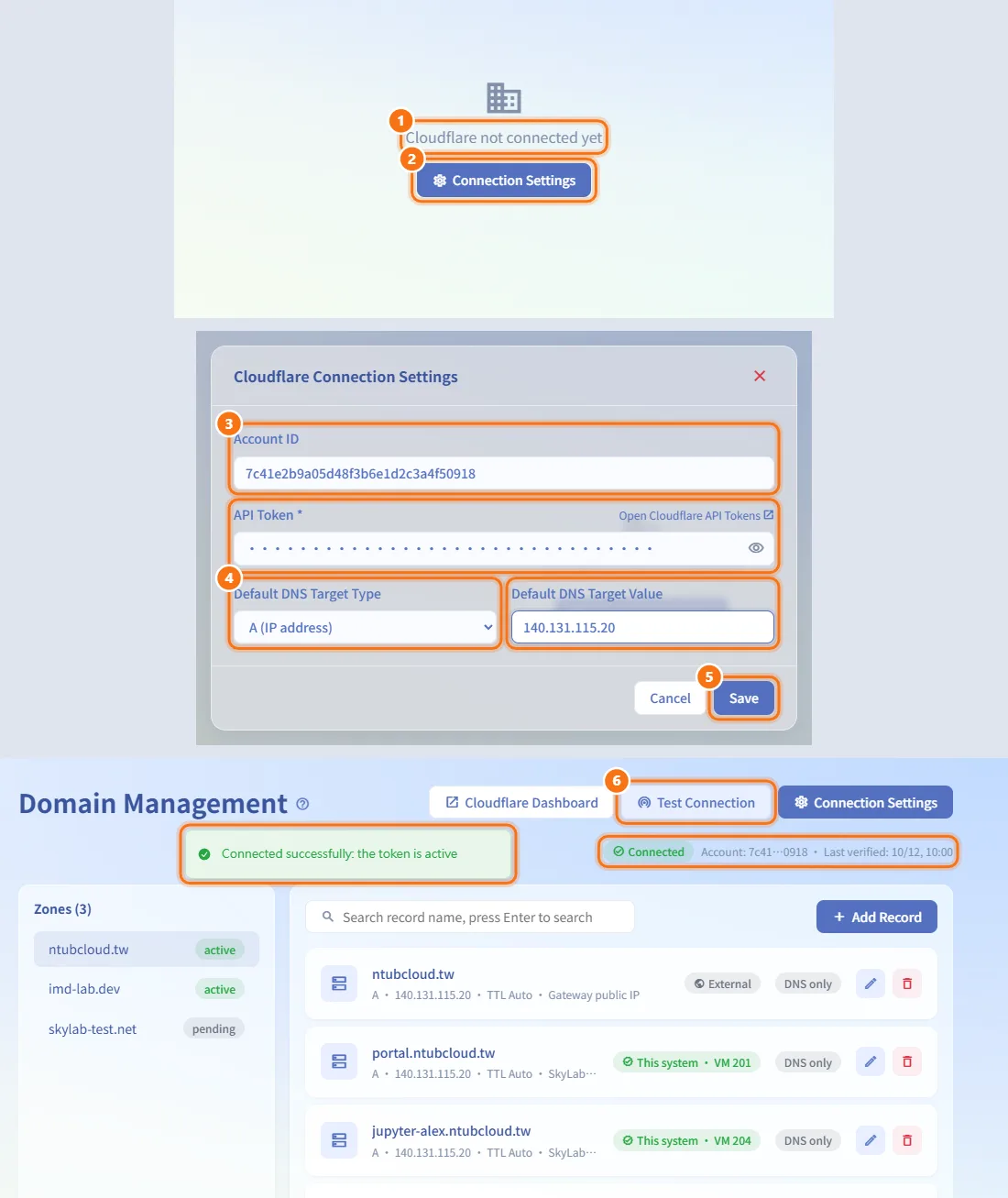
- Open the page. When nothing is configured it shows "Cloudflare not connected yet".
- Click Connection Settings.
- Enter the Account ID and paste the API Token. Open Cloudflare API Tokens next to the field opens Cloudflare's token page.
- Set Default DNS Target Type (A (IP address) or CNAME (hostname)) and Default DNS Target Value, for example the Gateway's public IP or host name. This is where SkyLab points the DNS records it creates.
- Click Save. The zone list loads.
- Click Test Connection in the page header to check the token. It only verifies the settings and does not change any DNS record.
The status row under the header shows Connected with the account (shortened; hover to see it in full) and the last time the connection was verified.
To change the settings later, click Connection Settings in the header. Leave API Token blank to keep the current token.
Browse the DNS records of a zone
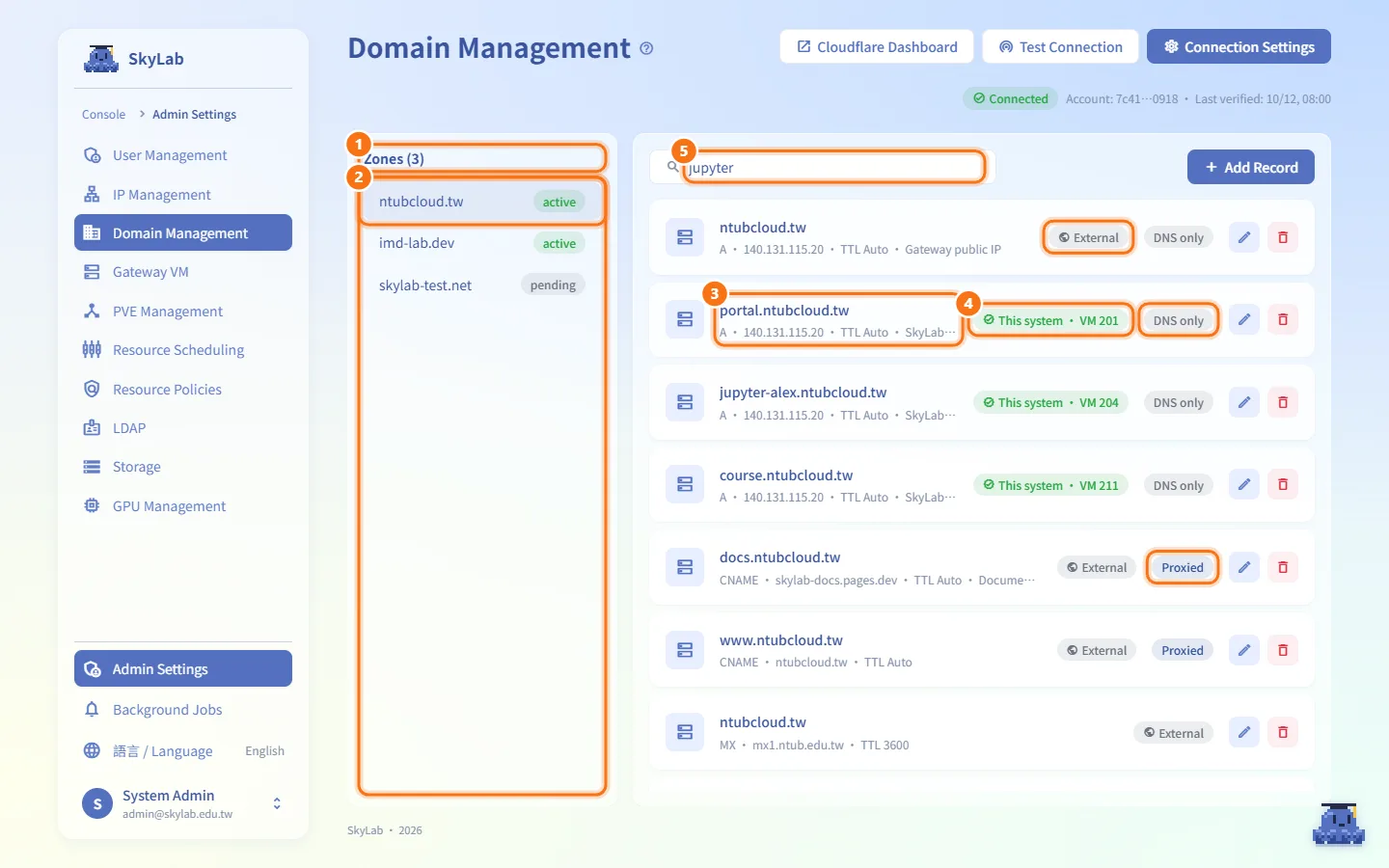
- The Zones list on the left shows every domain in the account with its status; the number in the title is how many there are.
- Click a zone. Its DNS records appear on the right.
- Each record shows its name, then type, content, TTL (Auto when the TTL is 1) and comment.
- The badges tell you where a record comes from and how it is served:
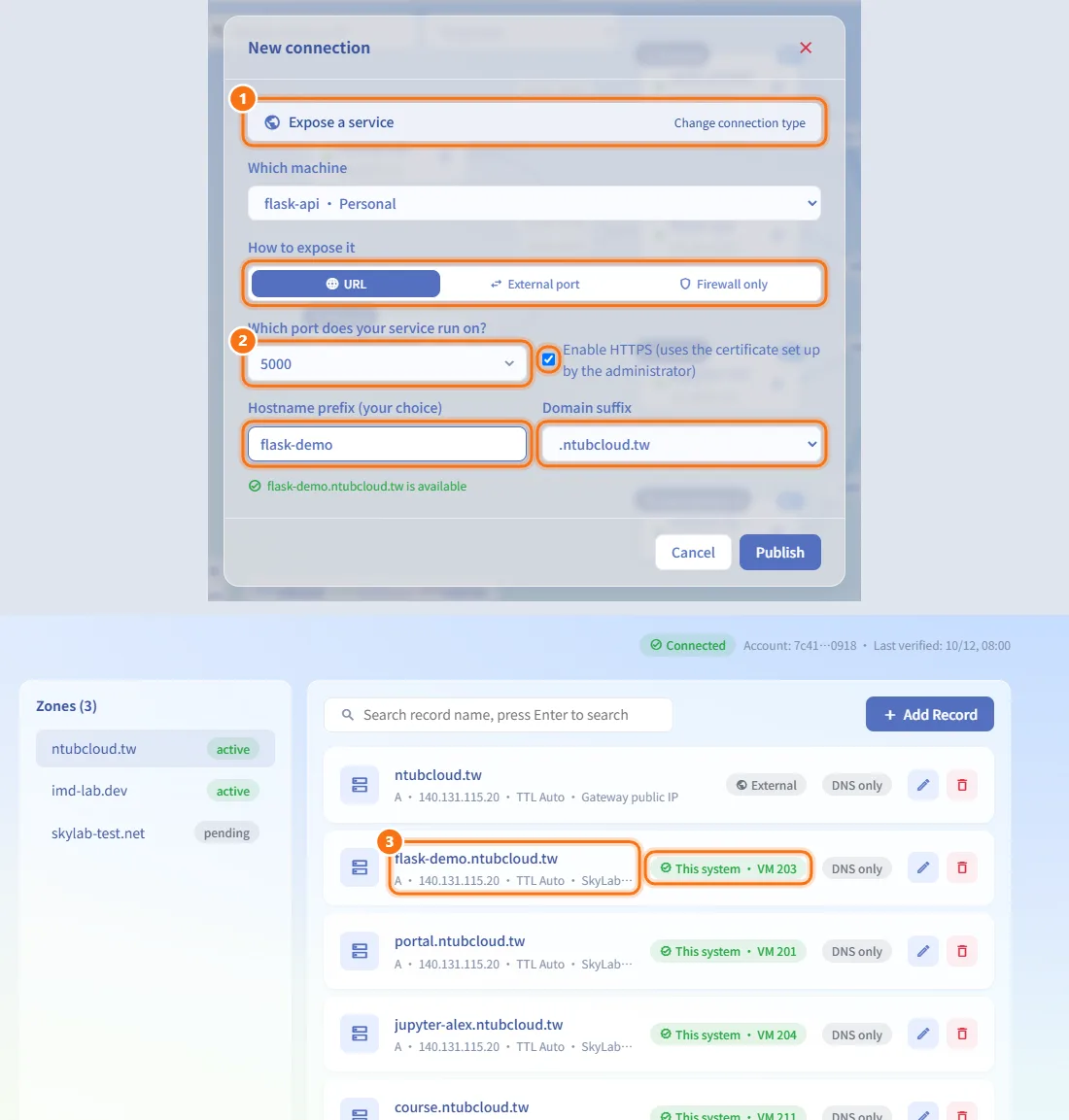
- This system · VM followed by a VMID: created by SkyLab when that machine's service was published by URL.
- External: created in Cloudflare or elsewhere, not by SkyLab.
- Proxied or DNS only: whether traffic goes through Cloudflare.
- To find a record, type part of its name in the search box and press Enter.
Add a DNS record
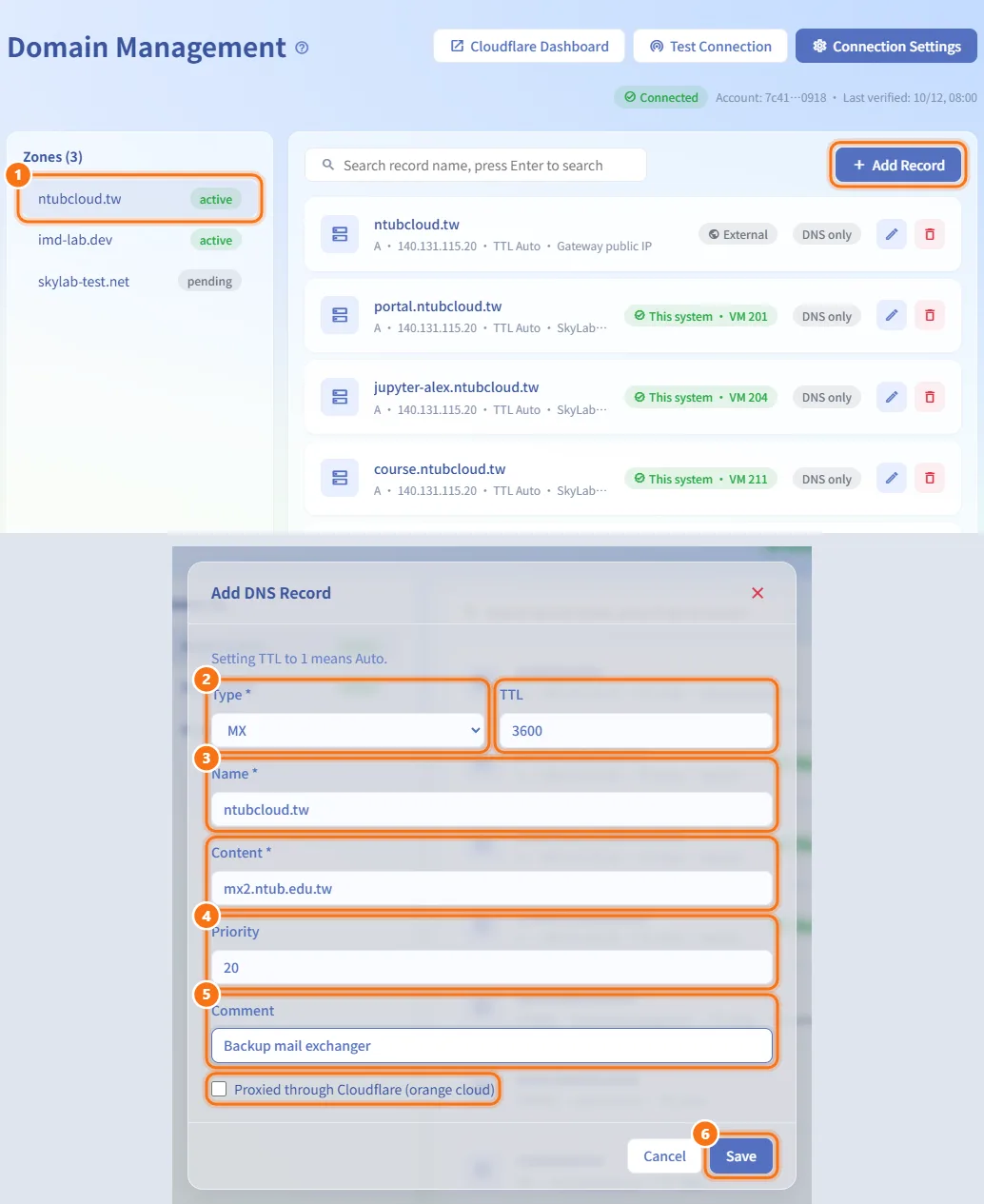
- Select a zone and click Add Record.
- Choose the Type (A, AAAA, CNAME, TXT, MX or NS) and set the TTL (1 means Auto).
- Enter the Name (for example
wwworwww.example.com) and the Content (for example an IP address). - For MX records, enter the Priority.
- Optionally add a Comment and tick Proxied through Cloudflare (orange cloud).
- Click Save.
Edit or delete a DNS record
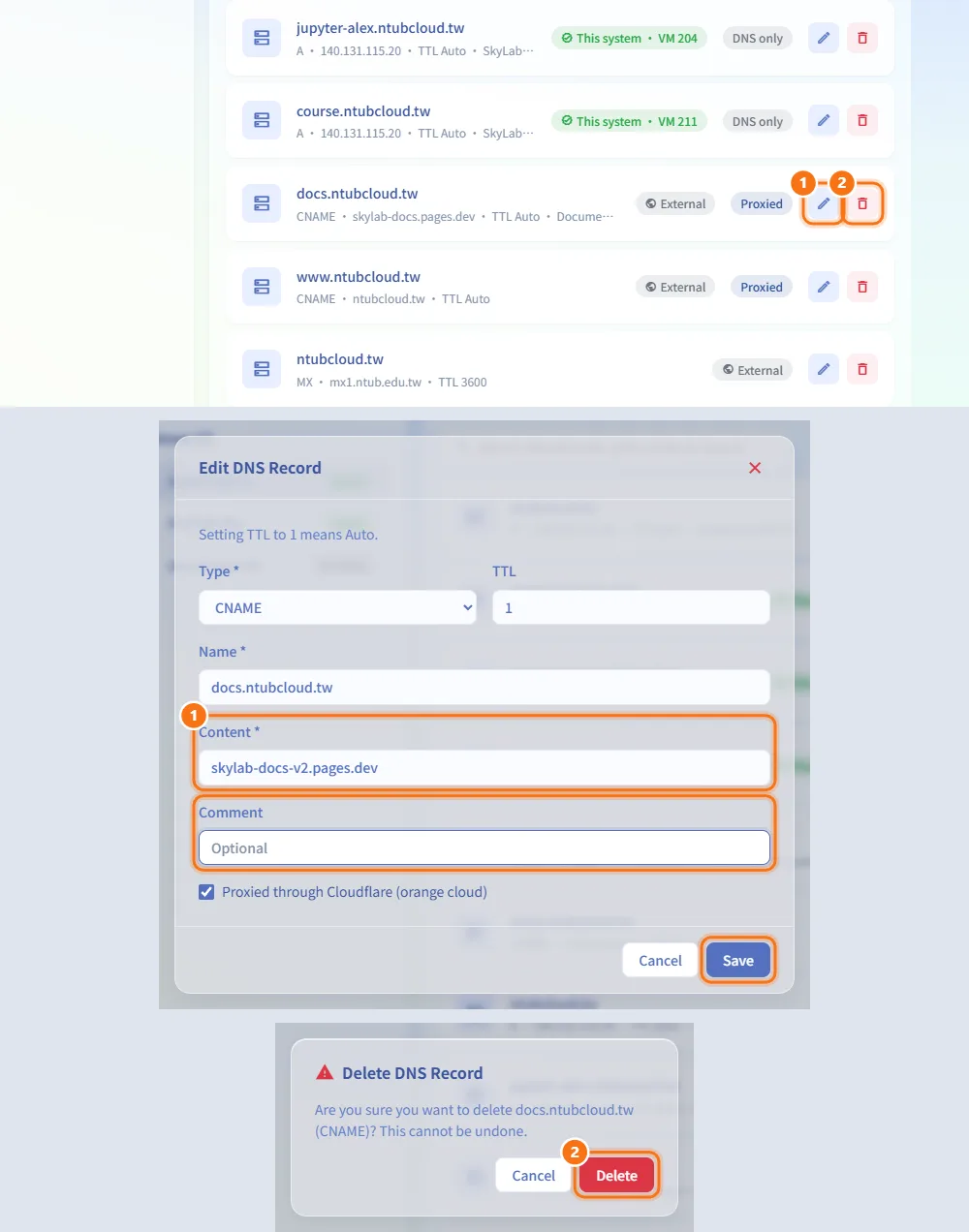
- Click the edit button on a record, change the fields and click Save. Clearing Comment removes the comment.
- Click the delete button on a record and confirm with Delete. This cannot be undone.
Give a machine its own URL
Machine URLs are not created on this page. A machine owner (or their teacher, or an administrator) publishes one from the Firewall page or the machine's detail page:
- Choose Expose a service, then URL under How to expose it.
- Enter the port the service listens on, a hostname prefix and one of the zones from this page as the domain suffix, and decide whether to enable HTTPS.
- SkyLab checks that the address is free, creates the DNS record in the zone pointing at the default DNS target, and adds the forwarding rule to the Gateway's nginx. HTTPS uses the certificate set on the Gateway VM page.
The new record then appears here with the This system · VM badge. Deleting that connection on the Firewall page also deletes its DNS record.
Fields and options
| Field | Meaning | Notes |
|---|---|---|
| Account ID | Your Cloudflare account ID | Up to 128 characters |
| API Token | Token SkyLab uses to call Cloudflare | Required the first time (at least 20 characters); blank later keeps the saved token |
| Default DNS Target Type | A (IP address) or CNAME (hostname) | Needed for URL publishing |
| Default DNS Target Value | IP or host name that SkyLab-created records point to | Usually the Gateway's public address |
| Type | DNS record type | A, AAAA, CNAME, TXT, MX, NS. Existing records of other types keep their type when edited |
| Name | Record name | Required |
| Content | Record value, for example an IP address | Required |
| TTL | Time to live in seconds | 1 means Auto |
| Priority | MX priority | MX only, 0–65535, default 10 |
| Comment | Free text stored with the record in Cloudflare | Optional |
| Proxied through Cloudflare (orange cloud) | Serve the record through Cloudflare | Off by default |
Limits and behaviour to know
- URL publishing is available to users only when the Cloudflare token and the default DNS target are set, at least one zone is active, and the Gateway is ready. Otherwise the publishing dialog explains what is missing.
- A URL cannot be published if the name is already used by another machine, by the platform entry domain, or by any existing record in the zone (SkyLab-created or external).
- The page loads up to 50 zones and up to 100 records per zone. Use the search to find a record that is not shown.
- Changes made here go straight to Cloudflare. Editing or deleting a record marked This system changes the DNS of that machine's published URL.
- The platform entry on the Gateway VM page can also create a DNS record in a zone managed here.
Related
- Firewall — publish a machine's service by URL
- Gateway VM — HTTPS certificate and platform entry
- Resource detail — a machine's published services
- Deployment guide — platform entry and HTTPS certificates