
User Management
User Management is where administrators manage every account on the platform: create and edit users, assign roles, enable or disable accounts, organize accounts into groups, review self-registrations and require two-factor authentication per account. Sidebar: Admin Settings → User Management. Path: /admin.
Who can use it
Administrators only. The page is not available to students or teachers, and the sidebar entry only appears inside Admin Settings for administrators.
There is no separate "superuser" switch: an account with the Administrator role is the platform administrator.
Before you start
- To let people sign up on their own, decide first whether new accounts need your approval (see Registration settings and Google login).
- Accounts that sign in through LDAP are managed by the campus directory; their passwords cannot be set here. See LDAP.
Step by step
Turn self-registration on or off
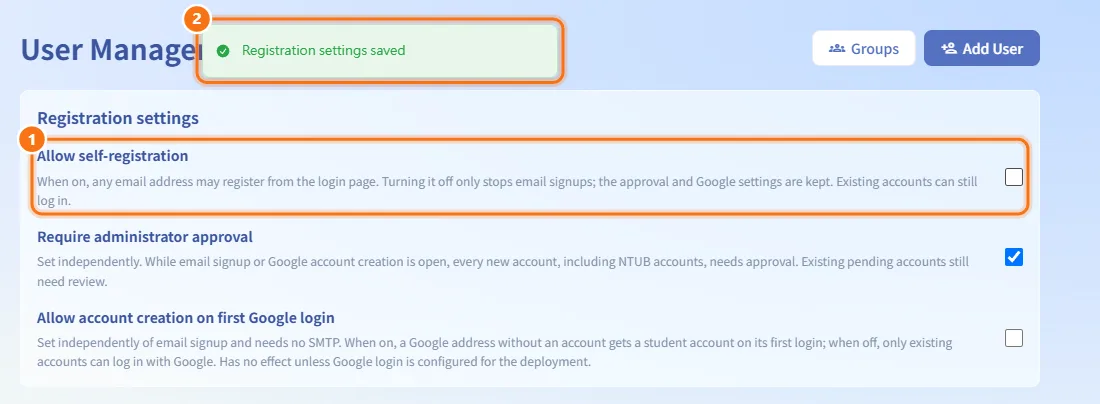
- In the Registration settings panel, tick or untick Allow self-registration.
- The change is saved immediately (a "Registration settings saved" notice appears); there is no separate save button.
When self-registration is on, any email address may register from the login page. Turning it off only stops email sign-ups; the approval and Google settings are kept, and existing accounts can still log in.
Require approval for new accounts
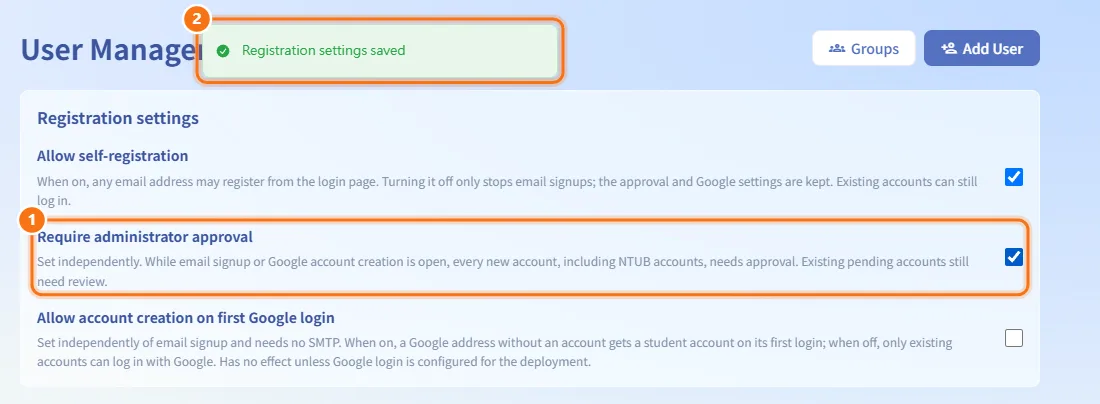
- In Registration settings, tick Require administrator approval.
- The change is saved immediately.
While sign-up or Google account creation is open and approval is on, every new account (including school accounts) must be approved before it can be used. Accounts already waiting in the pending list still need a decision even if you turn approval off.
Allow or block account creation on first Google login
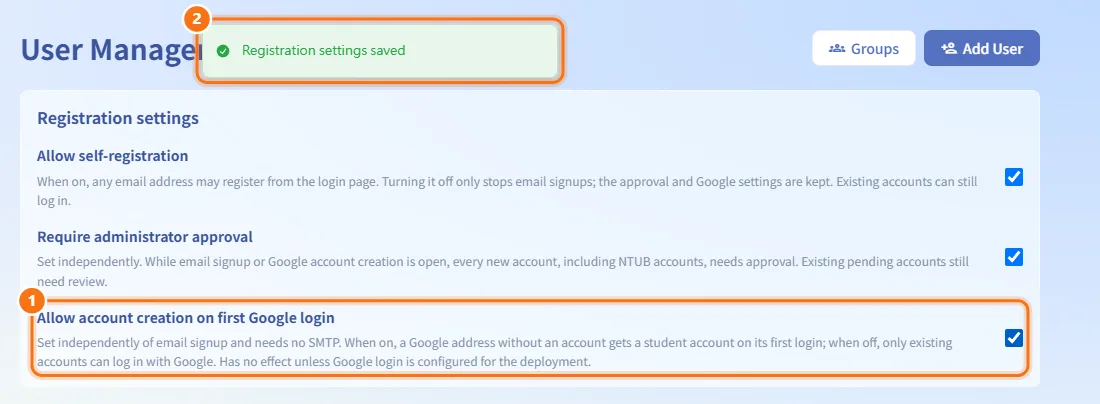
- In Registration settings, tick or untick Allow account creation on first Google login.
- The change is saved immediately.
This switch is separate from self-registration and needs no mail server. When it is on, a Google address that has no account yet gets a student account the first time it signs in with Google, and waits for approval if approval is required. When it is off, only existing accounts can sign in with Google. It only has an effect when the deployment has Google login configured.
Approve or reject a pending registration
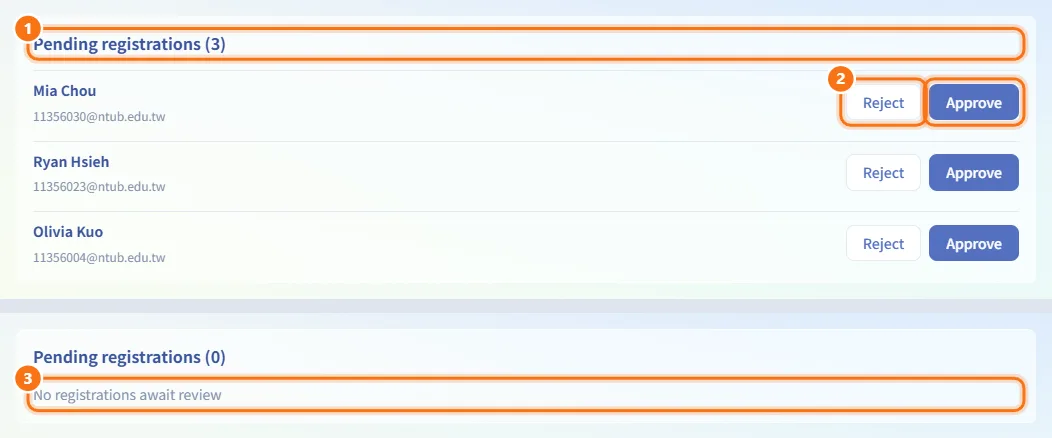
- Look at the Pending registrations panel. The number in the title is how many accounts are waiting.
- For each account, click Approve to let it sign in, or Reject to leave it unusable.
- When nothing is pending, the panel shows "No registrations await review".
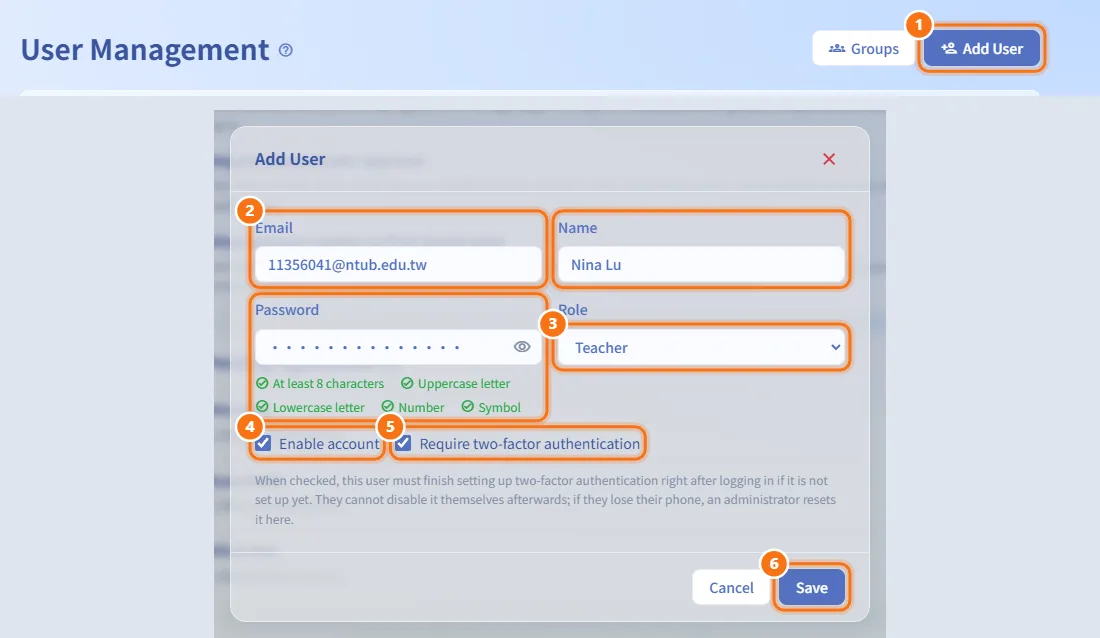
Add a user
- Click Add User in the page header (or in the empty state when there are no users yet).
- Fill in Email, optionally Name, and Password.
- Choose a Role: Student, Teacher or Administrator.
- Leave Enable account ticked so the user can sign in right away.
- Optionally tick Require two-factor authentication.
- Click Save.
An account created here needs no email verification and no approval. The password must meet the platform's complexity rules; the rule list under the field turns red for any rule that is not met.
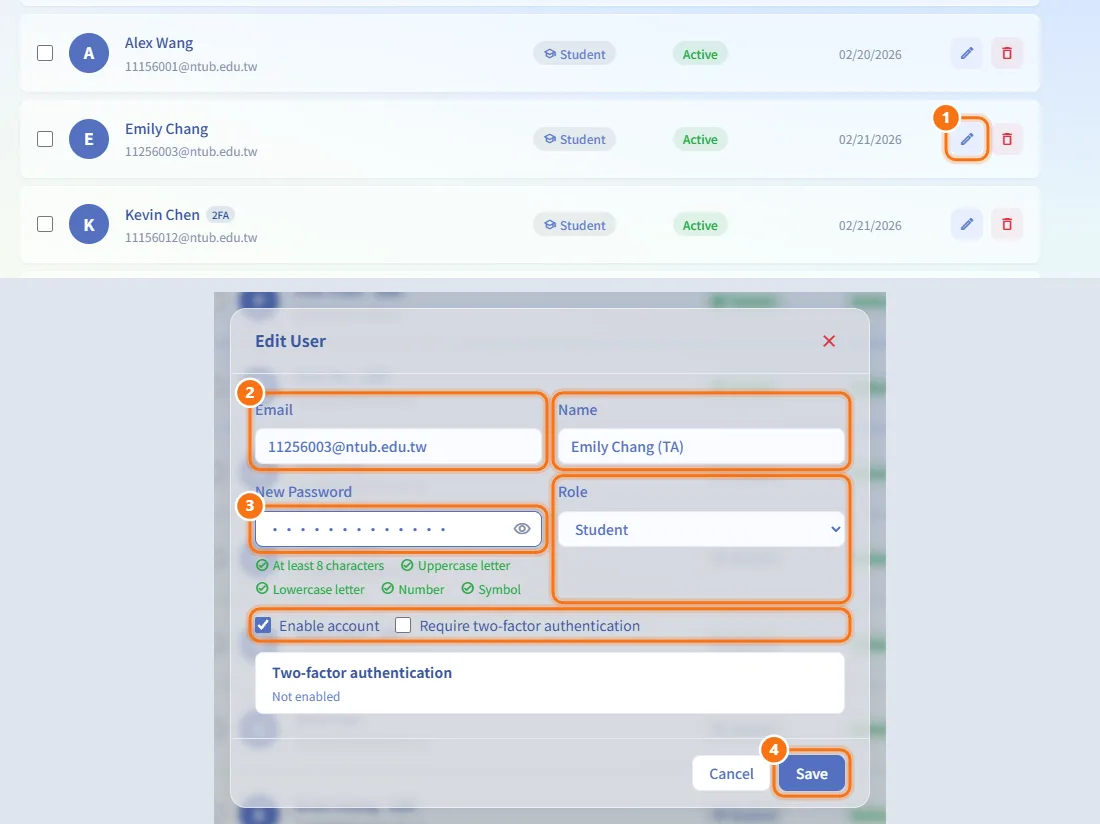
Edit a user
- Click the pencil icon (Edit) on the user's row.
- Change Email, Name, Role or the two check boxes as needed.
- To change the password, type it into New Password; leave it blank to keep the current one.
- Click Save.
For an LDAP account the password field shows "Managed by LDAP" and is locked; change that password in the directory instead.
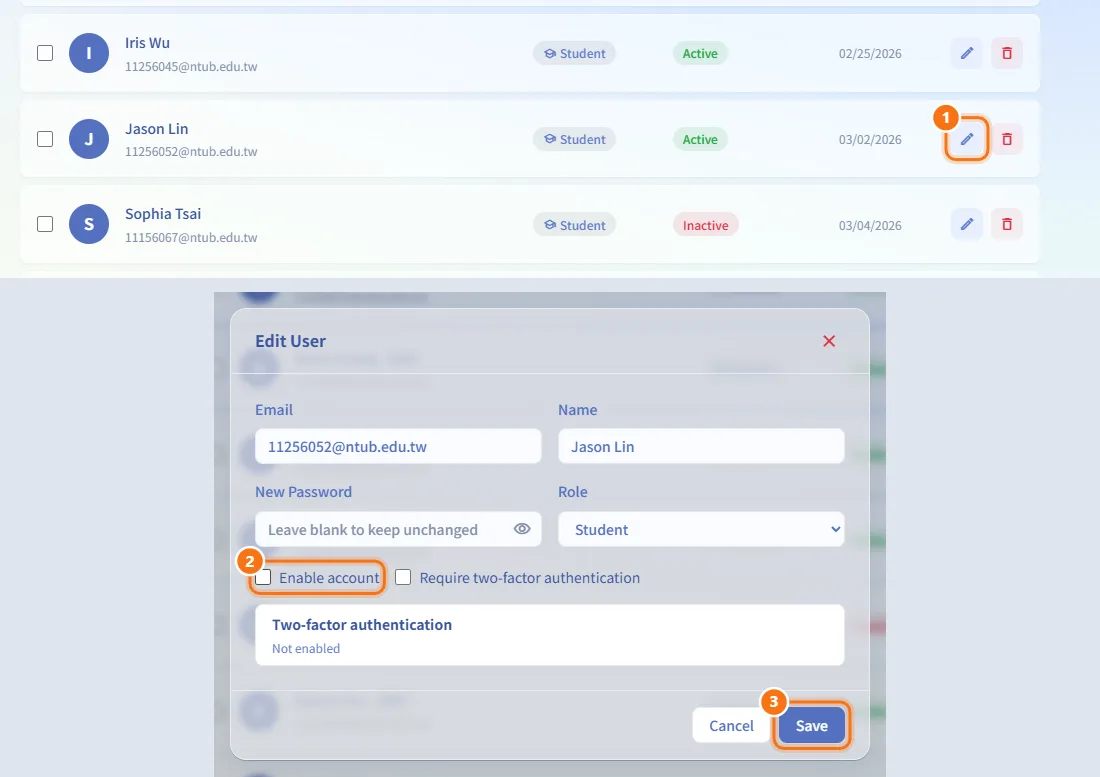
Disable or enable an account
- Click Edit on the row.
- Untick Enable account to disable it, or tick it to enable it again.
- Click Save.
A disabled account cannot sign in until it is enabled again. Enable account is locked for accounts that have not finished registration (email not verified yet, awaiting approval, or rejected); use Approve in the pending list for accounts waiting for review.
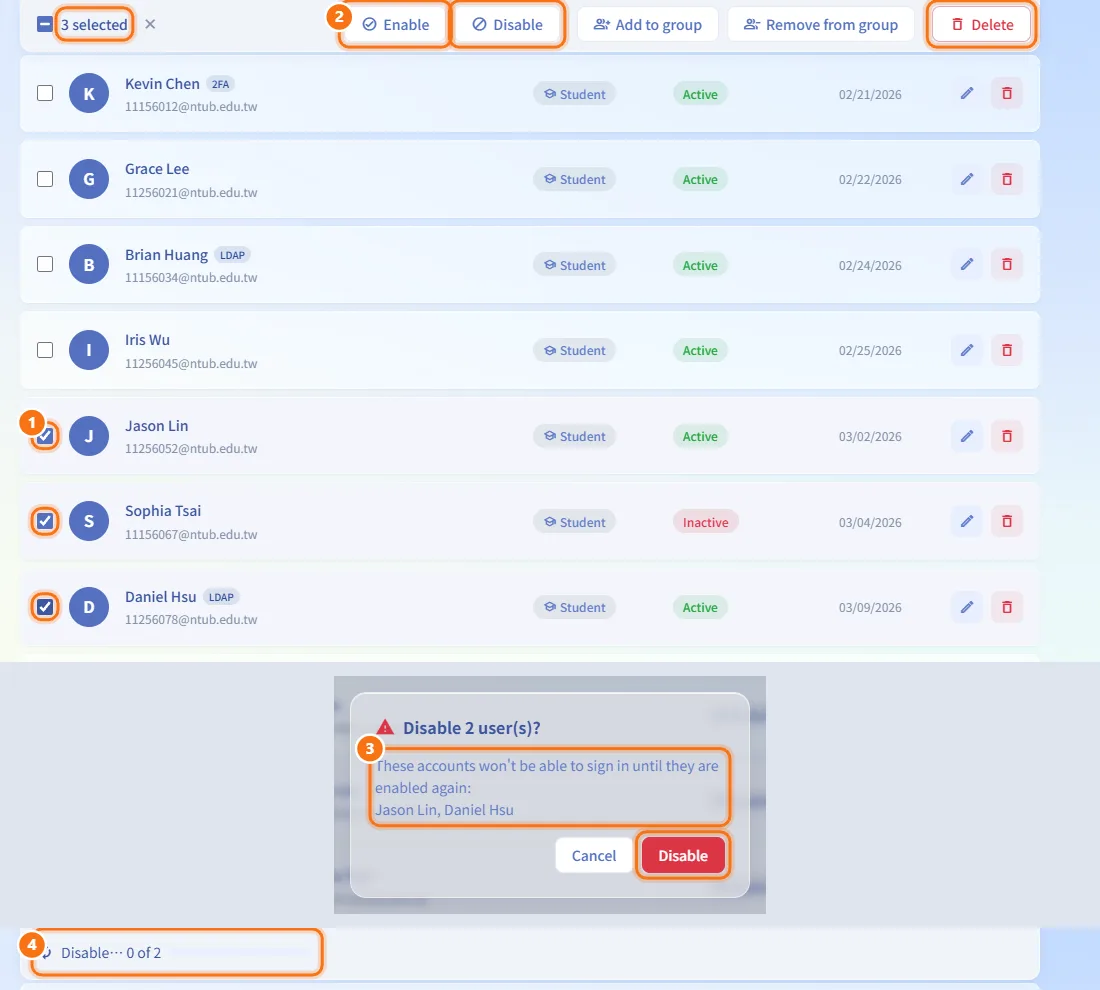
Enable, disable or delete several accounts at once
- Tick the check box on the left of each row you want. Shift-click selects a range. The search bar turns into a selection bar showing how many are selected.
- Click Enable or Disable in the selection bar; Delete sits on the far right.
- For Disable and Delete, confirm in the dialog, which lists the names of the affected accounts (up to five, then "and N more").
- A progress counter shows while the accounts are processed.
Enable and Disable only change accounts that are not already in the target state; the others are skipped (hover the button to see how many apply). Delete follows the same rules as deleting a single user: the account cannot be restored, its email cannot register again, and accounts that still own provisioned resources are refused. If some operations fail, those accounts stay selected so you can try again. Selection only covers the current page, and you cannot select your own account.
Create, rename or delete groups
A group is a named set of accounts, such as one school class (資管三甲). Teachers can import a group's students straight into a class roster when they set up a class (see Create a Class); only administrators can create groups and change their members.
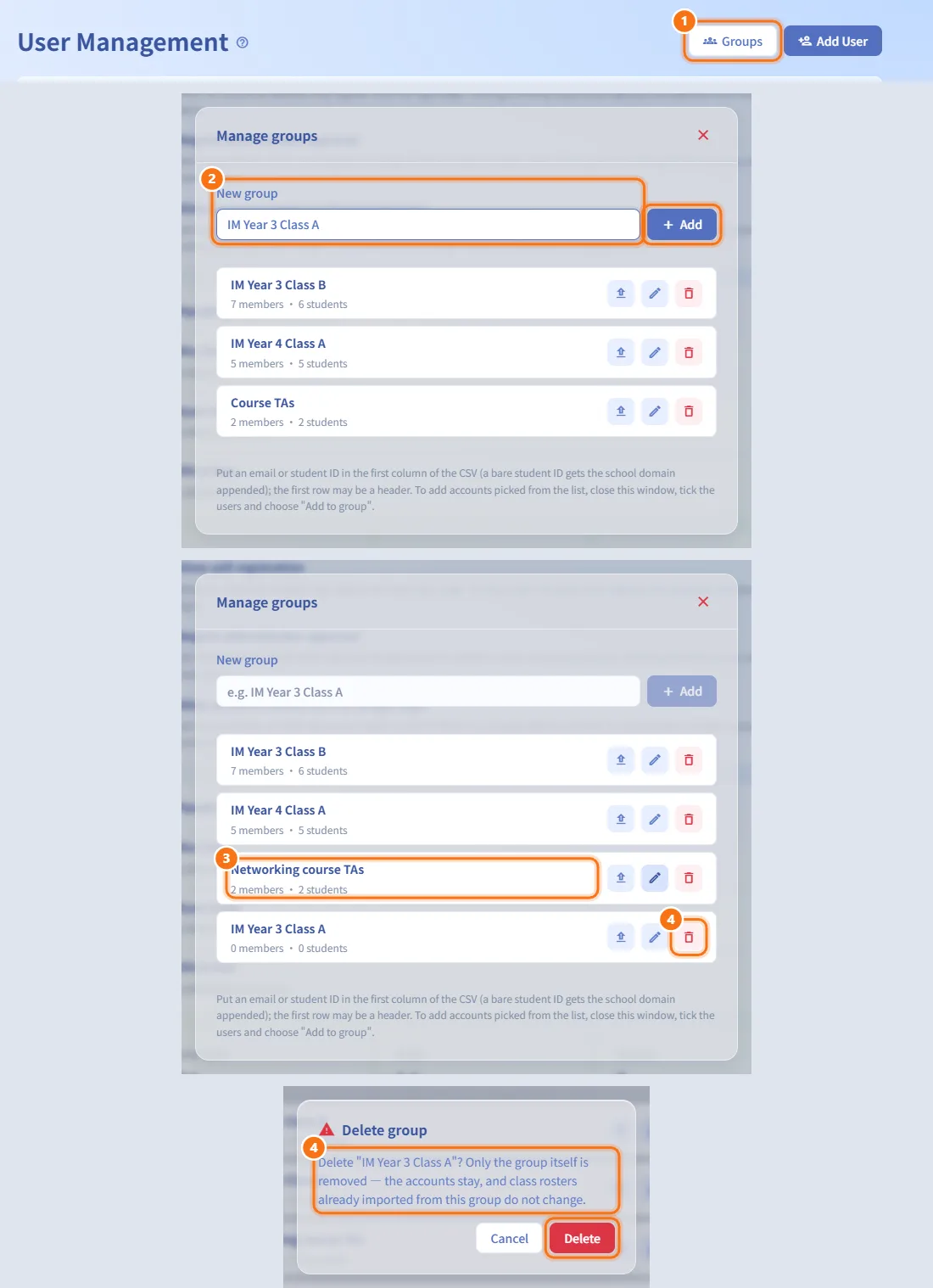
- Click Groups in the page header.
- Type a name under New group and click Add. Group names must be unique (case does not matter).
- To rename a group, click the pencil icon on its row, edit the name and press Enter (Esc cancels).
- To delete a group, click the trash icon and confirm. Only the group is removed: the accounts stay, and class rosters already imported from it do not change.
When at least one group exists, a group menu appears next to the search box; choose a group to list only its members. Each row in Groups shows how many members and how many students the group has. A group can hold any role, but only its student accounts are added when a teacher imports it.
Add group members from a CSV file
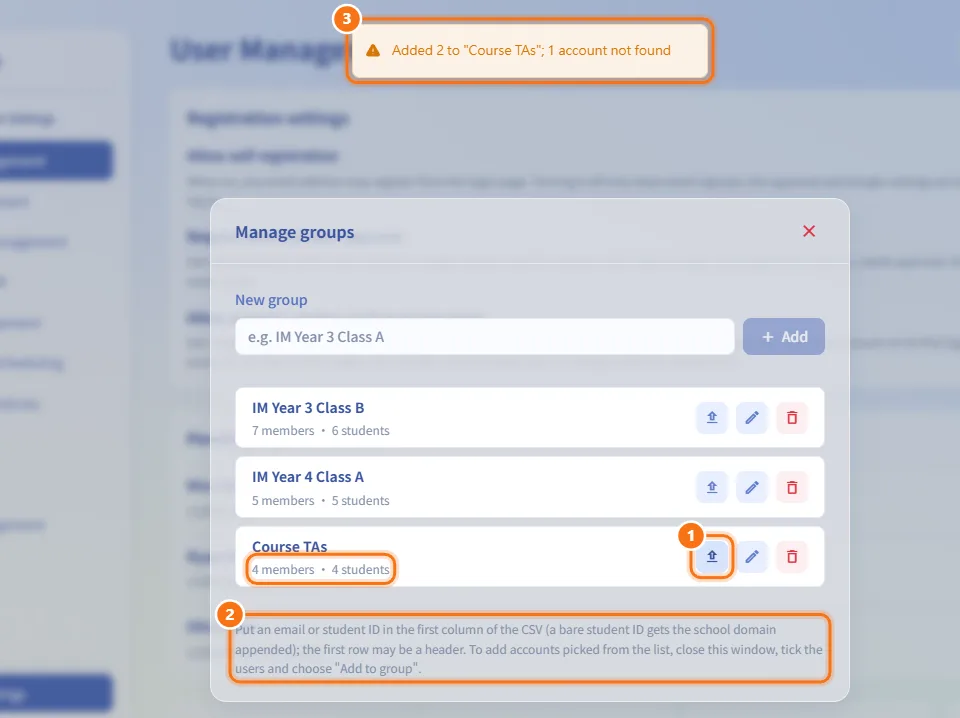
- In Groups, click the upload icon on the group's row and choose a
.csvfile. - The first column of each row is read as an email or a student ID, using the same rules as class rosters: a bare student ID gets
@ntub.edu.twappended, a header row ofemail,學號or帳號is skipped, and the file must be UTF-8 or Big5 and at most 1 MB. - A notice reports how many were added and how many accounts were not found.
Add or remove selected accounts from a group
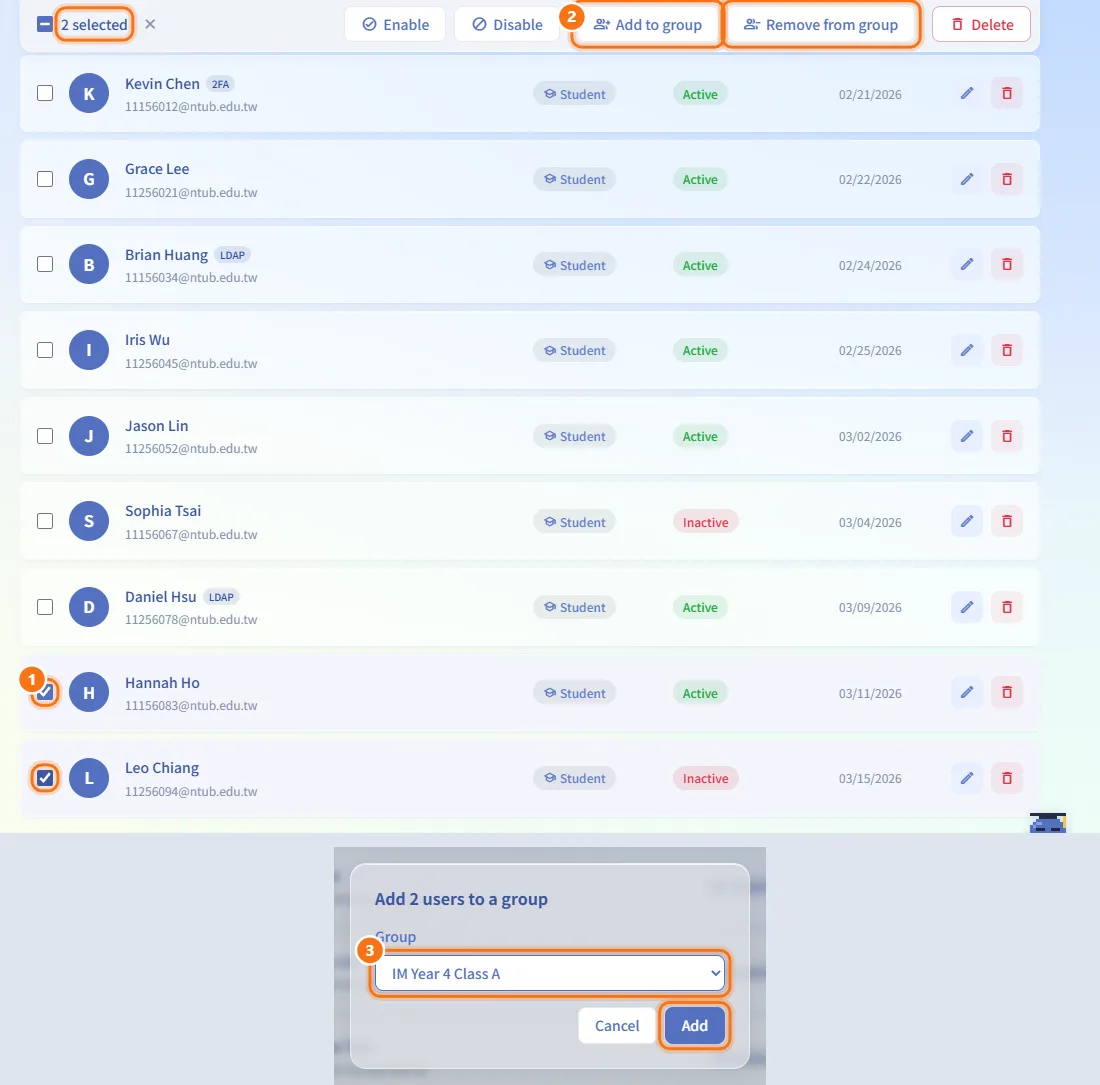
- Tick the accounts in the user list.
- Click Add to group or Remove from group in the selection bar.
- Choose the group and click Add or Remove.
Require two-factor authentication for an account
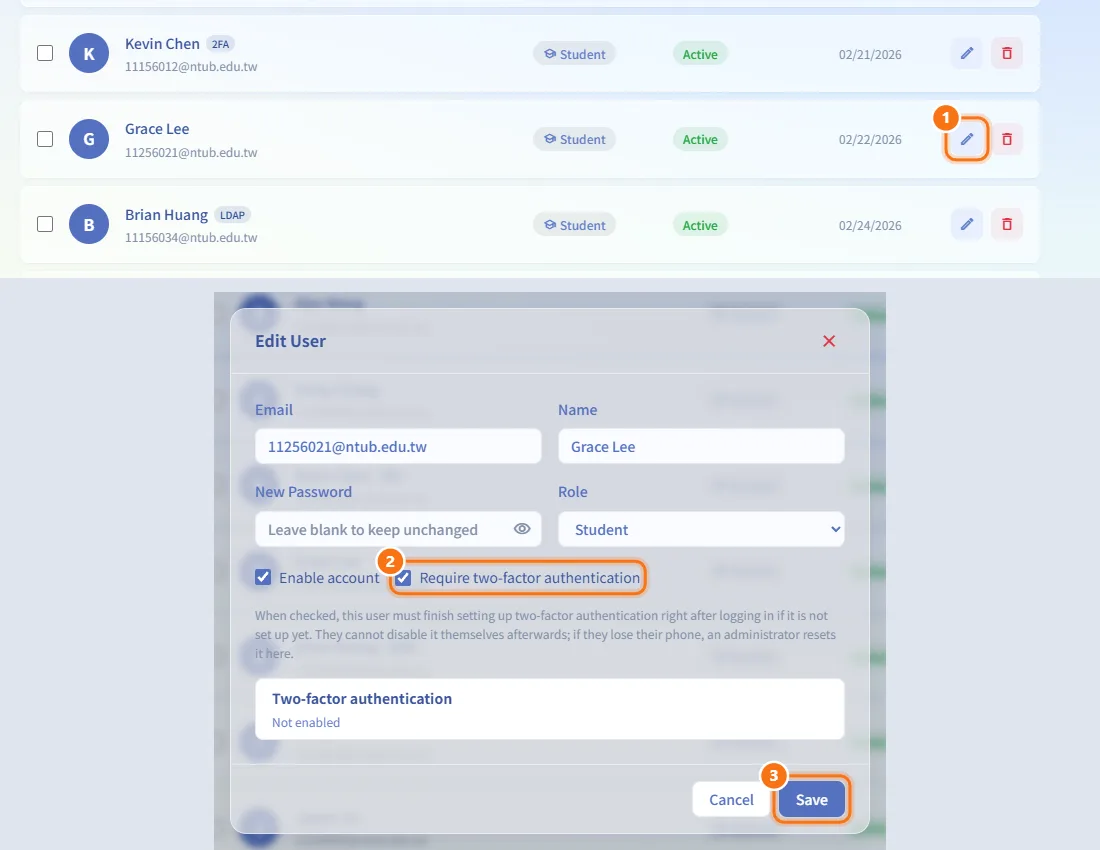
- Click Edit on the row.
- Tick Require two-factor authentication.
- Click Save.
If the user has not set up two-factor authentication yet, they must finish setting it up right after their next sign-in. Afterwards they cannot turn it off themselves.
Reset a user's two-factor authentication
Use this when a user has lost the phone with their authenticator app.
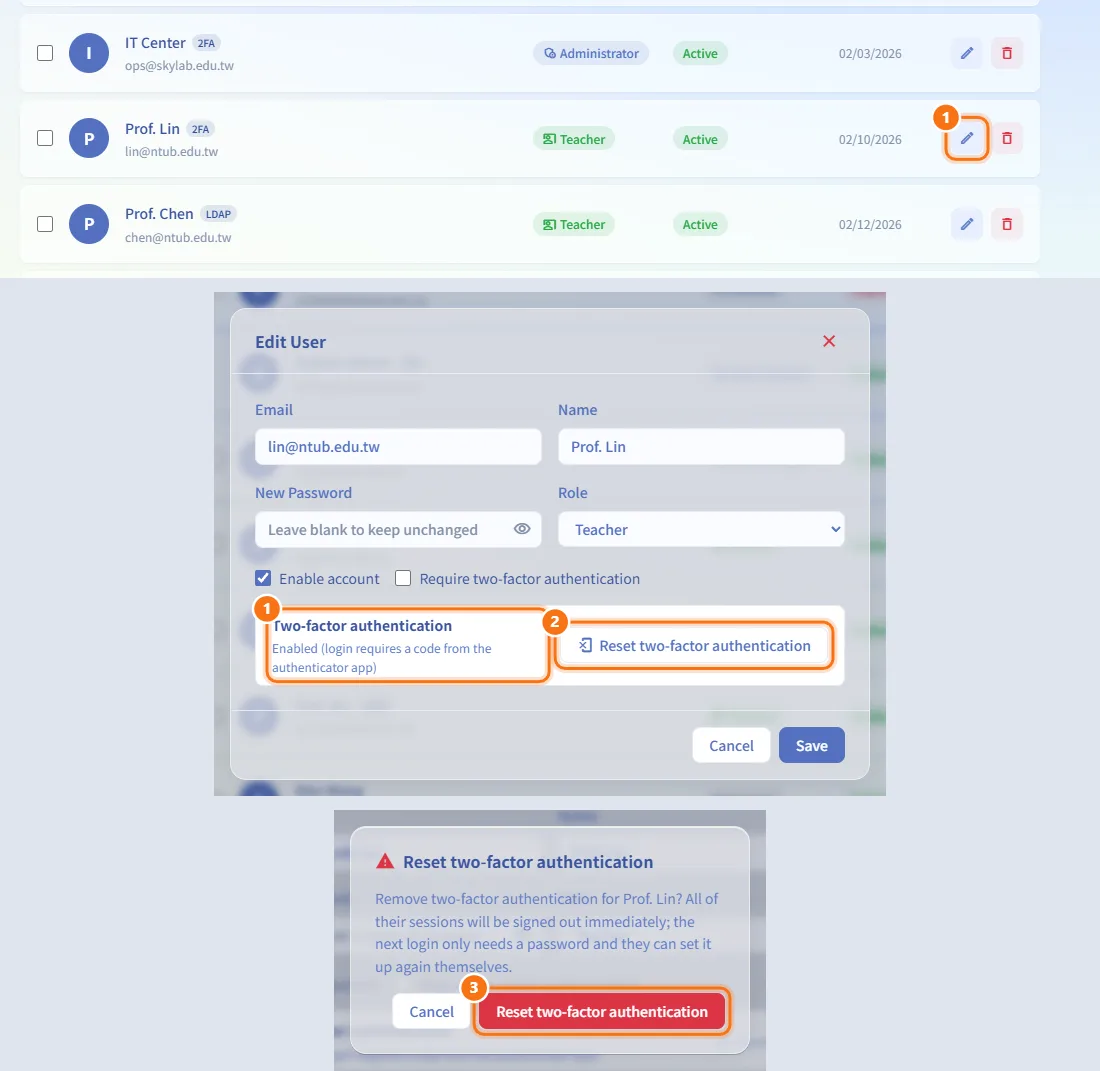
- Click Edit on the row. The Two-factor authentication line shows whether it is enabled.
- Click Reset two-factor authentication (only shown when it is enabled).
- Confirm in the dialog.
All of the user's sessions are signed out immediately. Their next sign-in only needs the password, and they can set up two-factor authentication again themselves (or are asked to, if it is required for the account).
Delete a user
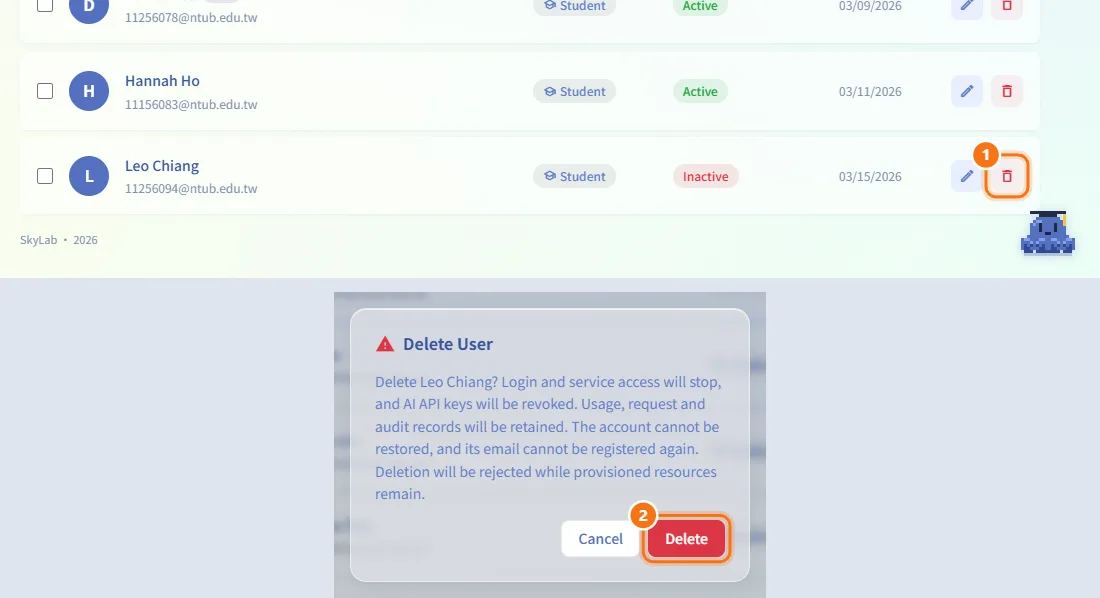
- Click the trash icon (Delete) on the row.
- Read the confirmation and click Delete.
After deletion the account cannot sign in or use any service, and its AI API keys are revoked. Usage, request and audit records are kept. The account cannot be restored, and its email cannot be registered again.
Find a user
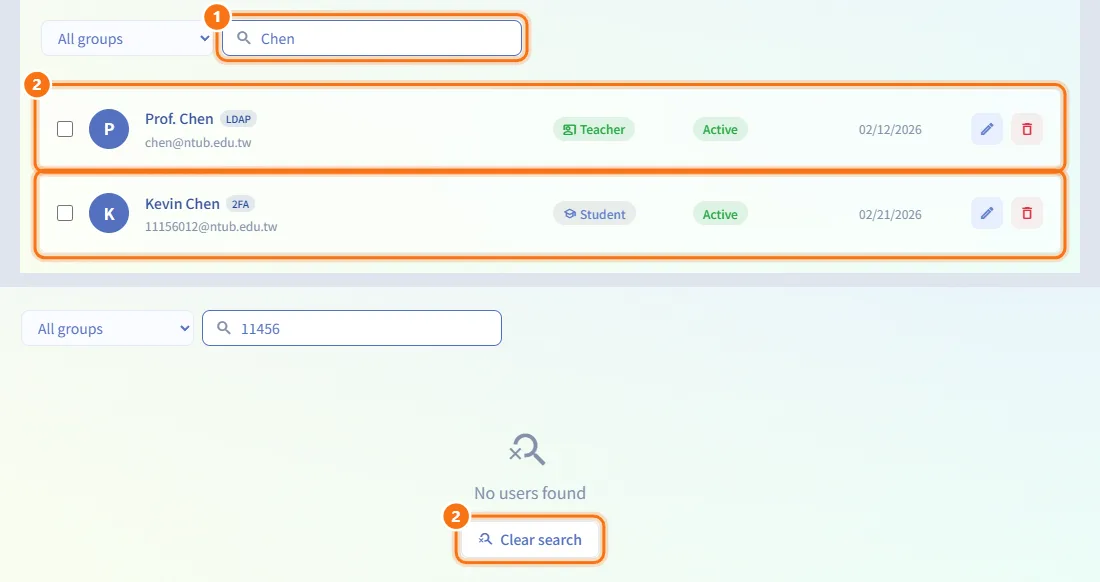
- Type in the search box ("Search by name, email, or role").
- The list filters as you type. To look within one group, choose it in the group menu next to the search box. Click Clear search in the empty state to reset both.
The list shows 50 users per page; use Previous and Next below the list to move between pages.
Fields and options
| Field | Meaning | Notes |
|---|---|---|
| Sign-in address of the account | Required, up to 255 characters, must be unique | |
| Name | Display name | Optional, up to 255 characters |
| Password / New Password | Local sign-in password | Required when adding; blank keeps the current one when editing; up to 128 characters; must meet the complexity rules; locked for LDAP accounts |
| Role | Student, Teacher or Administrator | You cannot change your own role |
| Enable account | Whether the account may sign in | You cannot disable your own account; locked until registration is complete |
| Require two-factor authentication | Forces the user to set up and keep an authenticator app | Shown with an explanation when ticked |
| Allow self-registration | Lets anyone register from the login page | Saved immediately |
| Require administrator approval | New registrations wait in Pending registrations | Saved immediately |
| Allow account creation on first Google login | Lets a Google address without an account create a student account at its first sign-in | Saved immediately; independent of self-registration |
| Group name | Name of a group in Groups | Required, up to 120 characters, unique regardless of case |
Each row shows the name and email, an LDAP tag for directory-managed accounts, a 2FA tag when two-factor authentication is set up, the role badge, the status (Active, Inactive, Email not verified, Awaiting approval or Registration rejected) and the creation date.
The summary cards above the list show Total Users, Active, Teachers and Administrators across all accounts; they ignore the search.
Limits and behaviour to know
- You cannot delete, disable or change the role of your own account, and your own row has no selection box.
- The last active administrator cannot be disabled or given another role, so the platform always keeps at least one administrator.
- Deleting a user fails while the user still owns provisioned machines, or while a teacher still owns teaching classes (disable the account or hand the class over first).
- An account's email cannot be changed while its registration is not yet approved.
- LDAP accounts get their role from directory groups at every LDAP sign-in when group mapping is configured, so a role you change here can be overwritten. See LDAP.
- Administrators are not limited by quotas; per-user quotas for other users are set on Resource Policies.
- Deleted accounts no longer count as members of any group.
- The list refreshes itself in the background while the page is open.
Related
- Resource Policies — global and per-user quotas
- LDAP — directory sign-in and role mapping
- Audit Log — every account change is recorded
- Account Settings — what users see when they set up two-factor authentication
- Registration settings and Google login — how the three registration switches interact with Google sign-in