
Resource Monitoring
Resource Monitoring brings together the health of the platform's own components, the usage of every connected Proxmox VE cluster, active alerts and mining incidents on one page. Sidebar: Monitoring & Logs → Resource Monitoring. Path: /monitoring.
Who can use it
Administrators only. The sidebar entry and the page are hidden from teachers and students.
Before you start
- At least one PVE connection must be set up for the cluster cards, the node table and the top-5 tables to show data (see PVE Management). The system health card and the alert and mining tabs work even when PVE cannot be reached.
- Alert thresholds and mining detection are configured on the Resource Policies page, not here.
- The View details in Grafana button only appears when the optional monitoring stack is deployed (see the Monitoring guide).
The page only collects and displays status. It does not send alert notifications by itself; an administrator has to come here to look into problems. Data refreshes about every 30 seconds while the browser tab is visible.
Step by step
Check the health of the platform
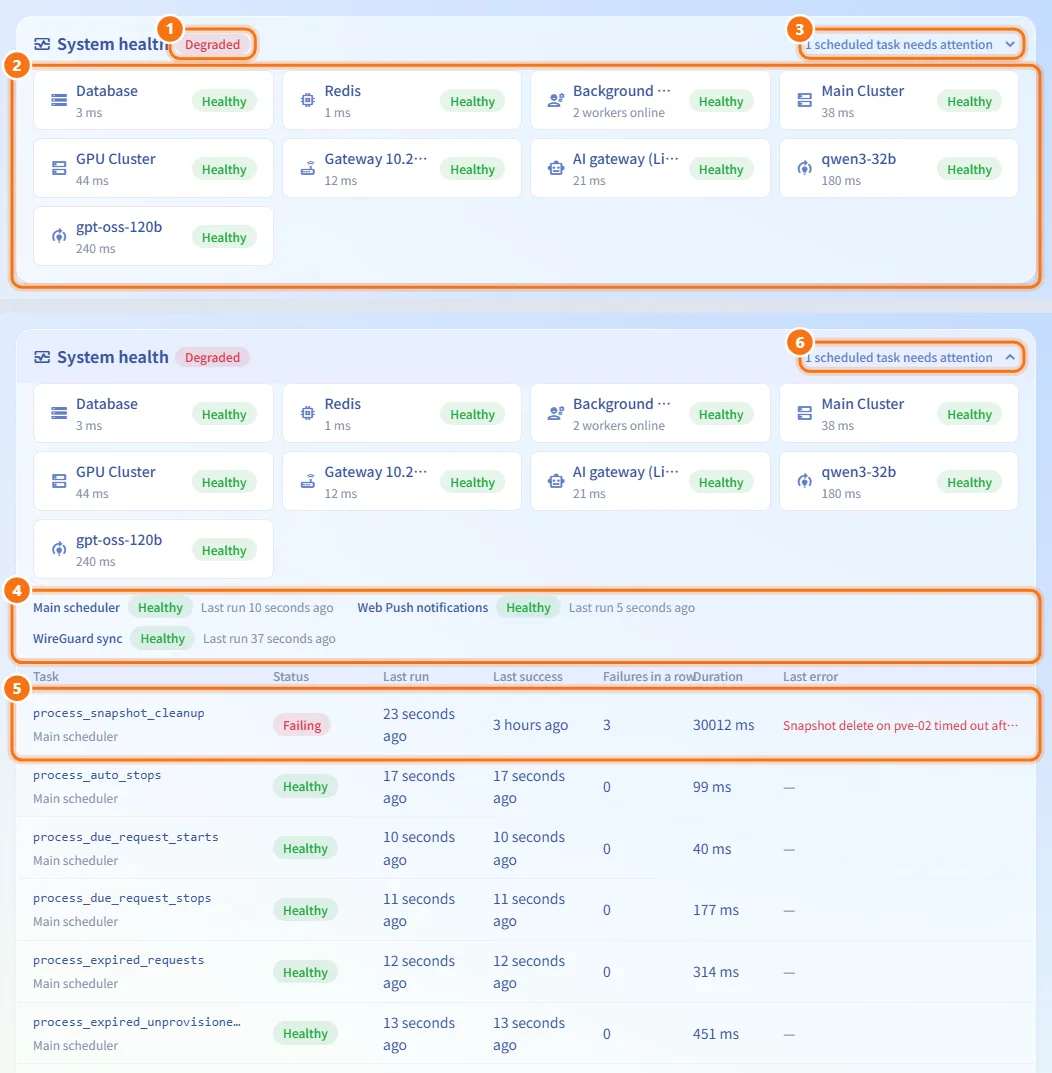
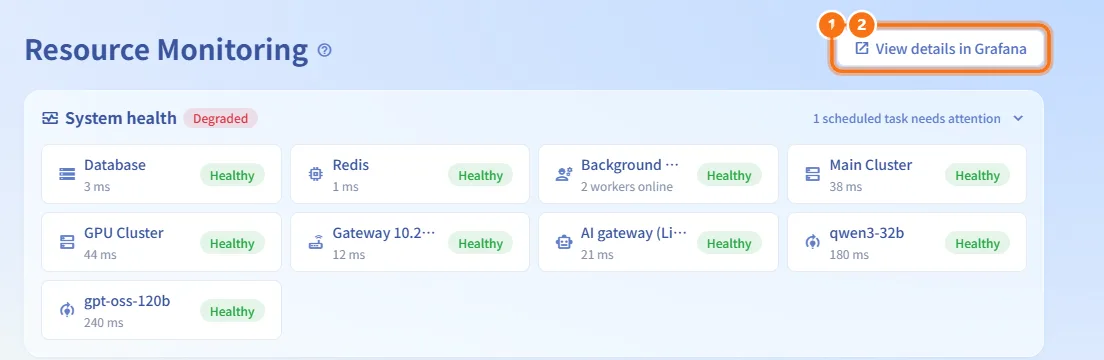
- Look at the System health card at the top. The badge next to the title is the overall status.
- The row of components shows each dependency with its status and response time: Database, Redis, Background worker, each PVE connection (shown by its connection name), the Gateway and, when configured, the AI gateway (LiteLLM) and each AI model. Hover over a long name or detail to read it in full.
- The summary on the right of the title bar tells you how many scheduled tasks need attention, or that all of them are healthy. Click the title bar to expand the details.
- In the expanded view, each background loop (Main scheduler, Web Push notifications, WireGuard sync) shows its status and when it last ran.
- The task table lists every scheduled task with Status, Last run, Last success, Failures in a row, Duration and Last error. Tasks with problems are listed first.
- Click the title bar again to collapse the card. The choice is remembered in this browser.
If Redis is unavailable, a note says that only the heartbeats recorded by the backend process serving you are shown.
Read the cluster overview
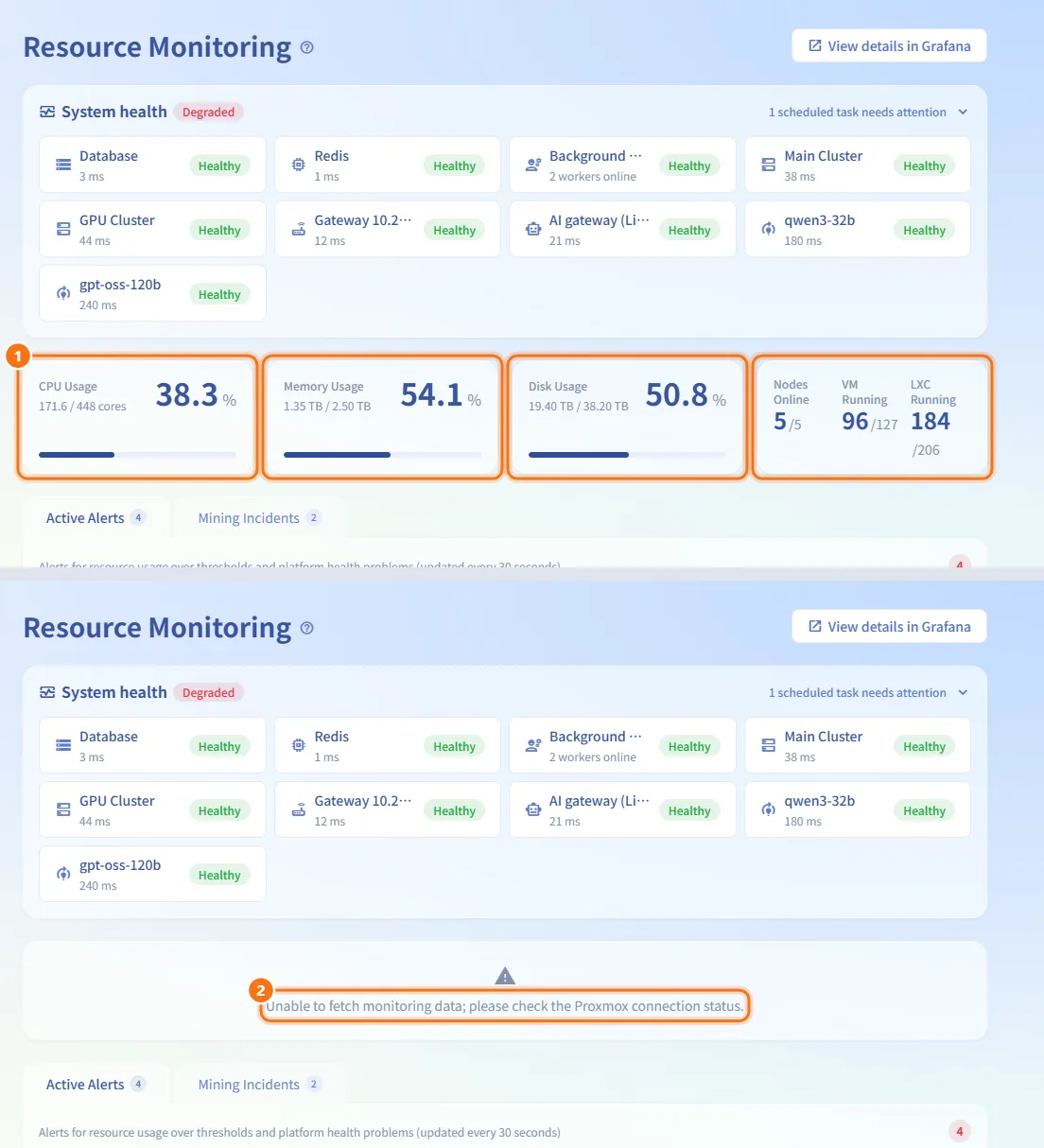
- Below the health card, three cards show CPU Usage, Memory Usage and Disk Usage summed across all PVE connections. A fourth card shows Nodes Online, VM Running and LXC Running; the number after the slash is the total.
- If PVE cannot be reached, the message "Unable to fetch monitoring data; please check the Proxmox connection status." replaces these cards. The health card and the alert tabs stay available.
Review and acknowledge active alerts
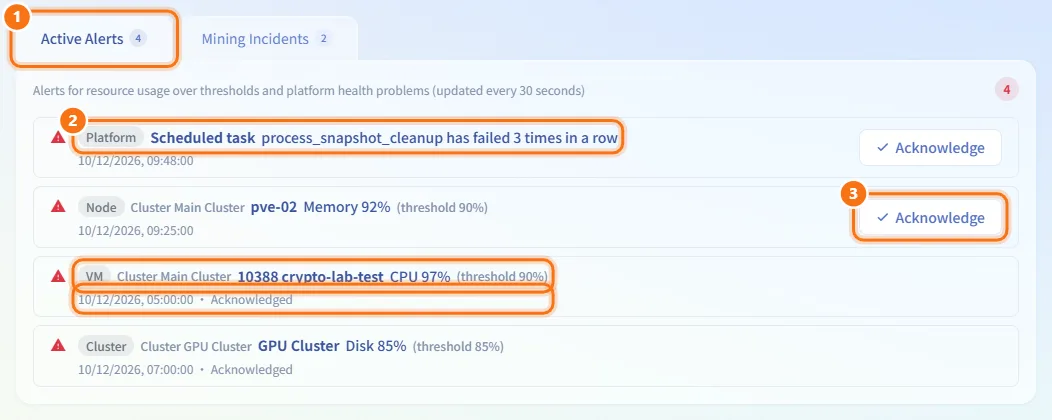
- Open the Active Alerts tab. The number on the tab is the count of active alerts.
- Each alert shows its scope (Cluster, Node, VM or Platform), the cluster it belongs to when there are several, the target, and either the metric value with its threshold or, for platform alerts, the message from the backend.
- Click Acknowledge to mark an alert as seen. The alert then shows "Acknowledged" but stays on the list until the condition clears.
Handle a mining incident
Machines whose CPU stays maxed out for a long time are detected automatically. With automatic suspension turned on in Resource Policies, the platform takes an evidence snapshot and suspends the machine (a VM is paused, an LXC is stopped); it then raises an alert and emails the administrators and the teachers of the owner's classes. Class machines and GPU machines get the evidence snapshot but are not suspended. The final decision is always made by an administrator here.
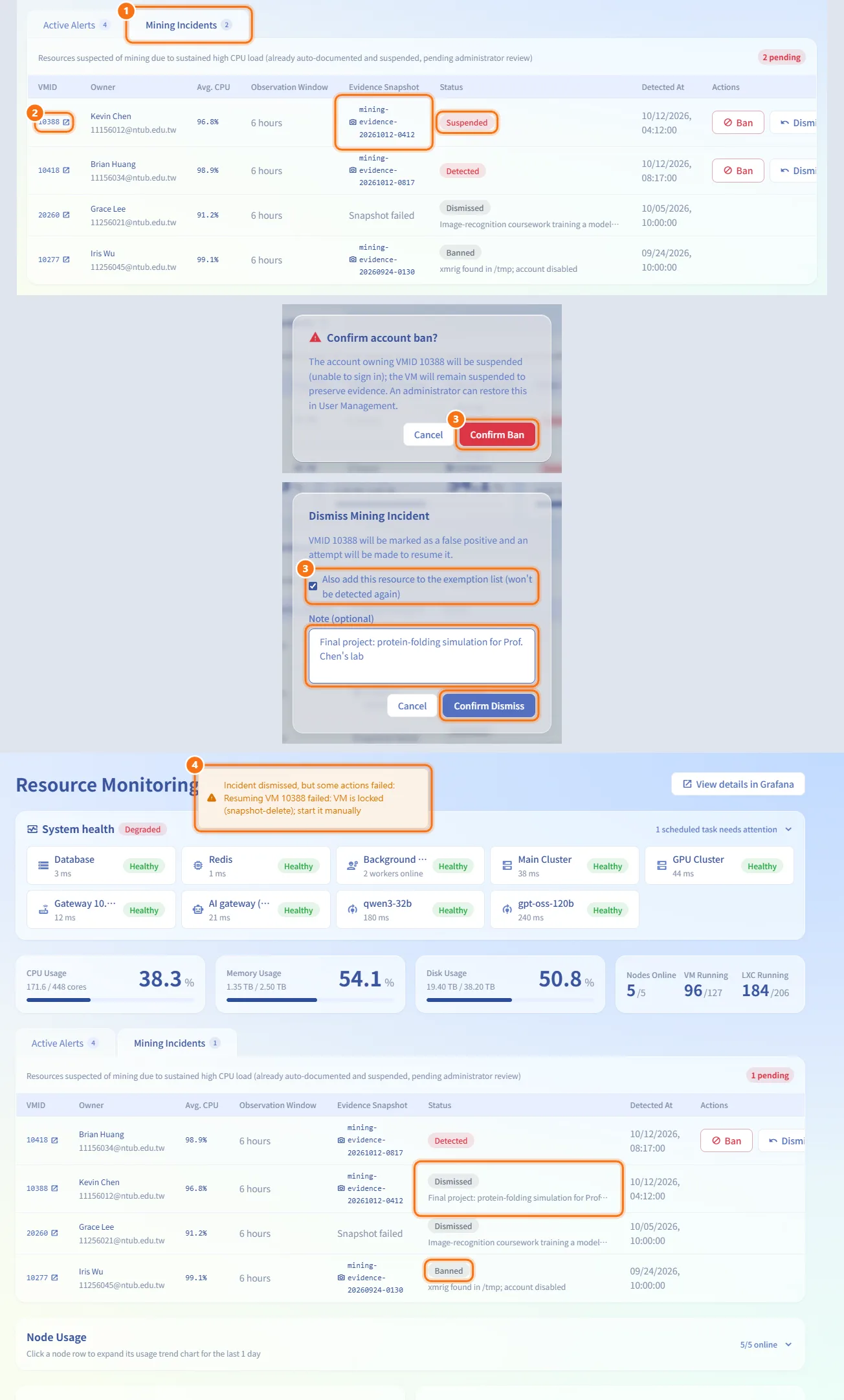
- Open the Mining Incidents tab. The number on the tab is the count of open incidents (status Detected or Suspended); open incidents are listed first.
- Check the row: VMID (click it to open the resource detail page and look at the machine's purpose and CPU history), Owner, Avg. CPU, Observation Window, Evidence Snapshot ("Snapshot failed" if it could not be taken), Status and Detected At.
- Decide:
- If it is mining, click Ban, then Confirm Ban. The owner's account is disabled (it can no longer sign in) and the machine stays suspended to preserve evidence. An administrator can re-enable the account later in User Management.
- If it is a false positive, click Dismiss as False Positive. In the dialog, optionally tick Also add this resource to the exemption list (won't be detected again) and enter a Note (optional), then click Confirm Dismiss. The platform tries to resume the machine and deletes the evidence snapshot.
- Closed incidents stay on the list with status Banned or Dismissed. If resuming the machine or deleting the snapshot failed, a warning notice appears and the reason is shown under the status; start the machine by hand in that case.
Look at usage per node
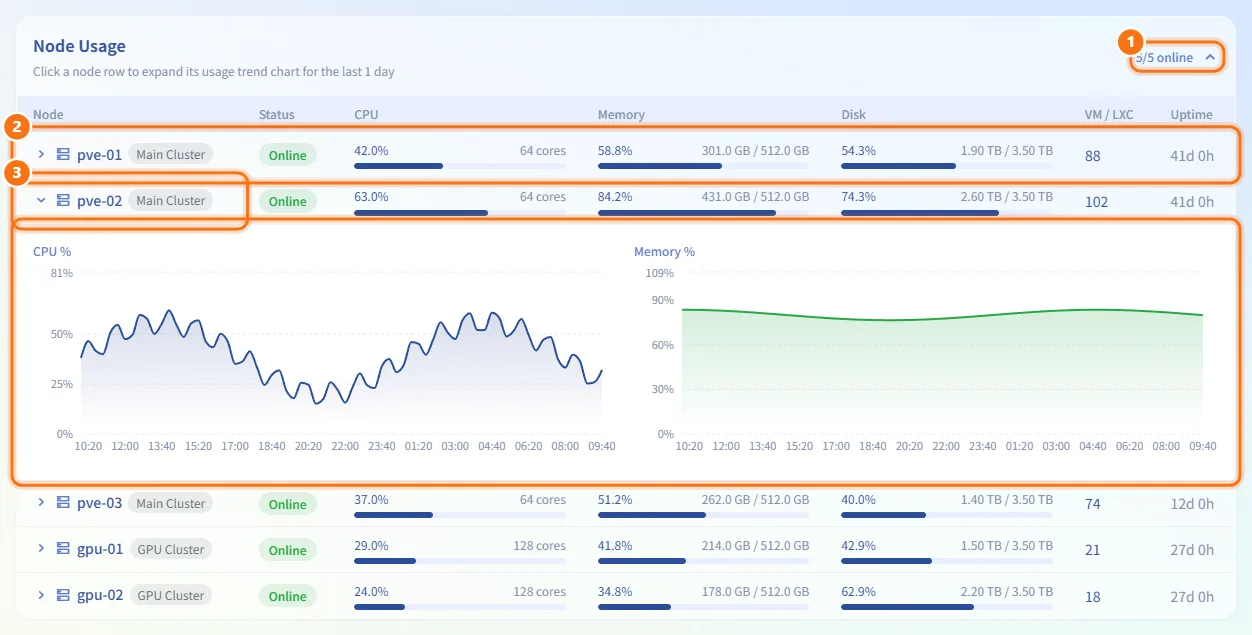
- The Node Usage card shows "online/total online" in its title bar. Click the title bar to expand or collapse the card; the choice is remembered in this browser.
- Each row shows the node with the PVE connection it belongs to, Status, CPU, Memory and Disk usage, the number of VMs and LXCs, and Uptime.
- Click an online node's row to expand its CPU and memory trend for the last day. Click it again to close it. Offline nodes cannot be expanded.
Find the heaviest machines
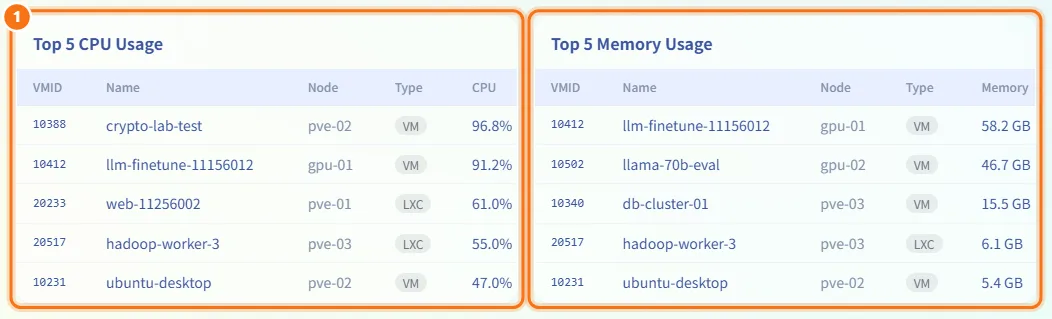
- At the bottom, Top 5 CPU Usage and Top 5 Memory Usage list the running VMs and LXCs that use the most, with VMID, Name, Node and Type.
Open Grafana
- Click View details in Grafana in the page header.
- Grafana opens in a new tab and signs you in as an administrator, so you can browse longer-term metrics and dashboards.
Fields and options
| Field | Meaning | Notes |
|---|---|---|
| Component status | Healthy, Degraded, Down, Needs attention, Disabled or Unknown | Disabled means the component is not configured (for example Redis turned off) |
| Task status | Healthy, Failing, Stalled, Intermittent failure or Not run yet | Problem tasks are sorted to the top |
| Failures in a row | Consecutive failed runs of a scheduled task | Starts again from zero after a successful run |
| Avg. CPU | Average CPU of the machine over the observation window | The threshold and the window are set in Resource Policies |
| Evidence Snapshot | Snapshot taken when the incident was detected | Deleted when the incident is dismissed |
| Exemption | Turns off mining detection for that machine | Can be set when dismissing an incident |
| Note | Free text kept with a dismissed incident | Up to 1024 characters |
Limits and behaviour to know
- Acknowledge does not close an alert; alerts disappear on their own when the condition is gone.
- Ban and Dismiss as False Positive are only offered for open incidents. A closed incident cannot be reopened from this page.
- If automatic suspension is turned off in Resource Policies, incidents stay Detected without a snapshot or suspension, and every action is manual.
- Node trends always cover the last day and refresh every 60 seconds while a row is expanded.
- The health card and the alert tabs do not depend on PVE, so they keep working while the cluster overview shows an error.
Related
- Resource Policies — alert thresholds, mining detection and automatic suspension
- Resource detail — inspect a machine flagged in an incident
- User Management — re-enable an account after a ban
- PVE Management — fix a connection shown as down
- Monitoring guide — deploy the optional Prometheus / Grafana stack