
Quick Practice
Launch a ready-made practice environment in one click, without filling in a request or waiting for review. A quick practice environment is a multi-machine environment a teacher has published and opened for quick practice; anyone can launch their own copy of it for a limited number of hours, after which the whole set is removed automatically. Sidebar: Teaching → Quick Practice. Paths: /quick-create (the list) and /quick-template/<id> (the launch confirmation page).
Who can use it
Every signed-in user: students, teachers and administrators. All of them see the same list. Students also see the same environments in the Quick Practice Environments section of their home page.
Before you start
- A teacher must have published an environment whose usage is set to Quick practice only or Formal courses and quick practice in Teaching Environments. If the page shows "No quick-practice templates available right now", nothing is open yet.
- You need enough quota left for the whole set (CPU, memory, disk and number of machines).
- You must not already have another quick practice environment running.
Step by step
Pick an environment
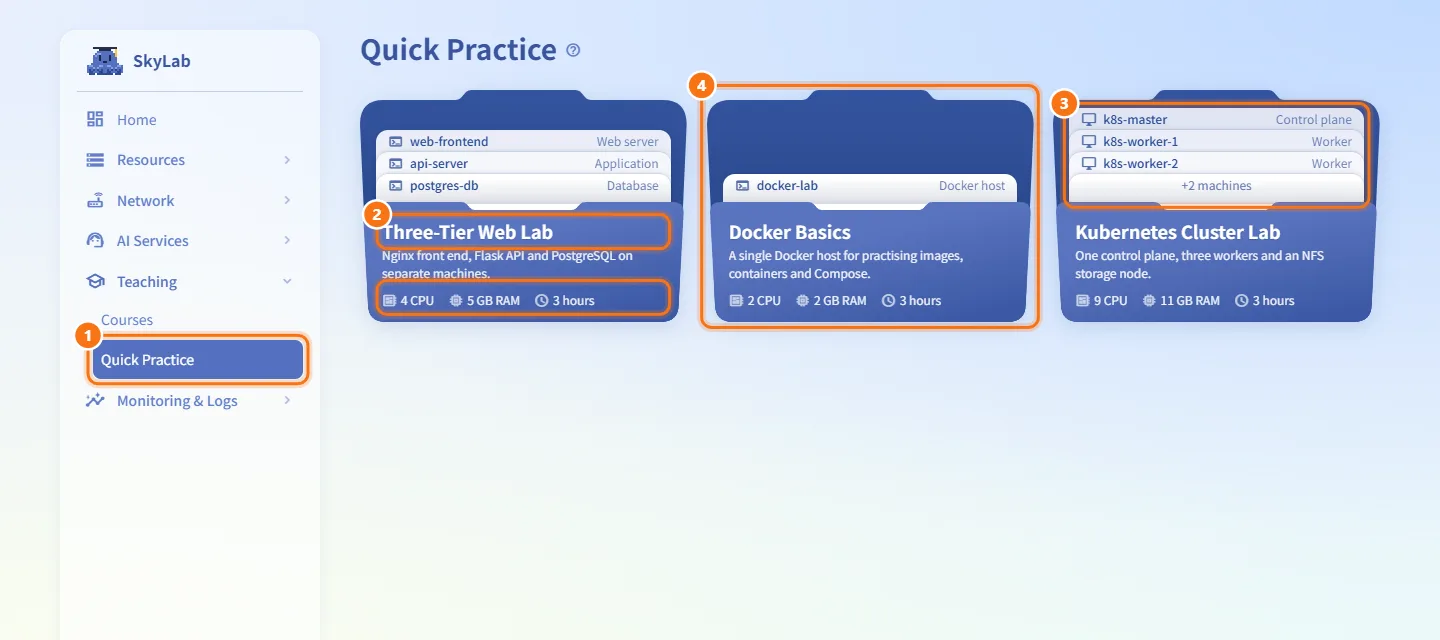
- Open Teaching → Quick Practice.
- Each folder is one complete environment. The front cover shows its name and description, and under them the combined CPU, memory and the hours you can use it.
- The sheets sticking out of the folder are the machines it will create, each with its name and role. A monitor icon means a VM, a terminal icon means an LXC container. When there are many machines, the last sheet says how many more there are.
- Click a folder. This only opens the launch confirmation page; nothing is created yet.
If the list fails to load, click Retry.
Review the launch confirmation
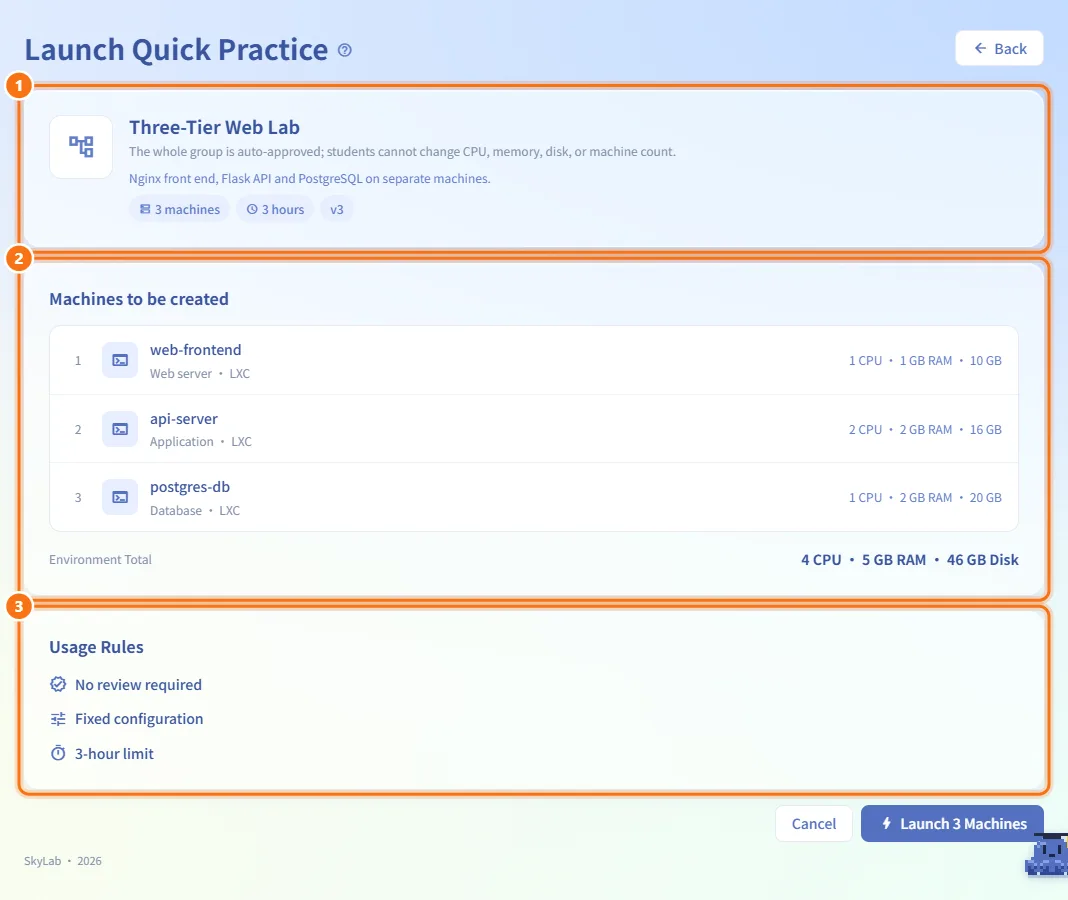
The Launch Quick Practice page shows:
- The summary: the environment's name, the note "The whole group is auto-approved; students cannot change CPU, memory, disk, or machine count.", the description, and three tags: the number of machines, the hours you can use it, and the environment version (for example
v3). - Machines to be created: one row per machine with its number, VM or LXC icon, name, role and type, and its specs ("2 CPU · 4 GB RAM · 20 GB"). Environment Total at the bottom is exactly how much of your quota this launch will use.
- Usage Rules: No review required, Fixed configuration, and the time limit (for example 3-hour limit).
To leave without creating anything, click Back in the page header or Cancel at the bottom. You return to the page you came from.
Launch the environment
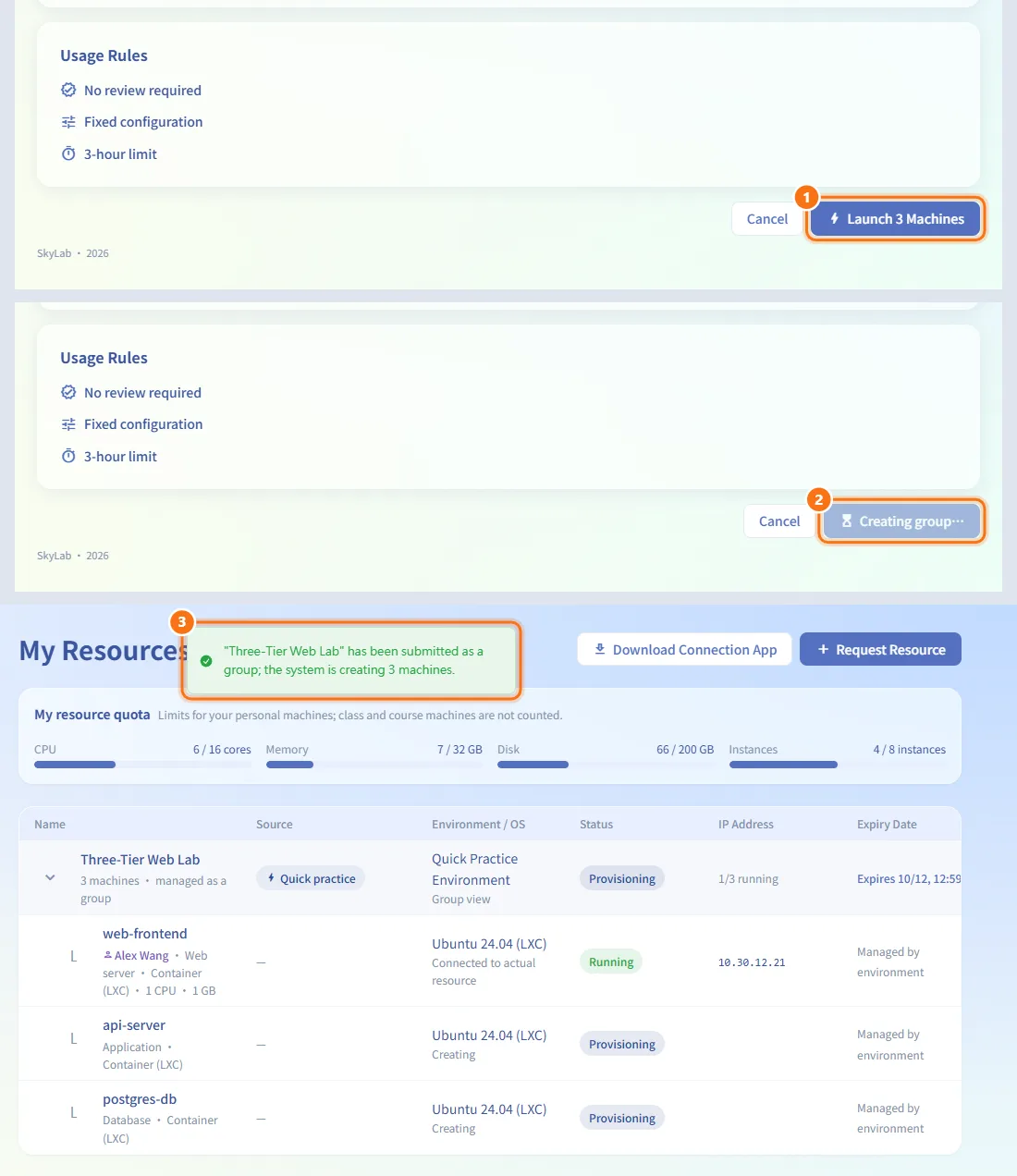
- On the confirmation page, click Launch
<n>Machines. - The button changes to Creating group… while the request is sent.
- A message confirms that the environment was submitted as a group and how many machines are being created, and you are taken to My Resources.
If you are over quota, the environment is full, you already have an active practice environment, or you have reached the launch limit, a message explains why and no machines are created.
Reach the machines
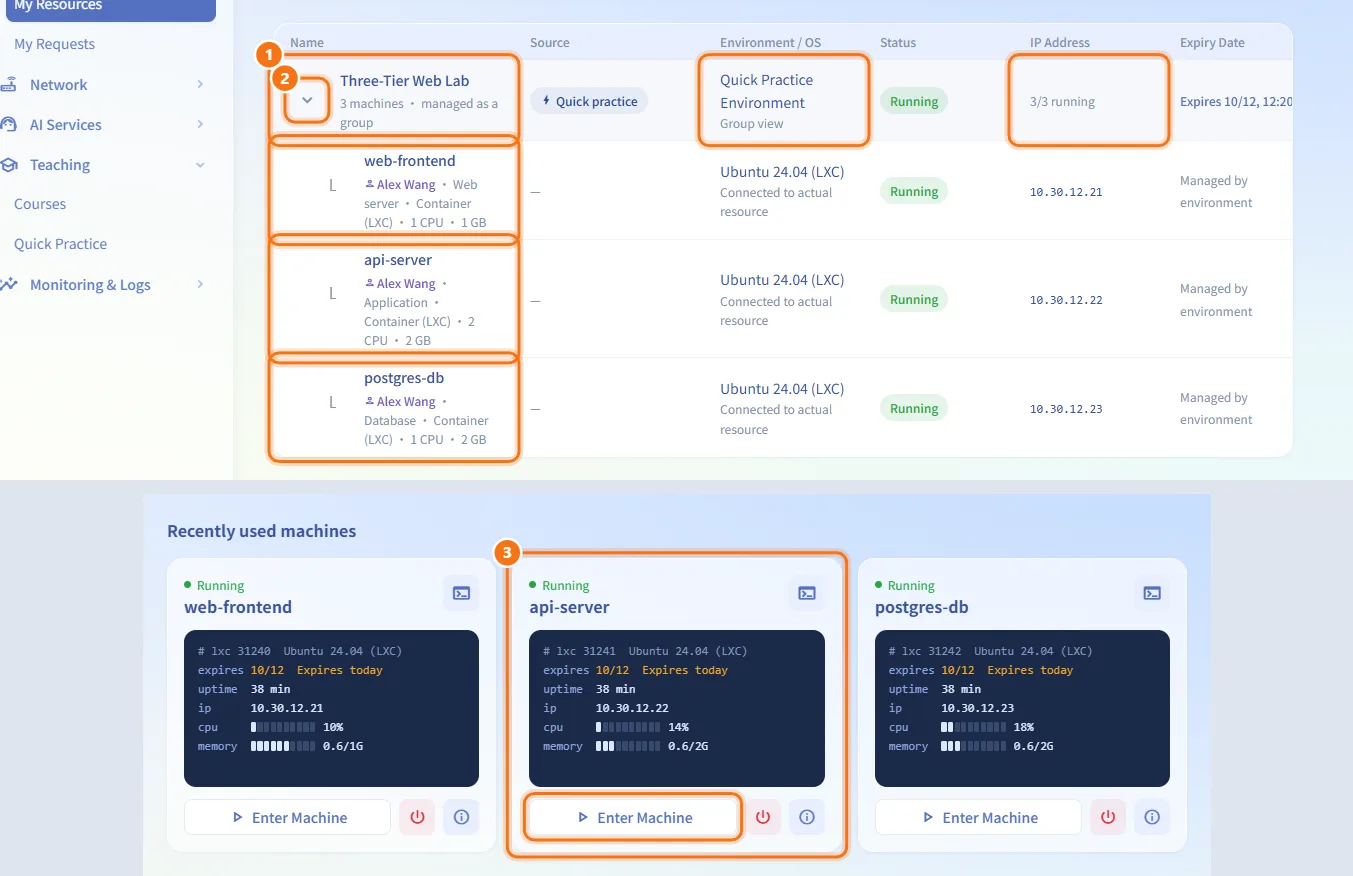
- In My Resources, the environment appears as one group row labelled Quick Practice Environment, with "
<n>machines · managed as a group" and how many are running. - Click the row to expand it and see each machine. Follow the creation progress there; open a machine to use its console.
- Students also find the machines under Recently used machines on the home page, where Enter Machine opens the console directly.
Start or shut down the whole set
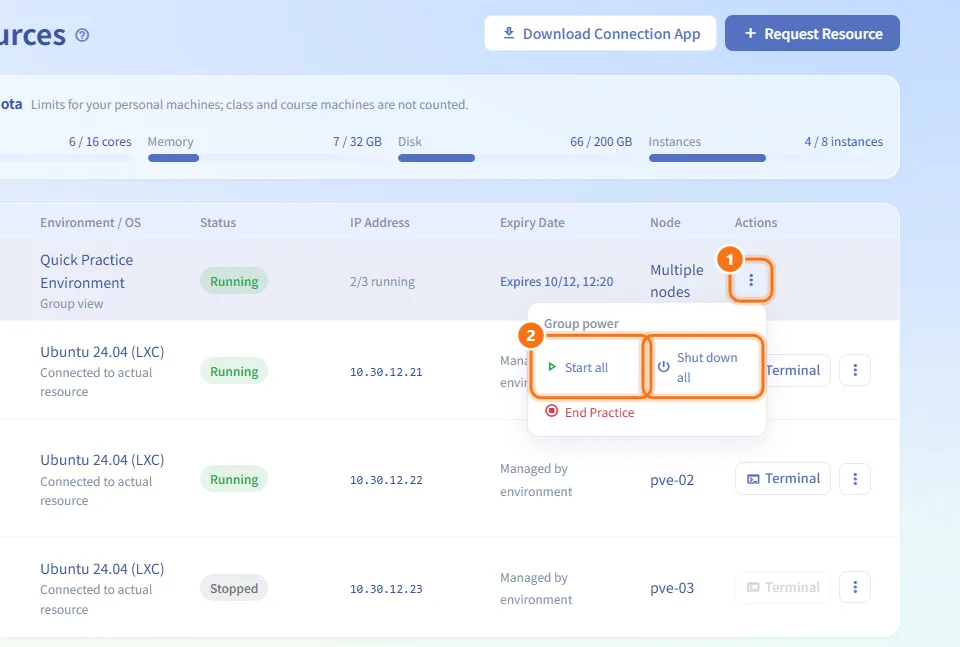
- In My Resources, open the group's power menu (Group power) on the environment row.
- Choose Start all or Shut down all.
End the practice early
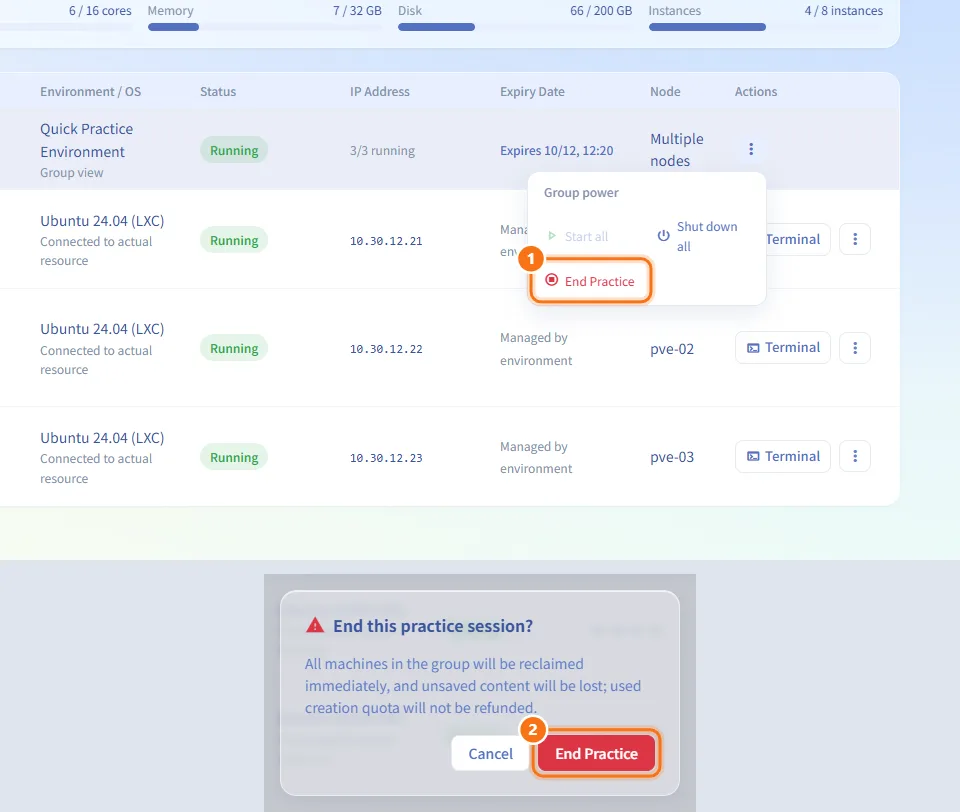
- In My Resources, open the group's power menu and choose End Practice.
- Confirm in End this practice session? All machines in the group are reclaimed immediately and unsaved content is lost.
Ending early frees your quota and lets you launch another environment, but the launch still counts toward the 24-hour limit.
Fields and options
| Item | Meaning | Notes |
|---|---|---|
| Machines tag | Number of machines in the set | Cannot be changed |
| Hours tag | How long you can use the set | Set by an administrator for the whole platform |
| Version tag | Which published version of the environment is used | Always the latest published version |
| Machine spec | CPU, memory (GB) and disk (GB) per machine | Fixed by the teacher |
| Environment Total | Sum of CPU, memory and disk for the whole set | This is what counts against your quota |
Limits and behaviour to know
- One at a time: you can have only one active quick practice environment.
- Three per 24 hours: you can launch at most 3 quick practice environments within any 24 hours. Launches that failed and were cleaned up do not count.
- Time limit: when the hours are up, the system automatically deletes every machine in the set and nothing on them is kept. Back up anything important yourself before then. The default is 3 hours; an administrator can set it between 1 and 24 hours (Practice Session (hours) in Resource Scheduling).
- Fixed configuration: you cannot change the machines' CPU, memory, disk or count.
- Quota: the whole set is checked against your quota before anything is created. If it does not fit, nothing is created.
- Capacity: an environment can limit how many groups may run at the same time. When it is full, try again later.
- All or nothing: the IP addresses for the whole set are reserved up front; if there are not enough, the launch fails and no machine is created.
- No review: the whole set is approved automatically and starts building right away.
Related
- Home — students launch the same environments from the home page
- My Resources — follow progress, open consoles, and end the practice
- Resource detail — details and console of one machine
- Teaching Environments — where teachers publish environments for quick practice
- Resource Scheduling — where administrators set the practice session length
- Resource Policies — quotas that apply to quick practice
- Multi-machine environment SOP — how multi-machine environments are designed