
Class Management
Class Management lists the classes you teach as tickets, from planning through review and provisioning to ready for class. From here you create a class, resume one that is still being set up, open a class's workspace, and archive classes in bulk. Sidebar: Teaching → Class Management. Path: /class-management.
Who can use it
- Teachers see the classes they own.
- Administrators see every class.
- Students do not see this page; opening the address sends them back to the home page.
Before you start
- To set up a class you need registered student accounts and a published teaching environment (see Teaching Environments). You can also create the environment during class setup.
Step by step
Create a class
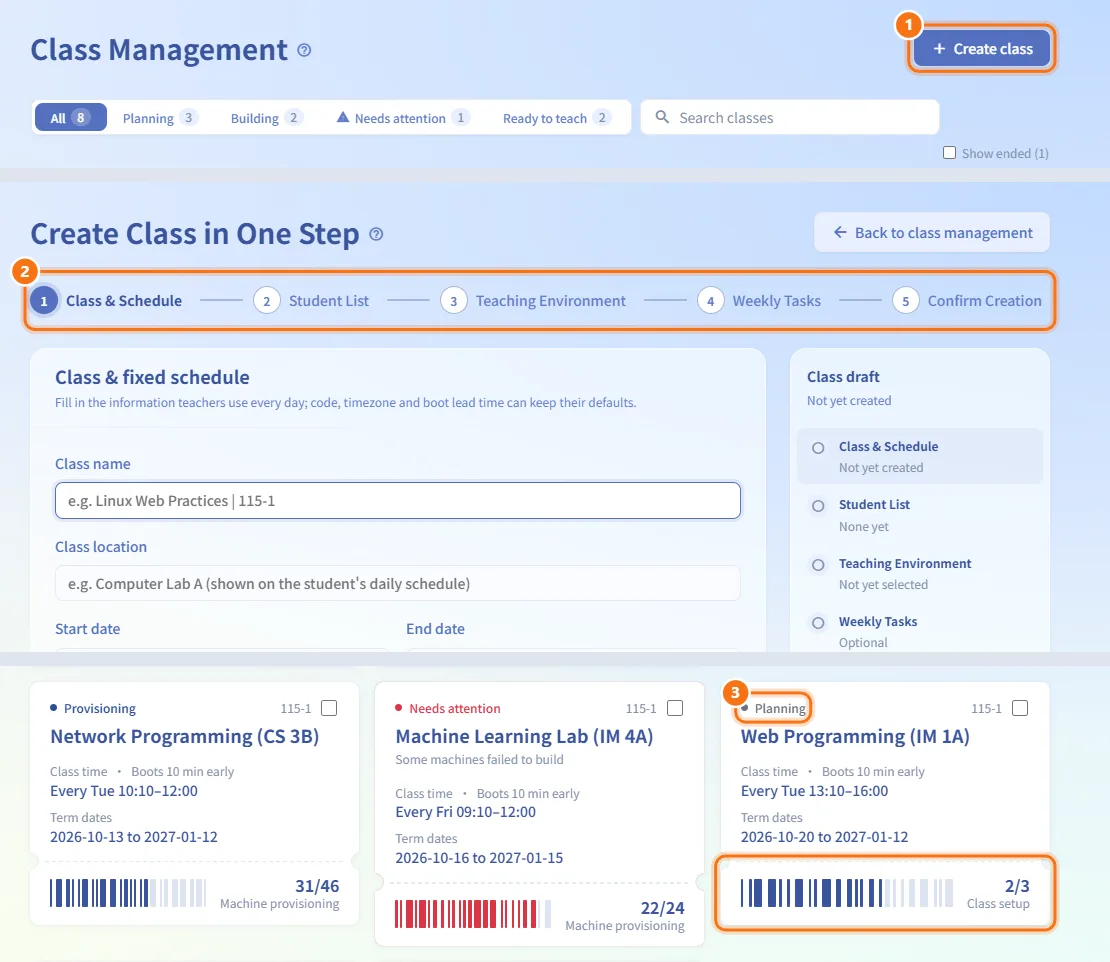
- Click Create class.
- The five-step Class setup opens: Class & Schedule, Student List, Teaching Environment, Weekly Tasks and Confirm Creation. The address
/class-management/newleads to the same place. - Saved steps are kept as a draft; the class appears here in Planning and you can come back to it later.
Filter and search
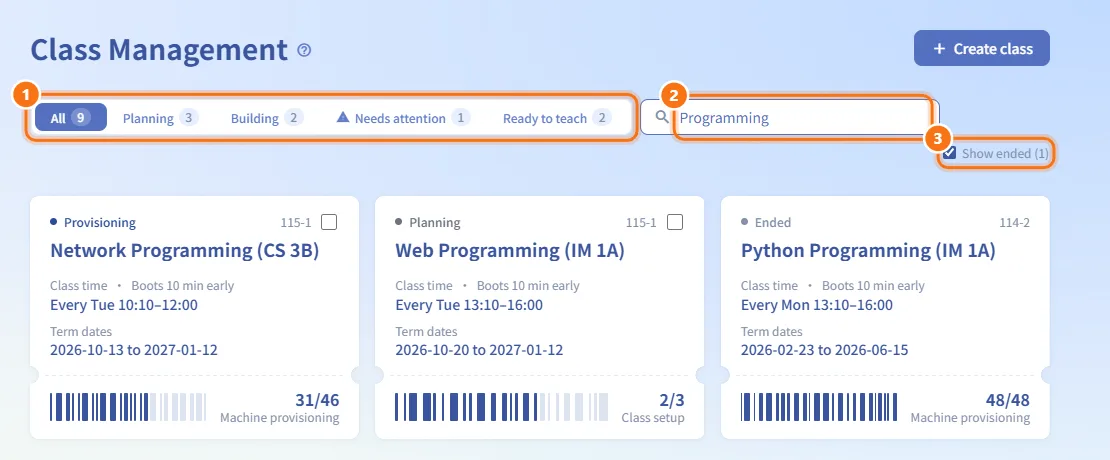
- Use the status tabs; the number on each is the count:
- All
- Planning — still being set up.
- Building — pending review or provisioning.
- Needs attention — appears only when some class has machines that failed to build.
- Ready to teach — the class is active.
- Type a class name in Search classes.
- Ended classes are hidden. Tick Show ended (N) to list them; the option appears only when there are ended classes.
Read a class ticket
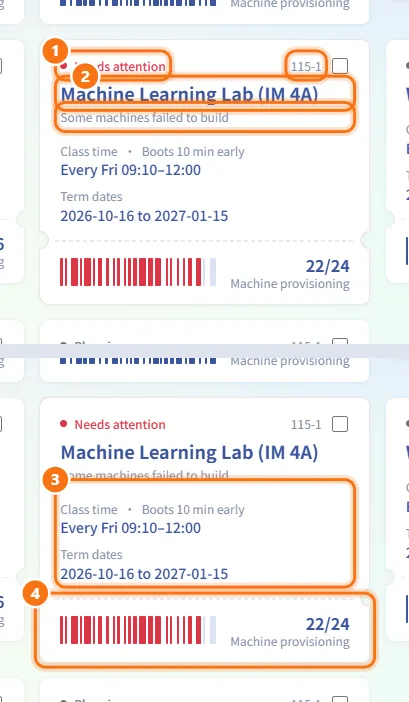
Each ticket shows:
- The status: Planning, Pending review, Provisioning, Needs attention, Ready for class or Ended, and the term.
- The class name. A class that needs attention also shows Some machines failed to build.
- Class time (weekday and time) with Boots N min early, and Term dates.
- On the stub, a barcode and a count:
- For a class in planning, Class setup counts finished setup items out of 3: students added, an environment chosen, at least one week with a topic.
- For other classes, Machine provisioning counts machines already built out of the total.
Open a class
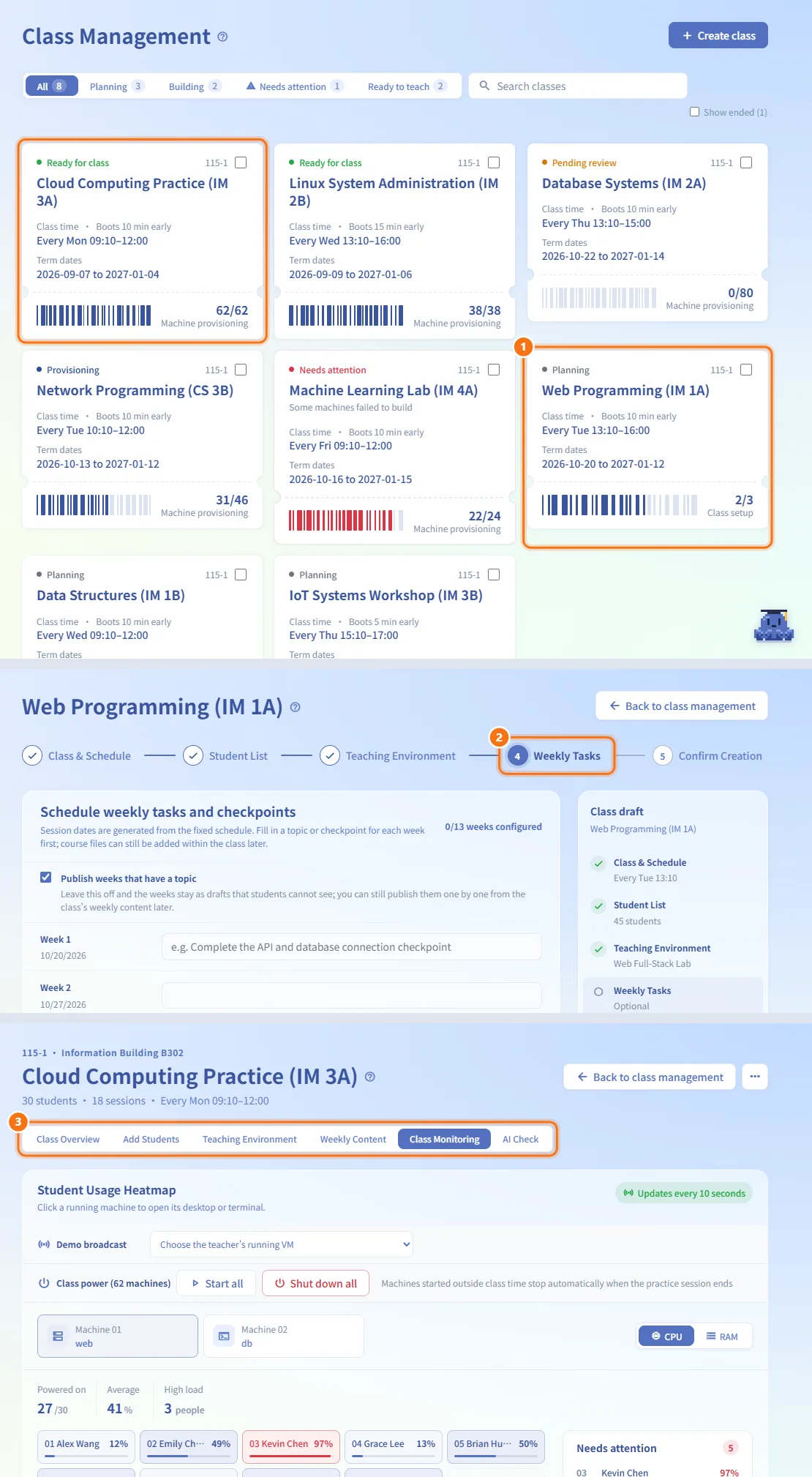
- Click a ticket.
- A class in Planning opens class setup at the next unfinished step.
- Any other class opens its Class workspace, where you manage students, machines, weekly content, monitoring and checks.
Archive and reclaim classes in bulk
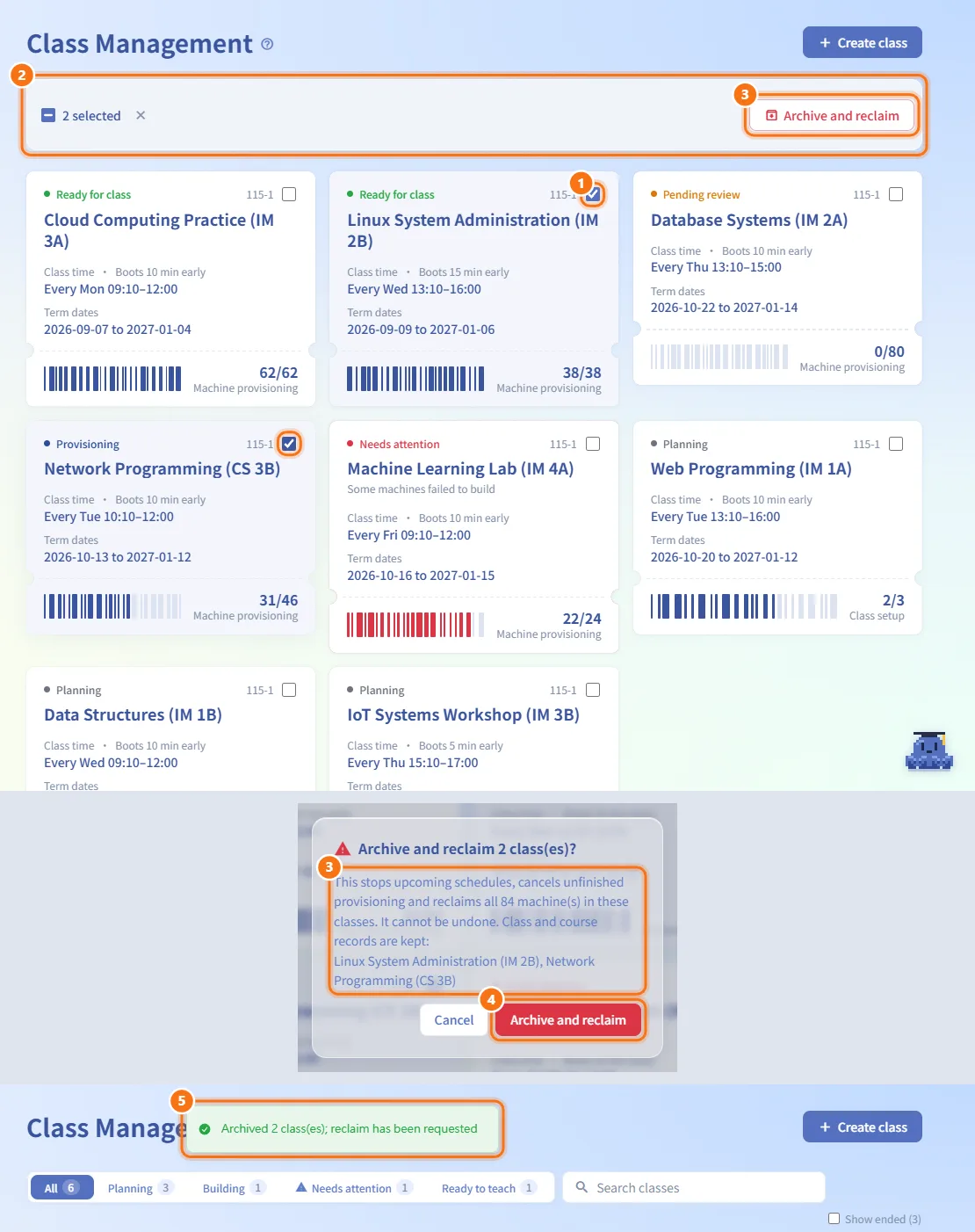
- Tick the box in the top-right corner of one or more tickets. Ended classes cannot be selected. Shift-click selects a range.
- The toolbar turns into a batch bar showing N selected, with a select-all box and Archive and reclaim.
- Click Archive and reclaim. The confirmation lists the classes (the first five names, then "and N more") and the total number of machines.
- Confirm. Progress shows as Archiving… N of M.
- When it finishes:
- Archived N class(es); reclaim has been requested — done.
- If some machines could not be sent for reclaim, open the class and choose Retry reclamation.
- If some classes failed to archive, they stay selected so you can try again.
While tickets are selected, clicking a ticket toggles its selection instead of opening it. Clear the selection to go back to normal.
Fields and options
| Field | Meaning | Notes |
|---|---|---|
| Status | Where the class is in its life cycle | Planning, Pending review, Provisioning, Needs attention, Ready for class, Ended |
| Class time | Weekly class day and time | With the boot lead time |
| Term dates | First and last date of the class | |
| Class setup | Setup items done out of 3 | Planning classes only |
| Machine provisioning | Machines built out of the total | All other classes |
Limits and behaviour to know
- Archiving stops upcoming schedules, cancels unfinished provisioning and reclaims every machine in the class. It cannot be undone; class and course records are kept.
- A class that has been submitted for provisioning no longer opens the setup wizard; its settings are locked and it opens in the workspace.
- When you return from another page with a success message (for example after pausing class setup), it is shown once as a notification.
Related
- Class setup — create a class step by step
- Class workspace — manage one class
- Teaching Environments — the machine sets a class can use
- Class Review — where administrators approve class provisioning