
AI Usage Monitoring
Track site-wide AI usage and health in one place: calls that users make with their own keys through the AI API, usage of the platform's built-in AI features (template recommendations, AI navigation, Teacher Judge and others), and the runtime status of the AI Gateway and each model. Sidebar: Monitoring & Logs → AI Usage Monitoring. Path: /ai-monitoring.
Who can use it
Administrators only. Other roles do not see the page in the sidebar.
Before you start
- Model runtime status comes from the AI Gateway (LiteLLM). If the gateway cannot be reached, usage figures still load but the runtime columns stay empty and a problem is listed under System status.
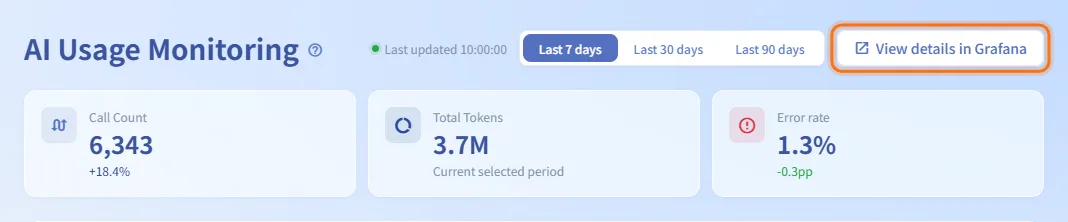
- The View details in Grafana button only appears when the optional monitoring stack is enabled.
Step by step
Choose the time range
- Use Last 7 days, Last 30 days or Last 90 days at the top right.
- The summary, the trend chart and the call details below all change together.
- Last updated next to the switch shows when the data was last loaded. The page also refreshes on its own.
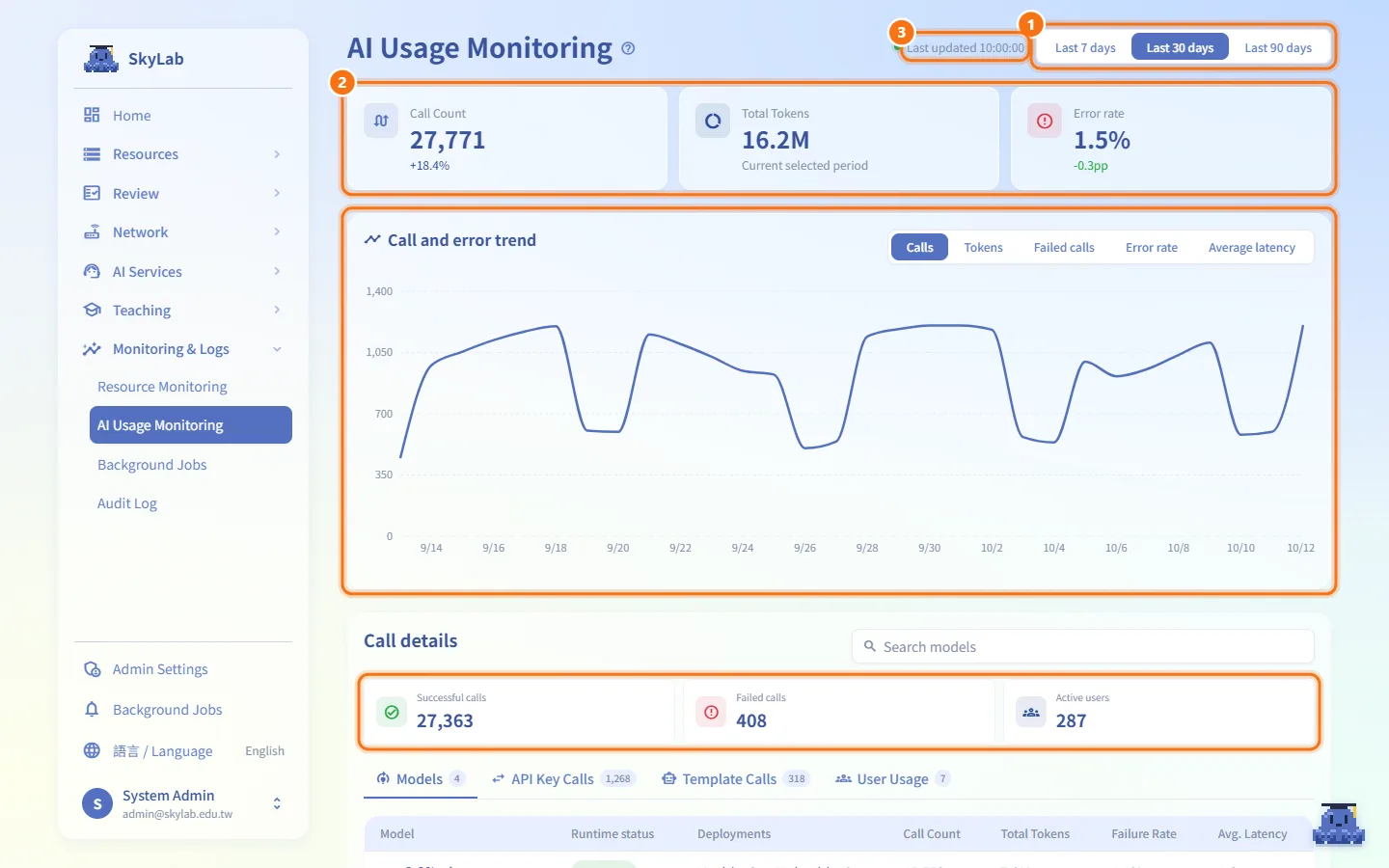
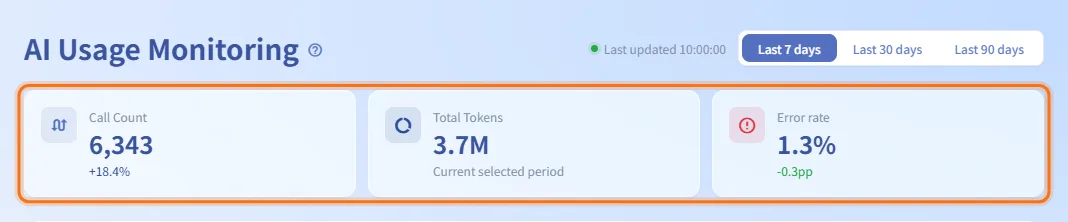
Read the summary metrics
- Call Count: total calls in the period. The line below compares it with the previous period of the same length, as a percentage.
- Total Tokens: tokens used in the selected period only.
- Error rate: share of failed calls. The line below shows the change from the previous period in percentage points (pp); a rise is shown in red.
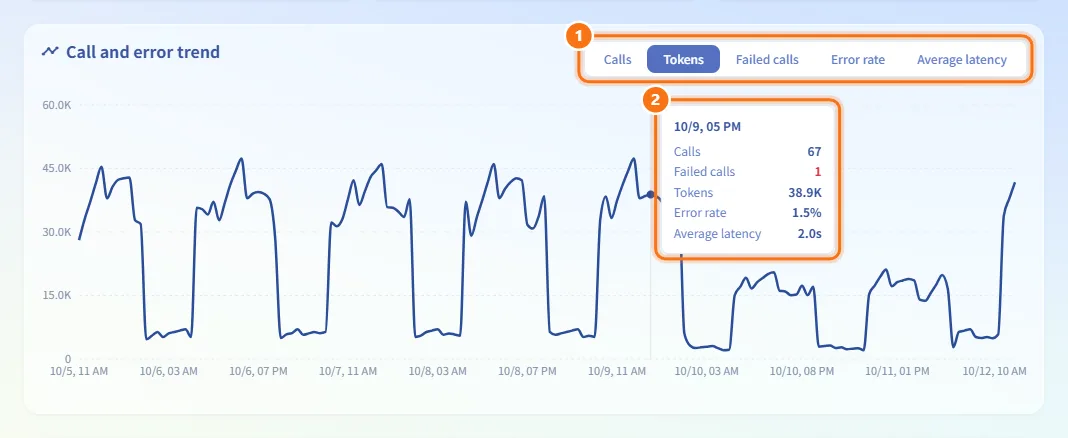
Read the trend chart
- In Call and error trend, choose what to plot: Calls, Tokens, Failed calls, Error rate or Average latency.
- Hover over the chart to see all five figures for that time slot.
The last 7 days are plotted by hour; 30 and 90 days are plotted by day.
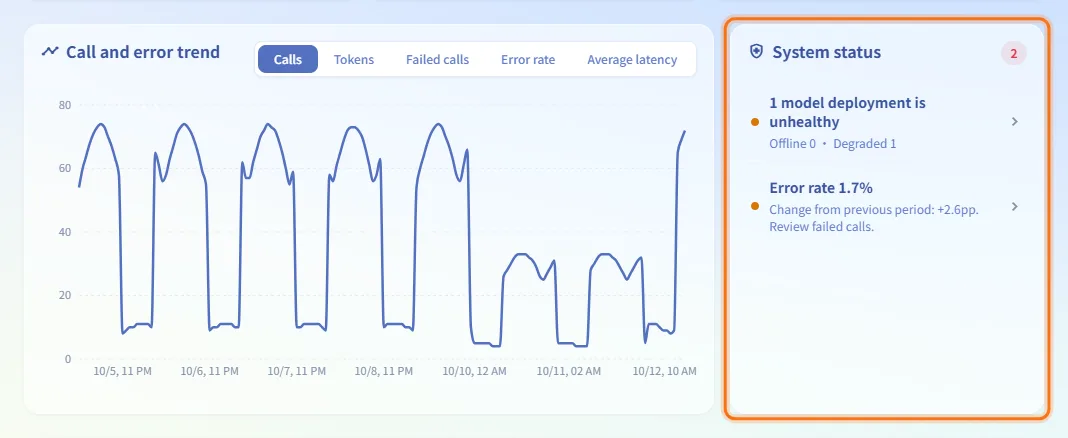
Act on problems in System status
System status appears next to the chart only when something needs attention. The number in its corner is the count of items. Possible items:
| Item | When it appears | Click to open |
|---|---|---|
| AI usage data failed to load | The usage figures could not be retrieved | API Key Calls |
| AI Gateway readiness failed | The gateway is unavailable or not ready to accept requests | Models |
<n> model deployments are unhealthy | Some models are offline or degraded (the detail shows how many of each) | Models |
Error rate <rate> | The error rate is 5% or higher, or rose by more than 0.5 pp over the previous period (critical from 10%) | API Key Calls, filtered to Failed |
Click an item to jump to the matching details below.
Check model status
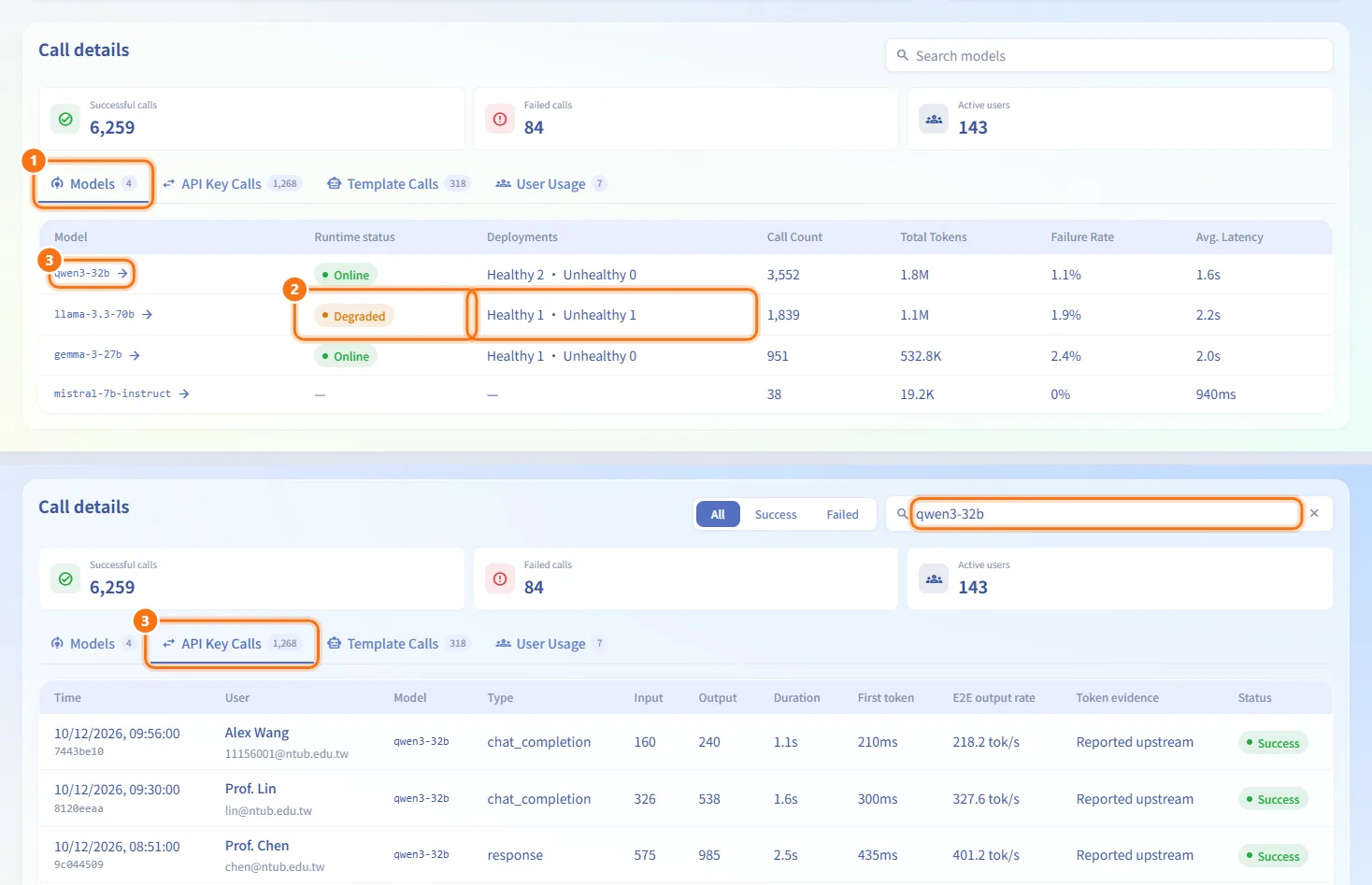
- In Call details, open the Models tab.
- Each row shows the Model, its Runtime status (Online, Degraded, Offline or Unknown), Deployments (healthy and unhealthy counts), and its Call Count, Total Tokens, Failure Rate and Avg. Latency in the period.
- Click a model name that has calls to open API Key Calls filtered to that model.
A model that only appears in past usage and is not known to the gateway shows "—" for runtime status and deployments.
Inspect individual calls
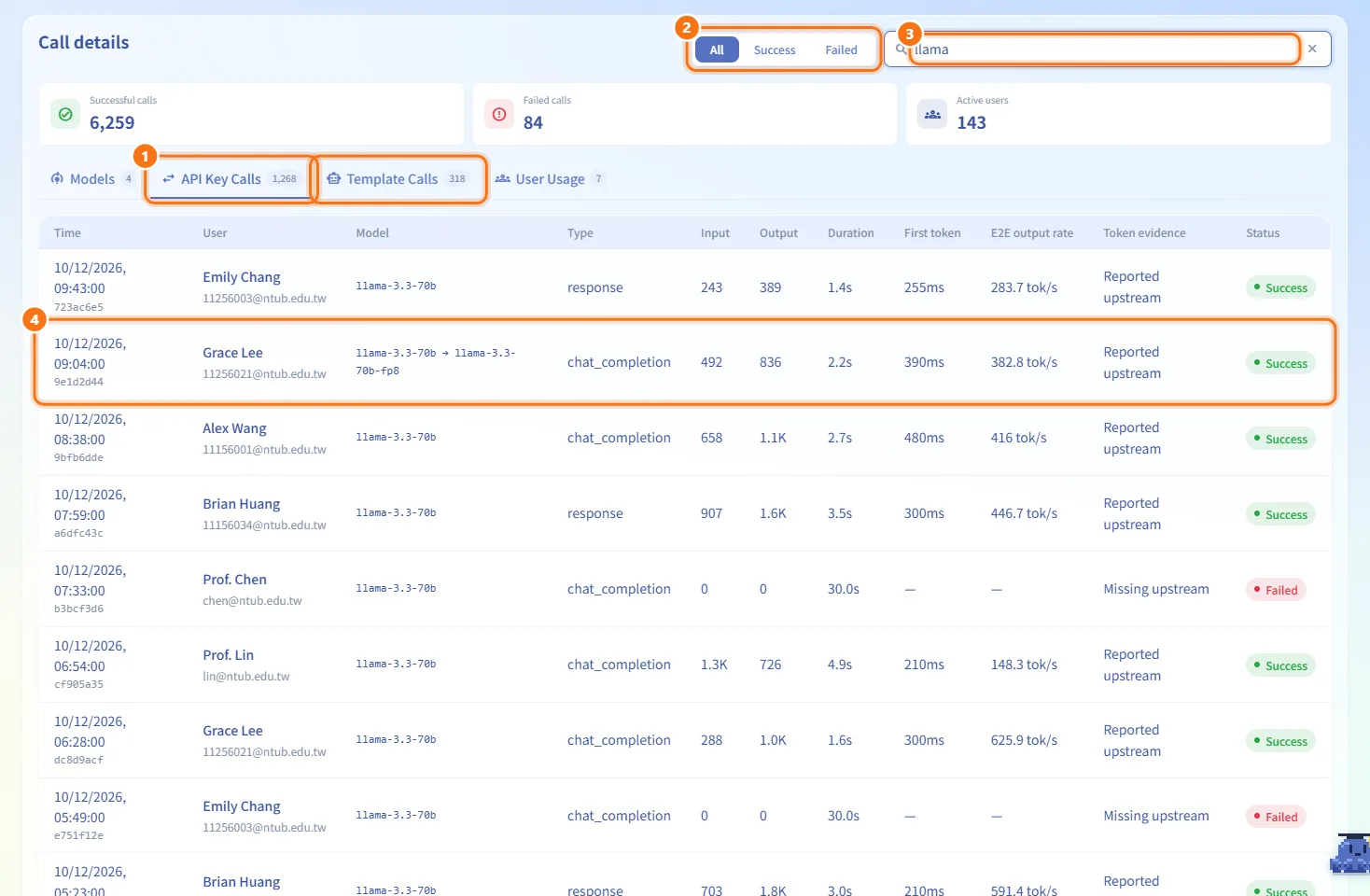
- Open API Key Calls for calls that users made with their own keys, or Template Calls for the platform's built-in AI features.
- On API Key Calls, choose All, Success or Failed.
- Type in the search box to filter by user, model, call type or request ID.
- Read the row: Time (with the start of the request ID), User, Model (shown as "requested → answered" when the upstream answered with a different model), Type, Input and Output tokens, Duration, First token (time until the first token arrived), E2E output rate, Token evidence and Status.
When Token evidence says Missing upstream, the model did not report its token usage: tokens are recorded as 0 and no output rate is computed.
Find the heaviest users
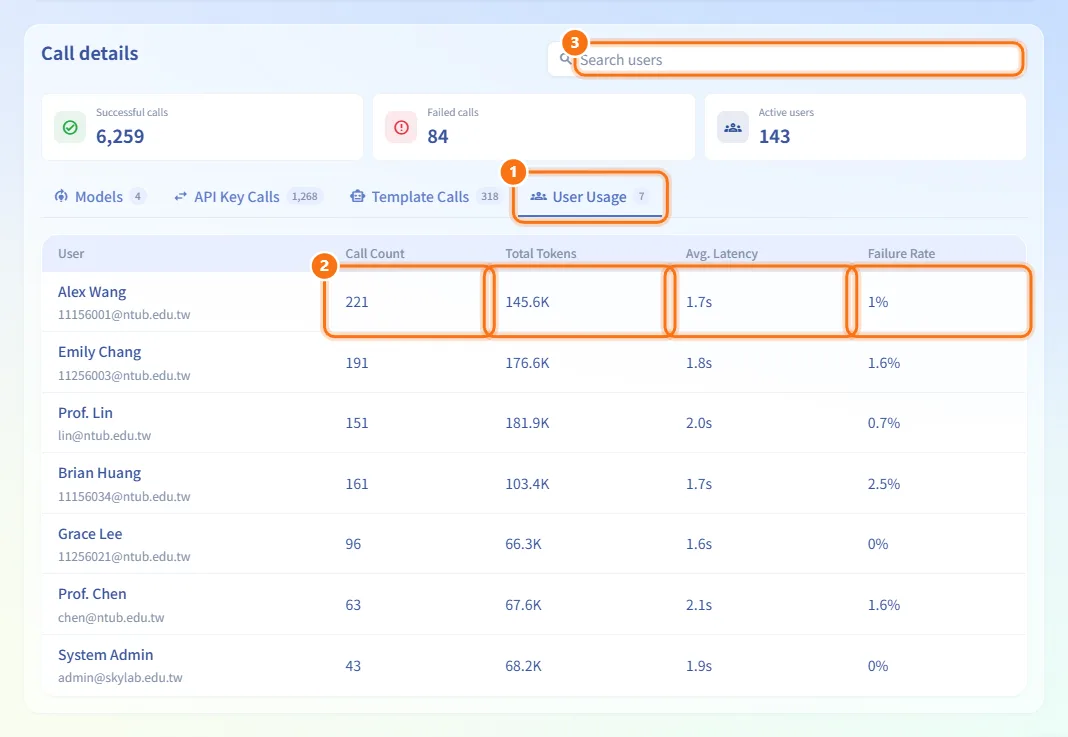
- Open User Usage.
- Each row adds up a user's key calls and built-in AI calls: Call Count, Total Tokens, Avg. Latency and Failure Rate.
- Search by name or email.
Open the Grafana dashboard
Click View details in Grafana. The SkyLab AI dashboard opens in a new tab, already signed in.
Fields and options
| Item | Meaning | Notes |
|---|---|---|
| Successful calls / Failed calls / Active users | Totals for the selected period | Shown above the detail tabs |
| Detail tabs | Models, API Key Calls, Template Calls, User Usage | The number on each tab is its row count |
| Status filter | All, Success, Failed | Only on API Key Calls |
| Search | Filters the current tab | Placeholder changes per tab |
Limits and behaviour to know
- Each call tab loads only the latest 100 calls in the period, and User Usage lists the 100 users with the most tokens; search only looks within those rows.
- Changing the detail tab clears the search box.
- This page only collects and shows data; it does not send alerts.
Related
- Key Management — the keys behind the API Key Calls
- AI API review — approve key requests
- Resource Monitoring — platform and machine health
- Monitoring guide — the optional monitoring stack and Grafana
- LiteLLM — the AI Gateway that serves the models