
Storage
Storage lists the PVE storages synced from every PVE connection and lets an administrator decide which of them the platform may use for new machines' disks, and in what order. When a machine is created, placement uses the enabled state, speed tier and priority set here to pick the storage that holds its disk. Sidebar: Admin Settings → Storage. Path: /storage.
Who can use it
Administrators only. The page lives in the administrator settings sidebar, and reading or changing storage settings is refused for anyone else.
Before you start
- The list comes from the last sync. Storages only appear or update after you click Sync on the PVE Management page; this page does not read PVE directly.
- If nothing has been synced yet, the page shows No storage configuration yet.
Step by step
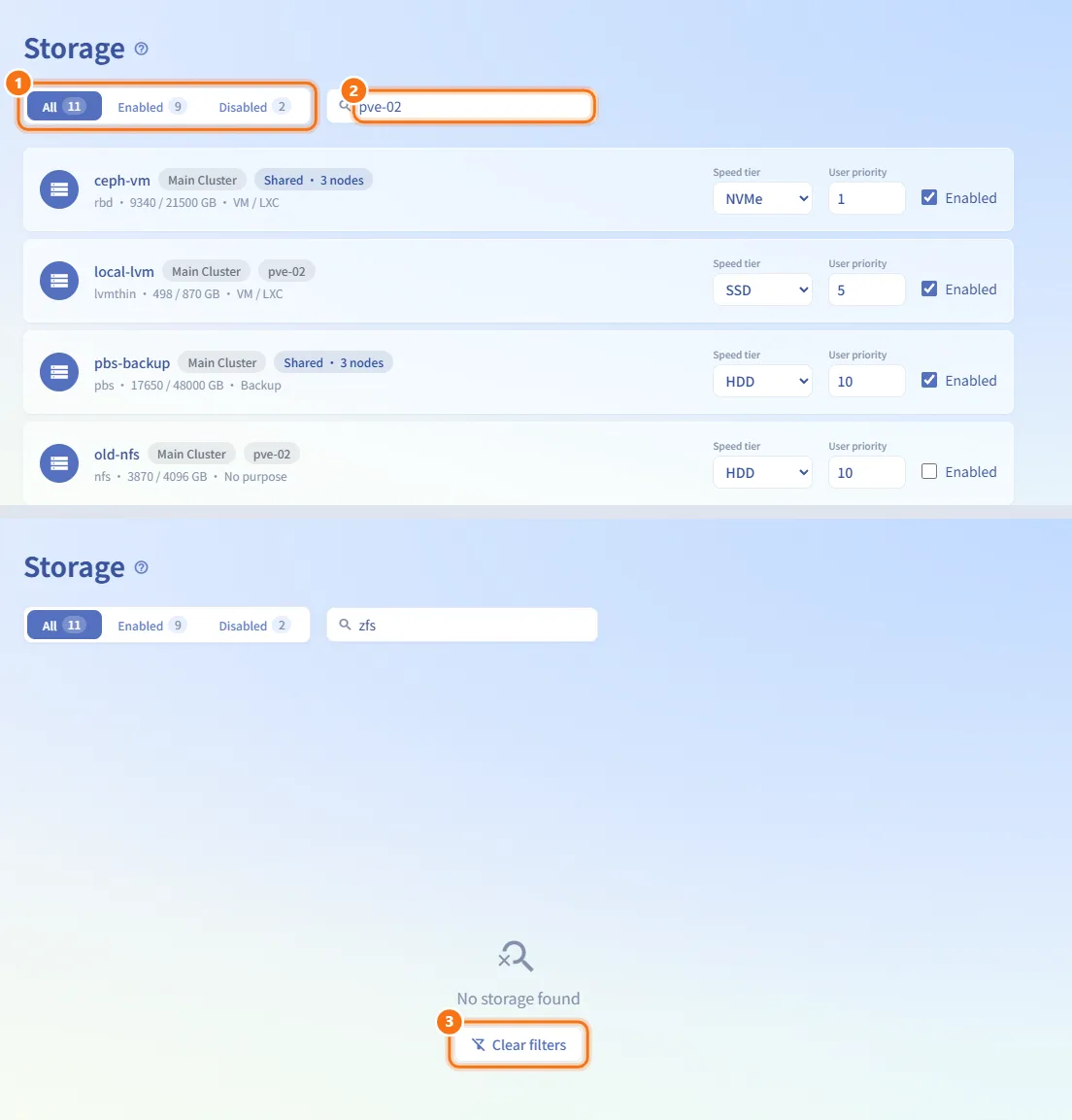
Find a storage
- Use the switch at the top: All, Enabled or Disabled. The number on each button is the count for that state.
- Type in the search box (Search by name, node, or type). It matches the storage name, its node (every node, for shared storage), the connection name and the storage type.
- If nothing matches, No storage found is shown with a button to clear the filters.
Read a storage row
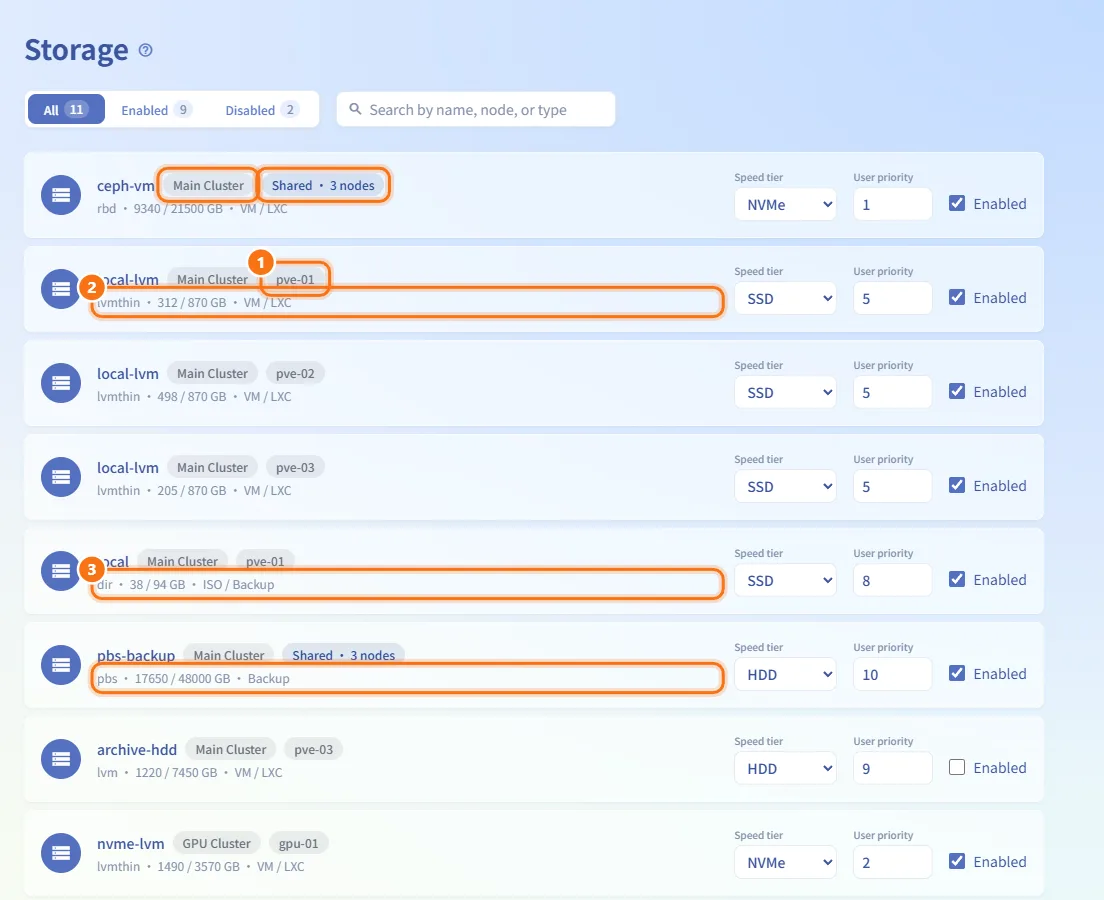
- The first line shows the storage name and where it lives:
- a node badge for storage local to one node, or
- Shared · N nodes for shared storage; hover over it to see the node names.
- When you have more than one PVE connection, a badge with the connection name is added.
- The second line shows the storage type, used / total capacity in GB, and its purposes: VM, LXC, ISO, Backup, or No purpose.
- Only storage marked VM is chosen for VM disks, and only storage marked LXC for container disks.
Set the speed tier
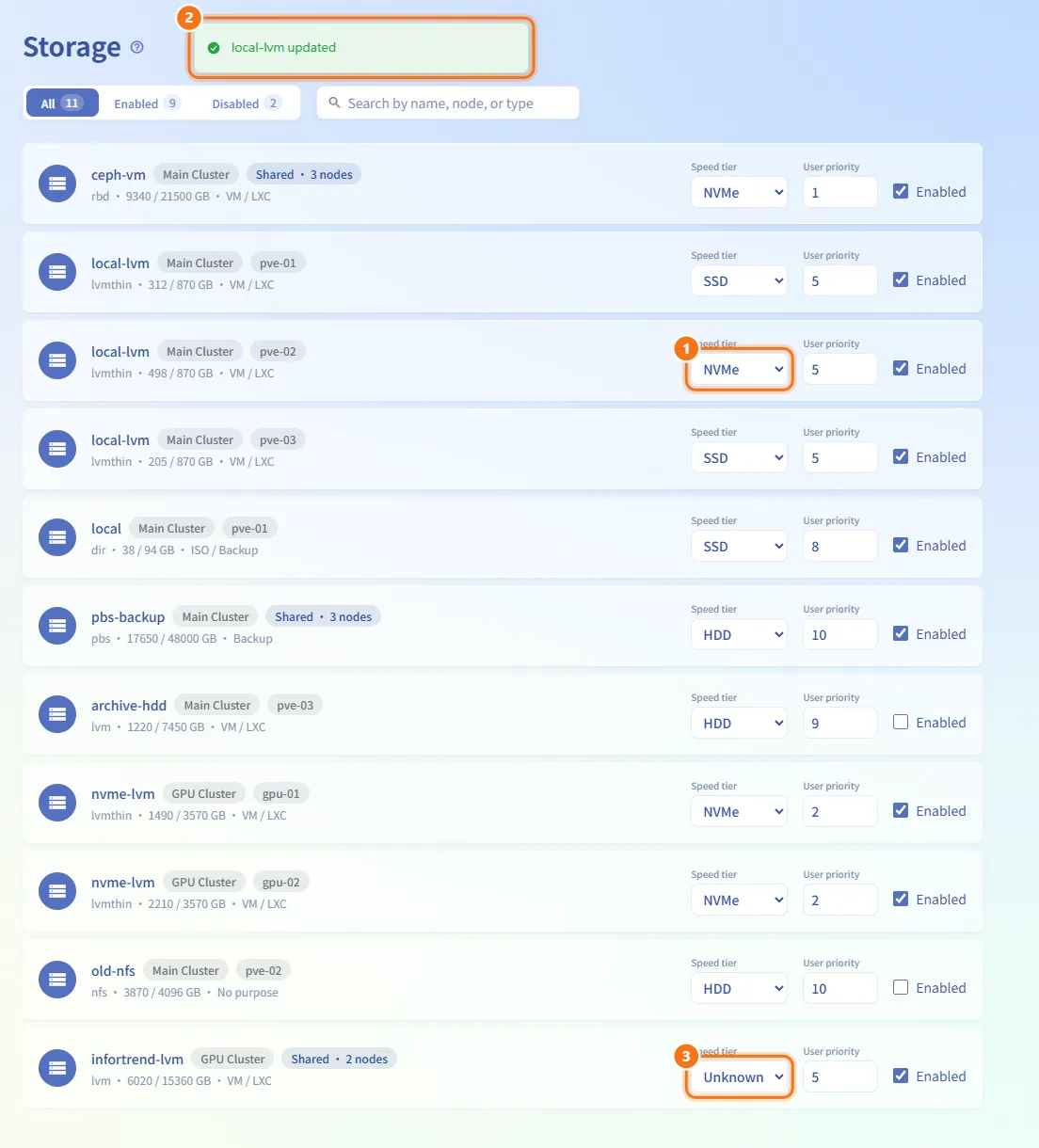
- Open Speed tier on the row and choose NVMe, SSD, HDD or Unknown.
- The choice is saved immediately and a message confirms it ("… updated").
- Placement compares speed tier first (NVMe → SSD → HDD → Unknown) and then usage. Newly synced storage starts as Unknown, so set the correct tier after each sync that adds storage.
Set the user priority
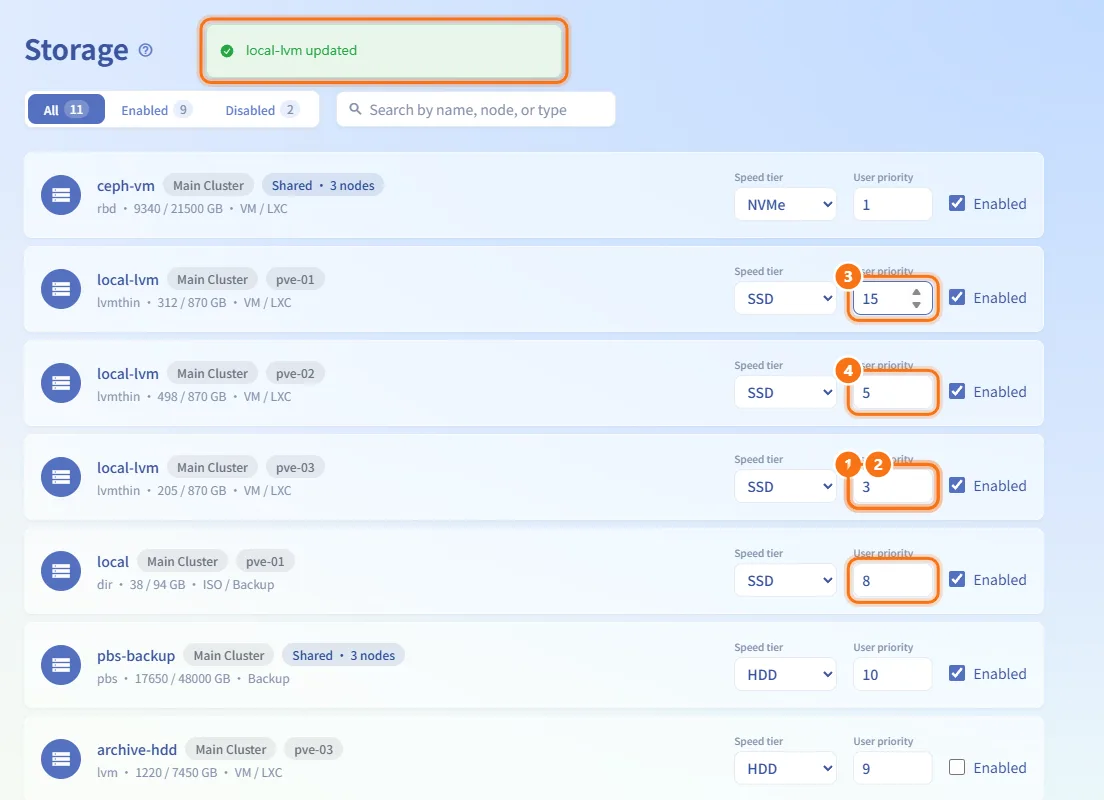
- Type a whole number from 1 to 10 in User priority. Lower numbers come first.
- Press Enter or click elsewhere to save. Nothing is saved while you are still typing.
- Values outside 1–10, blanks or decimals revert to the saved value. If saving fails, the field also reverts.
- Priority only breaks ties when speed tier and usage are about the same.
Enable or disable a storage
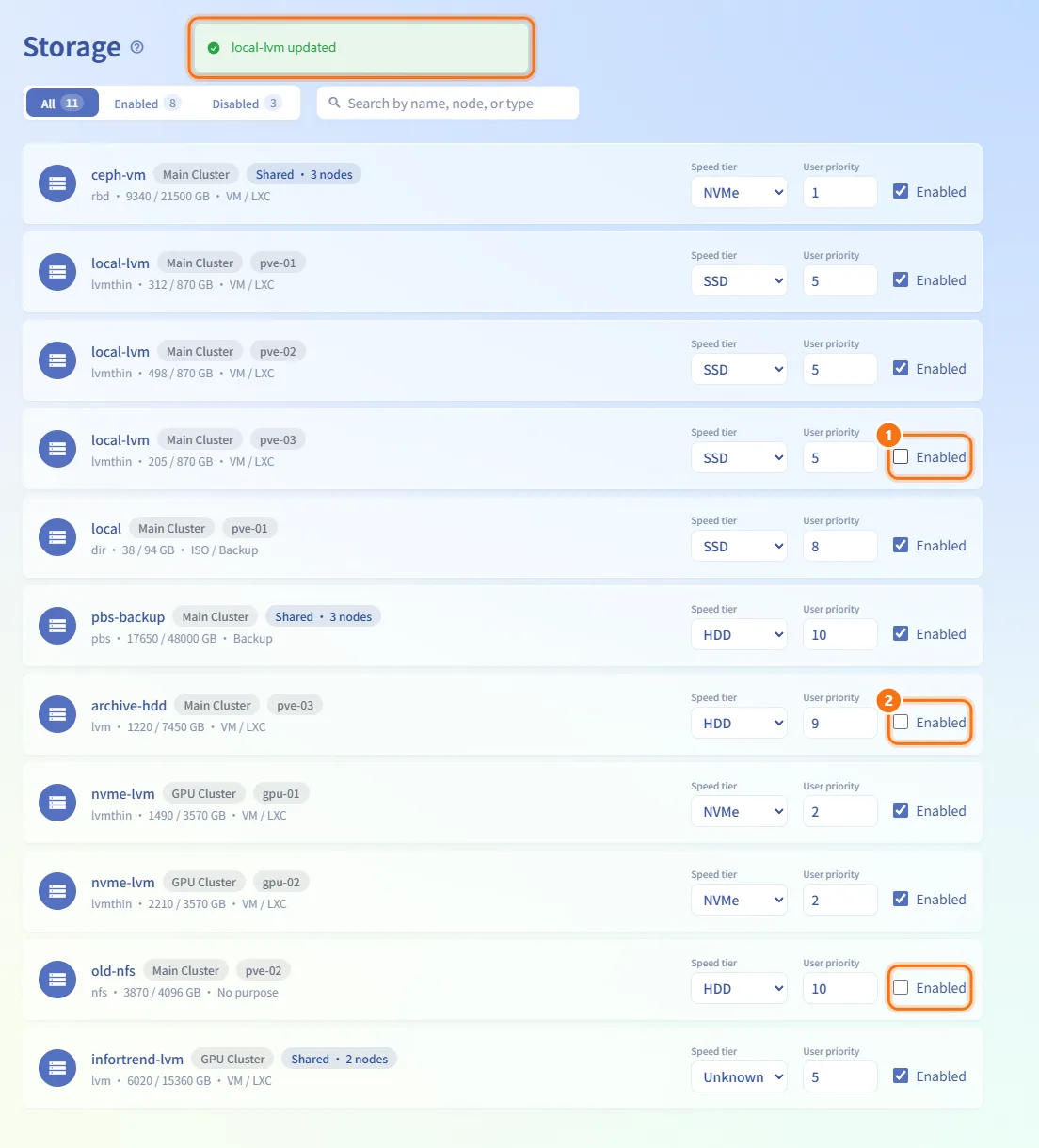
- Tick or untick Enabled on the row. The change is saved immediately.
- A disabled storage is never chosen for new machines' disks.
Change shared storage
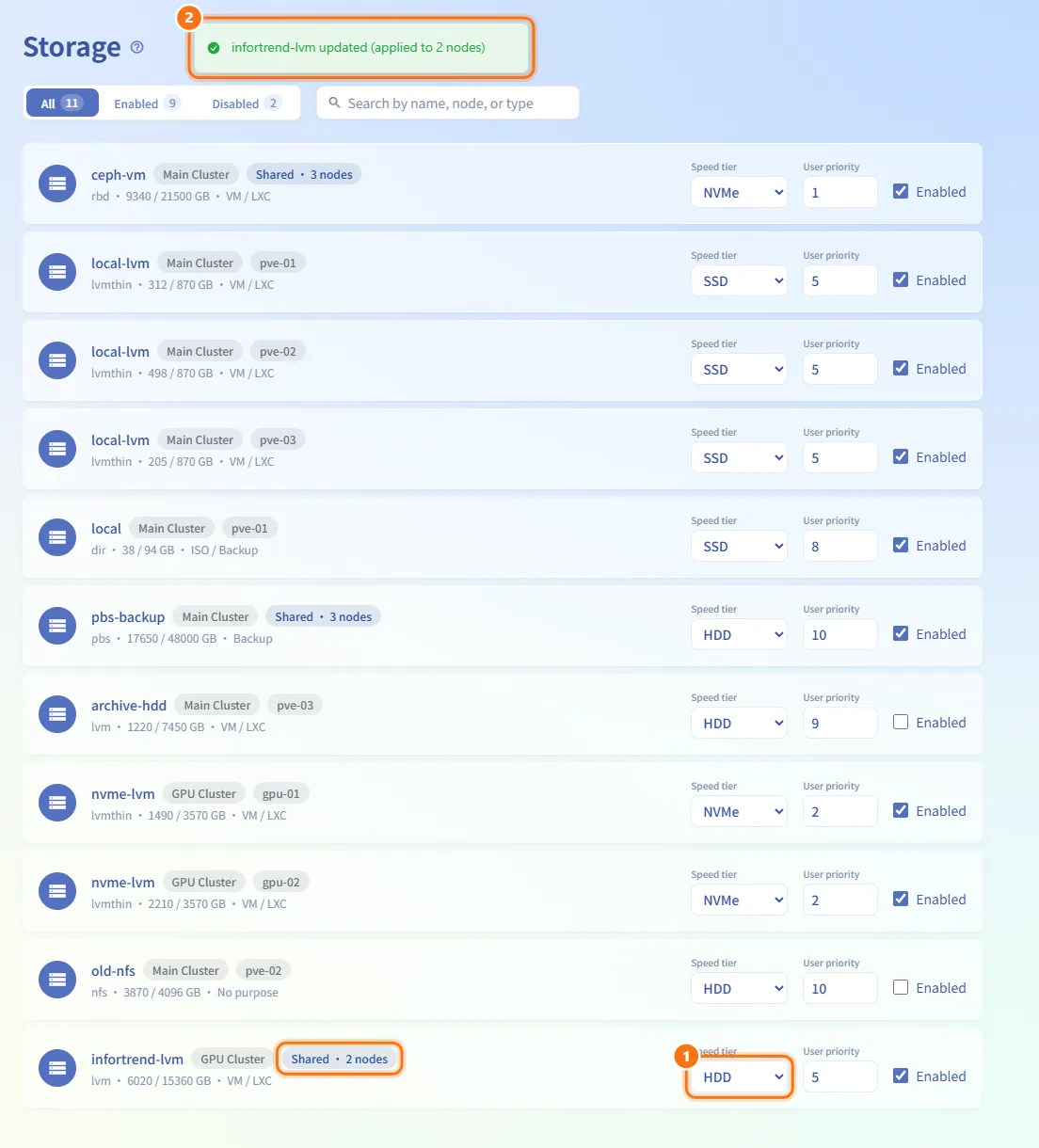
- Change the speed tier, priority or Enabled on a shared storage row as usual.
- The change is applied to every node in that cluster where the storage is mounted, and the message says how many nodes it was applied to ("… updated (applied to N nodes)").
Fields and options
| Field | Meaning | Notes |
|---|---|---|
| Speed tier | NVMe, SSD, HDD or Unknown | Compared first; new storage defaults to Unknown |
| User priority | 1–10, lower first | Only breaks ties; saved on Enter or when leaving the field |
| Enabled | Whether placement may use this storage | Saved immediately |
| Purposes | VM, LXC, ISO, Backup as reported by PVE | Only VM / LXC storage holds machine disks |
| Shared · N nodes | Storage mounted on several nodes of one cluster | Shown once per cluster; changes apply to all its nodes |
| Used / total | Capacity in GB from the last sync | Refreshed by Sync on PVE Management |
Limits and behaviour to know
- Capacity figures and the storage list are only as fresh as the last Sync on PVE Management.
- Every change is recorded in the audit log.
- Whether a machine can take snapshots is decided by PVE and checked live for each machine on its detail page; this page does not change it. For machines that cannot use snapshots, the detail page offers backups instead when a backup storage is set for that connection on PVE Management.
Related
- PVE Management — sync storage and set each connection's backup storage
- Resource Scheduling — placement settings that work together with storage choice
- Resource Detail — snapshots and backups on each machine
- Audit Log — the record of storage changes