
Firewall
The Firewall page draws your machines as a topology map: every line is a connection the firewall allows, such as a service exposed to the outside, a machine allowed to reach the internet, or two machines allowed to talk. From here you add and remove connections, publish services by URL or external port, and view or edit each machine's own firewall rules. Sidebar: Network → Firewall. Path: /firewall.
Who can use it
Everyone who is signed in, with a different set of machines:
| Role | Machines on the map | What can be changed |
|---|---|---|
| Student | Own machines, including the class machines assigned to them | Own personal machines. Class machines are read-only: their rules can be viewed but not changed, and they cannot be used in a new connection |
| Teacher | Own machines plus every student machine in the classes they teach | Own machines and the machines of their classes |
| Administrator | Every machine | Every machine |
When a student tries to draw a line to or from a class machine, a message says the class teacher manages that machine's firewall.
Before you start
- You need at least one VM or LXC; with none, the map shows "No firewall resources to display".
- Publishing a service by URL only appears once an administrator has finished the Cloudflare and Gateway setup (see Domain Management and Gateway VM). Until then only External port and Firewall only are offered.
Step by step
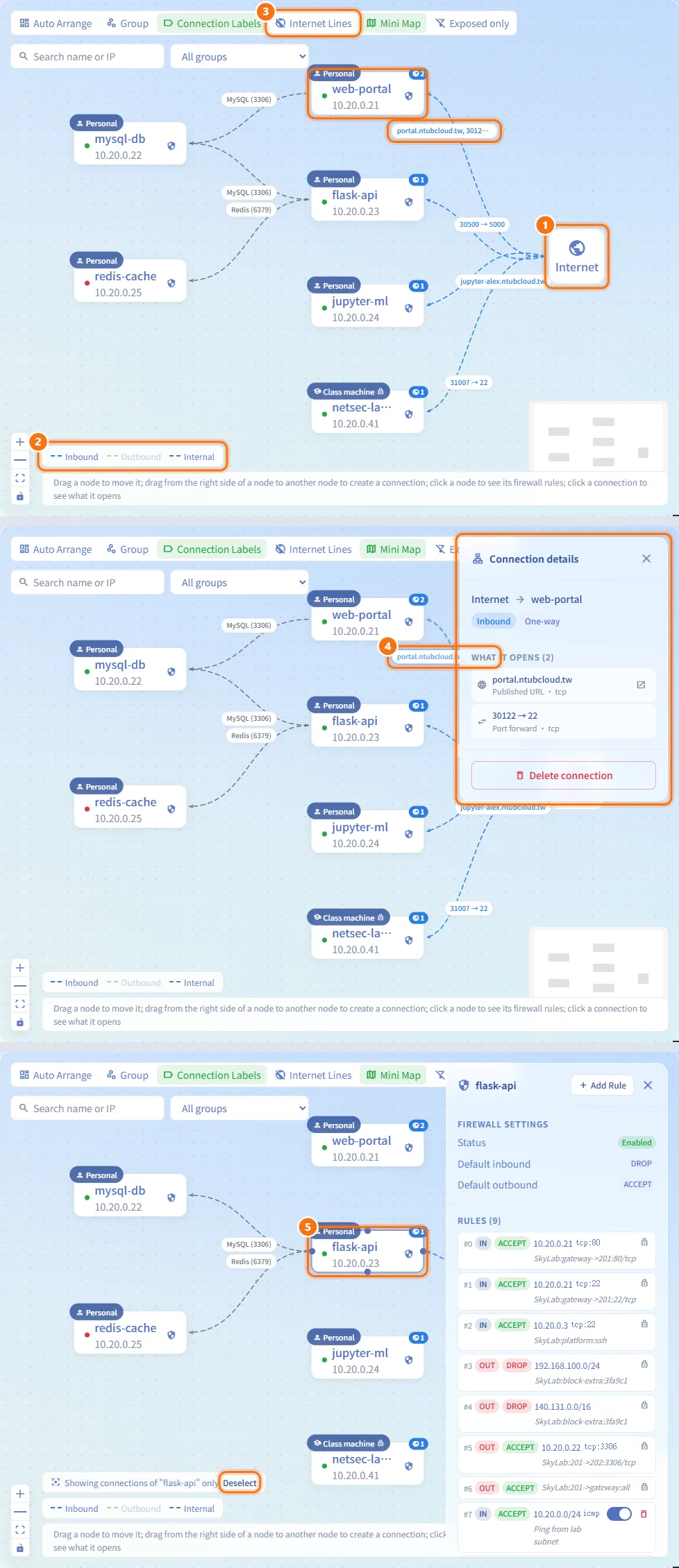
Read the map
- Each box is a machine; the Internet box stands for everything outside the lab.
- Line colours follow the legend at the bottom left: Inbound (internet to machine), Outbound (machine to internet) and Internal (machine to machine). The label on a line shows the ports it opens.
- Outbound lines are hidden by default because almost every machine has one; click Internet Lines to show them.
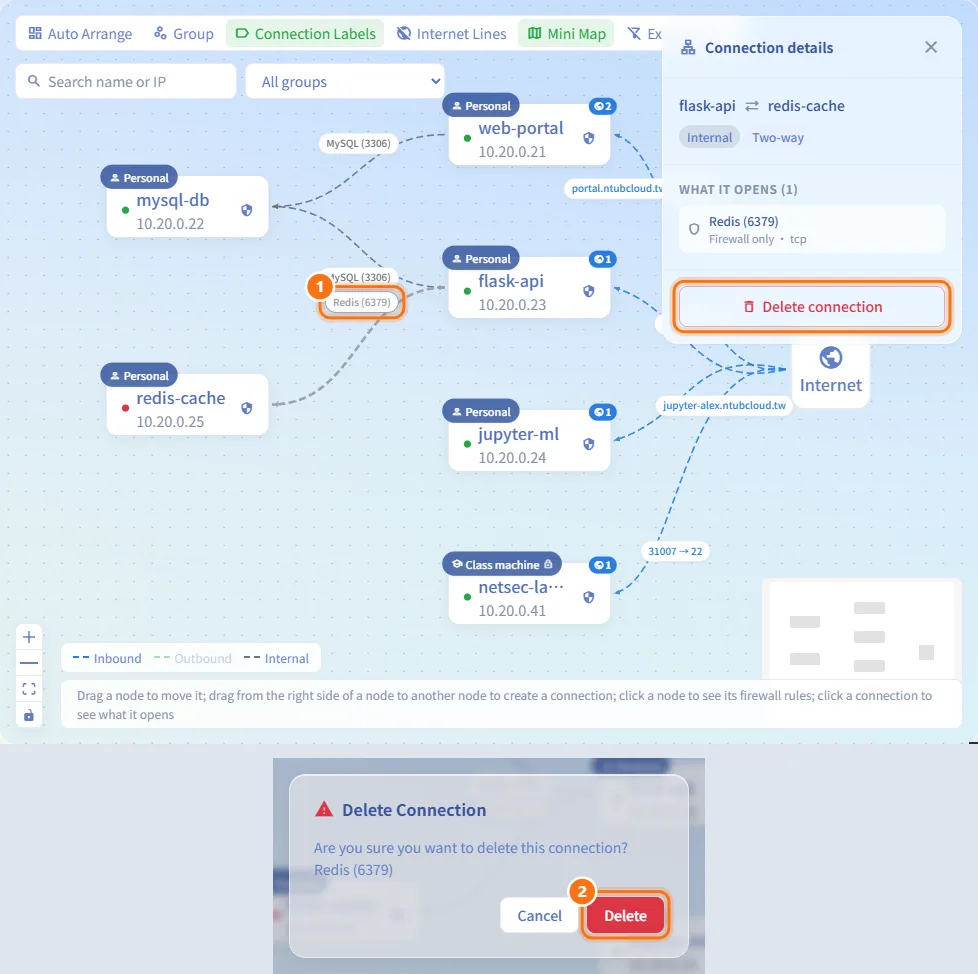
- Click a line to open Connection details: the two ends, the kind, One-way or Two-way, and under What it opens each port with how it is exposed (Published URL, Port forward or Firewall only) and its protocol. A published URL has an Open URL link.
- Click a machine to open its rules panel. While a machine is selected, only its own lines are drawn; click Deselect (or an empty part of the map) to show everything again.
The map refreshes on its own about every 30 seconds.
Create a connection by dragging
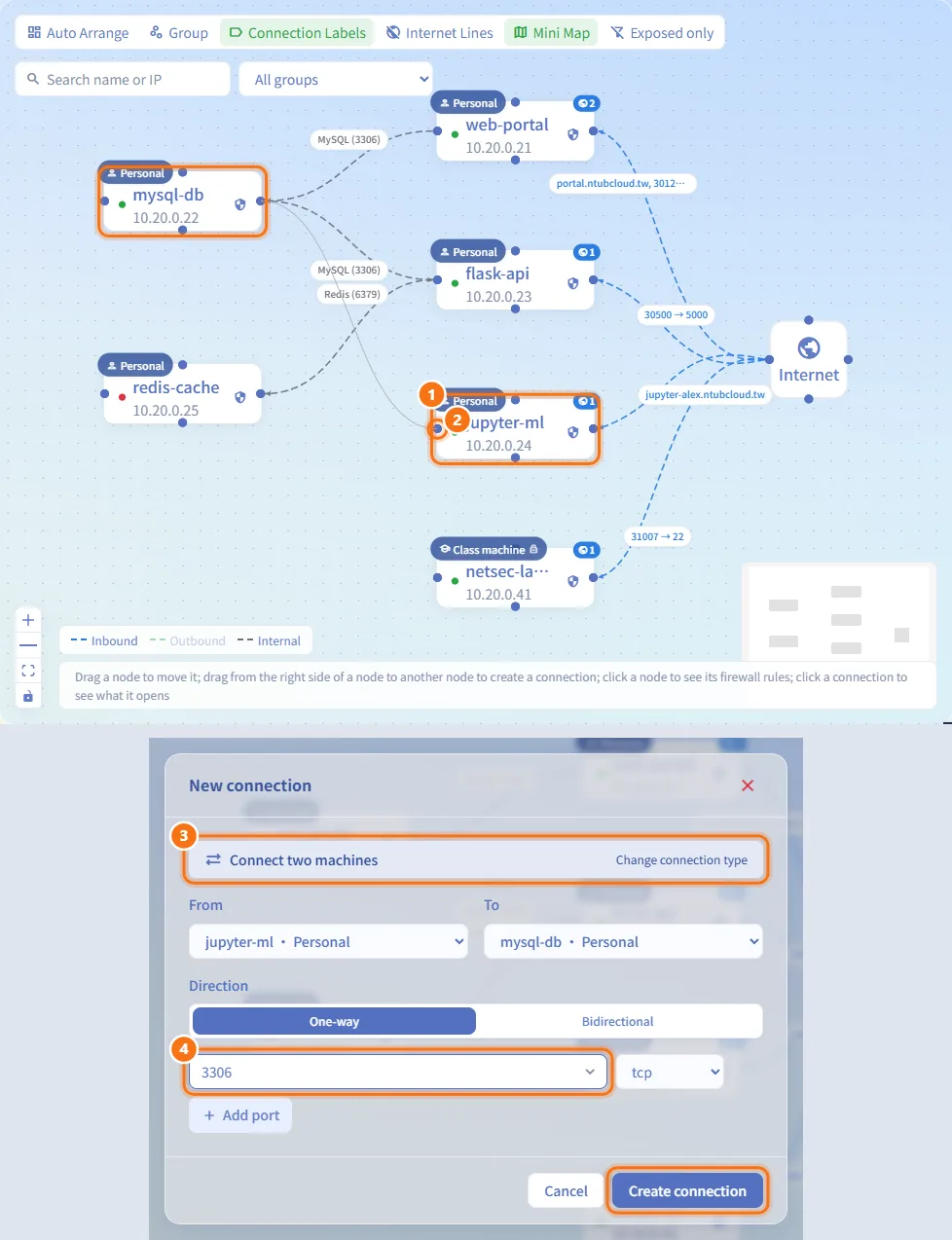
- Hover over the source machine; connection dots appear on its edges.
- Press on a dot, keep the mouse button down and drag to a dot on the destination machine (or the Internet box), then release.
- The New connection dialog opens with the right kind already chosen: machine to machine opens Connect two machines, Internet to machine opens Expose a service, machine to Internet opens Let a machine reach the internet.
- Fill in the ports and click Create connection (or Publish).
Create a connection with the button
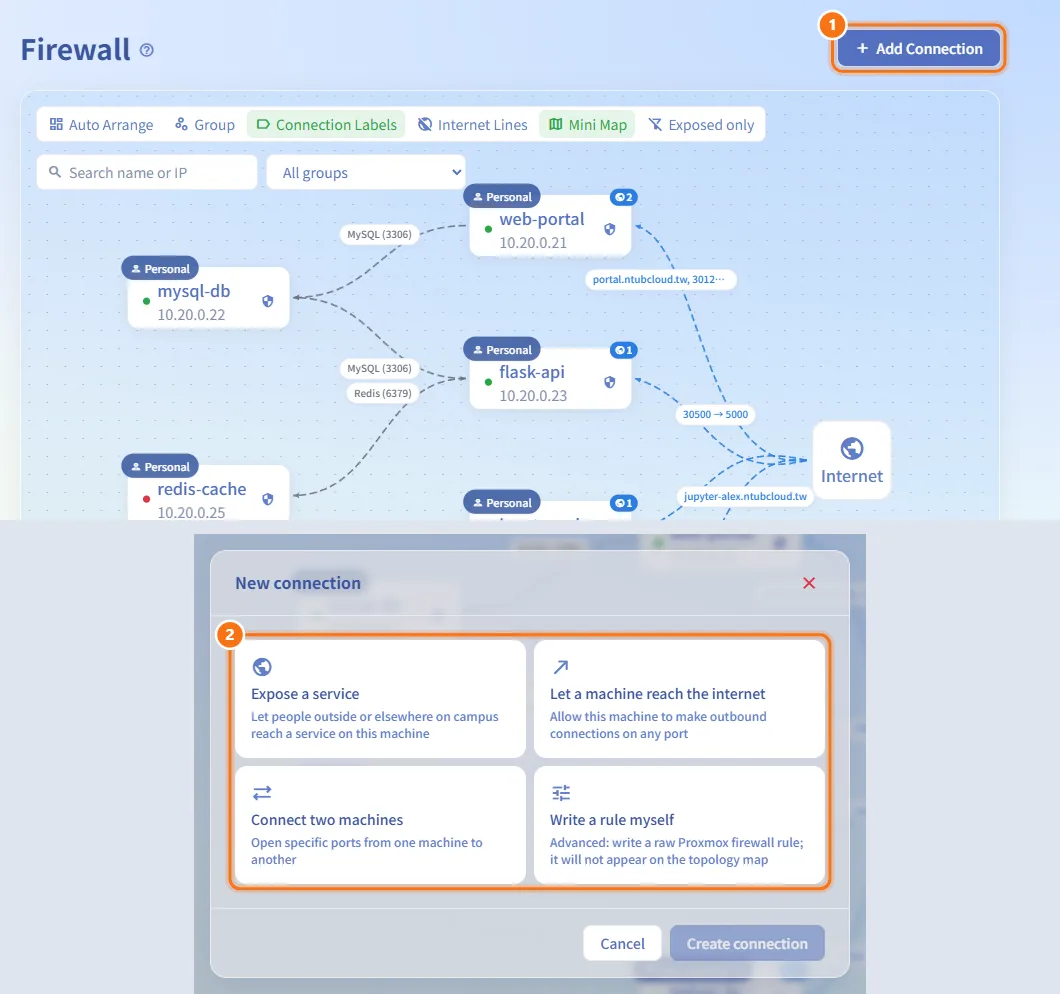
- Click Add Connection in the page header.
- Under "What do you want to do?", choose one of the four kinds described below, then fill in the form.
Let a machine reach the internet
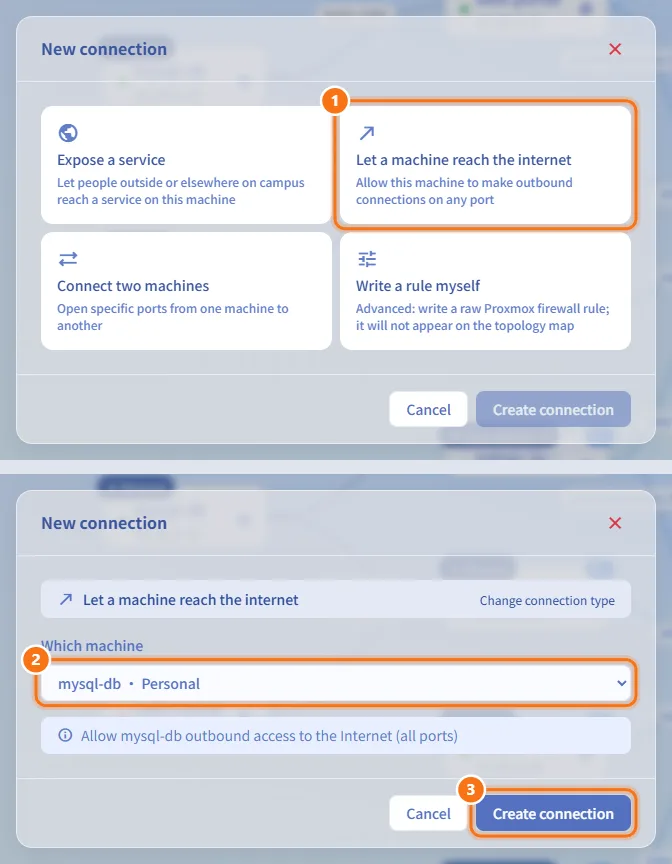
- Choose Let a machine reach the internet.
- Pick the machine in Which machine.
- Click Create connection. The machine may then open outbound connections on any port.
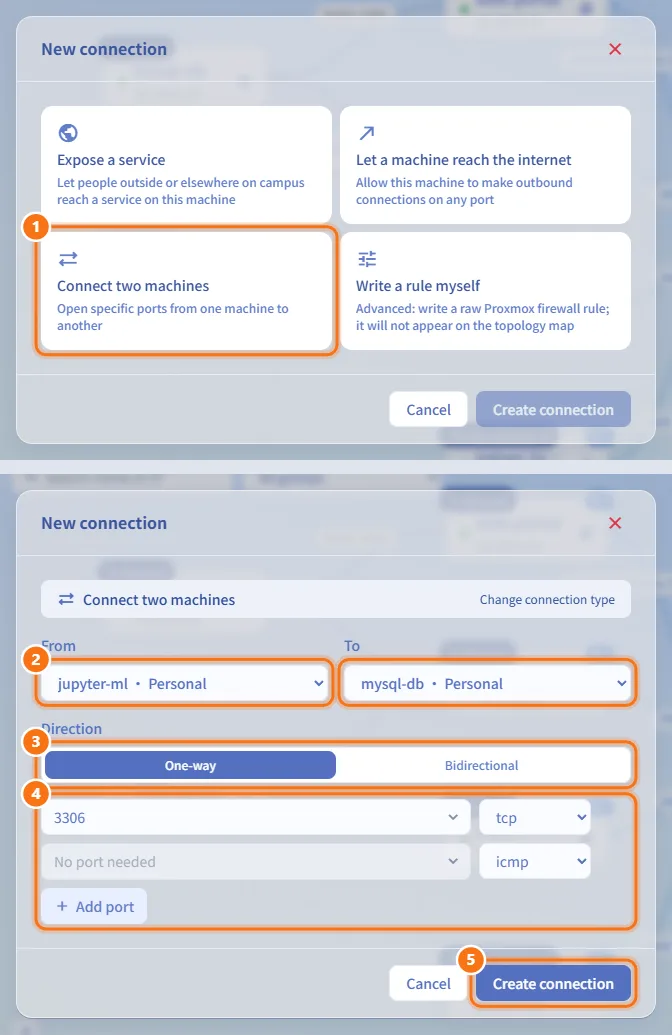
Connect two machines
- Choose Connect two machines.
- Pick From and To.
- Choose Direction: One-way (only From can connect to To) or Bidirectional.
- Enter at least one port with its protocol; use Add port for more rows. ICMP-type protocols need no port.
- Click Create connection.
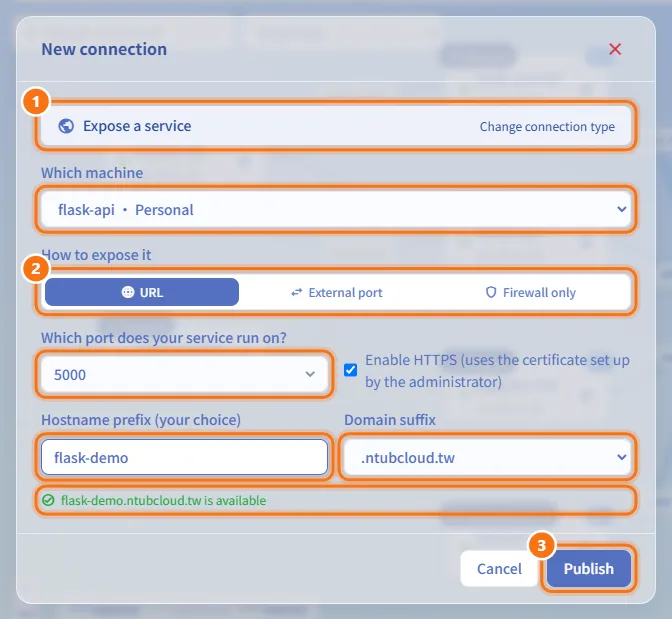
Expose a service to the outside
- Choose Expose a service and pick the machine in Which machine.
- Under How to expose it, choose one of:
- URL: enter Which port does your service run on? (default 80), keep or untick Enable HTTPS, type a Hostname prefix (leave it blank to use the bare domain) and choose the Domain suffix. The dialog checks right away whether the address is free and blocks it if it is taken, whether by SkyLab or by a record that already exists in Cloudflare.
- External port: for each row enter the External port others will use, the Internal port the service listens on and the Protocol (tcp or udp); use Add mapping for more. Others connect through "campus gateway IP:external port". If an external port is already taken you are asked to choose another.
- Firewall only: enter the ports and protocols to open in the machine's firewall, with no URL or port forwarding.
- Click Publish.
If several ports are published at once and one of them fails, the ones that succeeded are kept and removed from the form, and the message tells you which port failed.
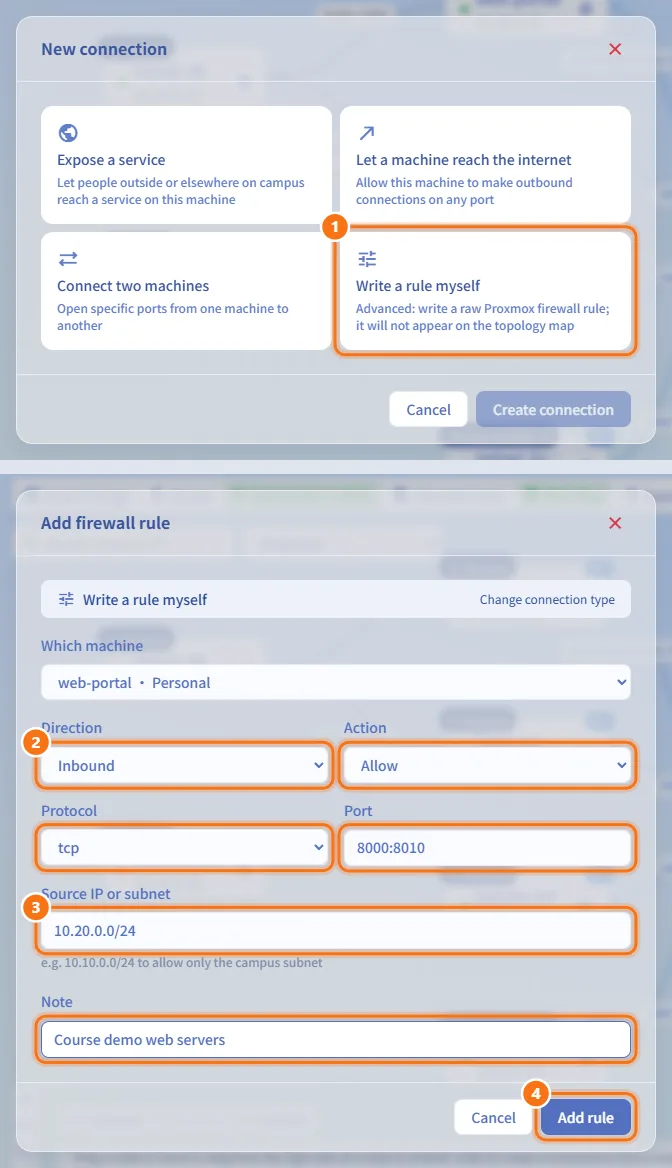
Write a raw firewall rule
- Choose Write a rule myself (or click Add Rule in a machine's rules panel, which opens this directly with the machine fixed).
- Set Direction (Inbound or Outbound), Action (Allow, Drop or Reject), Protocol (Any, tcp, udp or icmp) and Port (for example
22or8000:8010; not used for icmp or Any). - Optionally enter Source IP or subnet (for inbound) or Destination IP or subnet (for outbound), for example
10.10.0.0/24; blank means any. Add a Note if you like. - Click Add rule.
Raw rules are written straight to the machine's Proxmox firewall and do not appear on the map. If you write an inbound allow rule with no source restriction, the dialog suggests Use "Expose a service" instead, because only connections created that way are tracked and drawn.
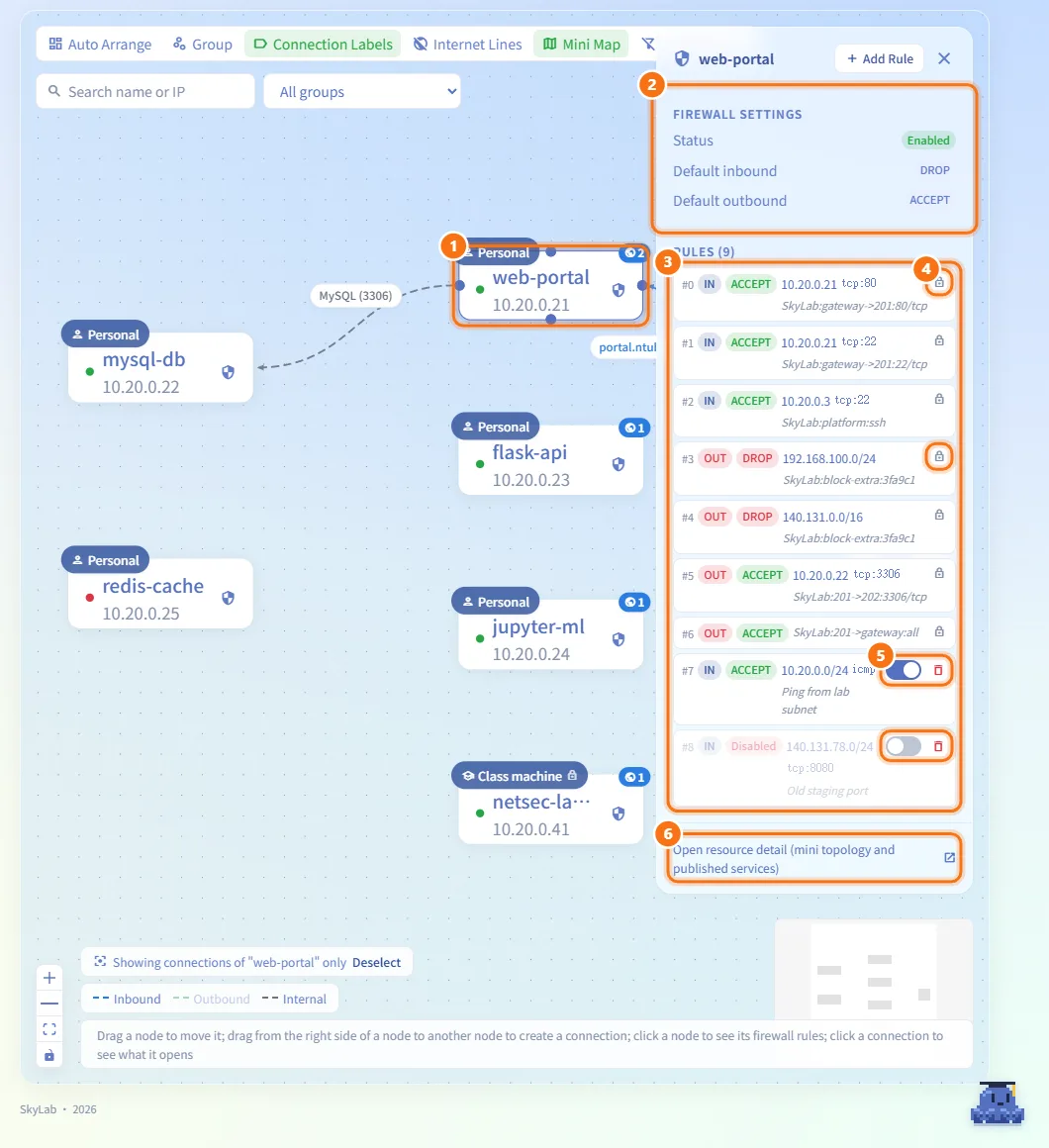
Manage a machine's rules
- Click the machine on the map. The rules panel slides in.
- Firewall Settings shows the firewall Status and the Default inbound and Default outbound policies.
- Rules lists every rule in order: position, IN or OUT, action (or Disabled), source and destination, protocol and port, and note.
- Rules with a lock icon are managed by SkyLab (connections, published services, blocked subnets and other platform rules). Change them through connections and publishing, not here.
- For your own raw rules, use the Enabled switch to turn a rule off or on, or the delete button to remove it after confirming.
- Open resource detail (mini topology and published services) jumps to the machine's detail page.
On a class machine, a student sees "This is a class machine. Rules are view-only here; ask your class teacher to change the firewall." and no buttons.
Delete a connection
- Click the line to open Connection details.
- Click Delete connection and confirm with Delete. Every port the connection opened is removed.
Connections marked Managed by environment template belong to a teaching environment and cannot be deleted here.
Arrange and filter the map
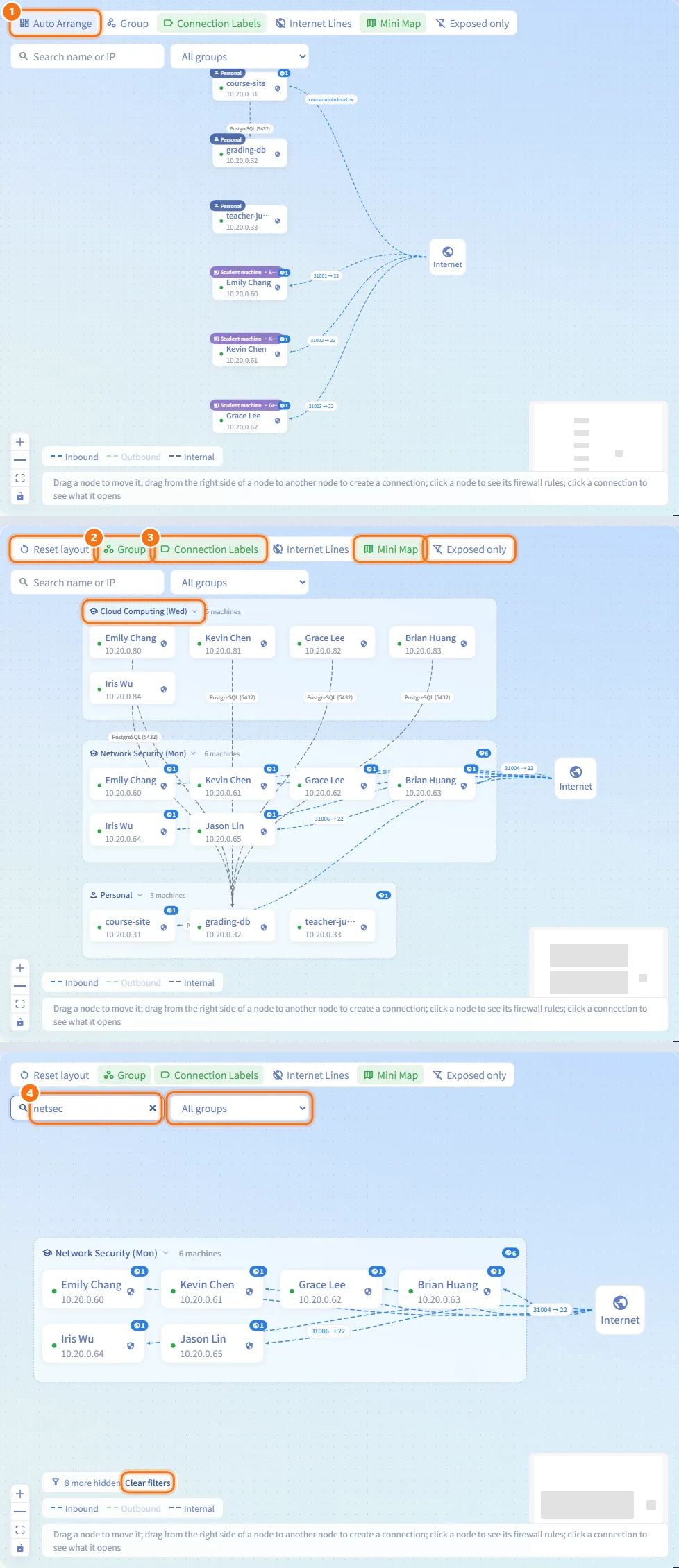
- Auto Arrange lines machines up in a column with the Internet box beside them. Positions you drag are saved for next time.
- Group wraps machines into boxes by class or by machine type. It is turned on by default when there are 12 or more machines; click a group's title button to collapse or expand it. In grouped mode the button becomes Reset layout, which discards the group positions you dragged (they are kept in this browser only).
- Connection Labels shows or hides the port labels, Mini Map shows or hides the thumbnail, and Exposed only keeps only machines reachable from the internet.
- Use the search box ("Search name or IP") and, when there is more than one group, the All groups list to narrow the map. A note at the bottom says how many machines are hidden; click Clear filters to show them again.
None of these buttons change any firewall rule.
Fields and options
| Field | Meaning | Notes |
|---|---|---|
| Port | A port number from 1 to 65535 | Write a range as 8000:8010 |
| Protocol | tcp, udp, icmp, icmpv6 or sctp for connections; tcp or udp for external ports | ICMP-type protocols take no port |
| Direction (connection) | One-way or Bidirectional | Only for Connect two machines |
| How to expose it | URL, External port or Firewall only | URL only when the administrator has finished the domain and Gateway setup |
| Enable HTTPS | Serve the URL over HTTPS with the administrator's certificate | On by default |
| Hostname prefix / Domain suffix | The published address is prefix + suffix, for example myapp.example.com | The suffixes are the active Cloudflare zones |
| Action (raw rule) | Allow, Drop or Reject | — |
| Source / Destination IP or subnet | Limits a raw rule to an address or subnet | Blank means any |
Limits and behaviour to know
- Students cannot change the firewall of class machines, and such machines are left out of the machine lists in the dialog.
- A connection writes rules on both of its ends, so you need control of both machines.
- Administrators can set Default Blocked Subnets / IPs on the IP Management page. They become locked outbound drop rules on every machine, placed before the rule that allows general outbound traffic, so a machine cannot reach those networks even with an outbound connection.
- When the main system IP is set on IP Management, every machine also carries a locked rule that allows SSH (port 22) from the SkyLab host.
- A URL that is already used by another machine, by the platform's own domain, or by an existing Cloudflare record cannot be published.
- Group positions and collapsed groups are stored in this browser; single-machine positions are stored on the server.
Related
- Resource detail — the same connection dialog and the machine's published services
- Gateway VM — the nginx and HTTPS certificate behind published URLs and external ports
- Domain Management — the Cloudflare zones offered as domain suffixes
- IP Management — the lab subnet and blocked subnets
- Class Workspace — teachers managing their class machines