
Home
The page you land on after signing in. It is different for each role: administrators get a workbench of things that need attention, teachers get an overview of their classes, and students get their machines, classes and quick practice environments in one place. Sidebar: Home (top item). Path: /dashboard.
Who can use it
Every signed-in user. Which home page you see depends on your role:
| Role | Home page | Main content |
|---|---|---|
| Administrator | Admin home | Platform numbers, AI Operations Assistant, Handle now and Sometime today to-do lists |
| Teacher | Teacher home | Create Class, Active Classes and Next Class cards, Upcoming Classes |
| Student (any other account) | Student home | Recently used machines, Current classes, Quick Practice Environments, a link to request your own research environment |
Click the guide button next to the page title to replay the guided tour of your home page.
Before you start
Nothing is required. The sections fill up as you get machines, join classes or (for administrators) as the platform collects data from the PVE connections.
Step by step: administrator home
Check how fresh the data is
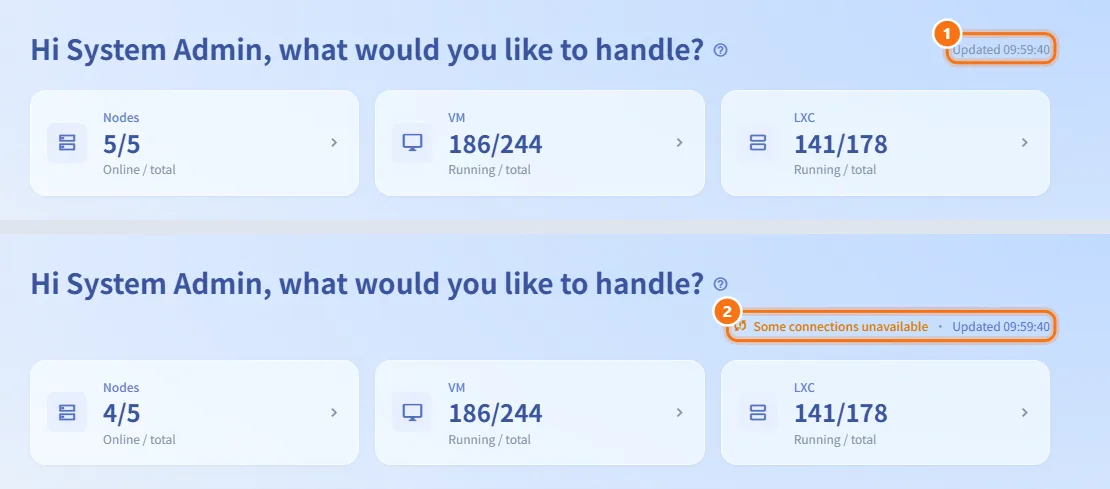
- Look at the right side of the page header. It shows when the PVE data was last updated (for example Updated 14:32:05).
- If an orange notice is shown instead, such as Some connections unavailable, Latest data unavailable, No data yet or Some status unconfirmed, the numbers below may be incomplete. Hover over it to read the full reason.
The page refreshes itself every 30 seconds and pauses while the browser tab is hidden.
Read the platform numbers
The three cards at the top cover every PVE connection:
- Nodes: online / total. Click it to open Resource Monitoring.
- VM and LXC: running / total. Click either to open Resource Management.
The cards are not shown until the first PVE overview has been collected.

Ask the AI Operations Assistant
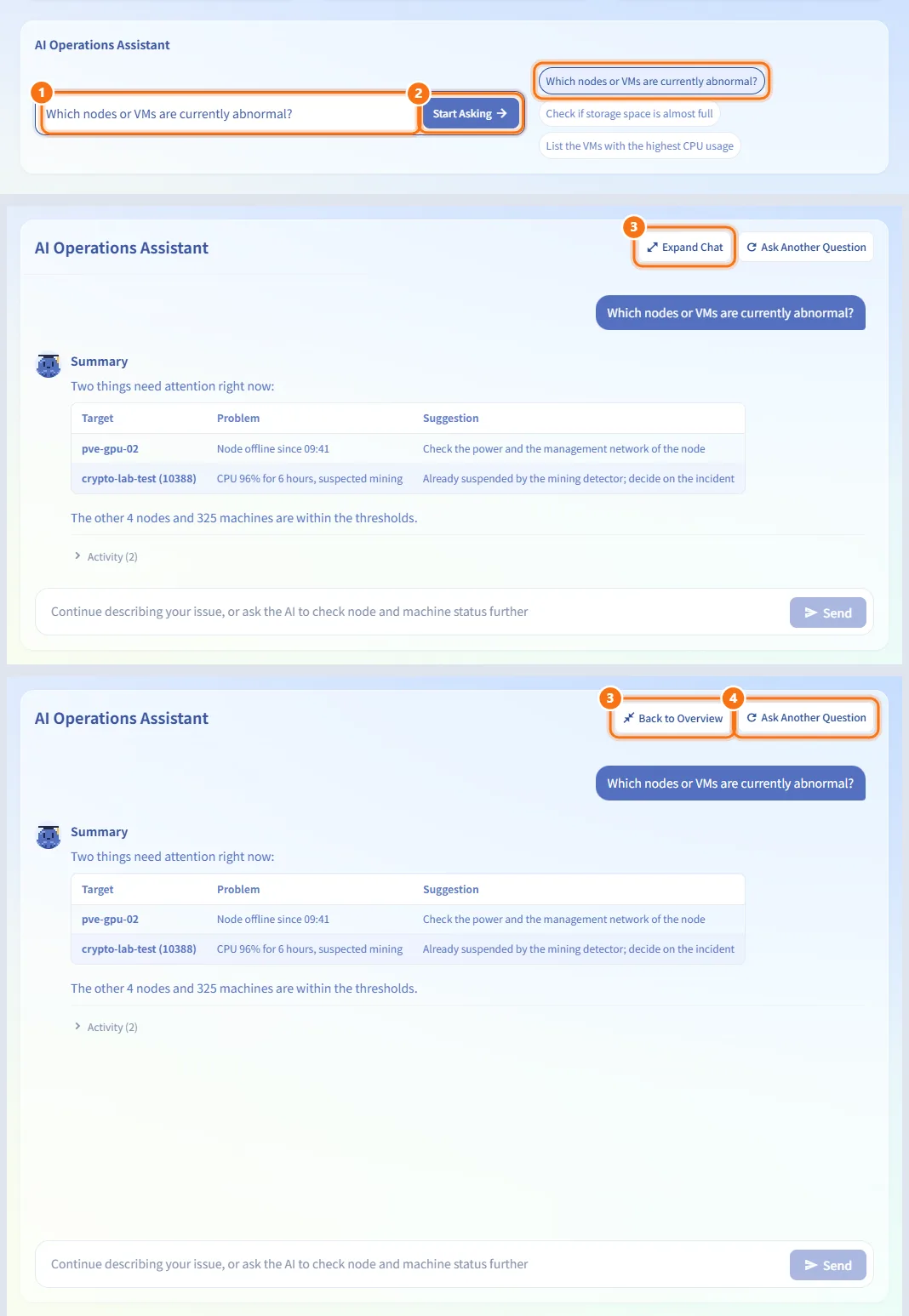
- Type a question, or the name of a VM you want checked, in the AI Operations Assistant box. You can also click one of the suggested questions (for example "Which nodes or VMs are currently abnormal?"); it only fills in the box.
- Click Start Asking. Nothing is sent before that.
- While the conversation is open, click Expand Chat to let it fill the page (the cards and to-do lists are hidden), and Back to Overview to shrink it again.
- Click Ask Another Question to clear the conversation and start over.
Work through "Handle now"
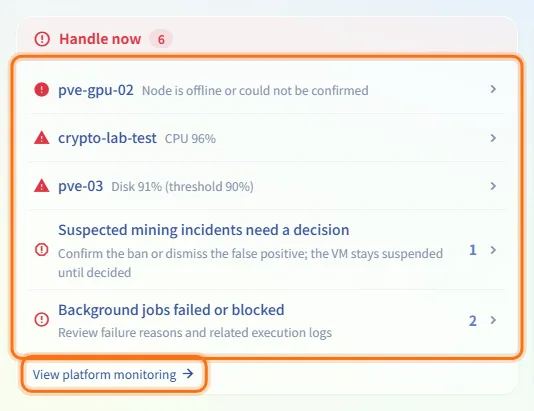
Handle now lists problems that are already happening:
- nodes and VMs whose CPU, RAM or disk is over the alert threshold, and offline nodes;
- active system alerts;
- Suspected mining incidents need a decision (incidents detected or suspended and not yet decided);
- Background jobs failed or blocked in the last 7 days.
A problem reported both live and as an alert is listed only once. Click a row to go to that machine or the related page. View platform monitoring at the bottom opens Resource Monitoring. When the list is empty it reads Nothing needs immediate attention.
Clear the reviews in "Sometime today"
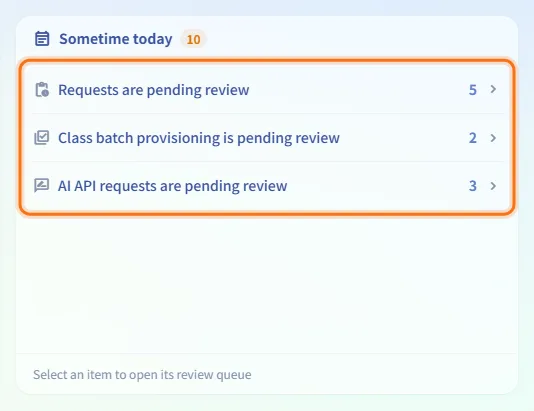
Sometime today has one row per review queue, with the number waiting:
| Row | Opens |
|---|---|
| Requests are pending review (machine requests and spec changes) | Request Review |
| Class batch provisioning is pending review | Class Review |
| AI API requests are pending review | AI API review |
Click a row to open that review list. When there is nothing to review it reads No requests awaiting review.
Step by step: teacher home
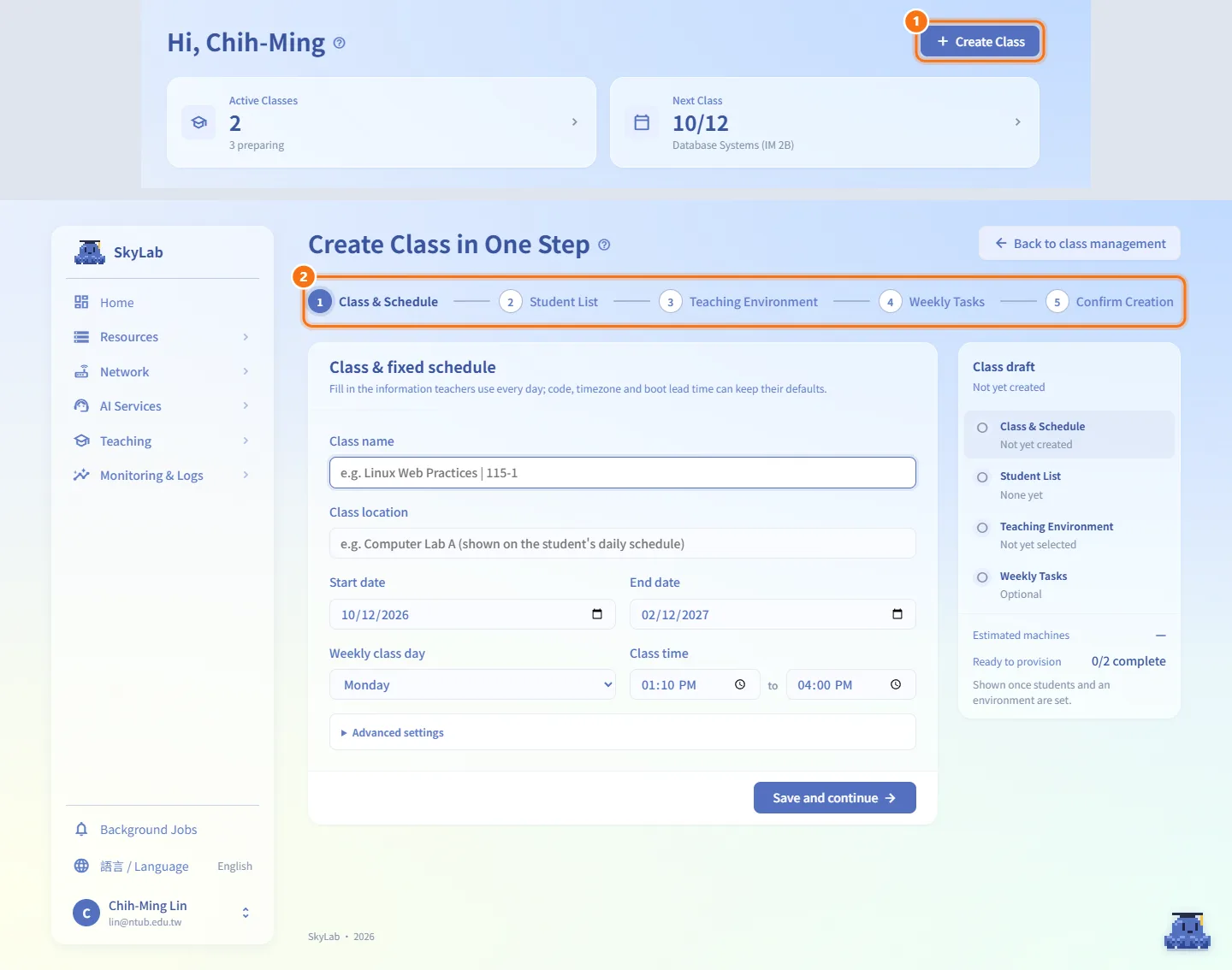
Create a class
- Click Create Class in the page header.
- The class setup flow opens, where you choose the students, the schedule and the machines each student gets. After you submit, an administrator has to approve the class before its machines are created.
Read the summary cards
- Active Classes: the number of classes in session. The line below (for example "2 preparing") counts classes that are still being set up, waiting for review, being provisioned or partially failed. Click the card to open Class Management.
- Next Class: the date of your nearest session and the class name. Click it to open that class; if there is no upcoming session it shows No upcoming classes and opens Class Management.
If the data could not be loaded, both cards show "—".

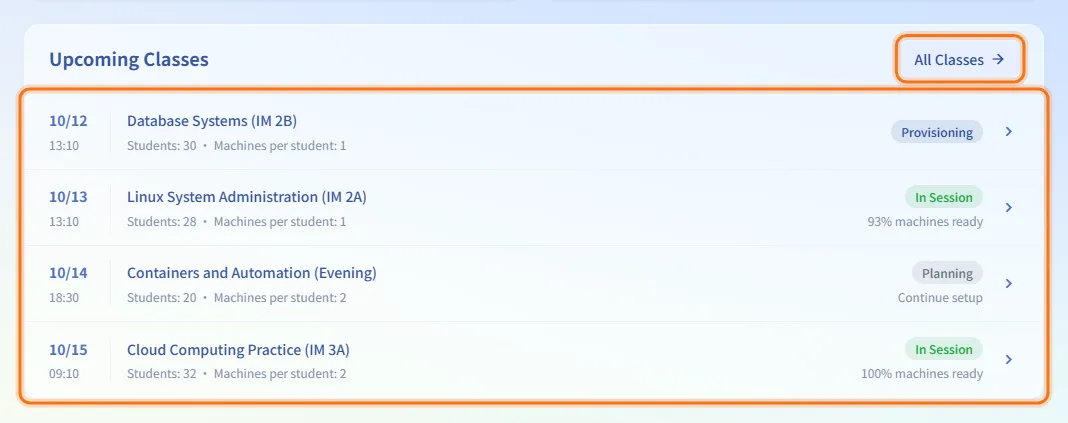
Follow your upcoming classes
Upcoming Classes lists up to 4 classes, ordered by their next session. Each row shows:
- the date and start time of the next session;
- the class name and "Students:
<n>· Machines per student:<m>"; - the class status (Planning, Pending Review, Provisioning, Partially Failed, In Session, Archived);
- for classes in session, the share of machines that are ready (for example "93% machines ready"); for classes still in planning, Continue setup.
Click a row to open the class. Click All Classes to see every class.
Step by step: student home
Enter one of your machines
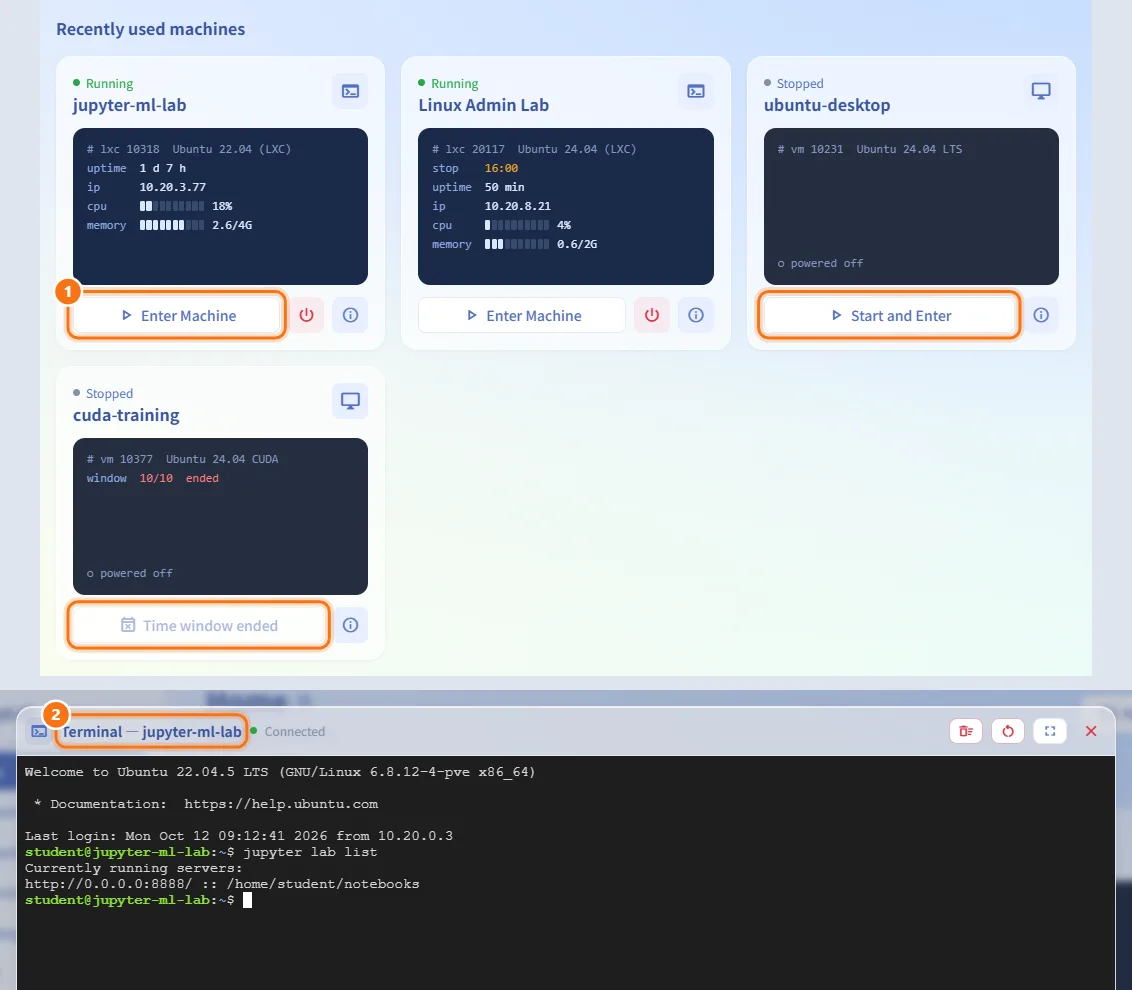
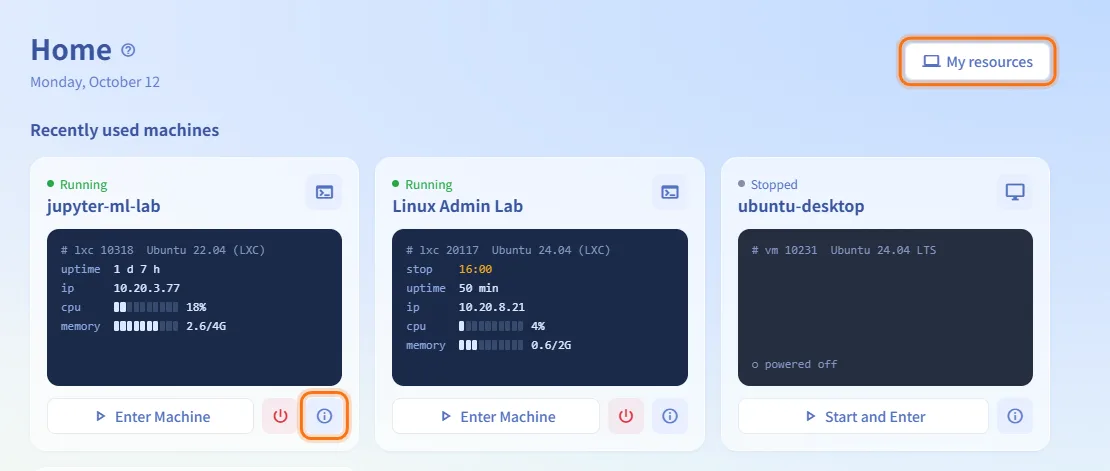
Recently used machines shows up to four of your machines as cards. Each card shows the machine's status, its name (for class and quick practice machines, the environment name), and a small terminal-style panel with the VMID, operating system, last time you connected from this browser, uptime, IP address, usage, expiry date and any scheduled shutdown.
- Find the machine and look at its main button:
- Enter Machine when it is running;
- Start and Enter when it is stopped;
- Starting…, Setting up, Time window ended, Window not started or Unavailable when it cannot be entered now (the button is disabled).
- Click the button. A stopped machine is started first (a message says it is starting), then the console opens: a terminal for an LXC container, a VNC console for a VM.
If the machine is still starting after a while, the page asks you to try again shortly. Hover over Time window ended or Window not started to see why the machine cannot be started.
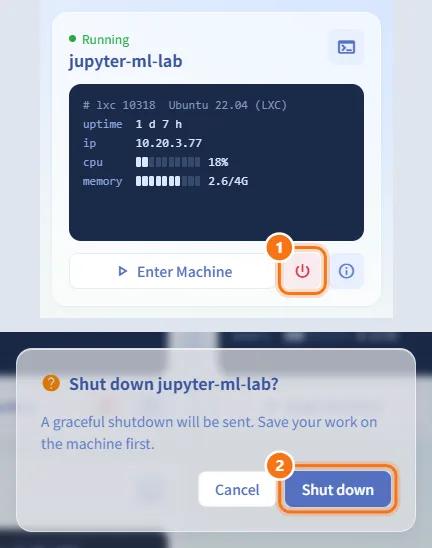
Shut down a machine
- On a running machine's card, click the power button.
- Confirm Shut down in the dialog. A graceful shutdown is sent, so save your work on the machine first.
Open a machine's details or all your machines
- Click the info button on a card to open that machine's page in My Resources.
- Click My resources in the page header to see every machine you have.
Open a class
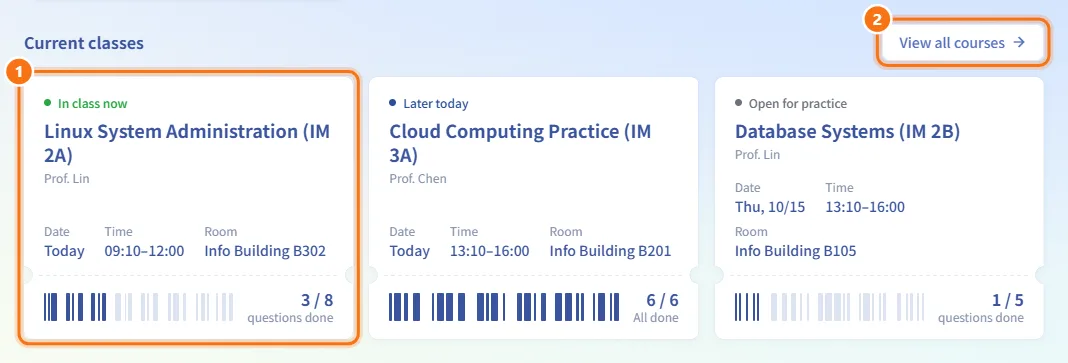
Current classes shows a ticket for each of your classes. The ticket shows its status (In class now, Later today, Open for practice, Done for today), the course title, teacher, date, time and room; the barcode on the stub is your practice progress (one bar per question, finished ones first).
- Click a ticket to open that course.
- Click View all courses to see all your courses.
Start a quick practice environment
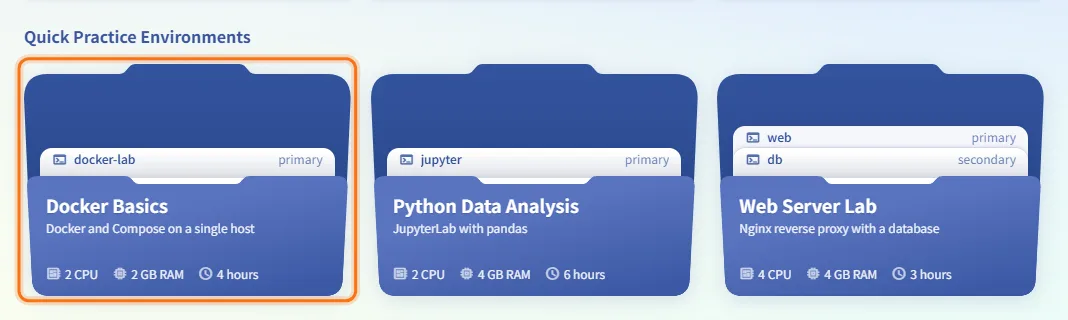
Quick Practice Environments shows the environments teachers have opened for quick practice, as folders. Click a folder to review it before anything is created. See Quick Practice.
Request your own research environment
For projects or experiments that are not part of a class, click Build Your Own Research Environment (Start a request) at the bottom. The request form in My Requests opens directly.

Limits and behaviour to know
- Admin home: the to-do lists keep the previous numbers if one source fails during an automatic refresh; a "—" in a count badge means the data is not available yet.
- Admin home: the stats cards and to-do lists are only information and shortcuts; nothing is changed from this page.
- Teacher home: only classes with a future session are listed under Upcoming Classes.
- Student home: the "last used" time comes from this browser's own connection history, so it differs between computers.
- Student home: a personal machine outside its approved time window cannot be started; to keep using it, request an extension from the machine's page or submit a new request.
- Student home: if machines, classes or practice environments cannot be loaded, that section shows a message and the rest of the page still works.
Related
- Signing in — what happens before you reach this page
- My Resources — all your machines and their consoles
- Resource detail — the page the info button opens
- Quick Practice — launching a practice environment
- My Requests — requesting a research environment
- Class Management and Class setup — where teacher home links lead
- Request Review, Class Review, AI API review — the queues in "Sometime today"
- Resource Monitoring and Background Jobs — where "Handle now" rows lead