
AI API review
Review the AI API key requests that users submit on their AI API page. Approving a request immediately issues the applicant a key that starts with ccai_. Sidebar: Review → AI API review. Path: /ai-api-review. The page title reads Request Review.
Who can use it
Administrators only. The page is not in the sidebar for other roles, and the backend refuses review actions from anyone else.
Before you start
- The platform's public AI API URL (
AI_API_PUBLIC_BASE_URLin the deployment host's.env) must be set. If it is empty, approval fails and no key is issued. - Users submit requests from AI API. Each request carries a key name, a purpose and the validity period the applicant chose.
Step by step
Find requests that need a decision
- Open the page. The Pending tab is selected.
- Switch to Approved, Rejected or All to look back at history. The number on each tab is the count of requests in that status.
- The list refreshes automatically, so new requests appear without reloading the page.
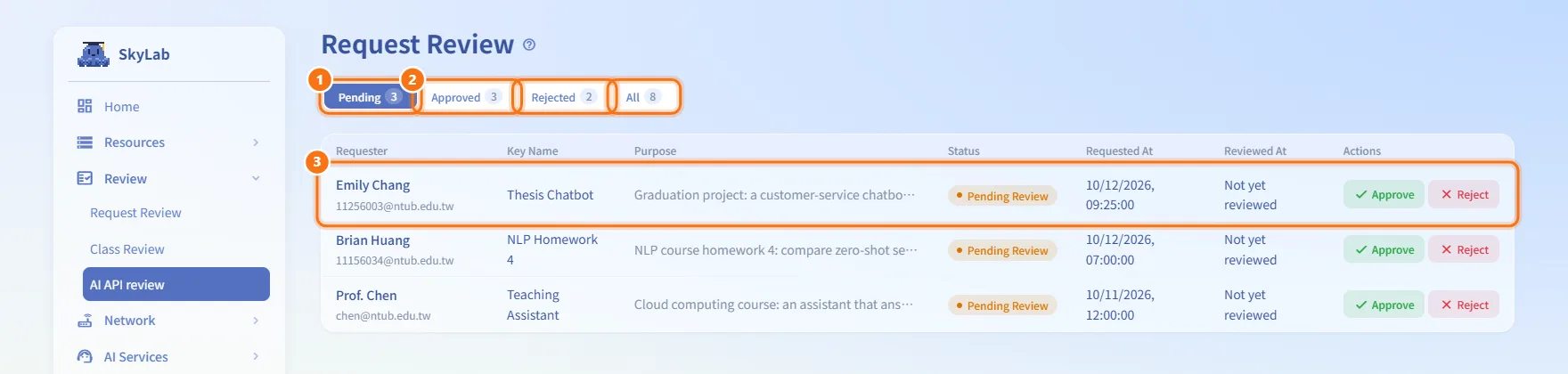
Read a request
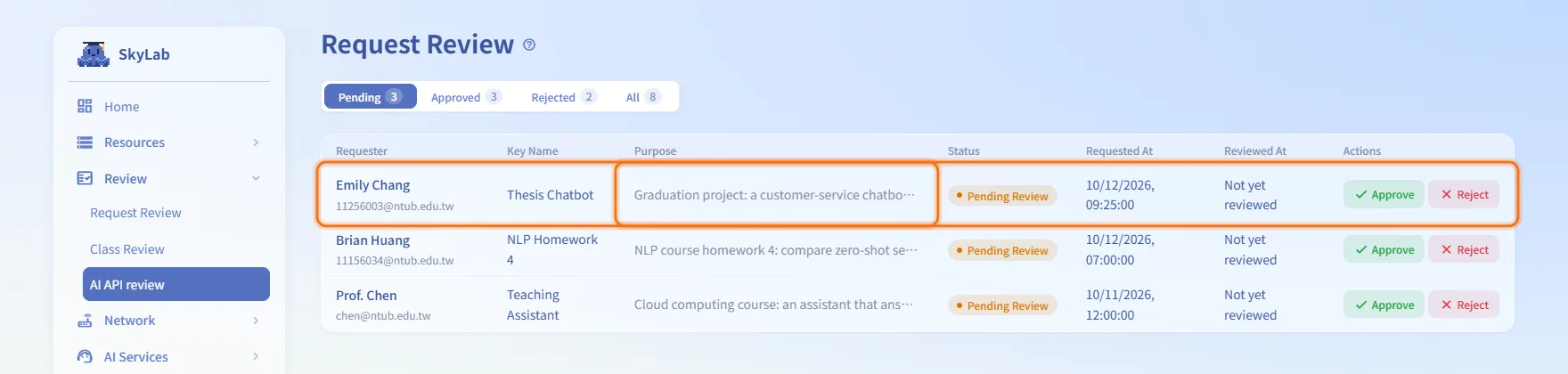
Each row shows the Requester (name and email), Key Name, Purpose, Status, Requested At and Reviewed At. A purpose longer than 60 characters is cut off; hover over it to read the whole text, or open the review dialog, which shows it in full.
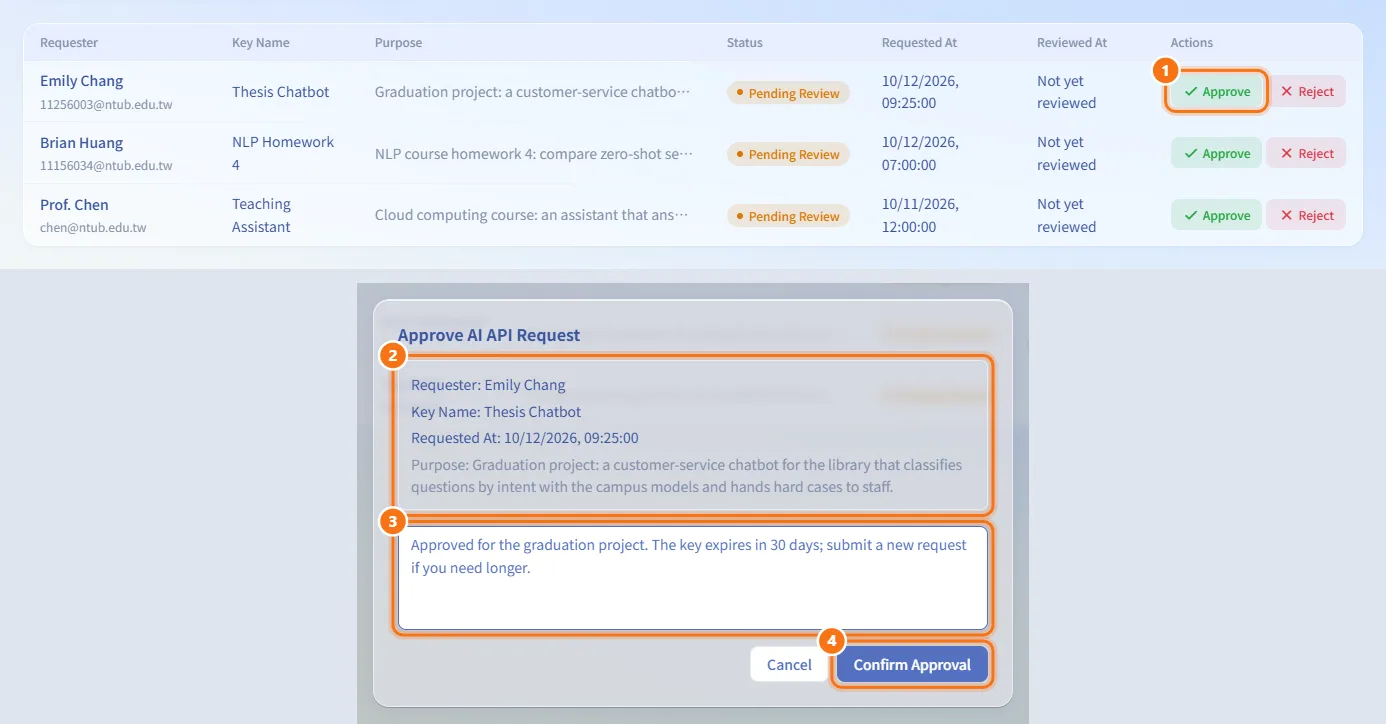
Approve a request
- Click Approve in the Actions column of a pending request.
- Check the requester, key name, request time and purpose in the dialog.
- Optional: type review notes. The applicant sees them as the review comment.
- Click Confirm Approval.
The key is issued at once and appears in the applicant's API Keys tab. Its validity period (the one chosen in the request) starts counting from the moment of approval, and it gets the default rate limit of 20 requests per minute.
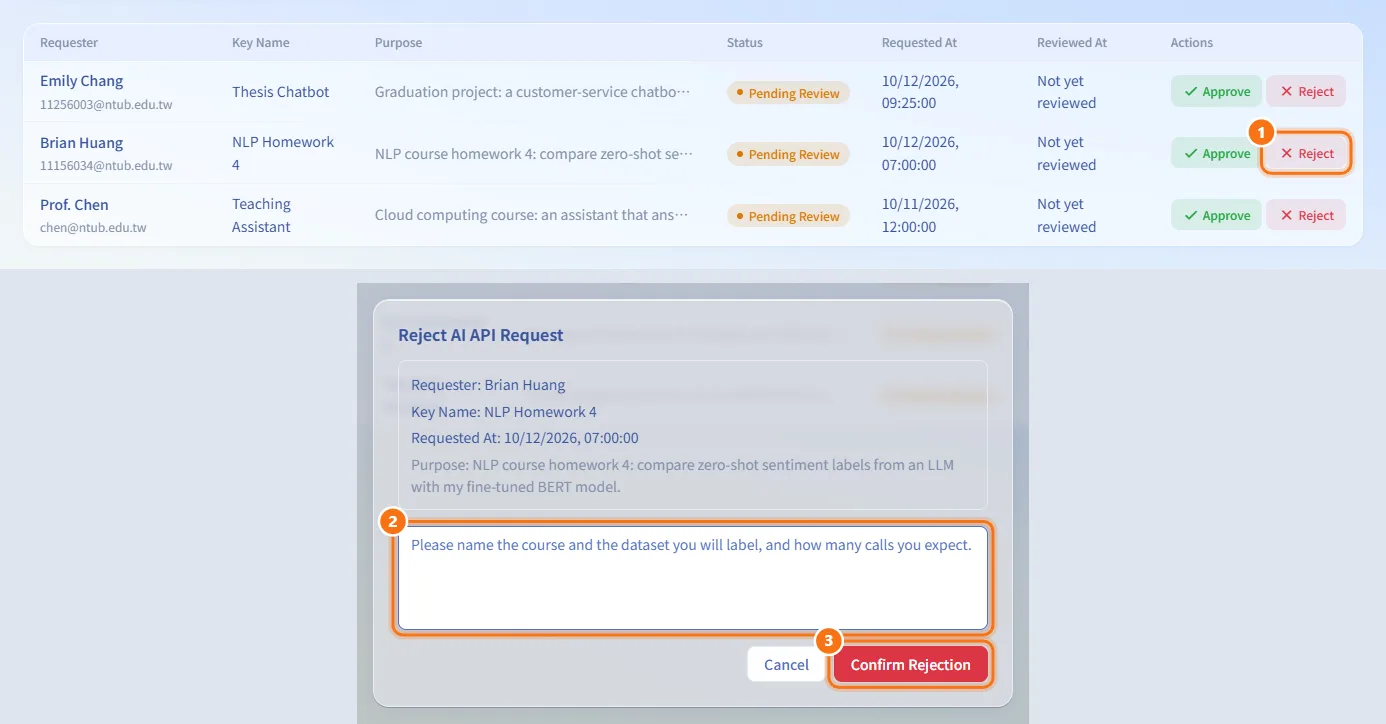
Reject a request
- Click Reject in the Actions column of a pending request.
- Type review notes that explain why, so the applicant knows what to change.
- Click Confirm Rejection.
The applicant sees the request as rejected, with your notes, in their Request History tab.
Fields and options
| Field | Meaning | Notes |
|---|---|---|
| Status tabs | Pending, Approved, Rejected, All | Each tab lists at most the latest 100 requests |
| Review notes | Comment stored with the decision and shown to the applicant | Optional, up to 2000 characters |
Limits and behaviour to know
- A review cannot be changed. Once a request is approved or rejected, the Actions column shows its review notes (or "—") instead of buttons.
- You cannot change the validity period or the rate limit during review. The key gets the period the applicant chose.
- Approval is refused when the requested period is no longer allowed for the applicant's current role, for example a request for a key that never expires from someone who is now a student. Reject it and ask them to request a period they are allowed.
- Approval fails if the public AI API URL is not set. Configure it first, then approve again.
- If two administrators review the same request at the same time, only the first decision counts; the second gets an error.
- Each decision is recorded in the audit log.
Related
- AI API — where users request keys and see the result
- Key Management — manage keys after they are issued
- AI Usage Monitoring — see how issued keys are used
- Audit Log — history of review decisions
- AI API user manual — what applicants do with their key