
Class Review
Class Review is where an administrator approves or rejects the batch provisioning requests that teachers submit to create machines for a whole class, and then follows how the machines are being created. Sidebar: Review → Class Review. Path: /batch-review.
Who can use it
Administrators only. Teachers submit the batches from their class (see Class Setup and Class Workspace); they cannot open this page.
Before you start
- A teacher must have submitted a class for provisioning. Until then the Pending tab is empty (No batch requests).
- Approving starts creating machines immediately, so make sure the PVE connections and the templates the class uses are ready.
Step by step
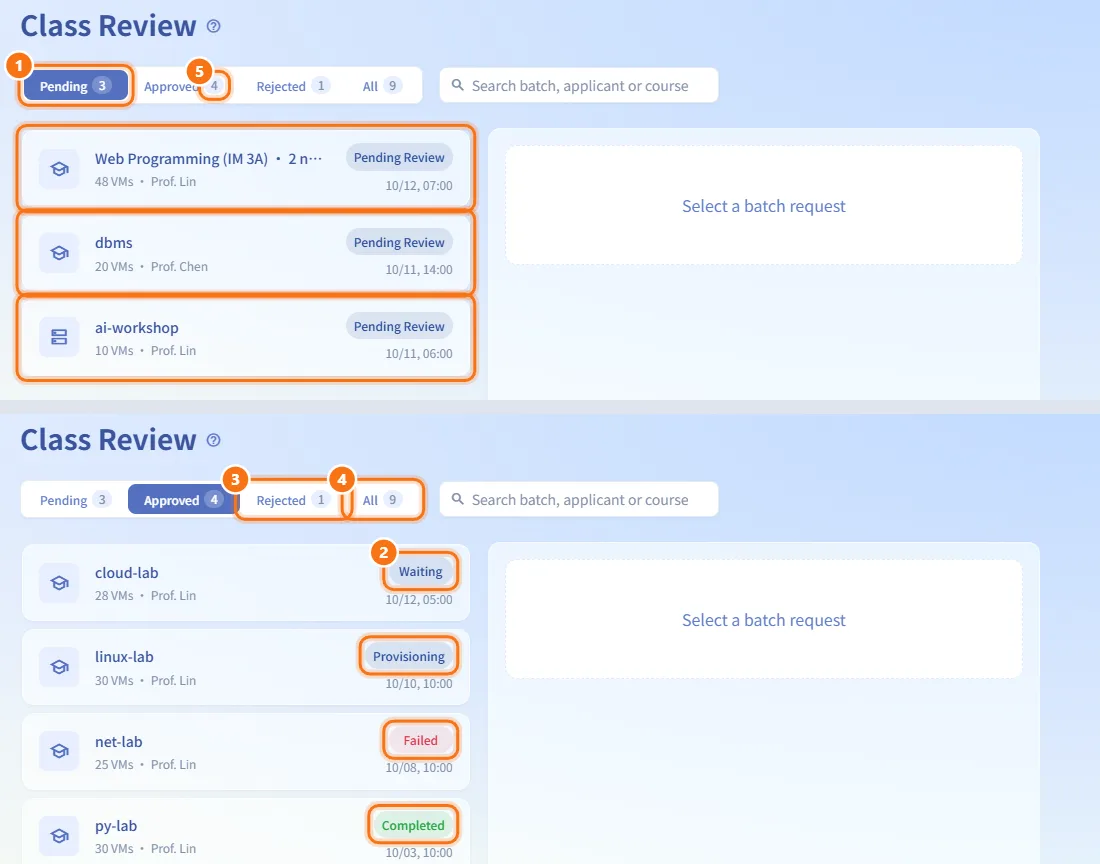
Pick a list
- The page opens on Pending: batches waiting for your decision.
- Approved holds batches you approved, including those that are Waiting, Provisioning, Completed or Failed.
- Rejected holds batches you rejected.
- All shows everything, including Cancelled batches, which appear only here.
- The number on each tab is the count for that tab. The list refreshes automatically in the background.
Find a batch
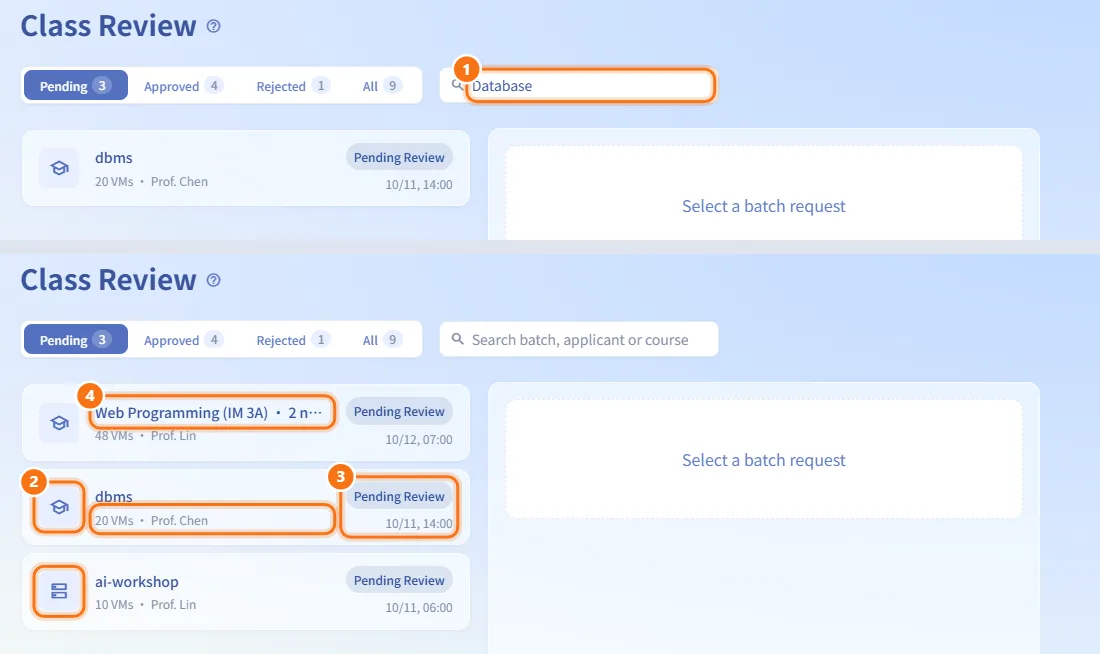
- Type in the search box (Search batch, applicant or course). It matches the batch name, applicant name and email, course name, resource type and status.
- In the list, a graduation-cap icon marks a class batch and a server icon marks a single batch that is not tied to a class.
- Each row shows the number of VMs and the applicant, with the status badge and submission time on the right. Rows are sorted newest first.
- Machine nodes from the same class with the same status are merged into one row, titled "class name · N nodes". Approving or rejecting that row handles the whole class at once.
Look at a batch
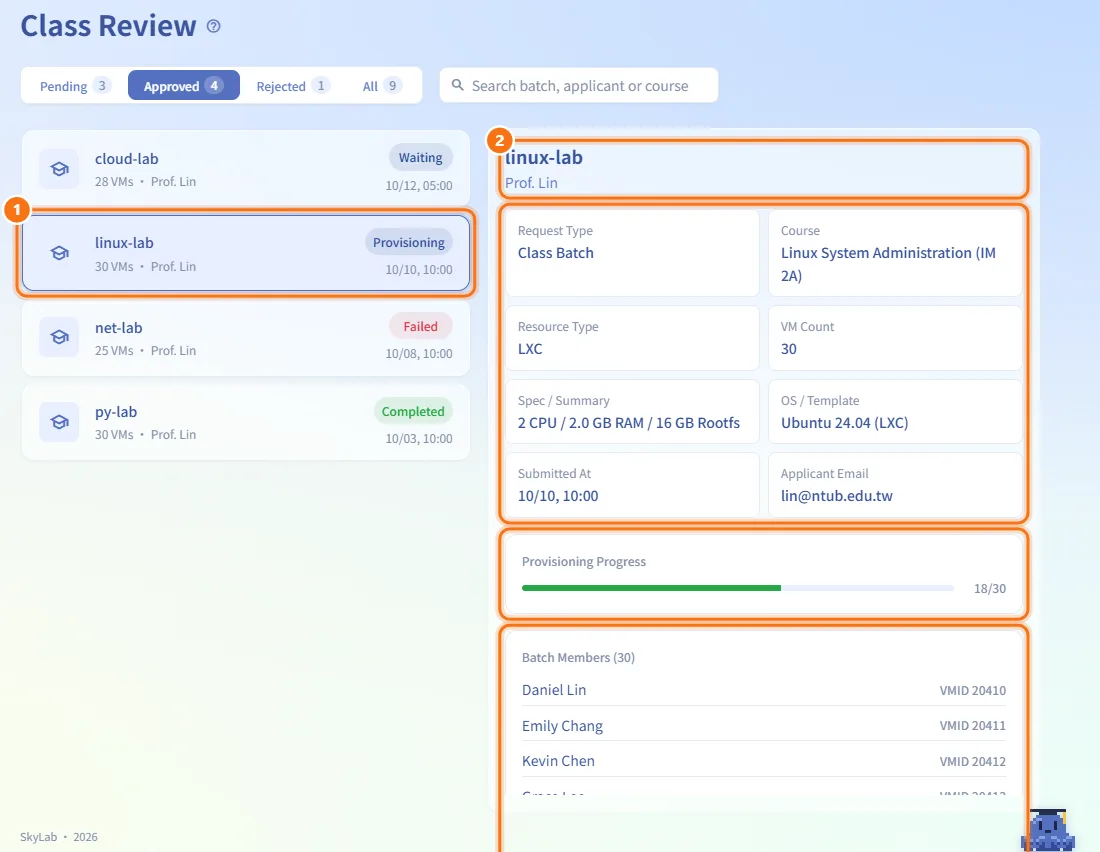
- Click a batch in the list. The panel on the right shows:
- Request Type: Class Batch or Single Batch.
- Course, Resource Type (VM / LXC) and VM Count.
- Spec / Summary and OS / Template. When the class has several machine nodes with different specs or templates, each one is listed.
- Submitted At and Applicant Email.
- Provisioning Progress: a bar with created machines in one colour and failed ones in another, and "created / total". If any failed, "N failed to provision" is shown below.
- Batch Members (N): each student with the VMID of their machine, or the status of their task if no machine exists yet.
- The panel only shows the batch you clicked; it does not jump to another one when the list refreshes.
Preview a recurring schedule
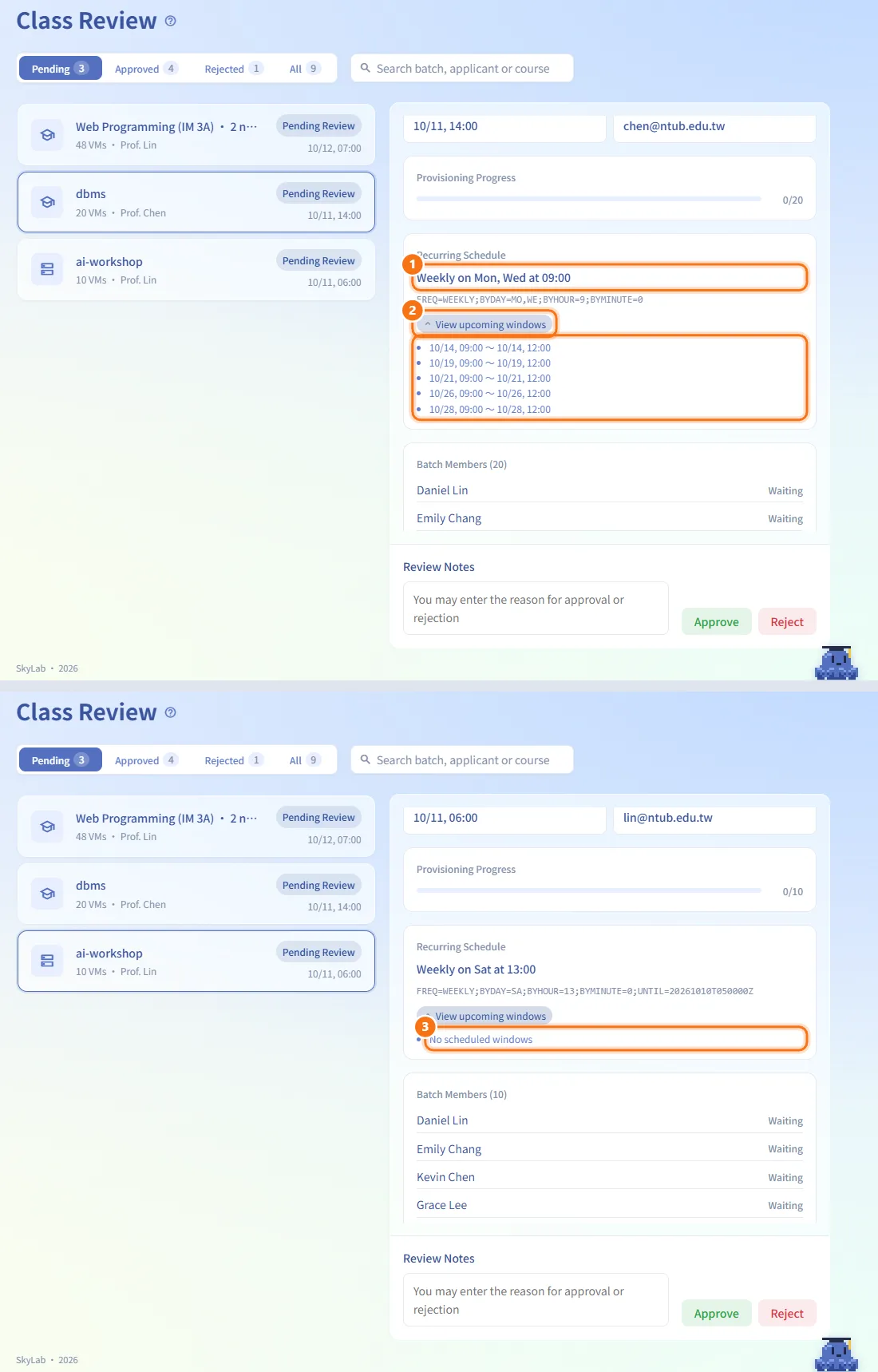
- If the batch has a recurring schedule, the panel shows Recurring Schedule, for example "Weekly on Mon, Wed at 09:00", with the raw rule below it.
- Click View upcoming windows to load the next power-on windows (start ~ end). Click it again to fold the list.
- No scheduled windows means the rule has no further occurrences.
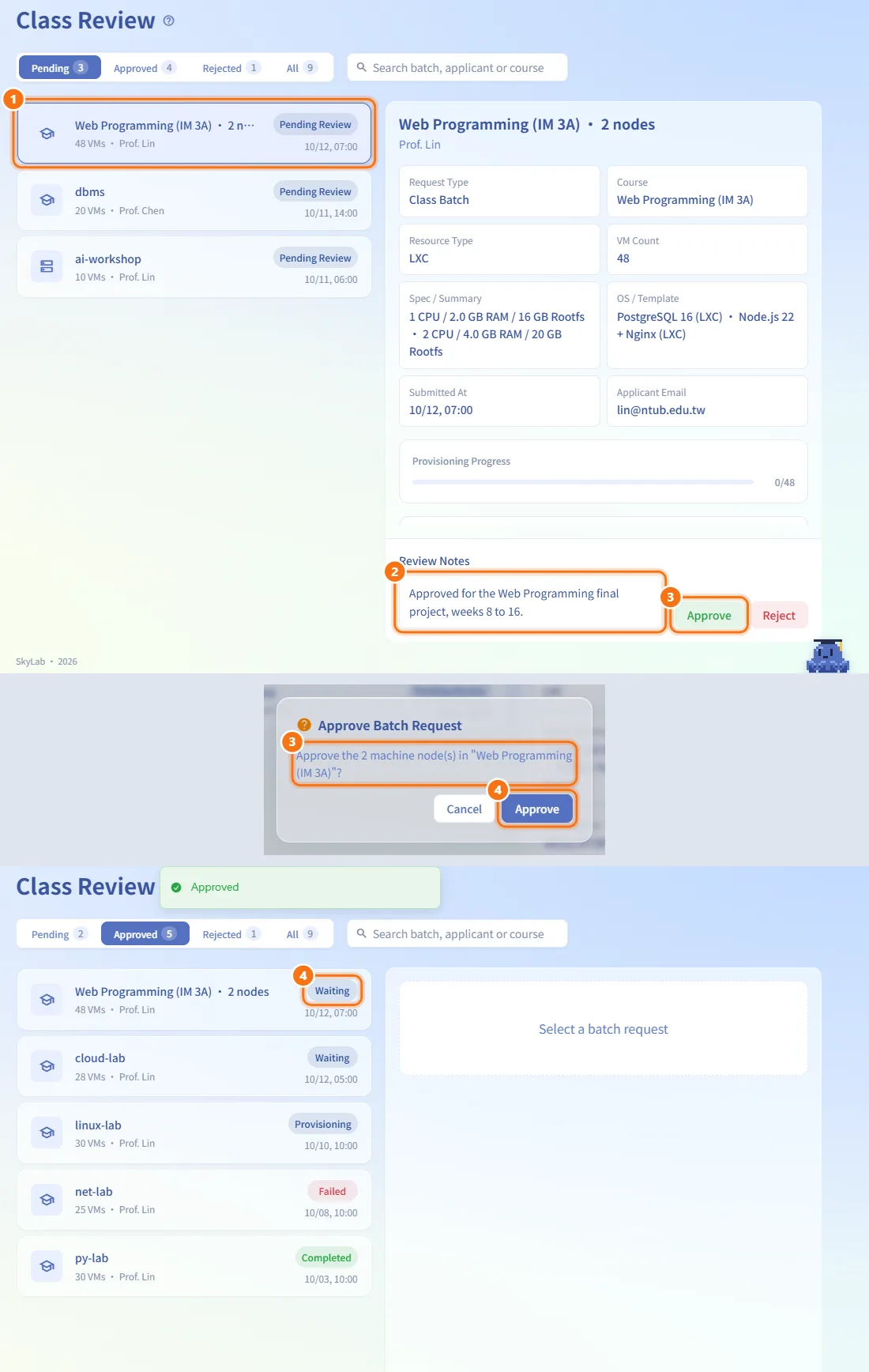
Approve a batch
- Click a pending batch and check the details.
- Optionally write the reason in Review Notes.
- Click Approve. A confirmation dialog (Approve Batch Request) names what you are approving, for example "the 3 machine node(s) in "Class A"".
- Confirm. The system immediately starts creating the machines in the background. The batch moves to the Approved tab, where its status goes from Waiting to Provisioning to Completed (or Failed), and Provisioning Progress fills up.
Reject a batch
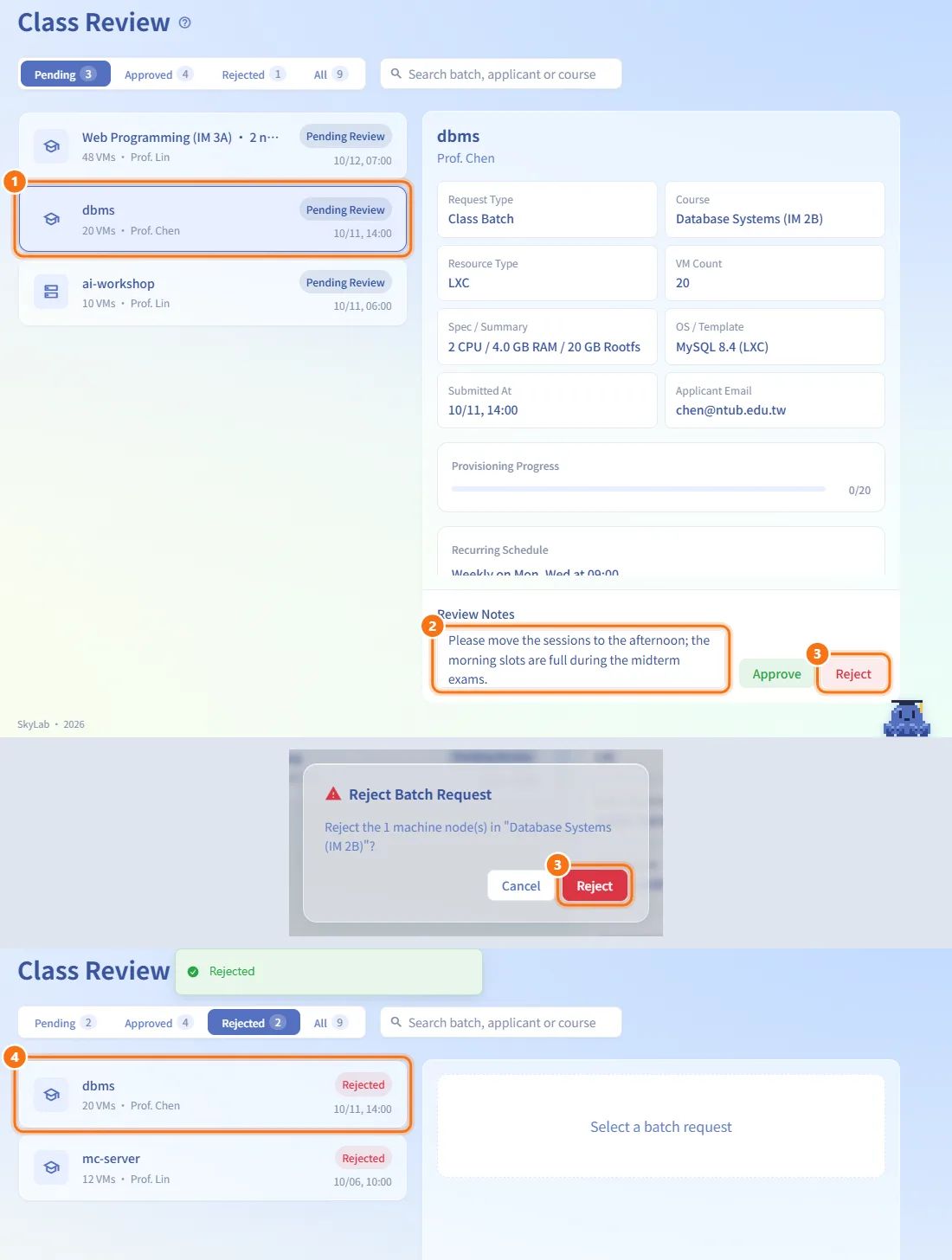
- Click a pending batch.
- Write the reason in Review Notes.
- Click Reject and confirm in Reject Batch Request.
- No machines are created. For a class batch where no machine has been created yet, the class returns to planning so the teacher can edit and submit it again.
Follow failures
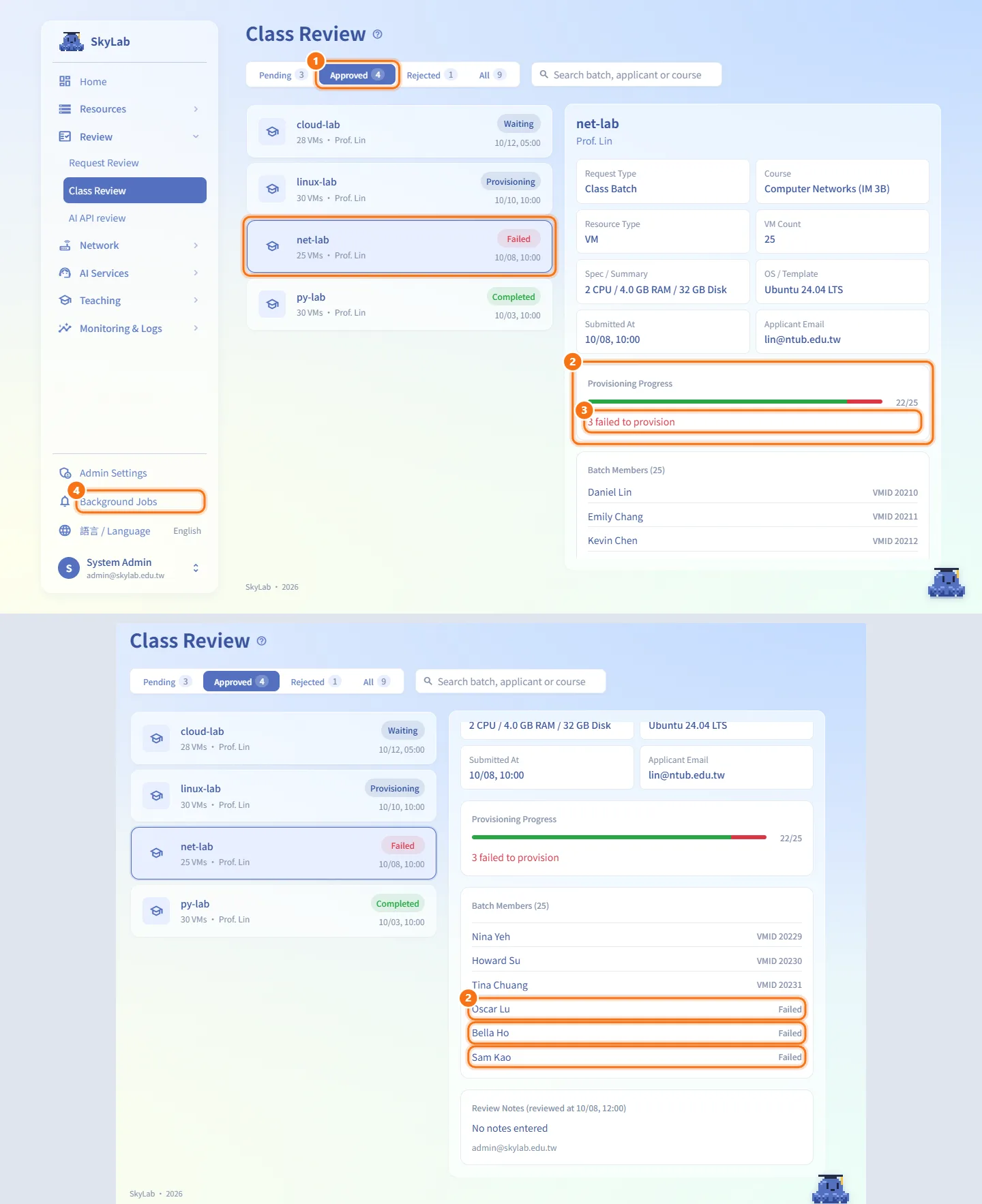
- Open the Approved tab and click the batch.
- Provisioning Progress shows how many machines failed, and Batch Members shows which students have no VMID and the status of their task.
- Partial failures are retried by the teacher with Retry failed items in the class workspace. This page has no retry button; it shows the progress once the retry runs.
- The provisioning run also appears as a job in Background Jobs, where you can open its details.
Check a past decision
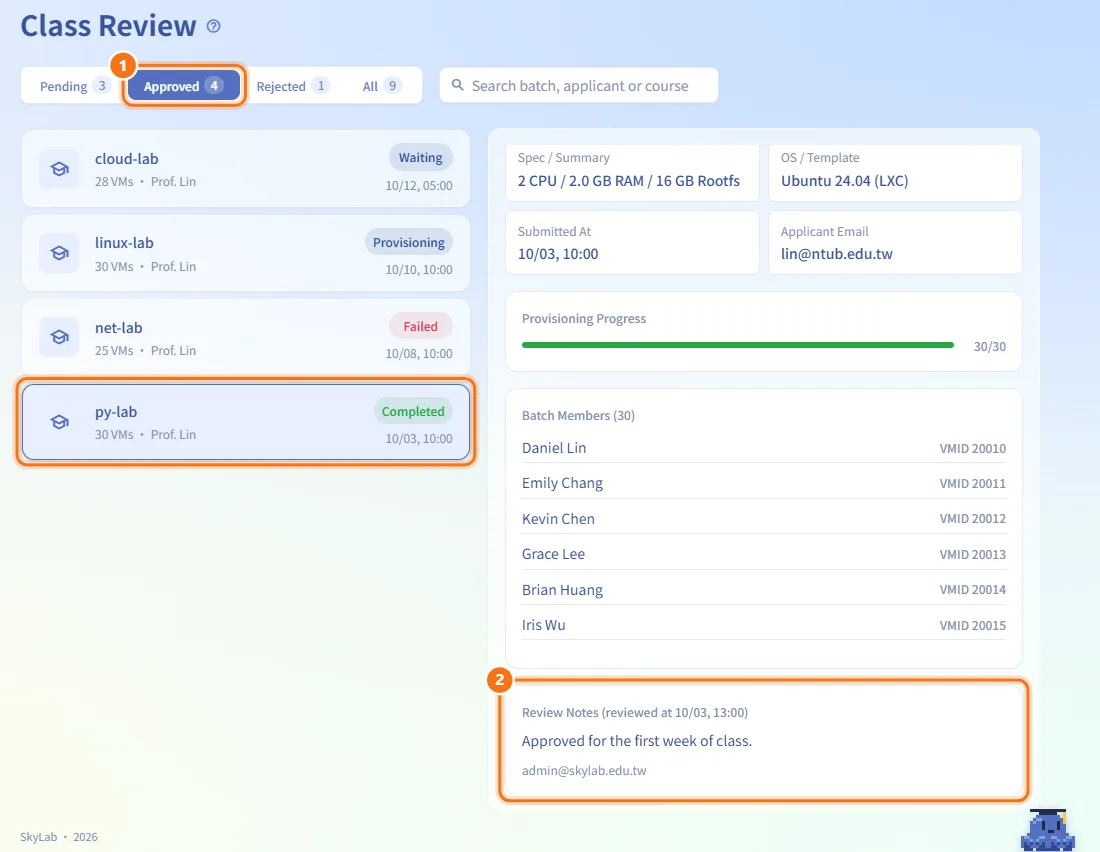
- Click a batch in Approved, Rejected or All.
- Review Notes shows the note and review time (or No notes entered), followed by the reviewer's email.
Fields and options
| Field | Meaning | Notes |
|---|---|---|
| Pending Review | Waiting for an administrator | Only status with Approve / Reject |
| Approved | Approved; creation is being queued | Listed under Approved |
| Waiting | Queued for creation | Listed under Approved |
| Provisioning | Machines are being created | Listed under Approved |
| Completed | All machines finished | Listed under Approved |
| Failed | Provisioning failed | Listed under Approved; see the failed count |
| Rejected | Rejected by an administrator | |
| Cancelled | Withdrawn | Only under All |
| Review Notes | Your note to the teacher | Optional |
Limits and behaviour to know
- Approval cannot be undone from this page; the confirmation dialog is the last check.
- A batch that someone else has already reviewed can no longer be approved or rejected; the action fails with an error message.
- The page loads the most recent 200 batches plus up to 200 pending ones, so older pending batches are never hidden behind newer ones.
- If you reject a class batch after some of its machines already exist, those machines stay and the class is marked as partly failed for the teacher to retry or clean up.
Related
- Class Setup — how teachers submit a class for provisioning
- Class Workspace — where teachers follow and retry provisioning
- Request Review — single-user machine requests
- Background Jobs — details of the provisioning run
- Resource Management — the created machines, grouped by environment