
Background Jobs
The Background Tasks page shows the progress and result of the work SkyLab runs in the background: VM request provisioning, spec changes, deletions, machine templates, resets, batch provisioning, backups and restores. Sidebar: Monitoring & Logs → Background Jobs. Path: /jobs.
Who can use it
Everyone who is signed in. Administrators see every task on the site; teachers and students see only their own. VMIDs in the task details are shown to administrators and teachers only.
The Background Jobs button with the bell icon in the sidebar is a quick view of the same information and is also where desktop notifications are turned on (see below).
Step by step
Follow your tasks
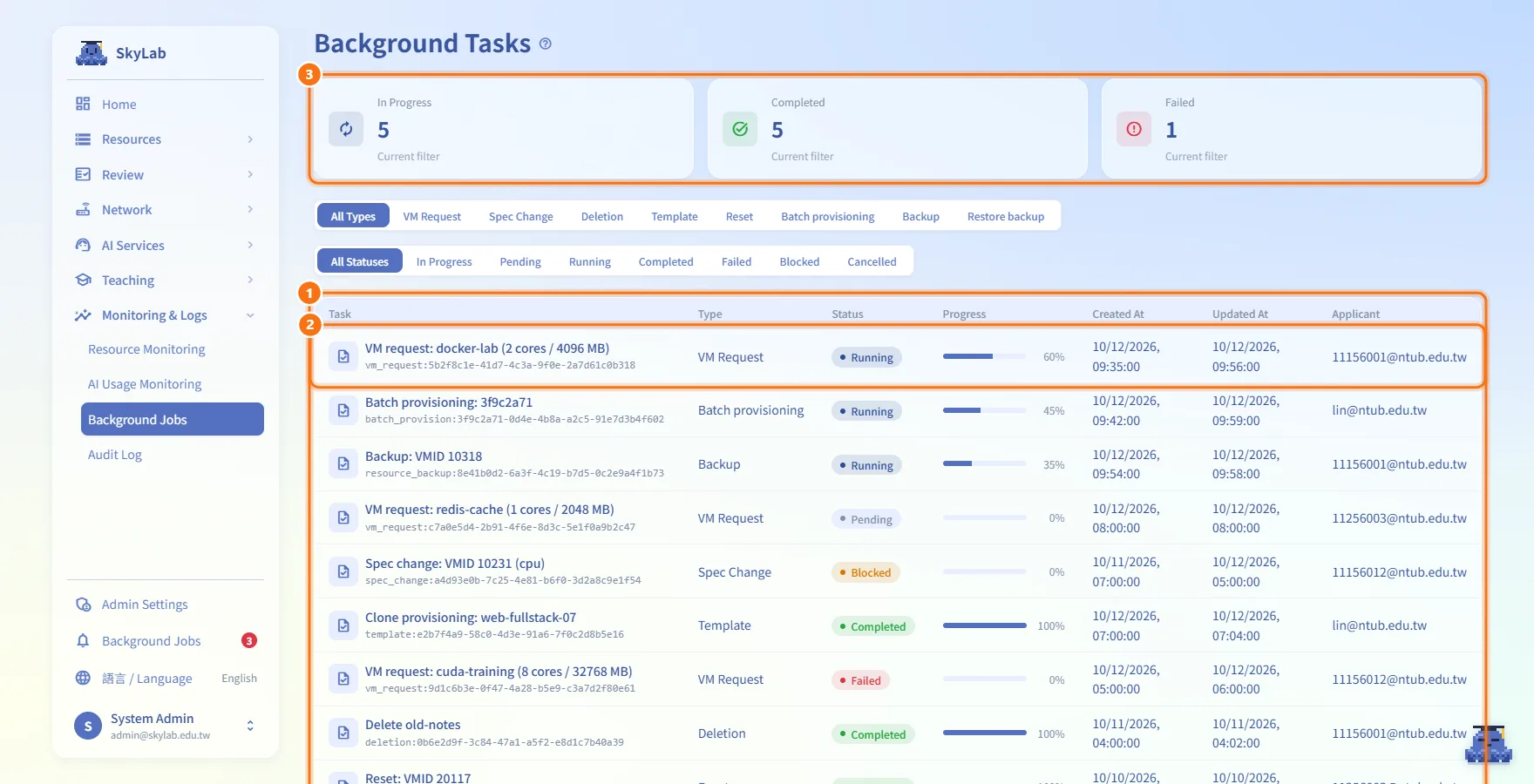
- Open the page. The table lists the tasks of the last 30 days and refreshes on its own.
- Each row shows Task (the task name with its ID underneath), Type, Status, Progress, Created At, Updated At and Applicant.
- The three cards at the top, In Progress, Completed and Failed, are counted from the list as it is currently filtered (each card says "Current filter"), not from the whole site.
Filter the list
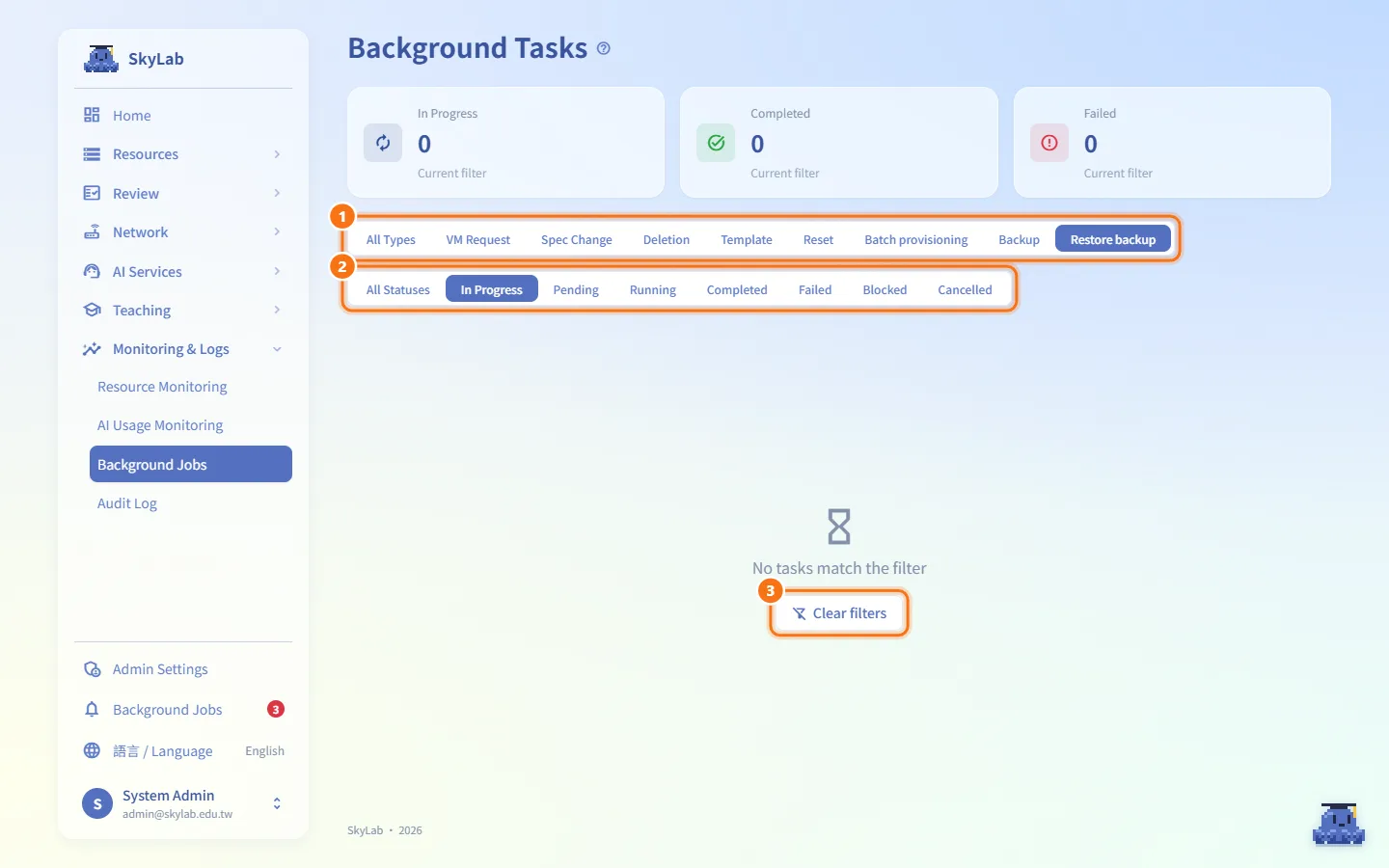
- Use the type bar to show one kind of task: All Types, VM Request, Spec Change, Deletion, Template, Reset, Batch provisioning, Backup or Restore backup.
- Use the status bar to show one state: All Statuses, In Progress, Pending, Running, Completed, Failed, Blocked or Cancelled. In Progress covers Pending, Running and Blocked.
- If nothing matches, the page says "No tasks match the filter"; click Clear filters to go back to all tasks.
Open the details of a task
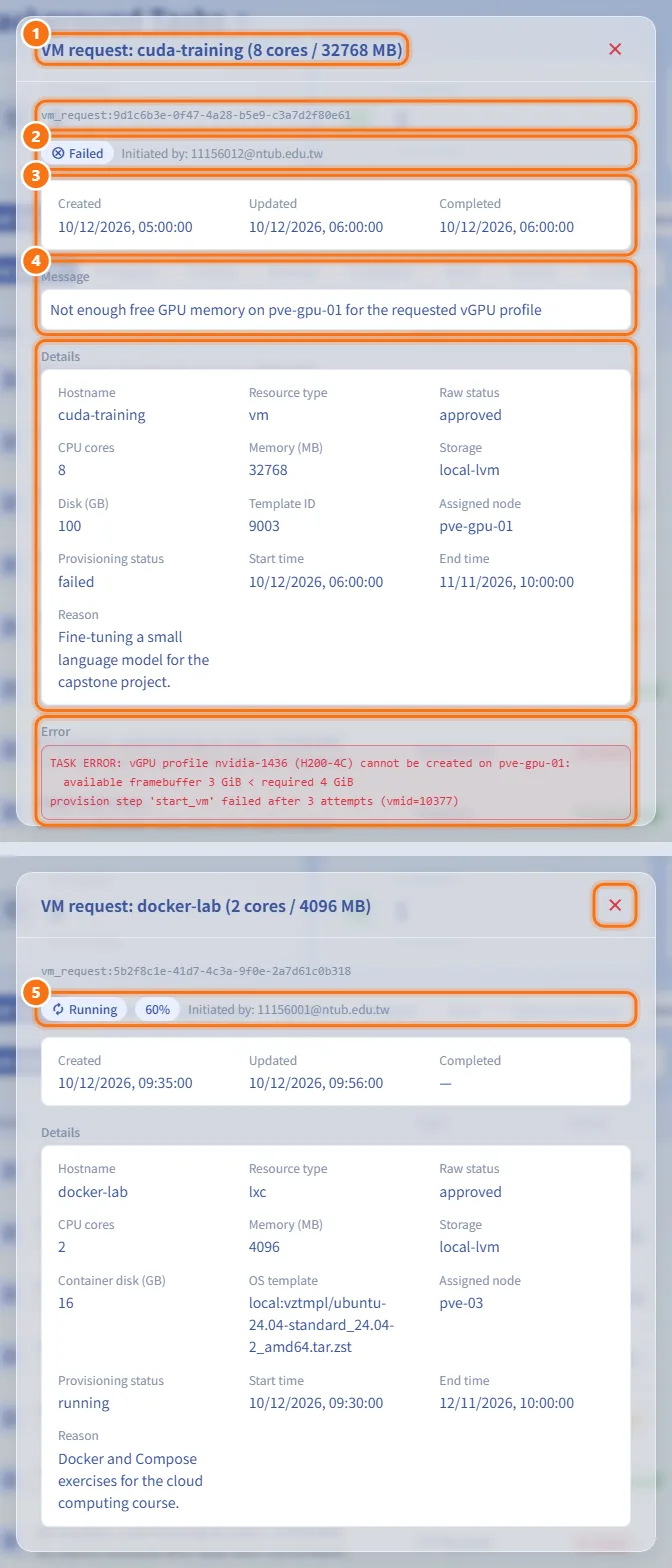
- Click any row. A dialog opens with the task name as its title and the task ID underneath.
- The status line shows the status, the progress percentage and "Initiated by" with the applicant's email.
- Created, Updated and Completed show the timing.
- Message shows the latest message from the task, Details lists the task's own fields (for example node, name, requested CPU and memory, expiry date), Error shows the error output of a failed task and Output shows its output.
- While the task is still pending, running or blocked, the dialog refreshes every 3 seconds. Close it with the close button.
Use the quick view in the sidebar
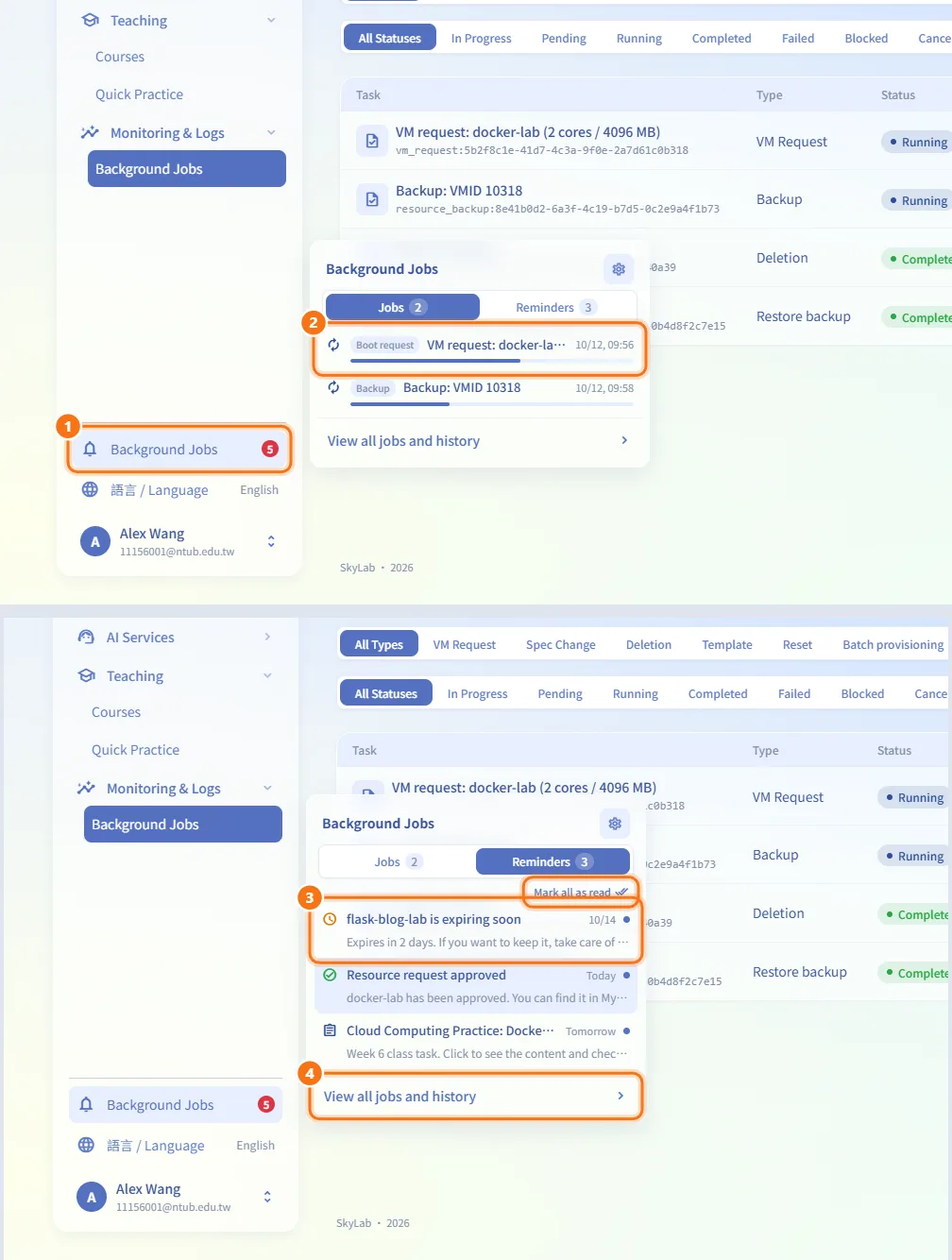
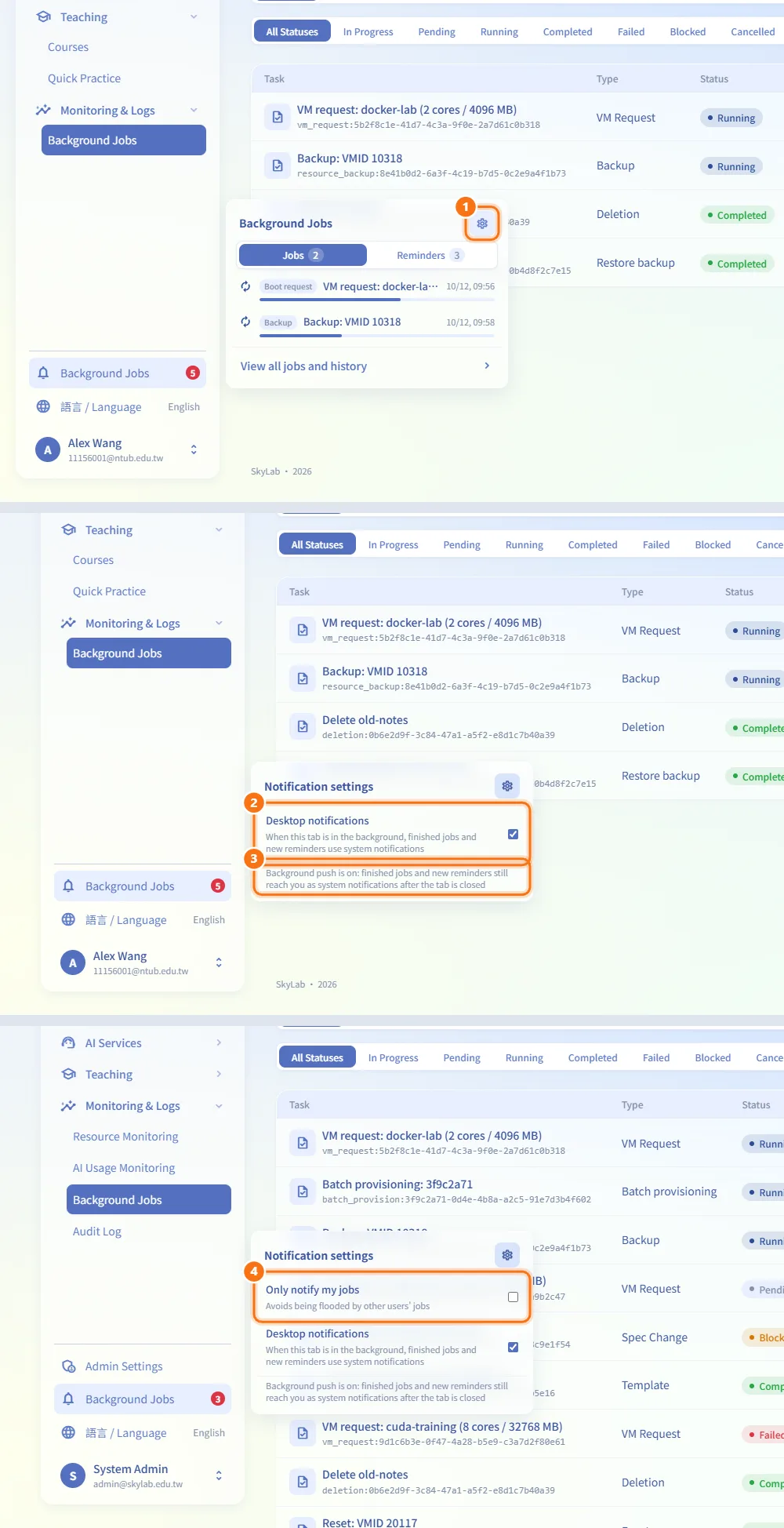
- Click Background Jobs (bell icon) near the bottom of the sidebar. The count badge adds up running tasks and unread reminders.
- The Jobs tab lists running tasks; click one to open the same details dialog.
- The Reminders tab lists machine expirations, review results and upcoming class tasks. Click a reminder to open the related page, or Mark all as read.
- View all jobs and history opens this page.
Turn on desktop notifications
- In the sidebar quick view, click the settings icon (Notification settings).
- Tick Desktop notifications and allow notifications when the browser asks. When this tab is in the background, finished jobs and new reminders then appear as system notifications.
- Read the line under the switch. "Background push is on" means you are notified even after the tab is closed. Other messages explain why only open tabs are notified (the browser does not support it, the server has not enabled background push, or the subscription failed; turn the switch off and on to retry).
- Administrators also see Only notify my jobs, which stops notifications about other users' tasks.
Fields and options
| Field | Meaning | Notes |
|---|---|---|
| Type | What kind of work the task does | VM Request, Spec Change, Deletion, Template, Reset, Batch provisioning, Backup, Restore backup |
| Status | Pending, Running, Completed, Failed, Blocked or Cancelled | Blocked means the task waits for a person, for example an approved spec change the applicant still has to apply |
| Progress | Percentage reported by the task | — |
| Applicant | Email of the person who started the task | — |
| Desktop notifications | System notifications while the tab is in the background or closed | Needs the site to be opened over https or localhost |
| Only notify my jobs | Limits notifications to your own tasks | Administrators only |
Limits and behaviour to know
- Only the last 30 days are listed, and at most 200 tasks at a time.
- The page has no retry or cancel button. To run a failed task again, start the operation again from its own page (for example the request, the resource or the class).
- Background push (notifications after the tab is closed) only covers your own tasks, and only works when the site is opened over https or on localhost.
- If the browser has blocked notifications for the site, the switch is disabled and the message tells you to allow them again in the site settings.
Related
- My Requests — VM requests whose provisioning appears here
- Resource detail — resets, backups, restores and spec changes
- Class Workspace — batch provisioning of class machines
- Account — personal settings