
Gateway VM
The Gateway VM is the public-facing machine of a SkyLab installation. Its nginx handles port forwarding, machine domains (URLs) and the platform entry, and it runs the WireGuard VPN used by the SkyLab Connect desktop client. This page manages it entirely over SSH. Sidebar: Admin Settings → Gateway VM. Path: /gateway.
Who can use it
Administrators only. Teachers and students never see this page; they use what it sets up when they publish a service from the Firewall page or connect with the desktop client.
Before you start
- A Debian 13 (trixie) machine to act as the Gateway, reachable over SSH from the SkyLab backend. The one-click installer refuses any other system, Debian 12 included.
- An SSH account on it that is root, or that can use sudo without a password.
- The Gateway VM IP should match the one entered on the IP Management page.
- For HTTPS, a certificate (fullchain and private key) that you obtained yourself; SkyLab does not issue certificates.
For a first-time setup, work through the tabs in order: Connection Settings, then Install services. Set up HTTPS certificate and Platform entry when you need them.
Step by step
Connect to the Gateway over SSH
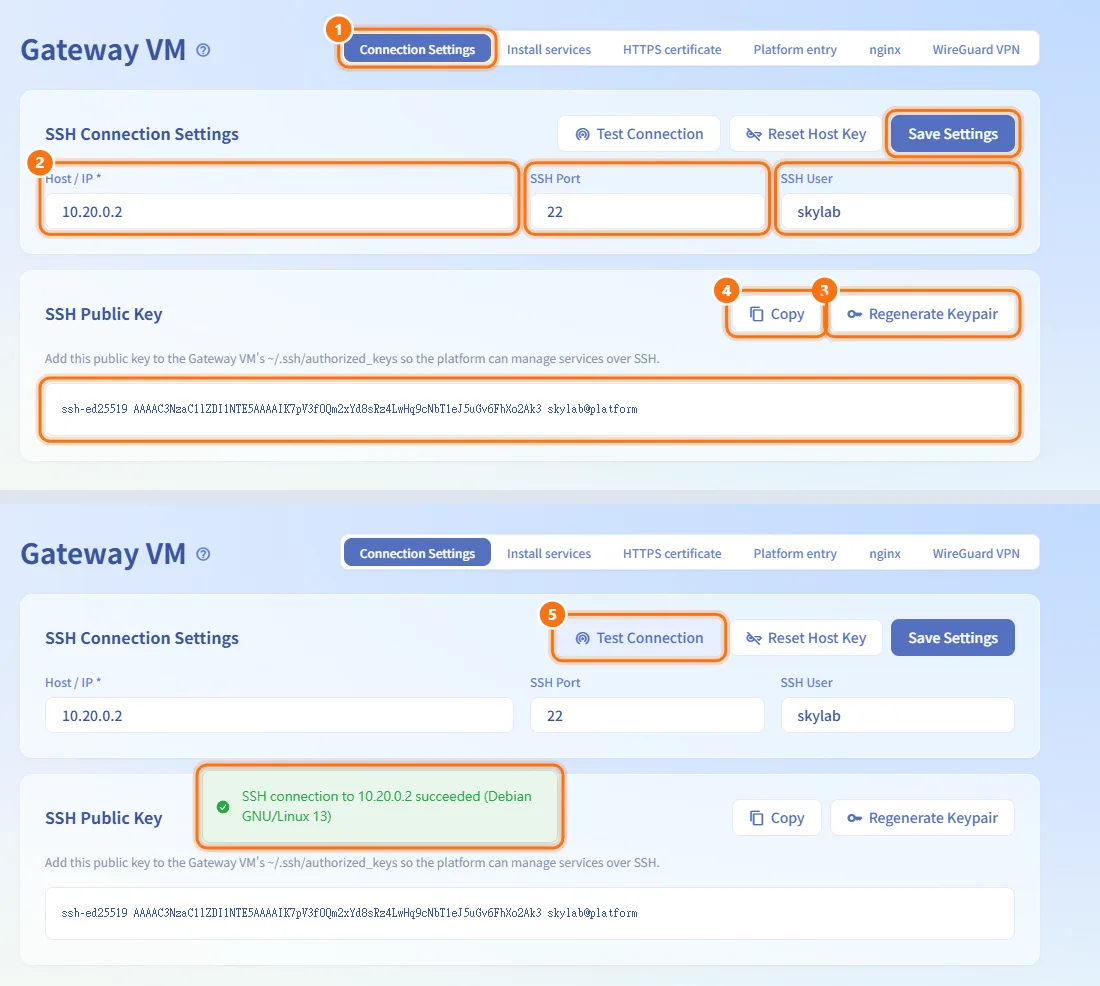
- Open the Connection Settings tab.
- In SSH Connection Settings, enter Host / IP, SSH Port (default 22) and SSH User (default
root), then click Save Settings. - In the SSH Public Key card, click Regenerate Keypair to create the platform's own key. The public key appears in the card.
- Click Copy and add the public key to
~/.ssh/authorized_keysof that user on the Gateway. - Back in SSH Connection Settings, click Test Connection. It tests the saved settings, so save your changes first.
Regenerating the keypair invalidates the old key immediately; you are asked to confirm, and the new public key has to be added to the Gateway again.
Reset the host key after reinstalling the Gateway
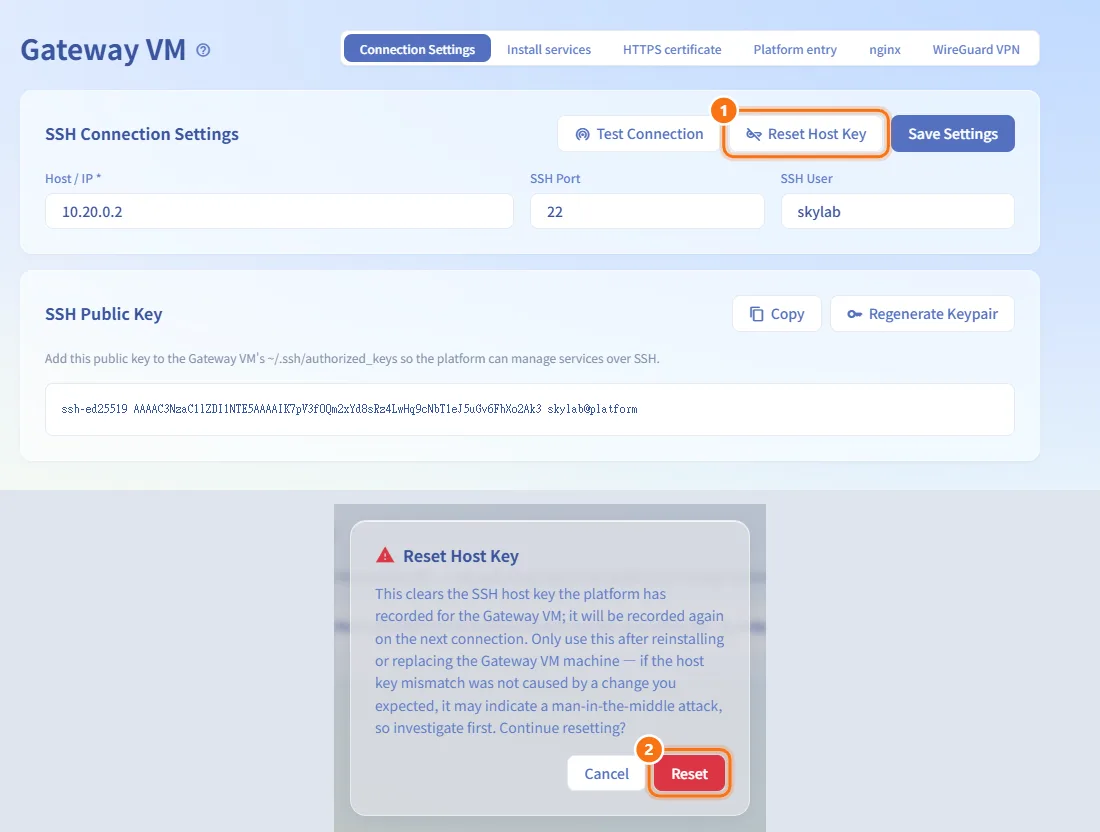
- Use this only when the Gateway was reinstalled or replaced and the connection is now refused because its host key changed.
- Click Reset Host Key and confirm with Reset. The recorded host key is cleared and recorded again on the next connection.
If the host key changed without a reason you know of, investigate first: it can be a sign of a man-in-the-middle attack.
Install the Gateway services
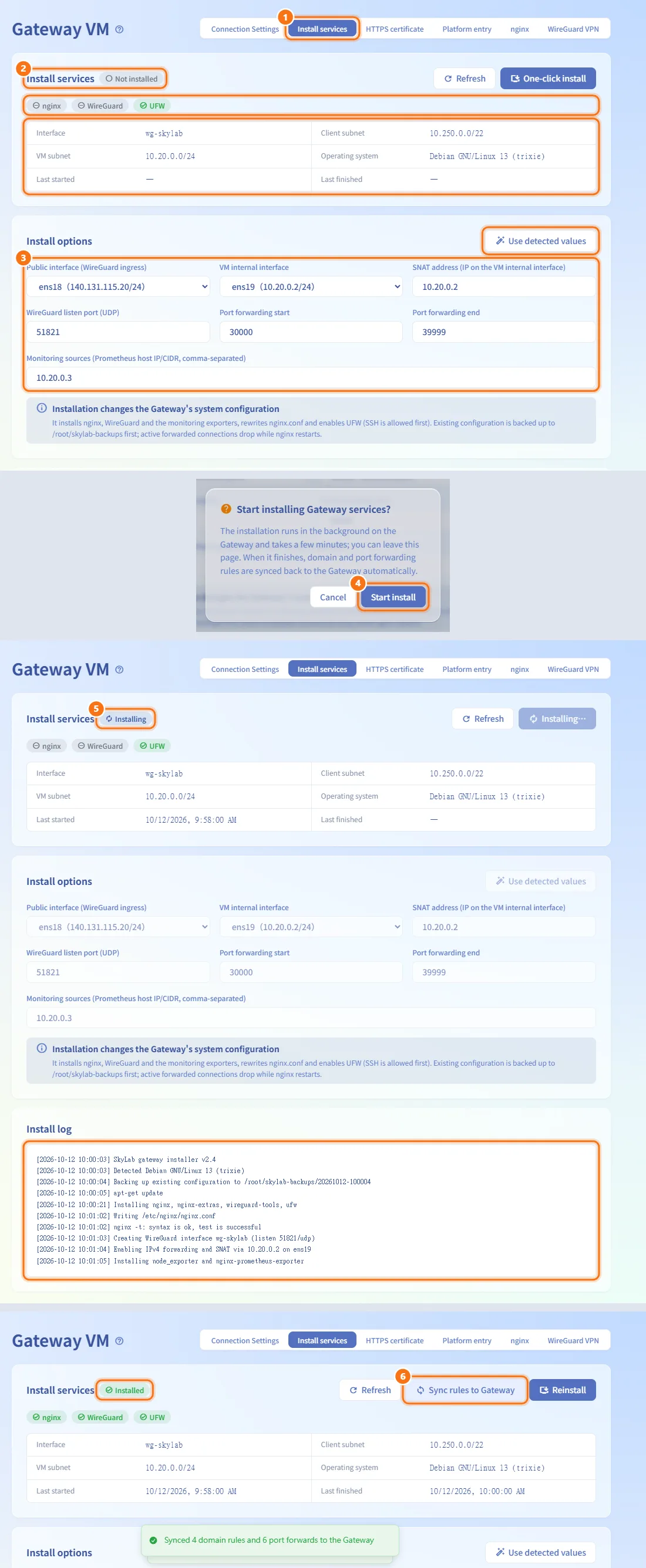
- Open the Install services tab. It reads the Gateway's install status over SSH.
- Check the status card: the state badge, which of nginx, WireGuard and UFW are already installed, the WireGuard interface and subnets, the Operating system, and when the last install started and finished.
- Review Install options. The values detected on the Gateway are filled in; click Use detected values to restore them.
- Click One-click install (or Reinstall if the services are already there) and confirm with Start install.
- The installation runs in the background on the Gateway and takes a few minutes; you can leave the page. The Install log updates every 3 seconds while it runs.
- When it finishes, the domain and port forwarding rules are synced back to the Gateway automatically. If you need to push them again later, click Sync rules to Gateway.
The installer installs nginx, WireGuard and the monitoring exporters, rewrites nginx.conf and enables UFW (SSH is allowed first). Existing configuration is backed up to /root/skylab-backups, and forwarded connections drop while nginx restarts.
Set up the HTTPS certificate
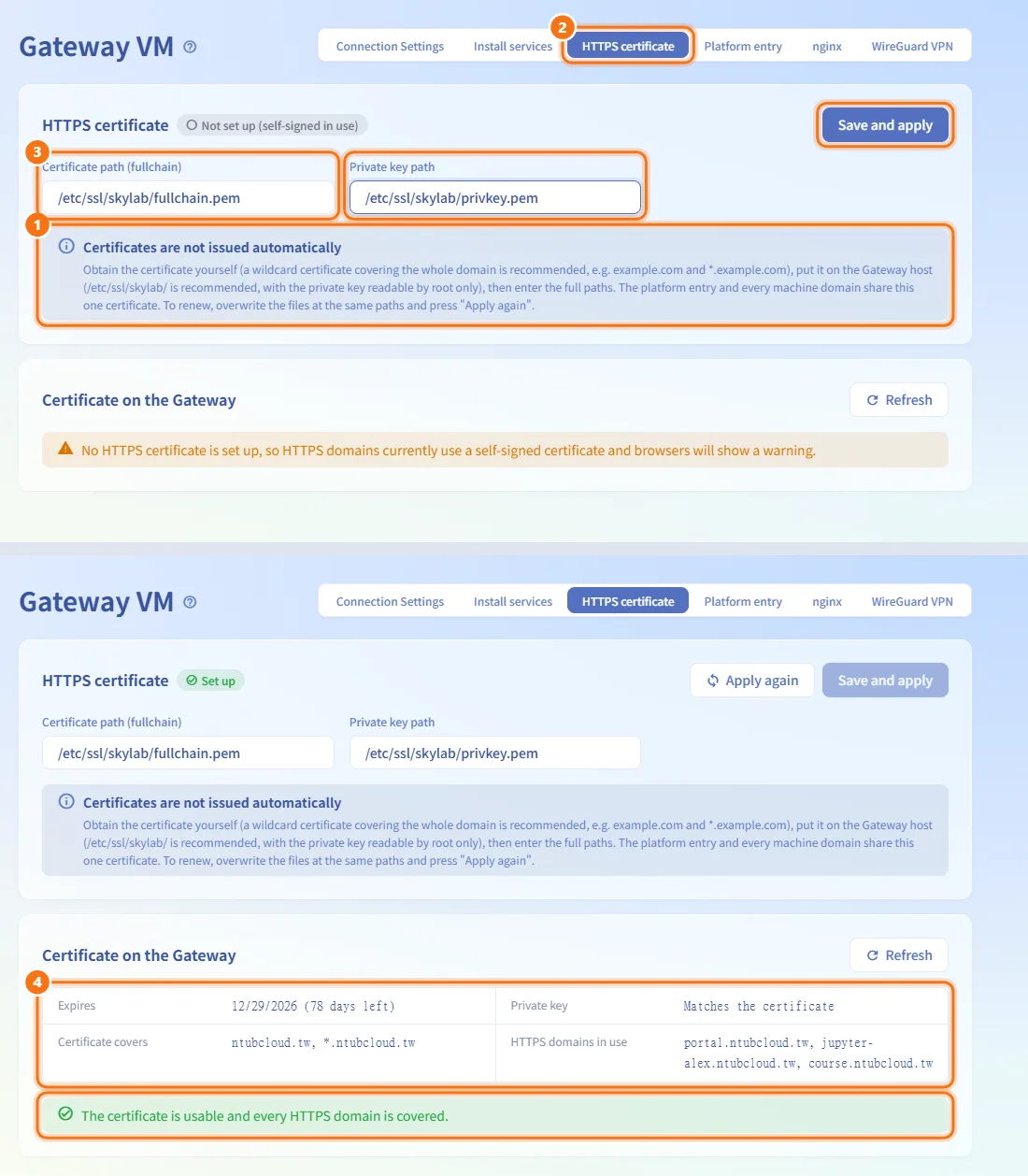
- Put the certificate (fullchain) and the private key on the Gateway host.
/etc/ssl/skylab/is recommended, with the private key readable by root only. A wildcard certificate covering the whole domain (for exampleexample.comand*.example.com) is recommended. - Open the HTTPS certificate tab.
- Enter Certificate path (fullchain) and Private key path and click Save and apply. The platform checks the files on the Gateway and reloads nginx.
- Read the Certificate on the Gateway card: Expires, Private key (whether it matches), Certificate covers and HTTPS domains in use, followed by any warnings.
To renew, overwrite the files at the same paths and click Apply again. To stop using the certificate, clear both paths and save; after you confirm, every HTTPS domain falls back to a self-signed certificate and browsers will show a warning.
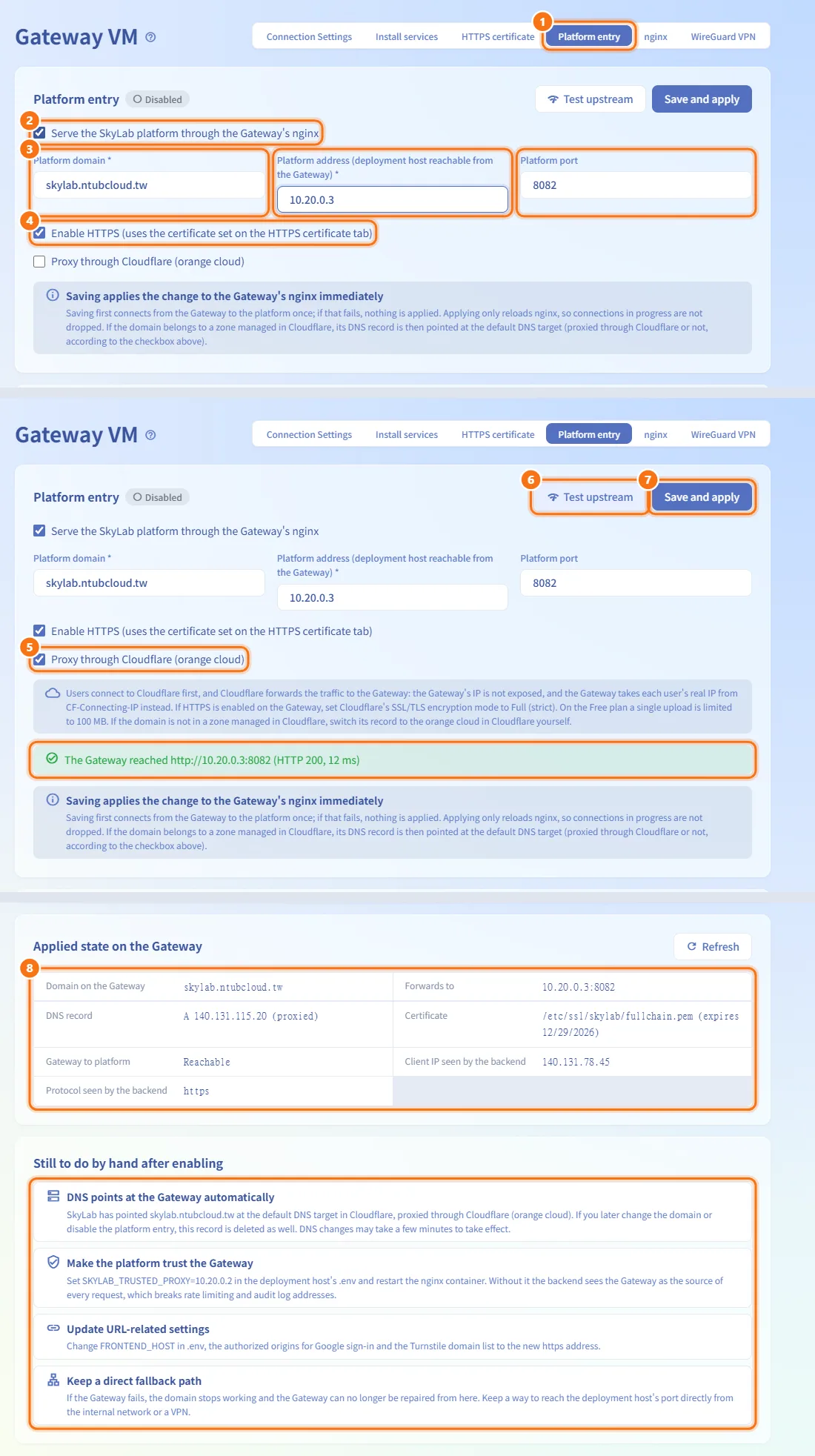
Serve the platform through the Gateway (platform entry)
- Open the Platform entry tab.
- Tick Serve the SkyLab platform through the Gateway's nginx.
- Enter Platform domain (for example
skylab.example.com), Platform address (the deployment host as the Gateway reaches it, an IPv4 address or host name without a port) and Platform port (default 8082). - Keep Enable HTTPS ticked to use the certificate from the HTTPS certificate tab. If no certificate is set up yet, a warning offers Go to HTTPS certificate.
- Tick Proxy through Cloudflare (orange cloud) if users should reach the Gateway through Cloudflare.
- Optionally click Test upstream to check that the Gateway can reach the platform. It saves nothing.
- Click Save and apply. The Gateway first connects to the platform once; if that fails, nothing is applied. Otherwise the configuration is written into nginx and nginx is reloaded without dropping connections.
- Check the Applied state on the Gateway card and work through Still to do by hand after enabling.
If the domain belongs to a zone managed in Cloudflare (set on Domain Management), saving also points its DNS record at the default DNS target. Otherwise point the domain's DNS at the Gateway's public IP yourself.
To turn the platform entry off, untick the first box and save, then confirm with Disable. SkyLab can then no longer be reached at that domain, and a DNS record SkyLab created in Cloudflare is deleted as well. Make sure you can still reach the deployment host directly first.
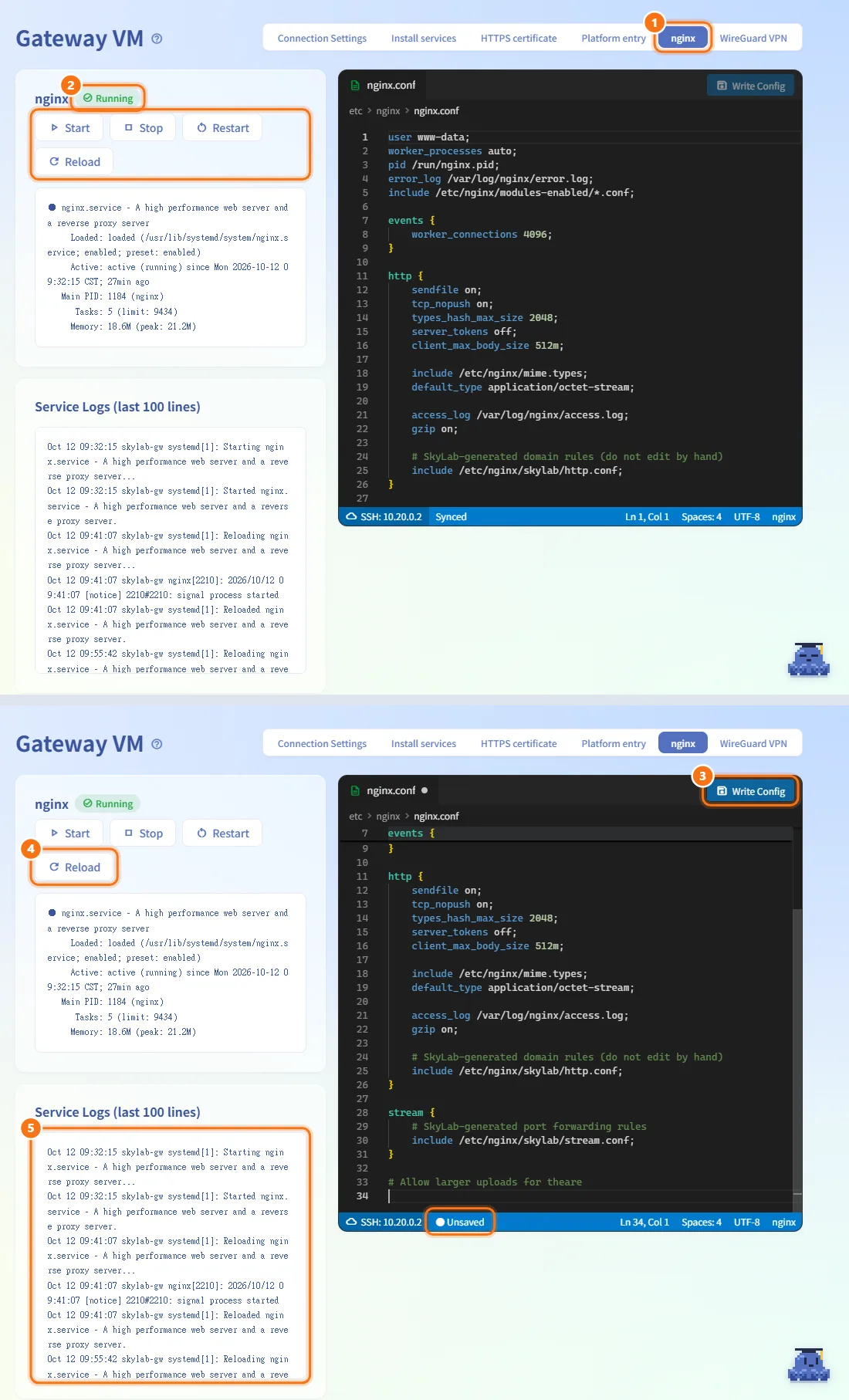
Manage nginx and edit its main configuration
- Open the nginx tab.
- The status card shows Running or Stopped with the service status text. Use Start, Stop, Restart or Reload. Stopping nginx cuts every forwarded connection.
- The editor opens
/etc/nginx/nginx.confonly. Edit it and click Write Config (or press Ctrl+S). The status bar shows ● Unsaved until it is written, then Synced. - The file is checked with
nginx -tbefore it is kept; a broken file is restored. The change takes effect only after you click Reload. - Service Logs (last 100 lines) below refresh every 10 seconds.
The forwarding rules SkyLab generates are kept in separate files and are not edited here. If the remote file cannot be read, editing and writing are disabled; click Reload in the editor once the SSH connection works again.
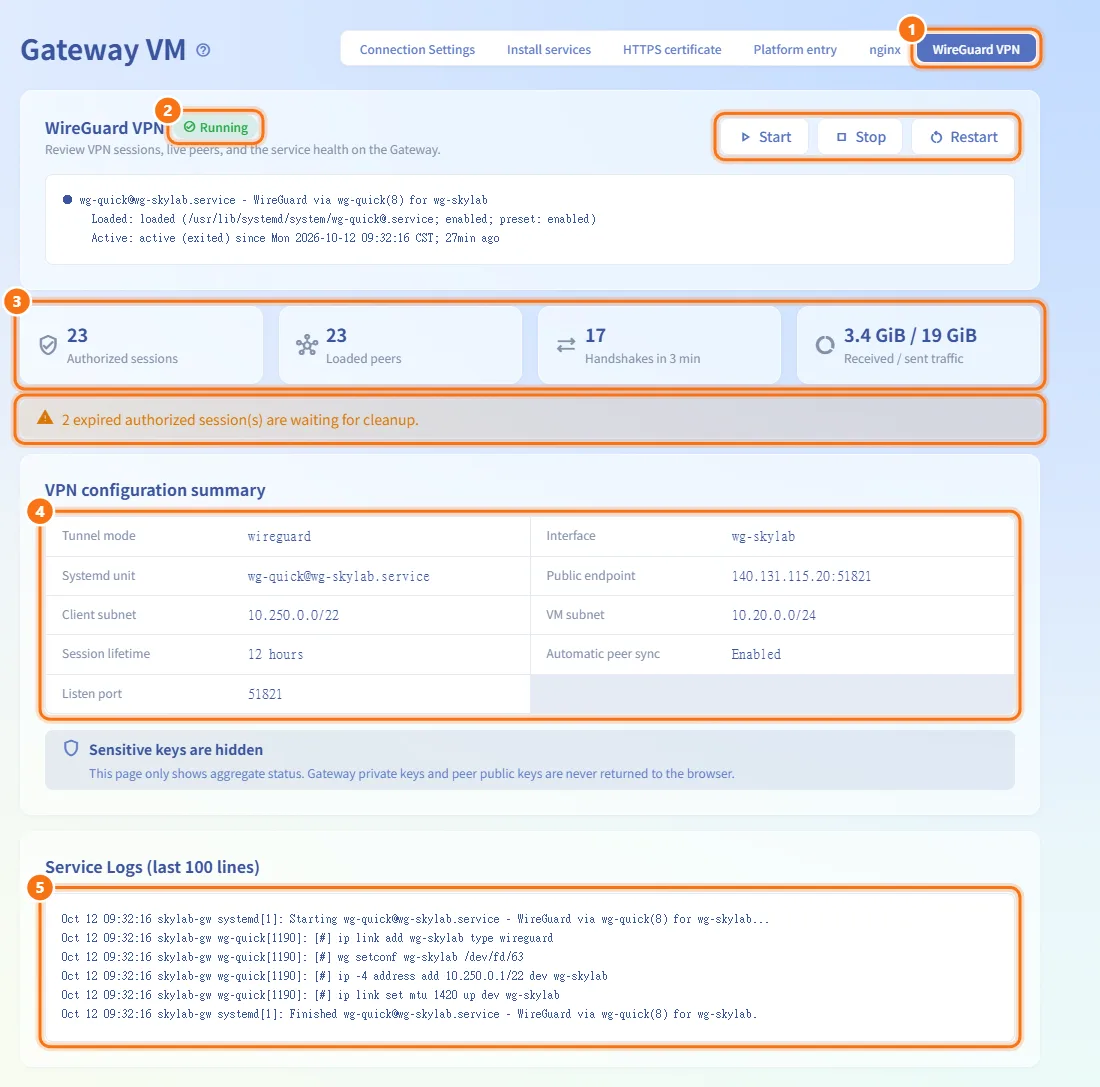
Check the WireGuard VPN
- Open the WireGuard VPN tab.
- The status card shows whether the service is running, with Start, Stop and Restart.
- The four figures show Authorized sessions, Loaded peers, Handshakes in 3 min and Received / sent traffic. A note appears when expired sessions are waiting to be cleaned up.
- VPN configuration summary lists Tunnel mode, Interface, Systemd unit, Public endpoint, Client subnet, VM subnet, Session lifetime, Automatic peer sync and Listen port.
- Service Logs (last 100 lines) are shown at the bottom.
This tab only shows aggregate figures. It never returns the Gateway's private key or any peer public key to the browser, and it does not list individual devices.
Fields and options
| Field | Meaning | Notes |
|---|---|---|
| Host / IP | Address of the Gateway for SSH | Required |
| SSH Port | SSH port of the Gateway | Default 22 |
| SSH User | Account used over SSH | Default root; must be root or have password-less sudo to install |
| Public interface (WireGuard ingress) | Network card facing the internet | Must differ from the VM internal interface |
| VM internal interface | Network card on the lab subnet | Choosing it fills in the SNAT address |
| SNAT address | IP on the VM internal interface | Must be an IPv4 address |
| WireGuard listen port (UDP) | Port the VPN listens on | Default 51821; must not fall inside the port forwarding range |
| Port forwarding start / end | Range of external ports forwarded to machines | Default 30000–39999; start not greater than end |
| Monitoring sources | Prometheus host IPs or CIDRs allowed to read the exporters | Comma-separated |
| Certificate path / Private key path | Full paths of the files on the Gateway | Both or neither; must start with / and contain no spaces, semicolons or quotes |
| Platform domain | Domain users will open | Required when enabled |
| Platform address / Platform port | Where the Gateway forwards platform traffic | Address required when enabled; port 1–65535, default 8082 |
| Enable HTTPS | Serve the platform entry over HTTPS | On by default; needs a certificate |
| Proxy through Cloudflare (orange cloud) | Users connect through Cloudflare; the Gateway's IP is not exposed | Set Cloudflare's SSL/TLS mode to Full (strict) when HTTPS is on |
Limits and behaviour to know
- Every tab except Connection Settings stays empty, with Go to connection settings, until both a host and a keypair are saved.
- Installation needs root or password-less sudo; otherwise a warning is shown and One-click install stays disabled.
- Switching tabs with unsaved changes in the nginx editor, the certificate form or the platform entry form asks you to confirm Discard Changes.
- The certificate card warns when no certificate is set up, when a file cannot be read or is not valid PEM, when the key does not match, when the certificate has expired or expires within 14 days, and when an HTTPS domain in use is not covered.
- The platform entry badge shows Out of sync with Gateway when the configuration on the Gateway differs from what is saved (for example after reinstalling). Click Save and apply to write it again.
- After enabling the platform entry, set
SKYLAB_TRUSTED_PROXYto the Gateway's address in the deployment host's.envand restart the nginx container. Without it the backend sees the Gateway as the source of every request, which breaks rate limiting and audit log addresses. - Also change
FRONTEND_HOST, the authorized origins for Google sign-in and the Turnstile domain list to the new https address, and keep a way to reach the deployment host directly in case the Gateway fails.
Related
- IP Management — the Gateway VM IP and the lab subnet
- Domain Management — Cloudflare account, zones and default DNS target
- Firewall — publish a machine's service by URL or external port
- Deployment guide — platform entry, HTTPS certificates and CI deployment
- WireGuard desktop architecture — how the desktop client uses the VPN