
Resource Scheduling
Resource Scheduling holds the placement, overcommit and scheduled-boot parameters shared by every PVE connection: how the platform picks a node for a new machine, how busy nodes are penalized, how machines are powered on before a usage window, and how long practice sessions last. Sidebar: Admin Settings → Resource Scheduling. Path: /scheduler.
Who can use it
Administrators only.
Before you start
- At least one PVE connection, synced, on PVE Management. Each cluster's own pool, storage and subnet are set on that connection, not here.
- If you are unsure about a value, keep the default.
Step by step
Change placement and overcommit
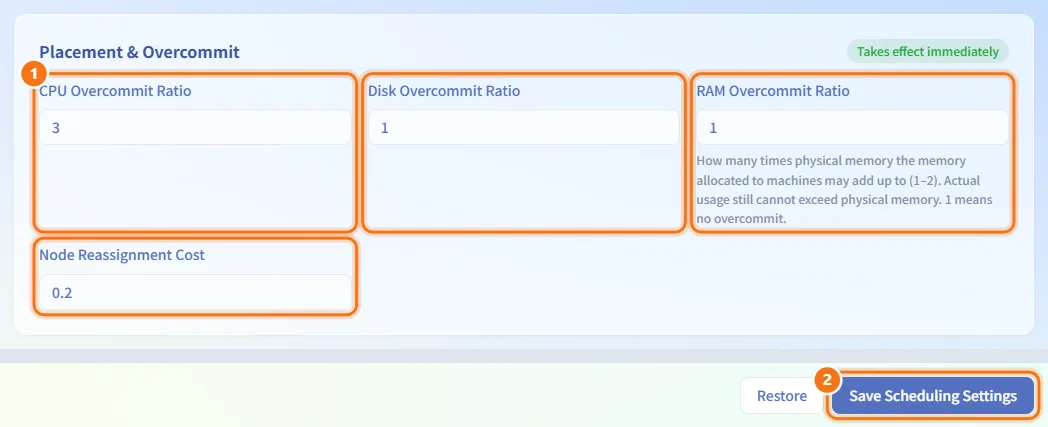
- In the Placement & Overcommit card, set CPU Overcommit Ratio, Disk Overcommit Ratio, RAM Overcommit Ratio and Node Reassignment Cost.
- Click Save Scheduling Settings.
A CPU Overcommit Ratio of 2 allows up to 2 vCPUs per physical core; a Disk Overcommit Ratio of 1 means disks are not overcommitted. A RAM Overcommit Ratio of 1 means memory is not overcommitted; at most 2, the memory allocated to machines may add up to twice the physical memory, but actual usage still cannot exceed it. The higher the Node Reassignment Cost, the more the platform prefers to keep a machine on its current node. This card is marked Takes effect immediately: the very next placement uses the new values.
Tune how busy nodes are penalized
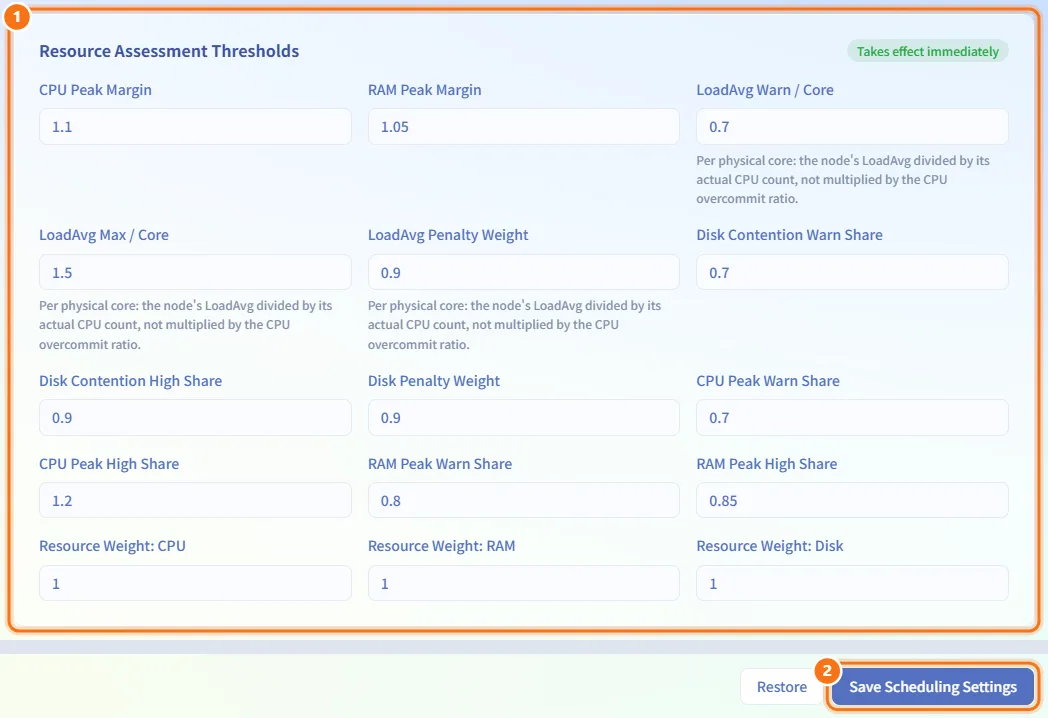
- In the Resource Assessment Thresholds card, adjust the margins, thresholds and weights.
- Click Save Scheduling Settings.
These values decide how many points a busy node loses when the platform scores nodes for a new machine. Each "Warn" value is where a penalty starts; the penalty then grows until the matching "High" or "Max" value, where it is at its largest. This card also Takes effect immediately.
Set up scheduled boots
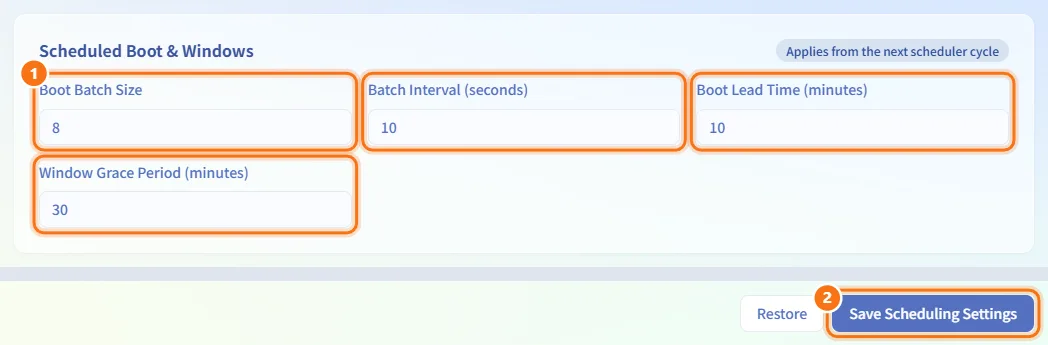
- In the Scheduled Boot & Windows card, set Boot Lead Time (minutes), Boot Batch Size, Batch Interval (seconds) and Window Grace Period (minutes).
- Click Save Scheduling Settings.
Before a usage window starts, the platform powers machines on ahead of time, a batch at a time with a pause between batches, so storage is not overwhelmed by simultaneous boots. After the window ends, it waits for the grace period before shutting the machines down. This card is marked Applies from the next scheduler cycle.
Set practice sessions and expiry warnings
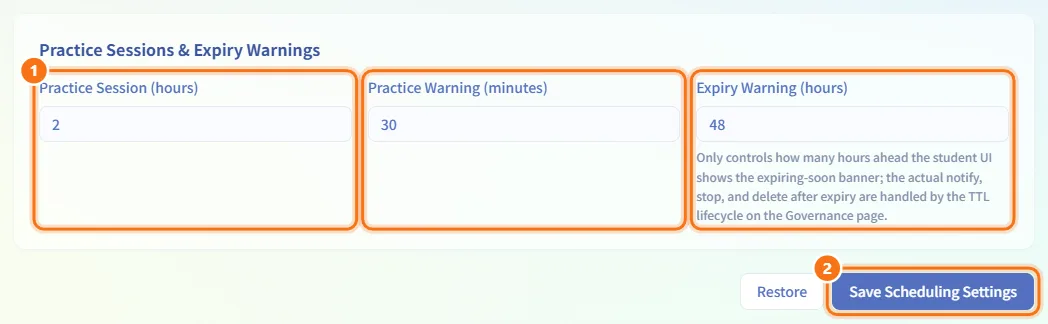
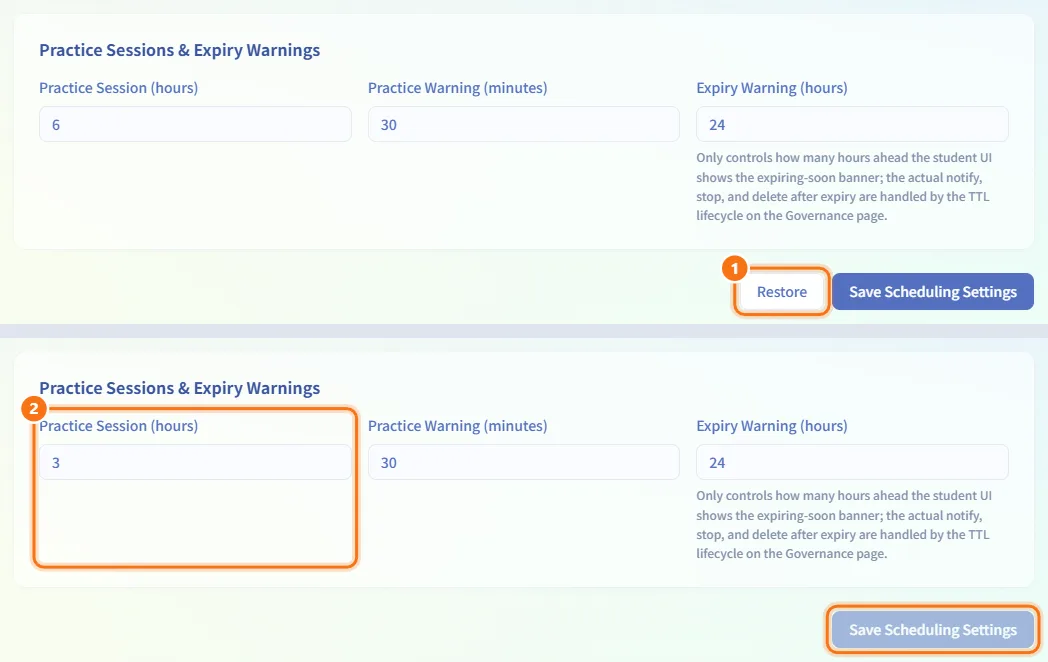
- In the Practice Sessions & Expiry Warnings card, set Practice Session (hours), Practice Warning (minutes) and Expiry Warning (hours).
- Click Save Scheduling Settings.
When a student starts a machine outside a usage window, it shuts down automatically after the practice session, with a reminder shortly before the end. Expiry Warning only controls how early students see the expiring-soon notice; notifications, shutdown and deletion after expiry are handled by the TTL lifecycle on Resource Policies.
Discard unsaved changes
- Click Restore next to the save button (shown only when something has changed).
- The form returns to the last saved values.
If you leave the page with unsaved changes, you are asked to confirm first.
Fields and options
| Field | Meaning | Notes |
|---|---|---|
| CPU Overcommit Ratio | vCPUs allowed per physical core | 1–8, default 2 |
| Disk Overcommit Ratio | Disk space allowed per unit of real capacity | 1–5, default 1 (no overcommit) |
| RAM Overcommit Ratio | Memory allocated to machines relative to physical memory; actual usage still cannot exceed physical memory | 1–2, default 1 (no overcommit) |
| Node Reassignment Cost | Preference for keeping a machine on its current node | 0–5, default 0.15 |
| CPU Peak Margin | Headroom reserved for CPU spikes | 1–2, default 1.1 |
| RAM Peak Margin | Headroom reserved for memory spikes | 1–2, default 1.05 |
| LoadAvg Warn / Core | Load average per physical core where the penalty starts | 0–4, default 0.8 |
| LoadAvg Max / Core | Load average per physical core where the penalty is full | 0.1–8, default 1.5; must be greater than LoadAvg Warn / Core |
| LoadAvg Penalty Weight | How much the load-average penalty counts | 0–5, default 0.9 |
| Disk Contention Warn Share | Storage share where the disk-contention penalty starts | 0–1.5, default 0.7 |
| Disk Contention High Share | Storage share where the disk-contention penalty is full | 0.1–2, default 0.9; must be greater than the warn share |
| Disk Penalty Weight | How much the disk-contention penalty counts | 0–5, default 0.75 |
| CPU Peak Warn Share | CPU share where the CPU penalty starts | 0–2, default 0.7 |
| CPU Peak High Share | CPU share where the CPU penalty is full | 0.1–3, default 1.2 |
| RAM Peak Warn Share | Memory share where the memory penalty starts | 0–2, default 0.8 |
| RAM Peak High Share | Memory share where the memory penalty is full | 0.1–3, default 0.85 |
| Resource Weight: CPU / RAM / Disk | How much each resource matters when nodes are compared | 0–10 each, default 1 |
| Boot Batch Size | Machines powered on per batch | 1–100, default 5 |
| Batch Interval (seconds) | Pause between boot batches | 0–600, default 10 |
| Boot Lead Time (minutes) | How early machines are powered on before a window | 0–120, default 5 |
| Window Grace Period (minutes) | Wait after a window ends before shutting down | 0–240, default 30 |
| Practice Session (hours) | Run time of a machine started outside a window | 1–24, default 3 |
| Practice Warning (minutes) | Reminder before a practice session ends | 1–120, default 30 |
| Expiry Warning (hours) | How early students see the expiring-soon notice | 1–720, default 24 |
LoadAvg values are always per physical core: the node's load average divided by its real CPU count, not multiplied by the CPU overcommit ratio.
Limits and behaviour to know
- All four cards share one Save Scheduling Settings button, which is only available after a change.
- Saving is refused if LoadAvg Max / Core is not greater than LoadAvg Warn / Core, or if Disk Contention High Share is not greater than Disk Contention Warn Share.
- The platform's scheduler runs once every 60 seconds. Each round it starts and stops machines for usage windows, runs scheduled boots and automatic shutdowns, handles expired requests and the deletion queue, manages quick-practice machines, and runs the governance checks set on Resource Policies (resource alerts, TTL lifecycle, idle detection, mining detection, snapshot cleanup) as well as platform health checks. When several backend copies run, only one of them runs the scheduler at a time.
- Settings marked Applies from the next scheduler cycle are picked up at the next 60-second round.
- Node availability (enabled or disabled) and node priority are set per node on PVE Management, not here.
Related
- PVE Management — per-cluster pool, storage, subnet, nodes and node priority
- Resource Policies — TTL lifecycle, idle shutdown and other automatic rules
- Storage — storage speed tiers and priorities used when picking a storage
- Resource Monitoring — live node load